
If your Google Pixel 9 Pro is taking forever to load a webpage or buffer a video, it can really kill your productivity. The Tensor G4 chip is powerful, but sometimes the modem or a software setting can hold your connection back.
I'd start by checking the most common culprit, which is often a simple toggle in your network settings. Open the Settings app and go to Network & internet > Internet. Tap the gear icon next to your connected Wi-Fi network and look for the "MAC address type" option.
Change it from "Phone MAC" to "Randomized MAC". Some routers have issues with the randomized address that Android uses for privacy. Switching it back to the phone's hardware MAC can instantly stabilize a flaky connection.
Reset Your Network Settings
When multiple things seem off, Wi-Fi is slow, Bluetooth is spotty, or mobile data won't connect, a network reset is your best bet. This clears all your saved Wi-Fi networks, Bluetooth pairings, and cellular preferences back to factory defaults.
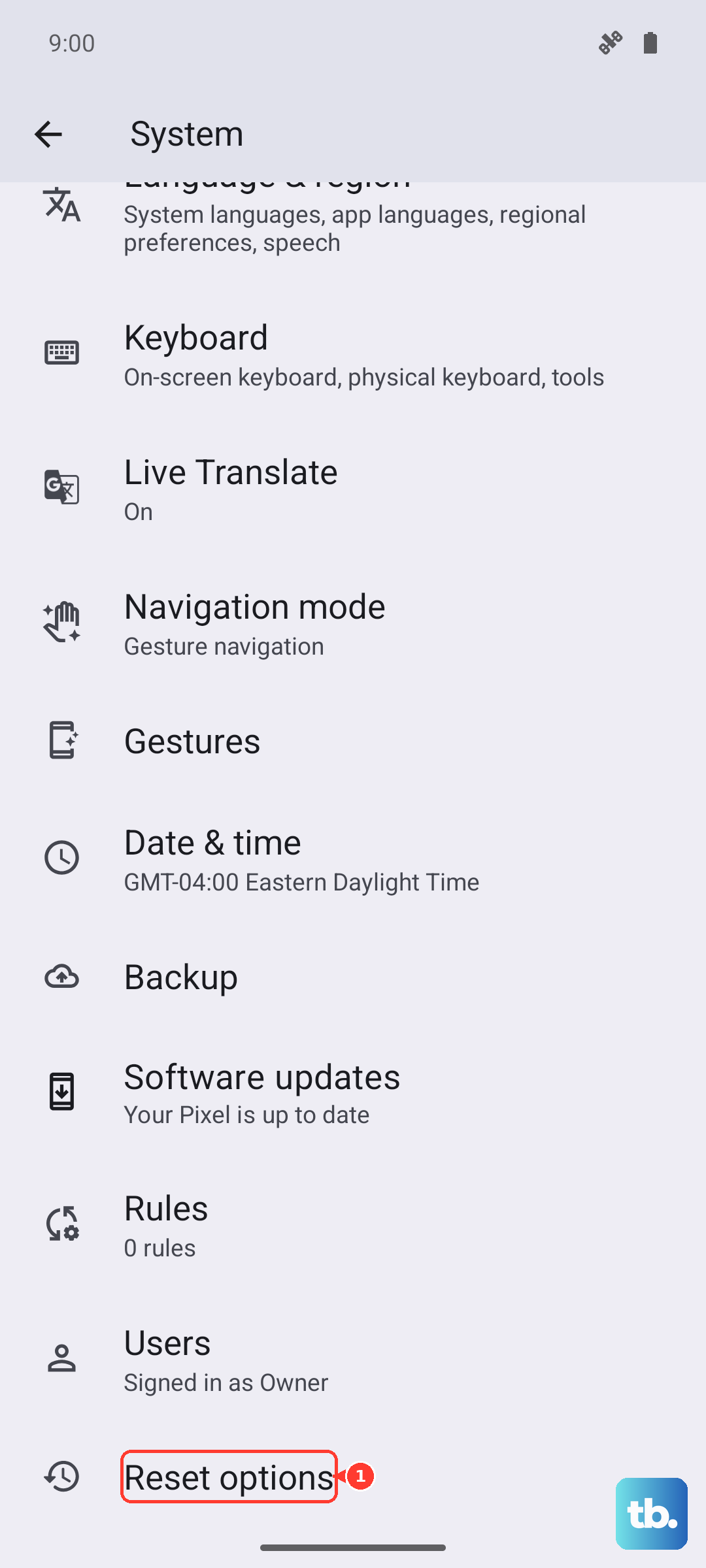
Go to Settings > System > Reset options. Tap on "Reset Wi-Fi, mobile & Bluetooth". You'll need to re-enter your Wi-Fi passwords and re-pair devices like headphones or your watch, but it often resolves deep-seated glitches.
Check Your Preferred Network Type
Your Pixel 9 Pro might be clinging to a slower network type. You can manually tell it to prefer 5G for the fastest speeds, though this may use more battery. Head to Settings > Network & internet > SIMs.
Tap on your active SIM and select "Preferred network type". Choose "5G" to prioritize it. If you're in an area with weak 5G, switching to "LTE" can sometimes give you a more stable and consistent speed.
Disable Adaptive Connectivity
This feature is designed to save battery by switching between Wi-Fi and mobile data based on network quality. In practice, it can sometimes be too aggressive and slow you down while it decides.
To turn it off, go to Settings > Network & internet and tap on "Adaptive connectivity". Toggle the switch off. This keeps your phone on your chosen network without it trying to second-guess the connection.
Manage Data Usage for Specific Apps
A single app might be hogging bandwidth in the background. You can restrict this on a per-app basis. Go to Settings > Apps and select the app you suspect.
Tap on "Mobile data & Wi-Fi". Here, you can toggle off "Background data" to stop it from using the internet when you're not actively using it. For apps like social media or email, this can cut down on a lot of unnecessary data use.
Clear the Cache for Google Play Services
This system app manages connections for many Google services. Corrupted cache data here can cause all sorts of network weirdness. Go to Settings > Apps > See all apps.
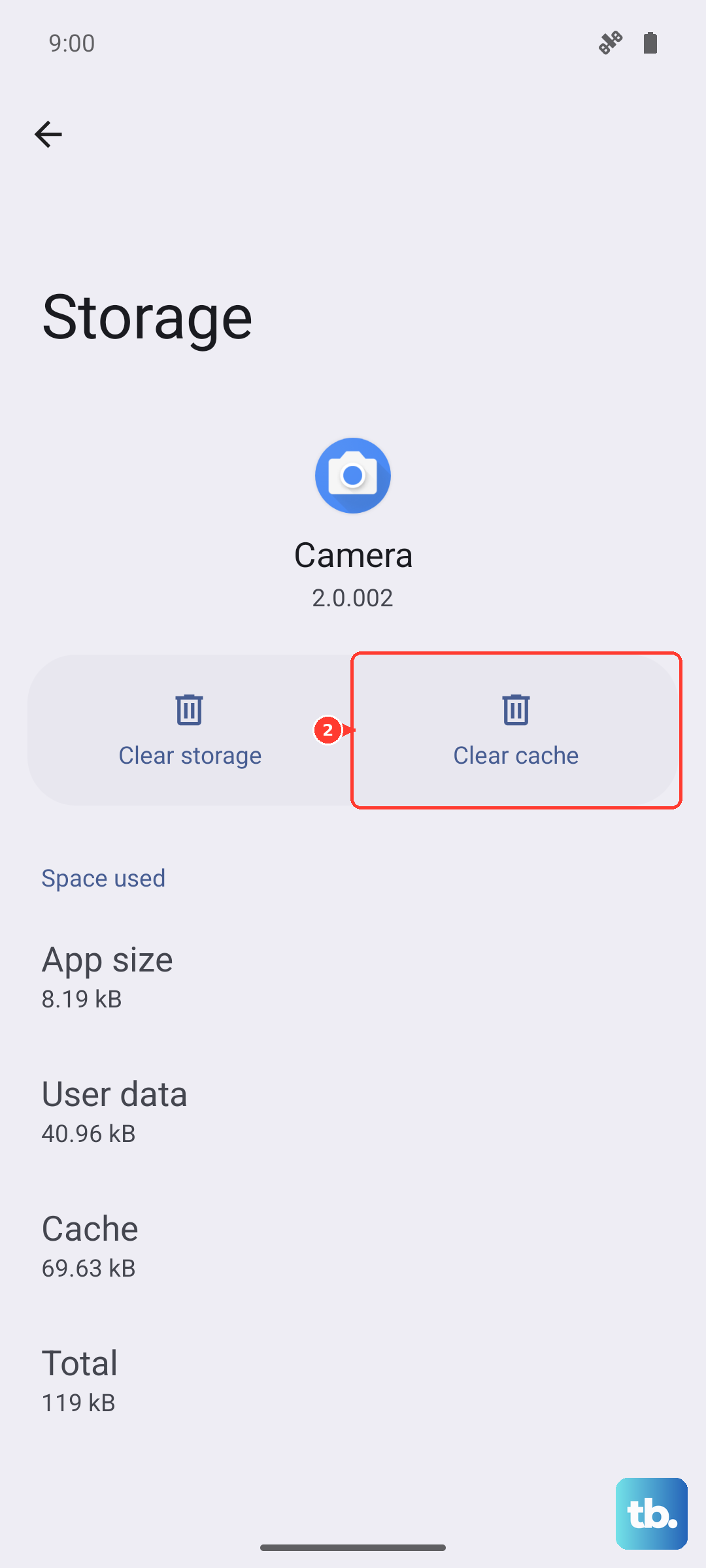
Find "Google Play Services" in the list (you may need to tap "Show system" in the three-dot menu). Tap on it, then go to Storage & cache. Tap "Clear cache". This doesn't delete any personal data.
Try Safe Mode to Rule Out Apps
If the slowdown started after installing a new app, boot into Safe Mode. This temporarily disables all third-party apps. Press and hold the Power button and Volume Up button together until the power menu appears.
Then, press and hold the "Power off" option on your screen. A prompt will appear asking if you want to reboot to Safe Mode. Tap "OK". If your internet is fast in Safe Mode, a recently downloaded app is likely the cause.
Check for a Software Update
Google frequently releases updates that include modem and connectivity improvements. An outdated version of Android 15 could be your problem. Go to Settings > System > System update.
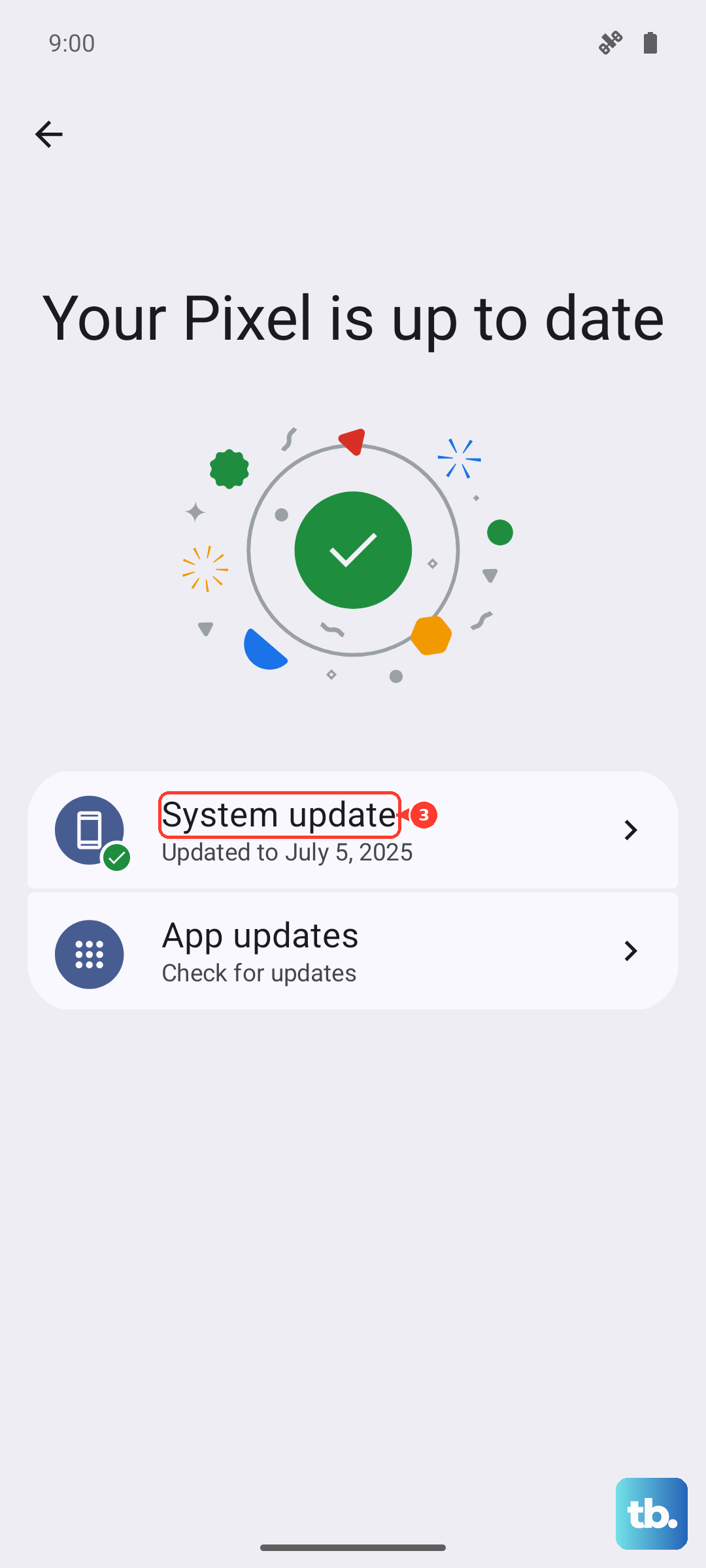
Tap "Check for update". If one is available, install it. It's a good idea to be on Wi-Fi and have your phone plugged into its 27W charger for this process, as it can take a few minutes.
Perform a Force Restart
This is different from a normal restart and can clear temporary hardware states that affect the modem. To restart, press and hold the Power and Volume Up buttons for a few seconds, then tap Restart; if the screen is unresponsive, press and hold the Power button for about 35 seconds to force a reboot. Ignore the power menu that pops up and keep holding.
The screen will go black and the Google logo will appear as the phone reboots. This is a completely safe first step that fixes a lot of transient issues, especially if the phone has been running warm.
Review Your DNS Settings
Your Internet Service Provider's default DNS can sometimes be slow. Changing it to a public DNS like Google's or Cloudflare's can speed up how quickly website addresses are resolved. Go to Settings > Network & internet > Private DNS.
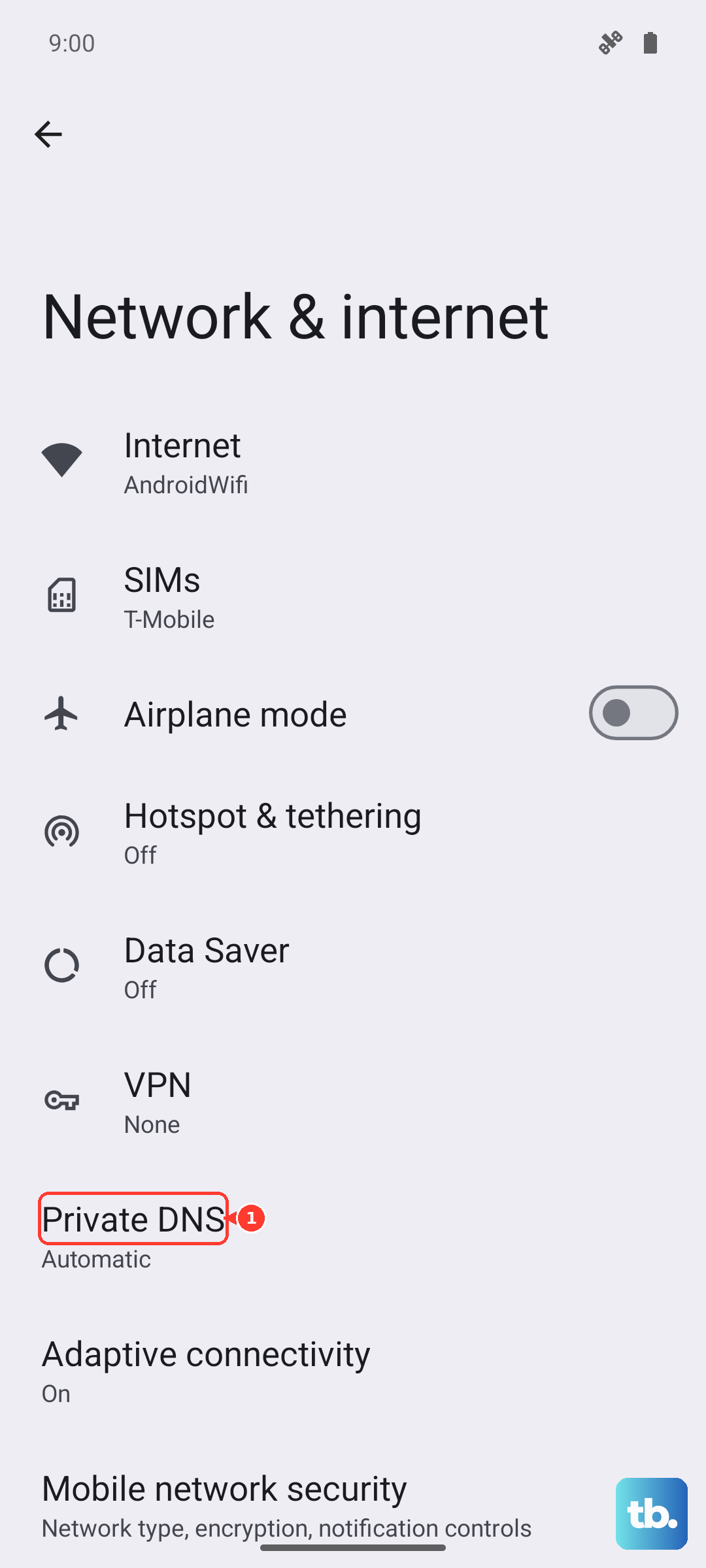
Select "Private DNS provider hostname" and enter "dns.google" (for Google DNS) or "one.one.one.one" (for Cloudflare). This change applies to both Wi-Fi and mobile data and can make a noticeable difference in browsing speed.