
If your Google Pixel 9 Pro is getting uncomfortably warm, the first thing I'd try is a simple restart. Press and hold the power button for about 30 seconds until you see the Google logo appear. This force restart can clear out any temporary software glitches that might be causing the processor to work overtime and generate excess heat.
It's a quick fix that takes less than a minute and often resolves random overheating episodes.
Check for Rogue Apps and Background Activity
Android 15 is pretty good at managing resources, but sometimes a single misbehaving app can cause problems. Head to Settings > Battery to see which apps have been using the most power recently. If you see an app with unusually high usage, that's a prime suspect.
You can try force stopping it from that same menu. For a deeper look, go to Settings > Developer options and check "Running services." If you don't see Developer options, you'll need to enable it first by tapping the build number in Settings > About phone seven times.
Manage Your Camera and AI Feature Use
The Pixel 9 Pro's camera is incredible, but it's also a known source of heat. The Tensor G4 chip works hard when processing photos, especially with features like Magic Eraser in Google Photos or during extended video recording. It's normal for the phone to get warm during a long photo session, but if it's getting hot during quick snaps, that's a sign something's off.
Try closing the Camera app completely when you're done using it. Also, consider temporarily disabling "Top Shot" or other AI-assisted features to see if the temperature improves. You can always turn them back on later.
Adjust Your Display and Performance Settings
A super-bright screen and a high refresh rate are great, but they also draw a lot of power and generate heat. Try reducing the screen brightness manually, even just a little. You can also switch the refresh rate from Smooth display (120Hz) to Standard (60Hz) in Settings > Display.
For a more comprehensive approach, enabling Battery Saver mode is very effective. It limits background activity and caps performance, which can immediately cool things down. You can find it in your quick settings panel or in Settings > Battery.
Update Your Software
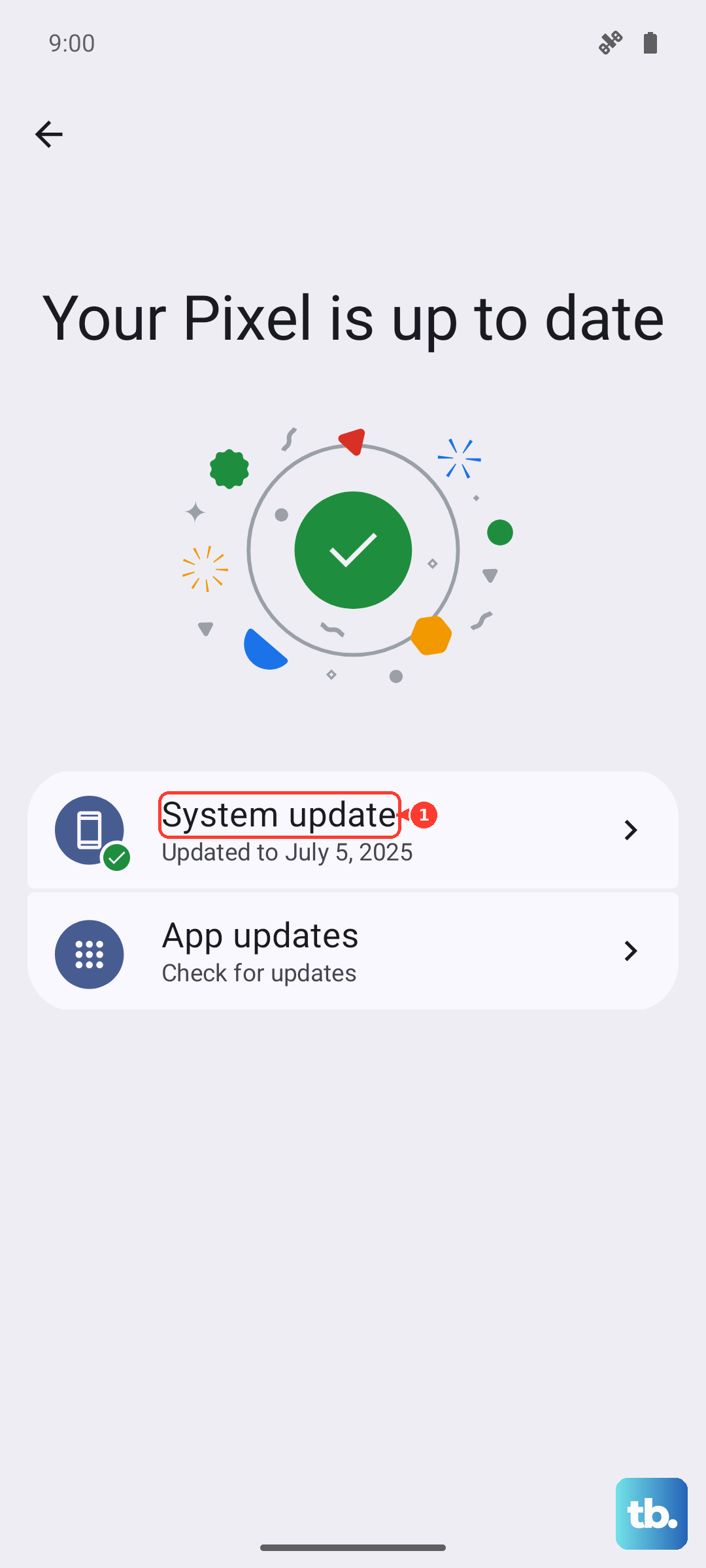
Google frequently releases updates that include performance optimizations and thermal management improvements. Make sure your phone is running the latest version of Android and the latest security patch.
Go to Settings > System > System update to check. It's also a good idea to check for app updates in the Google Play Store, as developers often release fixes for bugs that cause high battery and CPU usage.
Be Smart About Charging
Charging naturally produces heat. If your phone is overheating primarily while plugged in, take a look at your setup. First, make sure you're using a compatible 27W or higher USB-C PD charger and a high-quality cable for the fastest, most efficient wired charging.
For wireless charging, the official Google Pixel Stand (2nd gen) will give you the full 21W. Other Qi chargers will be slower, around 12W. I'd recommend enabling Adaptive Charging in Settings > Battery for overnight charges. It slows down the charging speed to complete by your morning alarm, which generates less heat and is better for long-term battery health.
Avoid using the phone intensively, especially for gaming or video, while it's charging. If it must charge, take the case off to help with ventilation.
Review Your Connectivity Settings
Constantly searching for a weak signal can make the modem work harder. The Tensor G4's modem has been noted to be less efficient than some competitors, which can contribute to warmth. If you're in an area with poor 5G coverage, try switching your network mode to 4G/LTE.
You can do this by going to Settings > Network & internet > Internet, tapping the gear icon next to your carrier, and changing "Preferred network type." Also, turn off Wi-Fi, Bluetooth, and Location services when you aren't actively using them.
Give Your Phone a Break and Cool Down
If the phone is already hot, the best thing you can do is stop using it for a bit. Close all your apps and set it down on a cool, hard surface like a table. Avoid leaving it on a sofa, bed, or in direct sunlight, as those surfaces trap heat.
Never put it in the refrigerator or freezer, as the sudden extreme temperature change can cause condensation inside the device. Just let it cool down naturally in a room-temperature environment.
Consider Your Environment and Case
What's going on around your phone matters. Using your Pixel 9 Pro in a hot car or in direct summer sun will cause it to heat up much faster. Similarly, a thick or poorly ventilated case can act like a blanket, insulating the heat.
Try removing the case when you're at home or when you notice things getting warm. If you're frequently in hot environments, a thinner, more breathable case might be a better choice for daily use.