You tap send on a message from your Pixel 9 Pro, and the text just sits there with an error, refuses to go through, or quietly fails while picture messages stall forever. It is frustrating when a phone this capable cannot do something as basic as send a text, especially when friends and family are waiting to hear back. The good news is that your Pixel 9 Pro fully supports SMS, MMS, and RCS chats through Google Messages, so the problem is almost always a setting, a software hiccup, or a carrier issue rather than the hardware itself. Work through the fixes below in order, starting with the quickest and safest, and you should have your messages flowing again before you reach the bottom.
Start With Signal and Airplane Mode
Before changing any deep settings, confirm the basics, because a text needs a working mobile connection to leave your phone. The official Messages troubleshooting guidance says to see if you have signal and to check whether you are on airplane mode. Sending a standard text relies on cellular service, while RCS can also travel over Wi-Fi, but SMS and MMS need the mobile network.
Glance at the status bar for a mobile signal indicator. If airplane mode is on, turn it off at Settings > Network & Internet, then wait a moment for the phone to reconnect to your carrier and try sending again.
Give Your Pixel 9 Pro a Restart
A quick restart clears the temporary glitches that quietly block messages from sending. It costs you nothing and resolves a surprising number of texting problems on its own.
On the Pixel 9 Pro (this applies to Pixel 6 and later), press and hold the Power button + Volume up button for a few seconds, then tap Restart. If the phone is frozen and will not respond at all, force restart it instead. Press and hold the Power button for up to 60 seconds, and once your phone begins to reboot and the screen displays the "G" logo, release the Power button.
Confirm Google Messages Is Your Default Texting App
Texts can fail when a non-default app is trying to handle them in the background. The official guidance is to verify that Google Messages is set as your default texting app.
On the Pixel, go to Settings > Apps > Default apps > SMS app and select Messages. This works on Android 14 and up, and your Pixel 9 Pro will be running Android 14 or a later version.
Update Google Messages and Your System Software
Outdated software is one of the most common reasons texting breaks, and updates often carry the exact fix you need. The official advice is to make sure you have the most updated version of Google Messages.
- 1.Open the Play Store, tap your profile icon, then go to Manage apps & devices and update Google Messages if an update is available.
- 2.Install any pending system update at Settings > System > Software update, then follow the on-screen steps to finish.
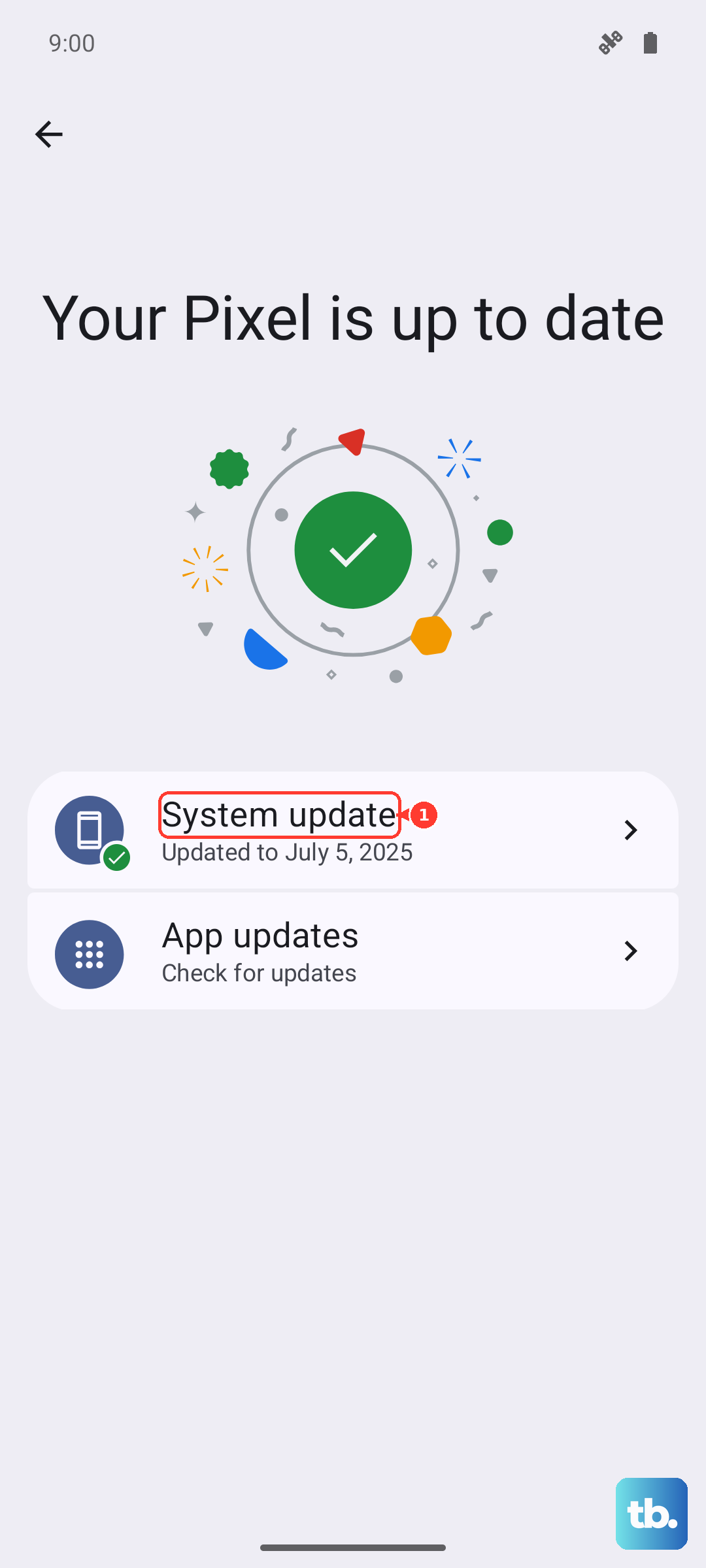
Letting both the app and the operating system update rules out a known, already-patched bug as the cause.
Check the Right SIM Is Sending Your Texts
The Pixel 9 Pro is a dual-SIM device, with one physical nano-SIM plus an eSIM, so texts can fail if the wrong SIM is assigned for messaging. It is easy to overlook this after adding a second line.
Go to Settings > Network & Internet > SIMs and confirm that 'Use SIM' is on for your carrier. Then, under 'Your primary SIMs,' tap Texts to pick the SIM you want to send messages from.
If you rely on a physical SIM, the official guidance also advises ensuring it is inserted properly. You can remove the tray with the ejector tool, inspect and gently clean the SIM, then reinsert it firmly and try again.
Rule Out Your Carrier, Balance, and the Recipient
Sometimes the phone is fine and the block is on the account or contact side. The official guidance is to make sure that your carrier supports SMS, MMS, or RCS messaging, and to check your plan or credit balance to see that you have enough to send and receive.
If only one person fails to receive your texts, verify their number is entered correctly. You can specify a country code if needed (for example, +1 for US numbers), or delete and re-add the contact to clear a bad entry.
Fix Picture and Group Messages That Will Not Send
MMS, which covers picture and group messages, behaves differently from plain text because it needs mobile data to send. If your normal texts work but photos and group threads fail, this is usually why.
First, turn on mobile data at Settings > Network & Internet > SIMs so the phone has a data connection. The official guidance is to ensure that you have a data connection and, in your device's settings app, to reset your APN settings to default before retrying a picture or group message.
Switching From iPhone and Managing RCS Chats
If you recently moved from an iPhone, messages can vanish because iMessage is still holding your number. The official guidance is, if you are switching from an iPhone, to make sure you have deactivated iMessage.
Separately, if you changed messaging apps and stopped receiving messages, you may need to turn off RCS chats. To manage RCS on the Pixel, open Google Messages, tap your Profile picture or Initial, go to Messages settings > RCS chats, and toggle RCS chats on or off.
Be deliberate here, because the official guidance cautions that it is not advised to turn RCS chats on and off casually, since doing so can remove you from group chats. If you cannot access the phone (for example, you have already moved to a new device), use the deactivation portal at messages.google.com to turn RCS off remotely.
Clear the Messages Cache and Free Up Storage
A corrupted cache or a phone that is out of space can quietly stop messages from going out. The official guidance notes that Messages may not send or receive messages until more space is available.
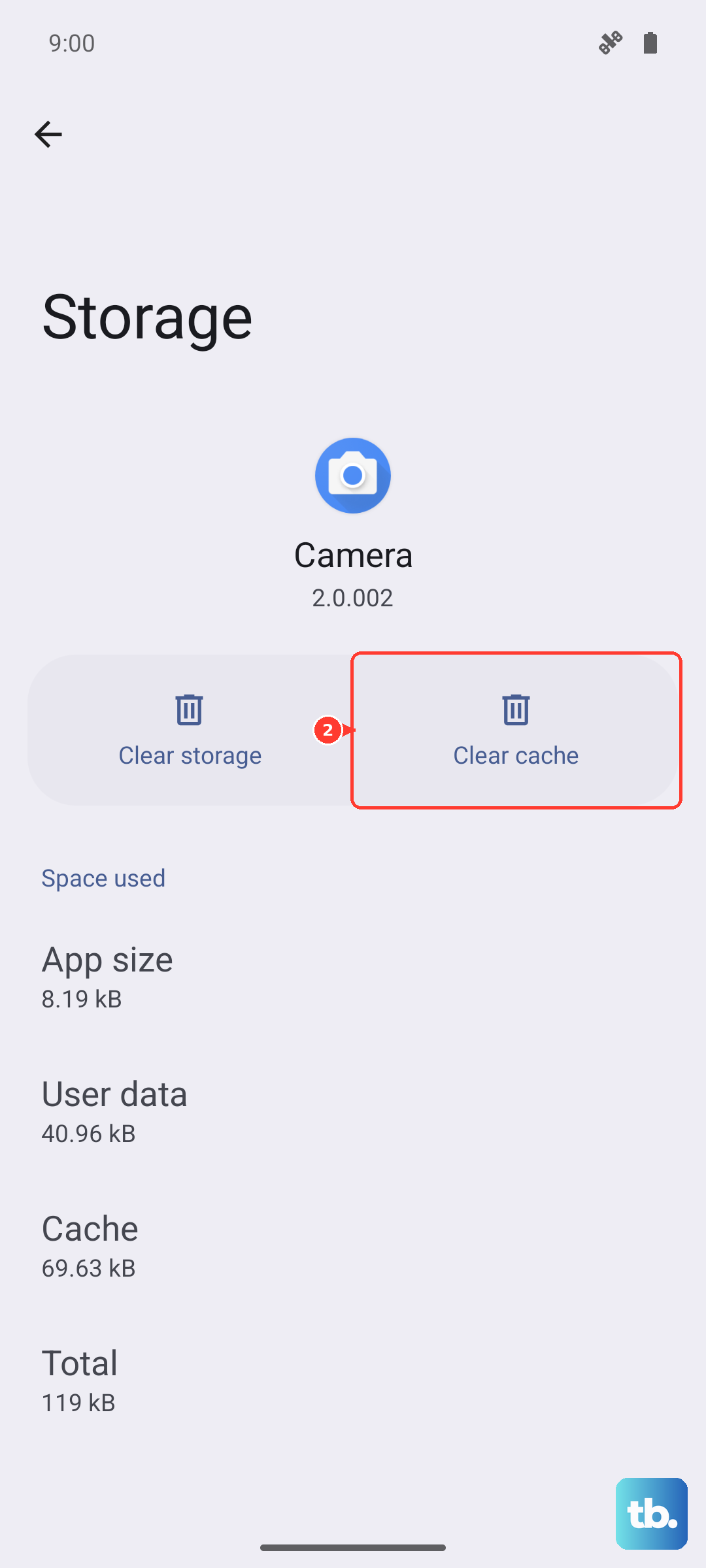
- 1.Clear the app cache at Settings > Apps > See all apps > Messages > Storage & cache > Clear cache. Use Clear storage only as a stronger step, since it erases the app's data.
- 2.Make room on the device at Settings > Storage > Free up space, then try sending again.
Reset Your Network Settings
If messages still refuse to send after everything above, resetting the network configuration gives the phone a clean connection to rebuild. This clears saved Wi-Fi, mobile, and Bluetooth settings so your Pixel 9 Pro re-establishes its mobile link.
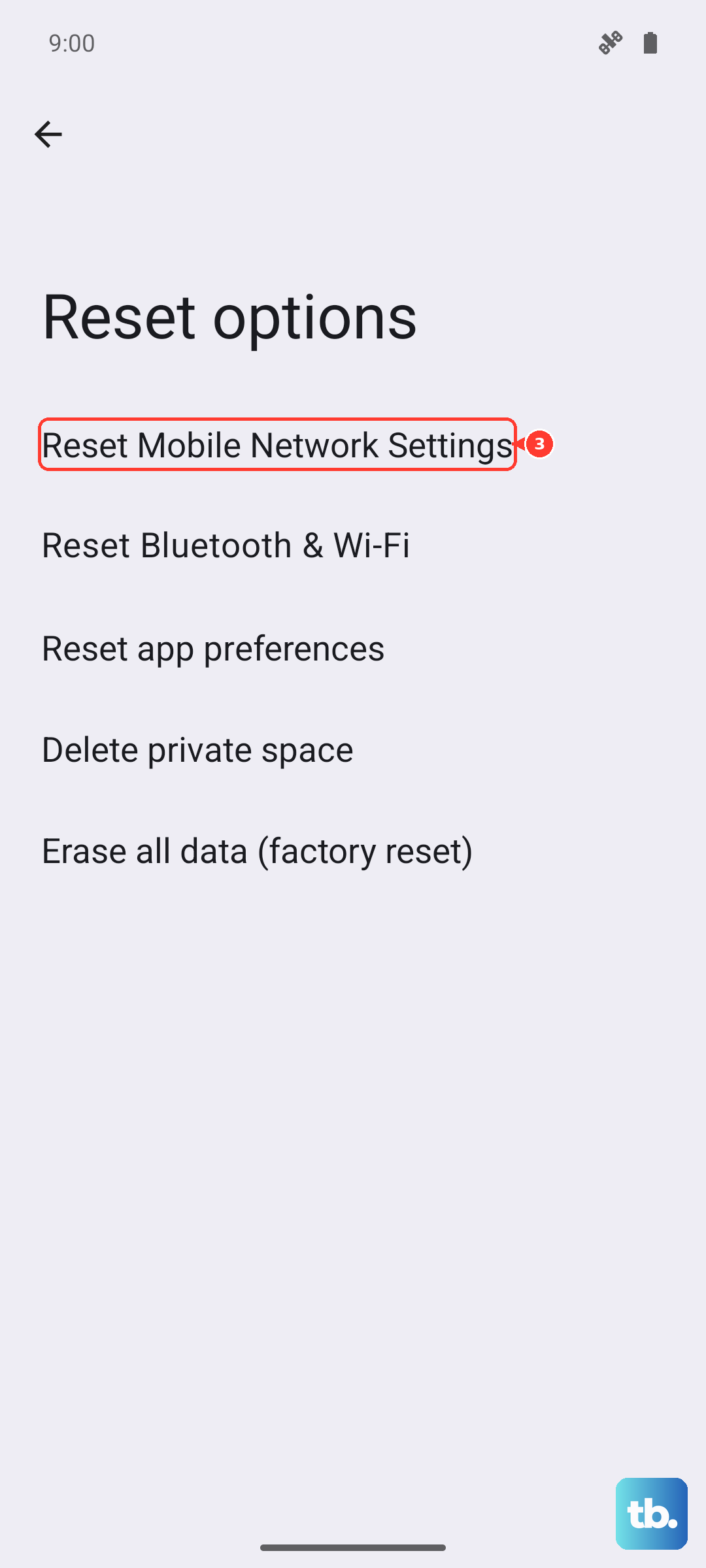
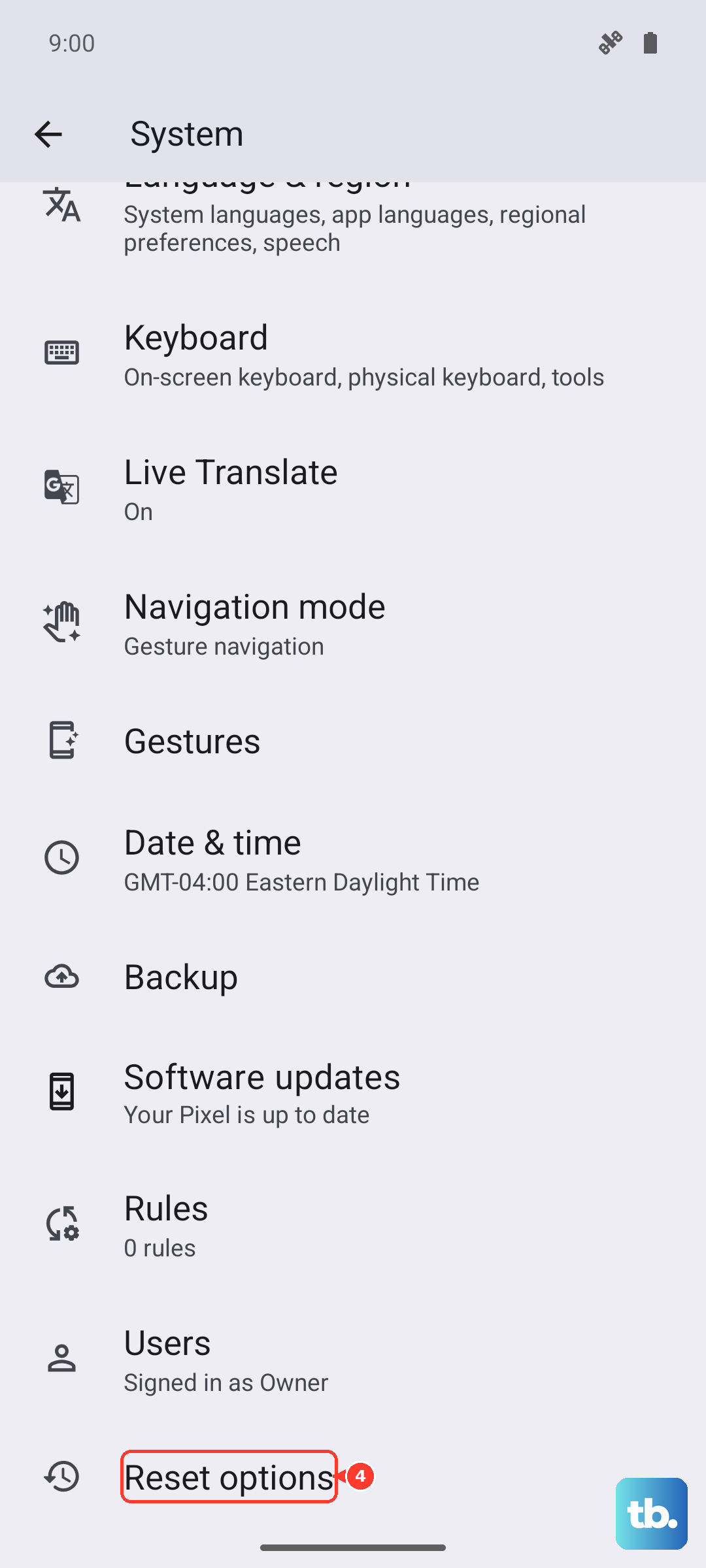
Go to Settings > System > Reset options > Reset Wi-Fi, mobile & Bluetooth (this may also appear as 'Reset mobile network settings'), then tap Reset settings. You will need to reconnect to Wi-Fi networks afterward, so keep your passwords handy.
The Last Resort and When to Call for Help
If nothing else has worked, a factory reset is the final on-device step, but treat it carefully. The official warning is clear, because a factory reset erases all your data from your phone.
Before you begin, charge to at least 70%, connect to Wi-Fi or a mobile network, and confirm your data is backed up and synced to your Google Account. Then go to Settings > System > Reset options > Erase all data (factory reset) > Erase all data, entering your PIN if asked.
If texting still fails after a reset, the problem is almost certainly carrier or account-side. Contact your carrier to confirm your SMS and MMS provisioning and to check for outages, or reach out to Google Pixel support for further help.
Frequently Asked Questions
Why do my regular texts send but picture messages fail on my Pixel 9 Pro?
Picture and group messages use MMS, which requires a mobile data connection rather than just cellular signal. Turn on mobile data at Settings > Network & Internet > SIMs, and if MMS still fails, reset your APN settings to default in the device's Settings app before retrying.
I just switched from an iPhone and people are not getting my texts. What do I do?
If iMessage is still active on your old number, messages from other iPhone users can get trapped there. Make sure you have deactivated iMessage so those messages route to your Pixel 9 Pro as standard texts.
Should I turn RCS chats off if my texts are not sending?
Turning RCS off can help if you changed messaging apps and stopped receiving messages, but it is not advised to toggle RCS chats casually because you can be removed from group chats. If you cannot reach the phone, use the deactivation portal at messages.google.com to turn RCS off remotely.
How do I force restart my Pixel 9 Pro if it is frozen and texts are stuck?
Press and hold the Power button for up to 60 seconds, and once the phone begins to reboot and the screen displays the "G" logo, release the Power button. This recovers a frozen or unresponsive Pixel 9 Pro without erasing any data.
Which SIM does my Pixel 9 Pro use to send texts?
Because the Pixel 9 Pro supports dual SIM (a physical nano-SIM plus an eSIM), you choose the messaging SIM at Settings > Network & Internet > SIMs. Confirm 'Use SIM' is on for your carrier, then under 'Your primary SIMs,' tap Texts to assign the SIM that sends your messages.