
When your Google Pixel 9 Pro's microphone stops picking up your voice, it can turn simple tasks into a hassle. Calls drop to silence, voice messages won't send, and Google Assistant just stares back at you. Let's start by figuring out which mic is acting up, as your phone has a few of them.
Before changing any settings, it helps to know whether the microphone registers anything at all. Run a quick quick mic test in your browser, speak normally, and watch the level meter. If it moves, the hardware works and the fixes below will take care of the rest.
Test Your Pixel 9 Pro Microphone
Open the Google Recorder app, which comes pre-installed on your Pixel. Tap the red record button and speak a few sentences at a normal volume. Play it back to see if your voice is clear or muffled.
You can also test it by asking Google Assistant a question. Just say "Hey Google" or press and hold the power button. If it doesn't respond or consistently mishears you, that's a good sign the primary microphone has an issue.
For the rear microphone used in video, open the Camera app and switch to video mode. Record a short clip while talking, then check the audio playback. This helps pinpoint if the problem is with a specific mic.
Quick Fixes to Try Immediately
First, take off your phone case. Some cases, especially rugged ones with port covers, can accidentally block the microphone holes. It's a simple check that fixes the problem more often than you'd think.
Next, give your Pixel a restart. A quick reboot can clear out temporary software glitches that might be interfering with the audio system. Just press and hold the power and Volume Up buttons, then tap "Restart" on your screen.
Check your Bluetooth connections. If you have Pixel Buds or any other wireless headphones paired, your phone might be routing all audio through them. Go to Settings > Connected devices and disconnect or turn off Bluetooth temporarily to test the built-in mics.
Check for Physical Blockages
Your Pixel 9 Pro has microphone ports along the bottom edge, near the USB-C charging port, and at the top of the frame. Grab a bright light and look closely at these tiny holes for any packed-in lint or debris.
You can gently clean them with a soft, dry toothbrush or a can of compressed air. Avoid using anything sharp like a pin, as you could easily damage the sensitive microphone diaphragm inside.
Review App Permissions and Settings
If the microphone only fails in certain apps like WhatsApp, Zoom, or Discord, the app might have lost permission. Go to Settings > Security & Privacy > Privacy > Permission manager > Microphone (on Samsung Galaxy phones, go to Settings > Security and privacy > Permission manager > Microphone). Here, you'll see a list of all apps and can toggle access back on for any that need it.
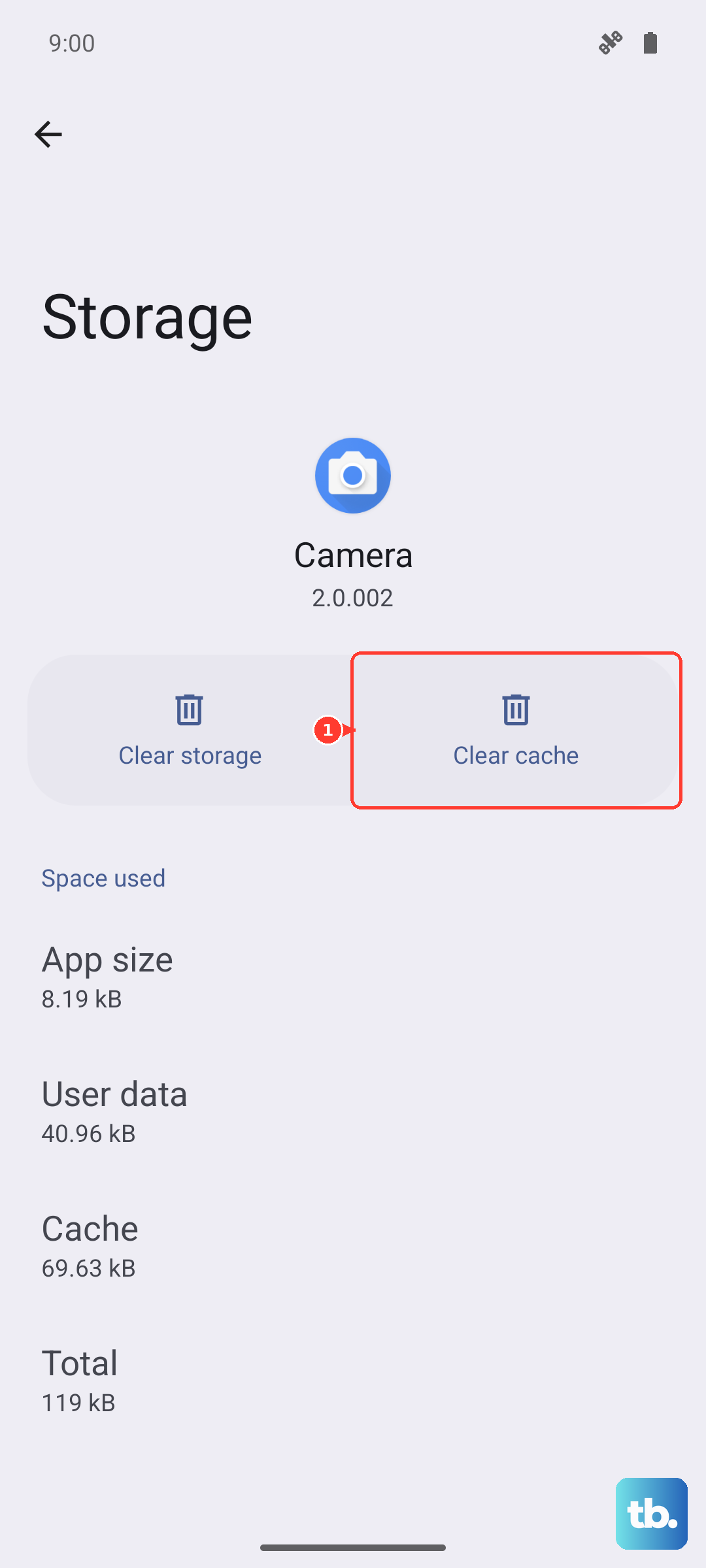
Sometimes, an app itself gets buggy. Force close the problematic app by swiping it away from the recent apps view, then open it fresh. If that doesn't help, try clearing the app's cache. Go to Settings > Apps, select the app, then tap Storage & cache > Clear cache.
Update Your Software
Google is consistently rolling out updates for Pixel devices to fix bugs. A microphone issue could be related to a software bug that's already been patched. Go to Settings > System > Software update (labeled System update on some phones, including Nothing devices) to check for and install any available updates.
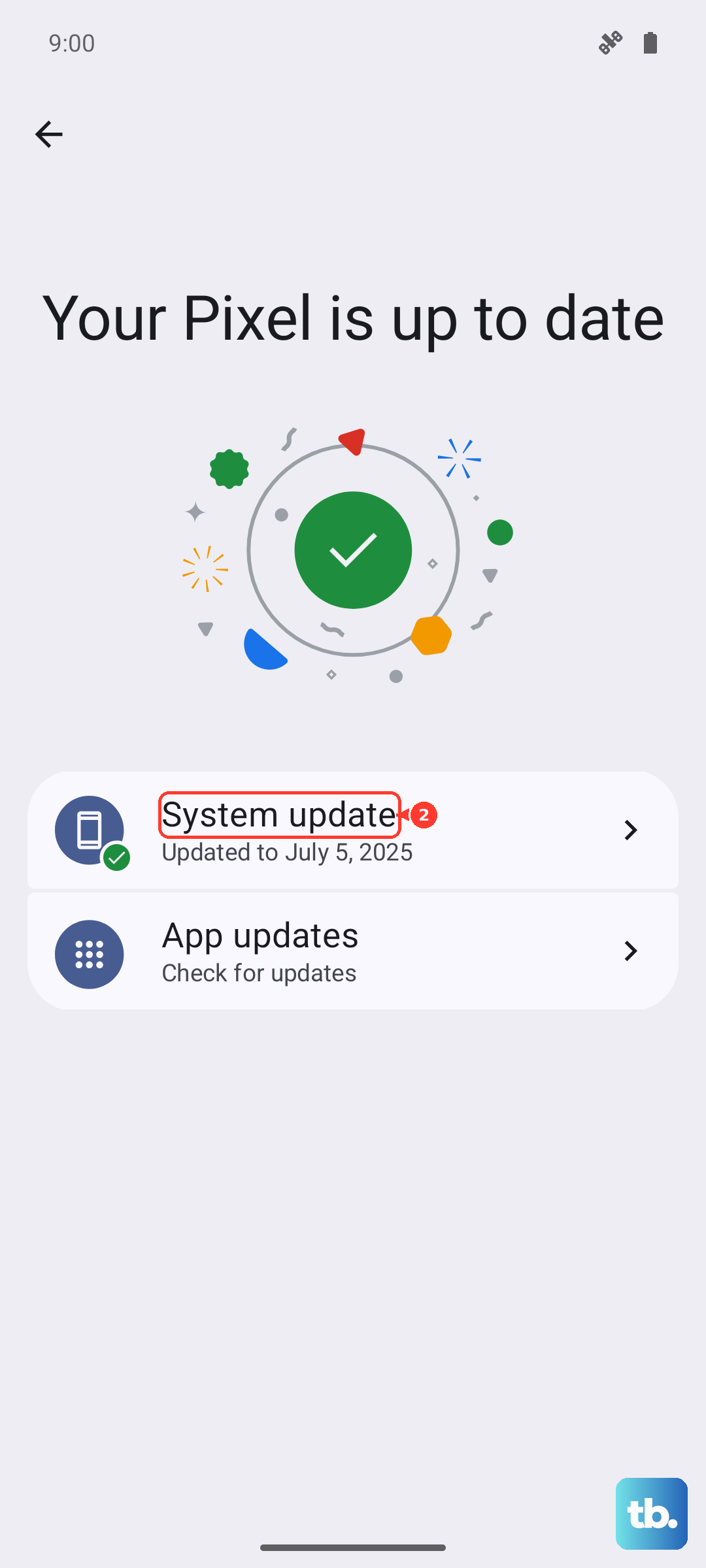
Make sure your phone is connected to Wi-Fi and has at least a 50% charge before starting an update. I've seen a pending update resolve audio glitches on several Pixel models, so it's always worth checking.
Disable Any Audio Modifications
If you've enabled any developer options or use apps that modify system audio, try disabling them. Go to Settings > Sound & vibration > Advanced and look for any equalizer or audio effect settings that might be turned on.
Also, check your call settings. Go to the Phone app, tap the three-dot menu, select Settings > Calling accounts, and then select your SIM. Make sure options like "Wi-Fi calling" aren't causing an unexpected conflict with the microphone during calls.
Reset App Preferences or Network Settings
Resetting app preferences can fix permission conflicts without deleting your data. Go to Settings > System > Reset options > Reset app preferences. This will reset all app permissions, notifications, and default apps, so you'll need to re-allow microphone access when apps ask.
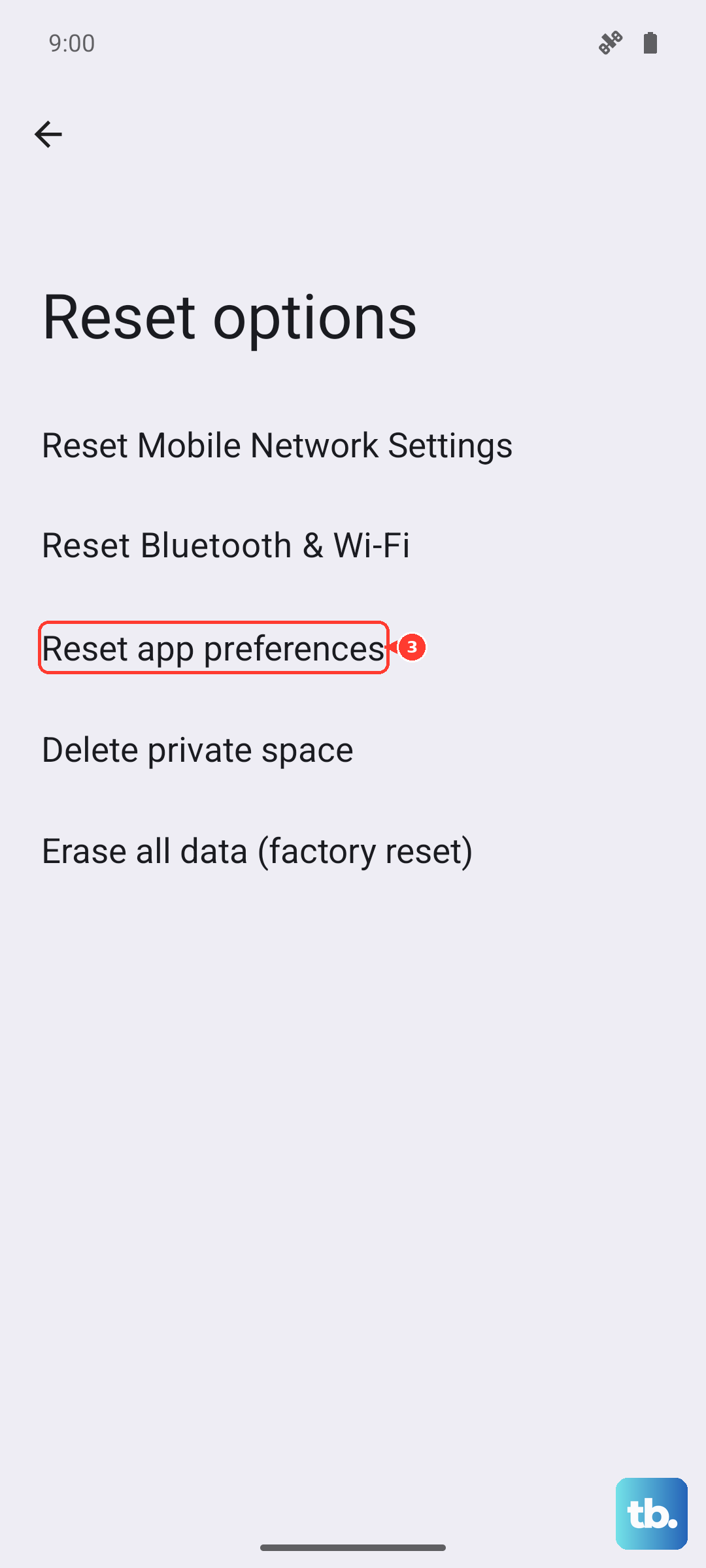
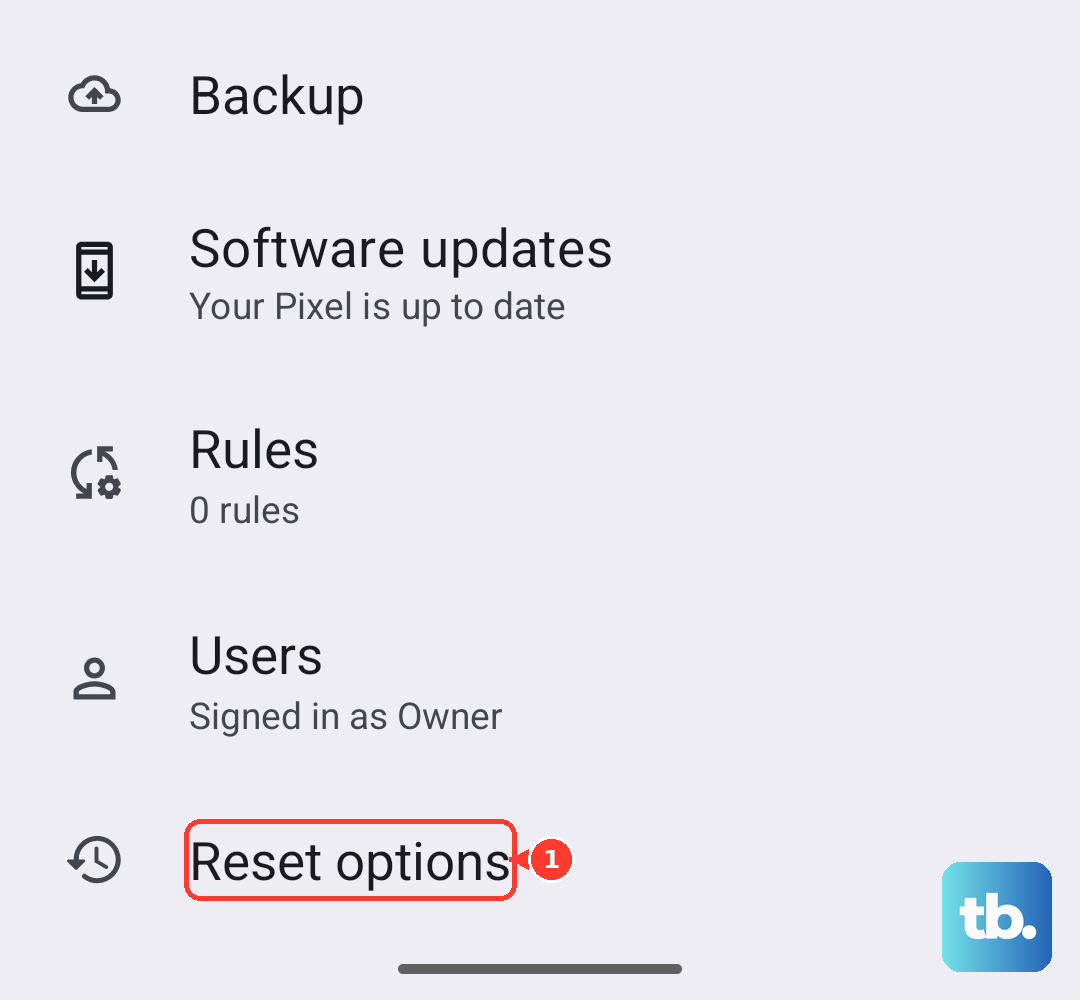
For issues that seem specific to phone calls, a network settings reset can help. This clears your Wi-Fi, mobile data, and Bluetooth settings. Navigate to Settings > System > Reset options > Reset Wi-Fi, mobile & Bluetooth.
Perform a Force Restart
If the phone is frozen or the audio system is completely unresponsive, a force restart is the next step. On the Pixel 9 Pro, you press and hold the power button for about 30 seconds, until you feel a vibration and see the Google logo appear on the screen.
This is different from a normal restart and can clear more stubborn system hiccups. It doesn't erase any of your personal files or data.
Boot into Safe Mode
Booting into Safe Mode temporarily disables all third-party apps. This tells you if a recently downloaded app is causing the microphone problem. Press and hold the power button, then on the power off menu, press and hold "Restart" until you see the Safe Mode prompt.
If the microphone works perfectly in Safe Mode, you know a third-party app is to blame. Start by uninstalling apps you downloaded around the time the issue began, especially any sound recorder, VoIP, or audio modifier apps.
Factory Reset as a Last Resort
If all else fails, a factory reset will return your phone to its original software state. This is a last resort, as it erases everything. Make absolutely sure you have a recent backup in Google Drive first.
To start the process, go to Settings > System > Reset options > Erase all data (factory reset). Follow the on-screen prompts. After the reset, you can set the phone up as new to test the microphone, or restore your backup.