If your Pixel 9 Pro is feeling sluggish, you're not alone. Even with the powerful Tensor G4 chip, a few common Android quirks can slow things down. The lag is usually caused by background processes, storage filling up, or a rogue app.
I'd start with a simple restart. It's the quickest way to clear out temporary glitches and give your phone a fresh start. Just press and hold the power button for about 30 seconds until you see the Google logo. This force restart can fix a surprising number of performance hiccups instantly.
Check for Software Updates
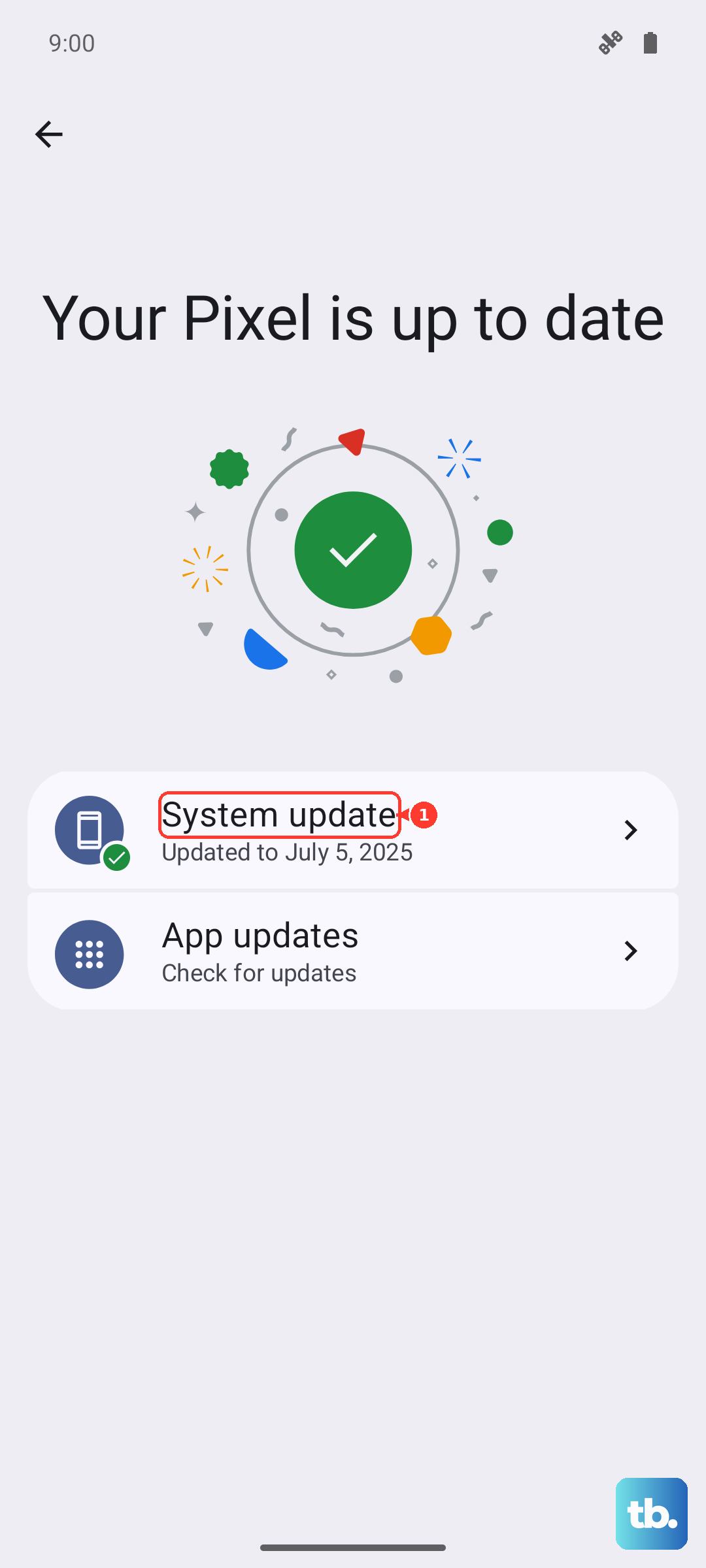
Google is constantly pushing updates to improve performance and fix bugs. Make sure you're on the latest available version of Android. Go to Settings > System > System update and tap "Check for update." Installing the latest patch can resolve slowdowns related to software.
Free Up Storage Space
When your internal storage gets too full, everything slows down. Android needs free space to operate smoothly. Head to Settings > Storage to see what's taking up room.
You can use the built-in cleanup tool there, or manually offload old videos and photos to Google Photos. The Pixel's Magic Eraser and other AI features work in the cloud, so you can safely free up space without losing access to your edited pictures.
Review Your Recent Apps
Too many apps running in the background will drain your Pixel's resources. Swipe up from the bottom and hold to enter the recent apps view. Swipe away any apps you're not actively using.
For a more thorough cleanup, go into Settings > Apps and look for any apps using an unusually high amount of battery or background data. These are often the culprits behind lag.
Manage Background Activity
Some apps are relentless about running in the background. You can restrict this to save performance. Go to Settings > Apps, select a specific app, then tap "Battery." Choose "Restricted" to prevent it from running in the background unless you open it.
Also, check Settings > Developer options (if enabled) and look for "Background process limit." You can set a stricter limit here, but I'd only recommend this if you're comfortable with developer settings.
Clear App Caches
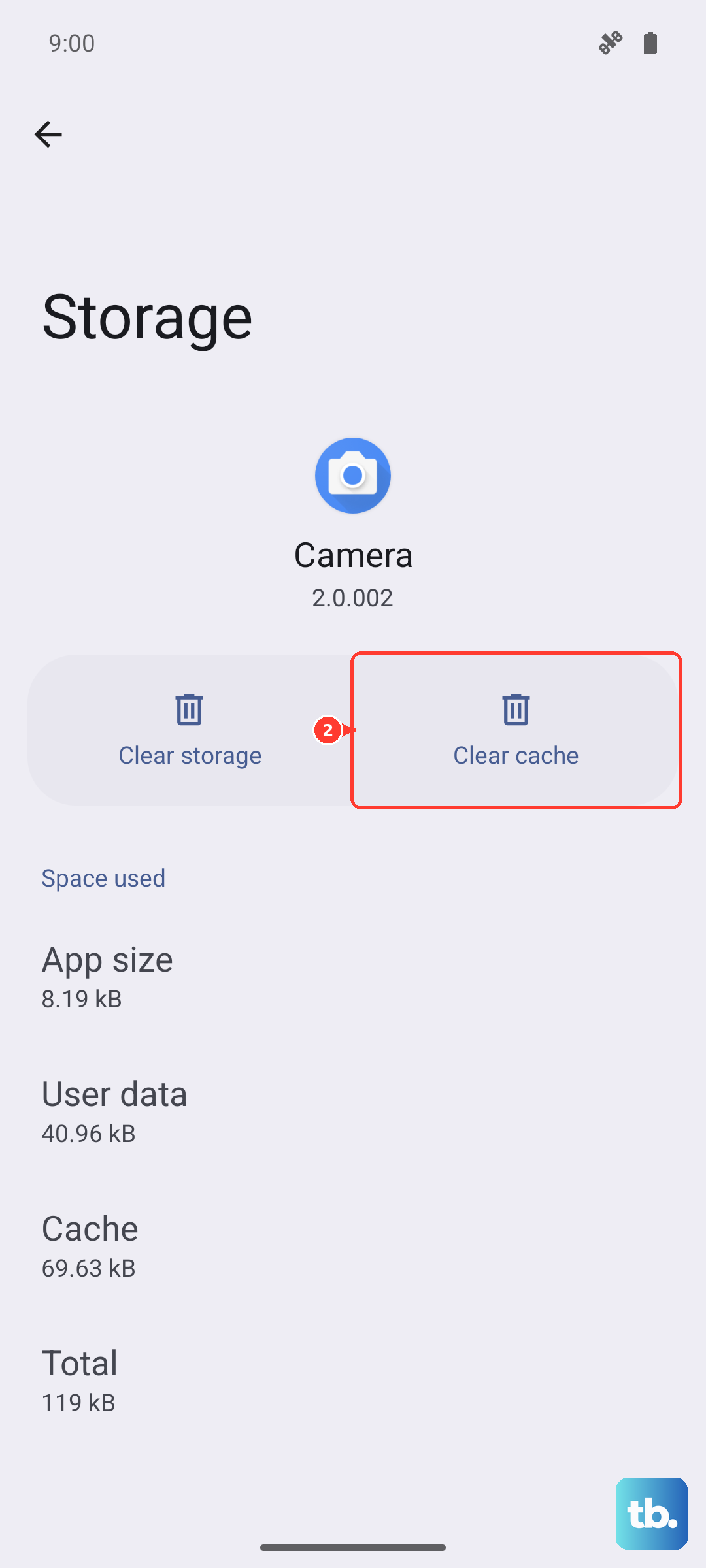
Over time, apps store temporary data that can become corrupted and cause lag. You can clear the cache for individual apps without deleting your login info or data. Go to Settings > Apps, select the app, then tap "Storage & cache." Hit "Clear cache."
Start with apps you use frequently, like Chrome, Google Maps, or social media apps. This often gives them a noticeable speed boost.
Check for Overheating
The Pixel 9 Pro can get warm during extended camera use or gaming. When the phone gets too hot, it will intentionally throttle performance to cool down. If your phone feels hot and is slow, set it down in a cool place for a few minutes.
Avoid using intensive apps while charging, especially with the 27W wired charger, as this generates more heat. Let it cool down before trying to use it heavily again.
Disable or Reduce Animations
The smooth animations in Android look great, but they can make the phone feel slower. You can speed up or turn them off. First, you need to enable Developer options by going to Settings > About phone and tapping "Build number" seven times.
Then, go back to Settings > System > Developer options. Scroll down to the "Drawing" section. You can adjust the "Window animation scale," "Transition animation scale," and "Animator duration scale." Setting these to .5x makes transitions quicker, or you can turn them off.
Monitor Your Network Connection
A weak or unstable mobile data connection can make your entire phone feel slow as apps struggle to load content. The Tensor G4's modem isn't as strong as some Qualcomm chips, so this can be more noticeable.
If you're in an area with poor signal, try switching to Wi-Fi if available. You can also try toggling Airplane mode on and off from the quick settings panel to reset your network connection.
Perform a Factory Reset (Last Resort)
If you've tried everything and the phone is still slow, a factory reset can wipe away any deep-seated software issues. This will erase all your data, so make sure everything is backed up to your Google account first.
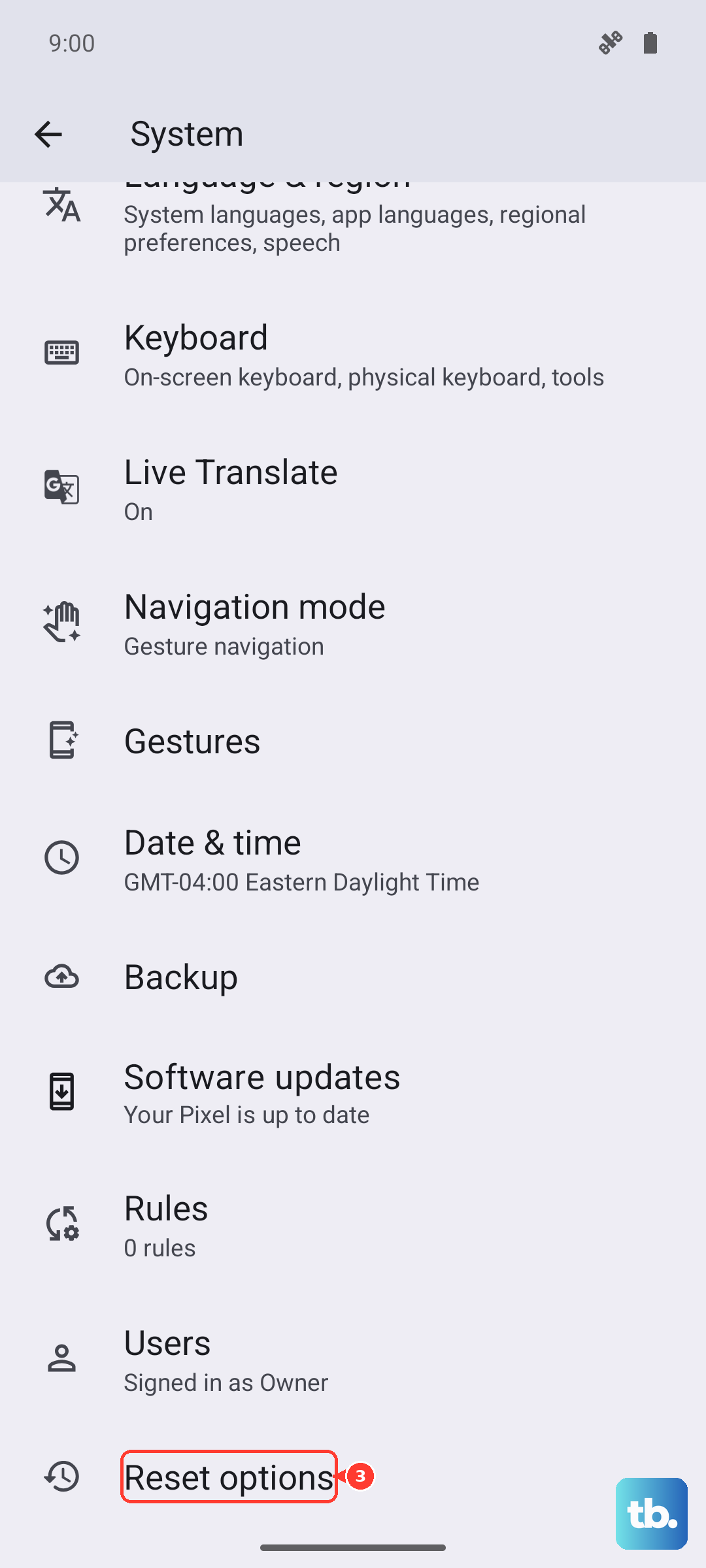
To do this, go to Settings > System > Reset options > Erase all data (factory reset). Follow the prompts. After the reset, you can set up the phone as new or restore your backup, though setting up as new sometimes yields the best performance.