
When your Pixel 9 Pro's keyboard disappears or you get a "Gboard keeps stopping" error, it can stop you from replying to a message or searching for something. The good news is this is almost always a software hiccup you can fix yourself.
I'd start with the simplest fix first, which is to force close the keyboard app. Swipe up from the bottom of your screen and hold to open the recent apps view. Find Gboard in the list and swipe it all the way up to close it. Then, try opening an app like Messages or Chrome to see if the keyboard pops up normally.
Restart Your Pixel 9 Pro
A full restart clears out temporary system glitches that can affect apps like the keyboard. Just press and hold the Power button and Volume Up button together until the power menu appears, then tap "Restart."
If your screen is completely unresponsive and you can't access the menu, you'll need to force a restart. Press and hold the power button for about 30 seconds, until you feel the phone vibrate and see the Google logo appear on the screen.
Check and Update Gboard
An outdated version of Gboard can have bugs that cause it to crash. Open the Google Play Store, tap your profile picture in the top right, and go to Manage apps & device.
Under "Updates available," look for Gboard. If it's listed, tap "Update" next to it. After it installs, give your phone a quick restart and test the keyboard again.
Clear Gboard's Cache and Data
Corrupted temporary files stored by the app are a common culprit. Clearing the cache is safe and won't delete your personal dictionary or saved snippets.
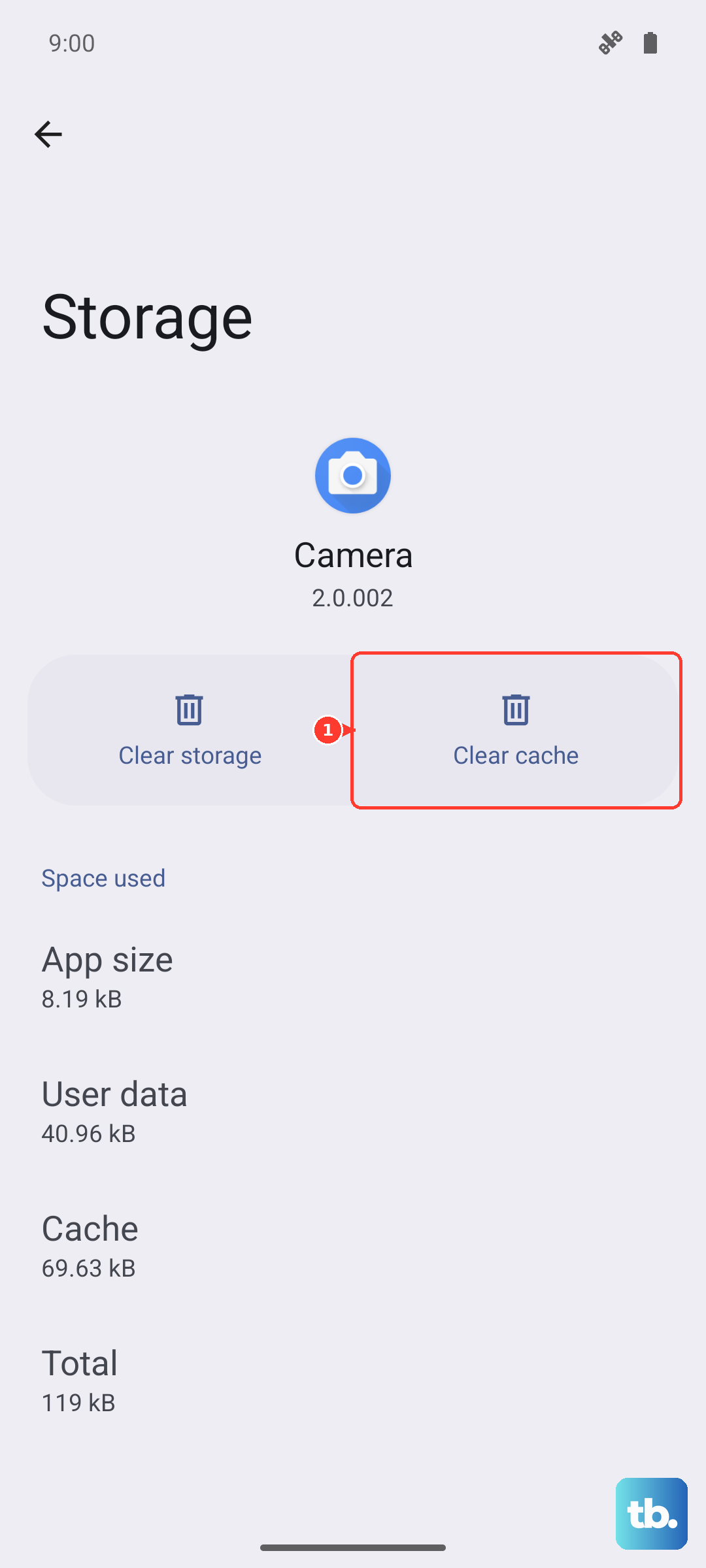
Go to Settings > Apps > See all apps. Find and tap on "Gboard." Then, tap Storage & cache. Tap "Clear cache" first. If the problem persists, come back here and tap "Clear storage" or "Clear data." Just know this will reset Gboard to its default settings, so you'll lose any custom themes or adjustments.
Ensure Gboard is Your Default Keyboard
Sometimes another app or a glitch can change your default input method. Open Settings > System > Languages & input.
Tap on "On-screen keyboard." Here, make sure "Gboard" is selected and set as your default. If you see another keyboard listed here that you don't use, you can tap on it and select "Disable" to remove it as an option.
Boot Into Safe Mode
If the keyboard works fine in Safe Mode, it means a third-party app you installed is causing a conflict. To boot your Pixel 9 Pro into Safe Mode, press and hold the Power button and Volume Up button together until the power menu appears.
Then, press and hold the "Power off" option on your screen. A prompt will appear asking if you want to reboot to Safe Mode. Tap "OK." Your phone will restart, and you'll see "Safe mode" in the bottom corner.
Test the keyboard in Safe Mode. If it works, restart your phone normally to exit Safe Mode. You can then try uninstalling apps you installed recently, one by one, to find the one causing the trouble.
Check for a System Update
Google releases monthly updates that often include bug fixes for the system and core apps. Keeping your Pixel 9 Pro on the latest available version of Android is important.
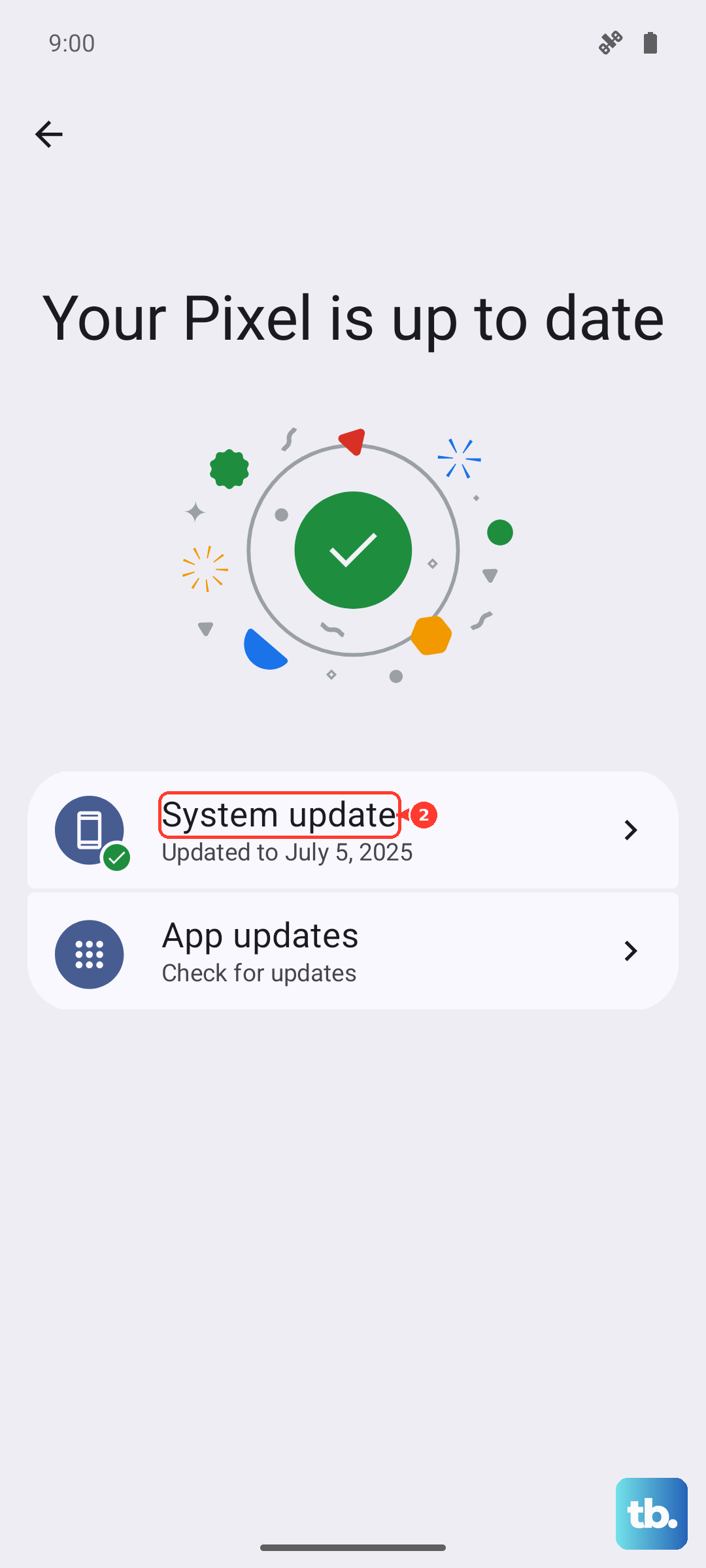
Go to Settings > System > System update. Tap "Check for update." If an update is available, install it. Your phone will restart during this process, which also helps clear any lingering issues.
Reset App Preferences
This is a broader reset that doesn't delete your app data. It resets permissions, default apps, and background restrictions back to their factory settings. It can resolve conflicts without the nuclear option of a factory reset.
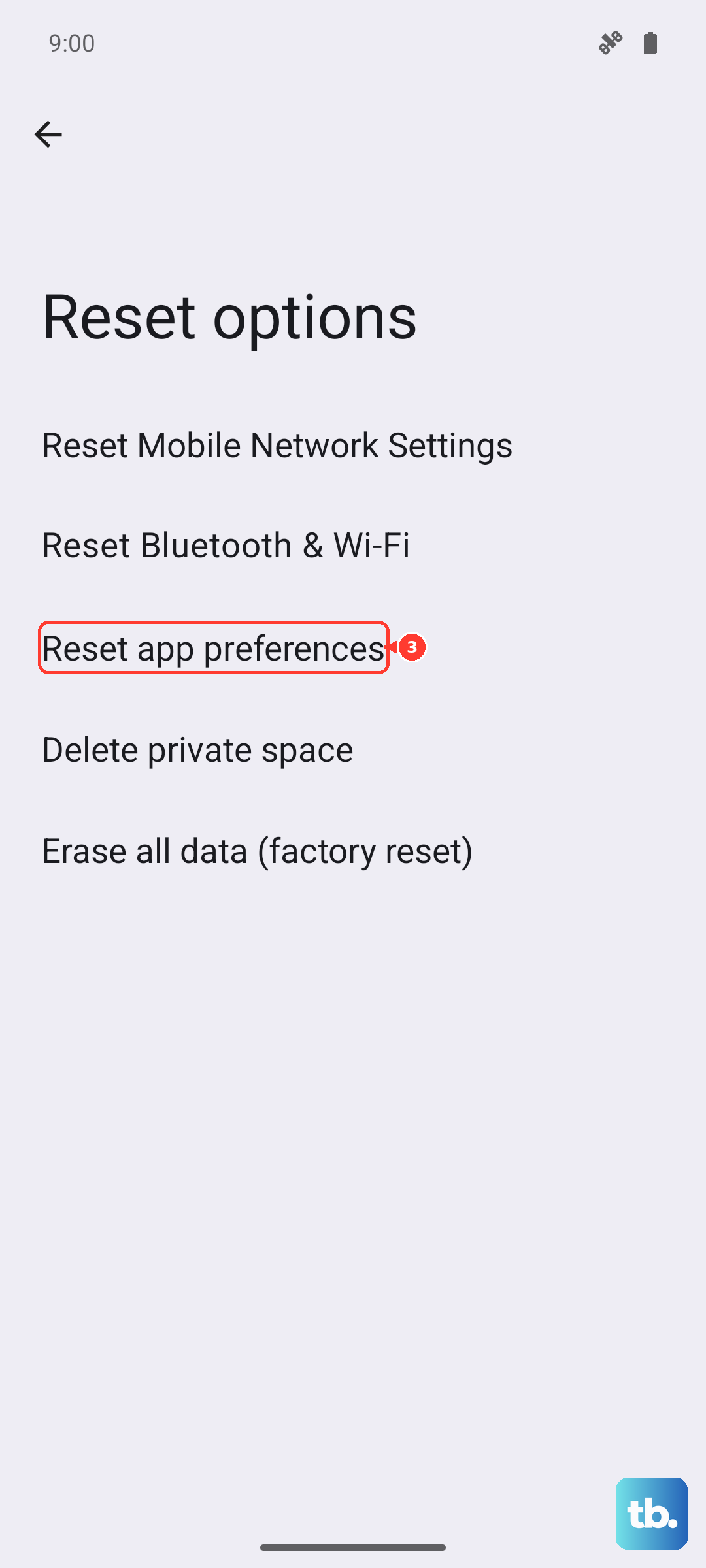
Navigate to Settings > System > Reset options. Tap on "Reset app preferences" and confirm. You'll need to re-grant permissions to apps the next time you use them, but it's a very effective fix for strange app behavior.
Try a Different Keyboard App Temporarily
If you need to use your phone right away while troubleshooting, installing a different keyboard from the Play Store gives you a working solution. Apps like Microsoft SwiftKey or OpenBoard are good alternatives.
Once installed, go back to Settings > System > Languages & input > On-screen keyboard and enable the new keyboard. You can switch back to Gboard later after you've resolved the core issue.