You unplugged your laptop expecting your Google Pixel 9 Pro to share its connection, but the hotspot either refuses to turn on, drops constantly, or your other devices simply cannot see it. It is a frustrating moment, especially when you rely on tethering for work or travel and your Pixel handles everything else just fine. The good news is that the Pixel 9 Pro fully supports Wi-Fi hotspot along with Bluetooth and USB tethering, so most of these problems trace back to a setting, a plan restriction, or a temporary glitch you can clear yourself.
This phone, built on the Tensor G4 chip with 5G and Wi-Fi 7, can share its mobile data with up to 10 other devices over a Wi-Fi hotspot. Everything is managed on the phone itself through the built-in Settings app, so there is no separate companion app to install or repair. Work through the fixes below in order, starting with the quickest and safest checks and saving the more drastic resets for last.
Start With Your Carrier Plan
Before you touch a single setting, confirm that your mobile plan actually permits tethering. The hotspot is a phone feature, but the data it shares belongs to your carrier, and many carriers limit or charge extra for tethering. Google's official guidance is direct on this point, noting that some mobile carriers limit or charge extra for tethering and that you should check with your carrier.
If tethering is blocked or capped on your plan, no on-phone toggle will turn it on, no matter how many times you try. Confirm that tethering is included or enabled on your account before you spend time troubleshooting the device. This single check resolves a surprising number of hotspot problems.
Toggle the Wi-Fi Hotspot Off and Back On
A simple off-and-on cycle often clears a hotspot that has quietly stalled. This forces the phone to restart the connection without restarting the whole device.
Go to Settings > Network & internet > Hotspot & tethering > Wi-Fi hotspot.
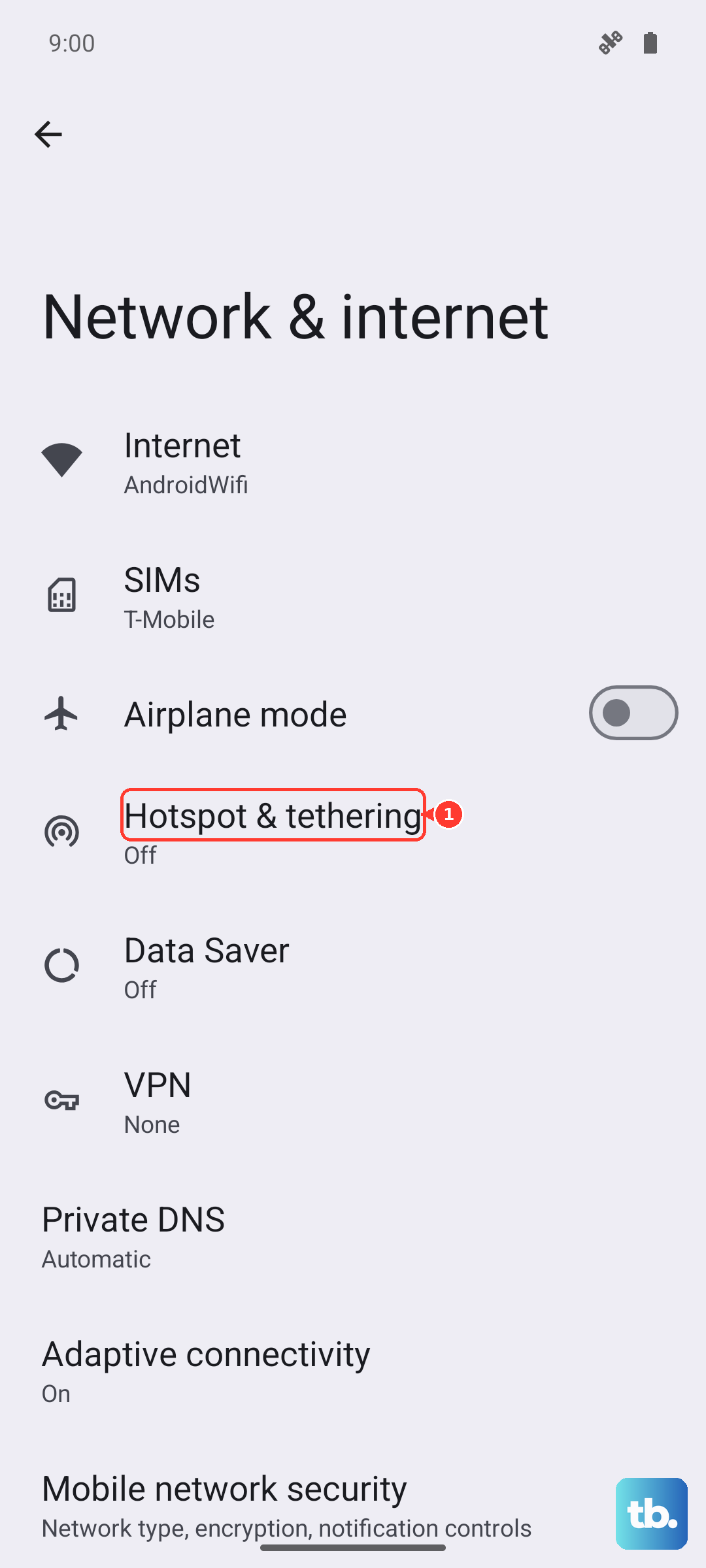
Toggle Wi-Fi hotspot off, wait a moment, then toggle it back on.
You can also do this from Quick Settings. Swipe down from the top of the screen, touch and hold Hotspot, and turn on Wi-Fi hotspot. Remember that the Pixel 9 Pro can share its mobile data with up to 10 other devices over a Wi-Fi hotspot, so a connection problem with one device may not affect the others.
Switch Off Data Saver
Data Saver is a common and easily missed culprit. When it is enabled, it can block Wi-Fi tethering, which is why your hotspot may turn on but refuse to pass any data to connected devices.
Google's hotspot instructions are clear that if you have turned on Data Saver, you need to turn it off to tether by Wi-Fi. Disable Data Saver, then try the hotspot again before moving on to anything more involved.
Confirm Mobile Data Is On and Working
Your hotspot can only share a connection the phone already has, so the Pixel 9 Pro needs a working cellular link first. If your mobile data is off or your SIM is not registering, the hotspot has nothing to broadcast.
Open Settings > Network & internet > SIMs.
Confirm that Mobile data is enabled and your carrier is selected.
Check that airplane mode is off via Settings > Network & internet, and turn it off if it is on.
If mobile data itself is not working on the phone, fix that first. The hotspot will follow once your cellular connection is healthy.
Re-Check the Hotspot Name, Password, and Security
When devices cannot find or join your hotspot, the problem is often a mismatched name or password. It is worth verifying the credentials directly on the phone rather than guessing on the connecting device.
To find or change your hotspot name or password, tap it, and you may need to first tap Set up Wi-Fi hotspot.
If you want to test whether security settings are the issue, you can run an open hotspot temporarily. Swipe down from the top of the screen, touch and hold Hotspot, and under Security, tap None.
If the device connects to an open hotspot, the original problem was almost certainly a wrong password, so re-enter the correct password on the connecting device and switch security back on.
Try Bluetooth or USB Tethering Instead
If Wi-Fi hotspot stubbornly refuses to connect, the Pixel 9 Pro can share data two other ways. These methods bypass the Wi-Fi radio entirely, which can both get you online now and help you narrow down where the fault lies.
For Bluetooth tethering, pair the phone with the other device first, then go to Settings > Network & internet > Hotspot & tethering > Bluetooth tethering.
For USB tethering, connect a USB cable between the phone and the device, then go to Settings > Network & internet > Hotspot & tethering and turn on USB tethering.
If one of these works while Wi-Fi does not, you have isolated the problem to the Wi-Fi hotspot specifically.
Restart the Pixel 9 Pro
A normal restart clears temporary software glitches that can trip up the hotspot, and it costs you nothing but a minute. On the Pixel 9 Pro, and on Pixel 6 and later generally, press and hold the Power button plus the Volume up button for a few seconds, then tap Restart.
If the phone is frozen and unresponsive, you can force a restart instead. Press and hold the Power button for up to 60 seconds, and once the phone begins to reboot and the screen displays the G logo, release the Power button.
Install the Latest Software Updates
Software updates fix bugs and refresh carrier settings, both of which can directly affect tethering. Keeping the phone current is one of the more reliable ways to clear a persistent hotspot fault.
Check your current Android version at Settings > About phone > Android version.
Go to Settings > System > Software updates and follow the on-screen instructions, as the menu may show Software updates or System update.
Connect to Wi-Fi and charge the phone to at least 75 percent before you begin.
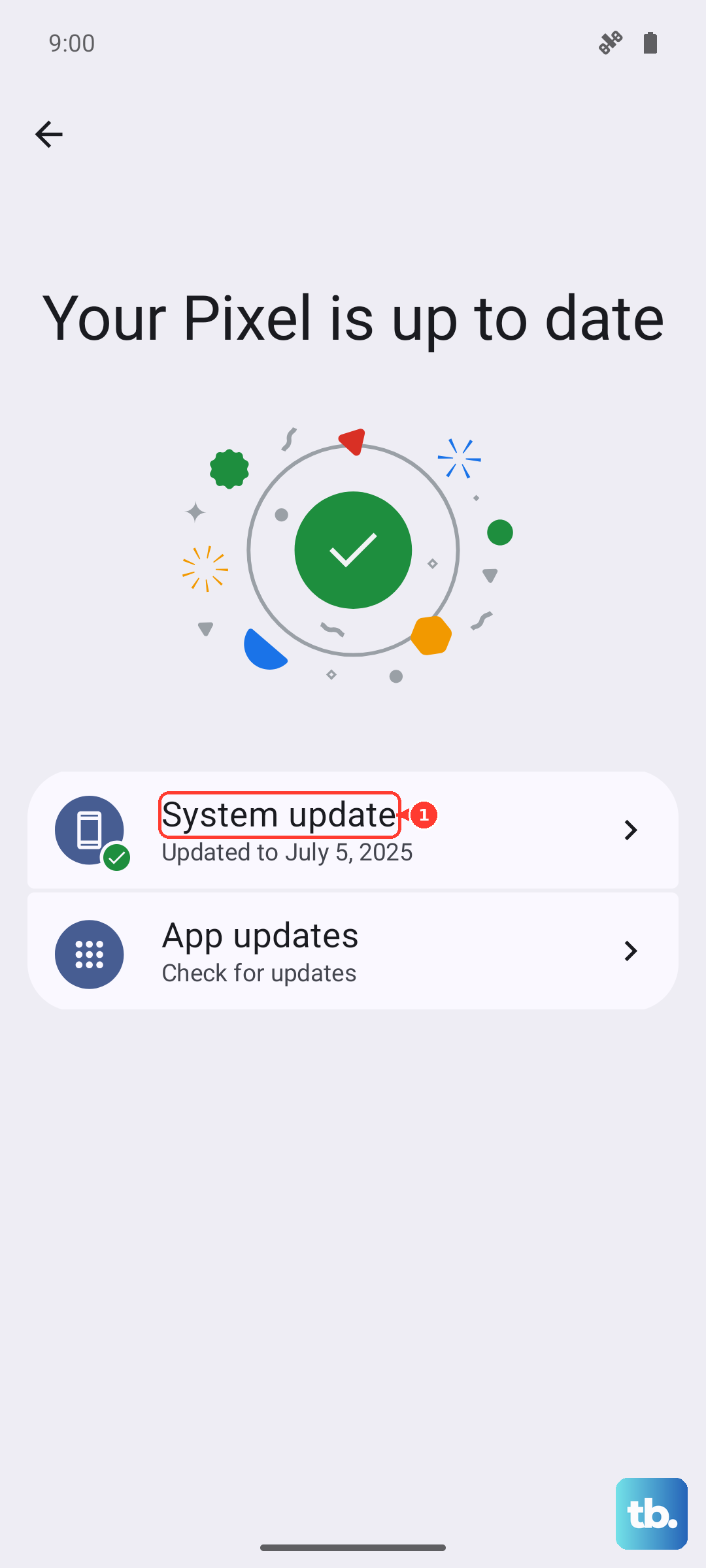
The update becomes active after the phone restarts, so allow time for it to finish and reboot before you test the hotspot again.
Reset Mobile Network Settings
If mobile data or the hotspot still misbehaves after the steps above, resetting your network settings clears out corrupted carrier and connection configurations without erasing your personal data. Go to Settings > System > Reset options > Reset mobile network settings.
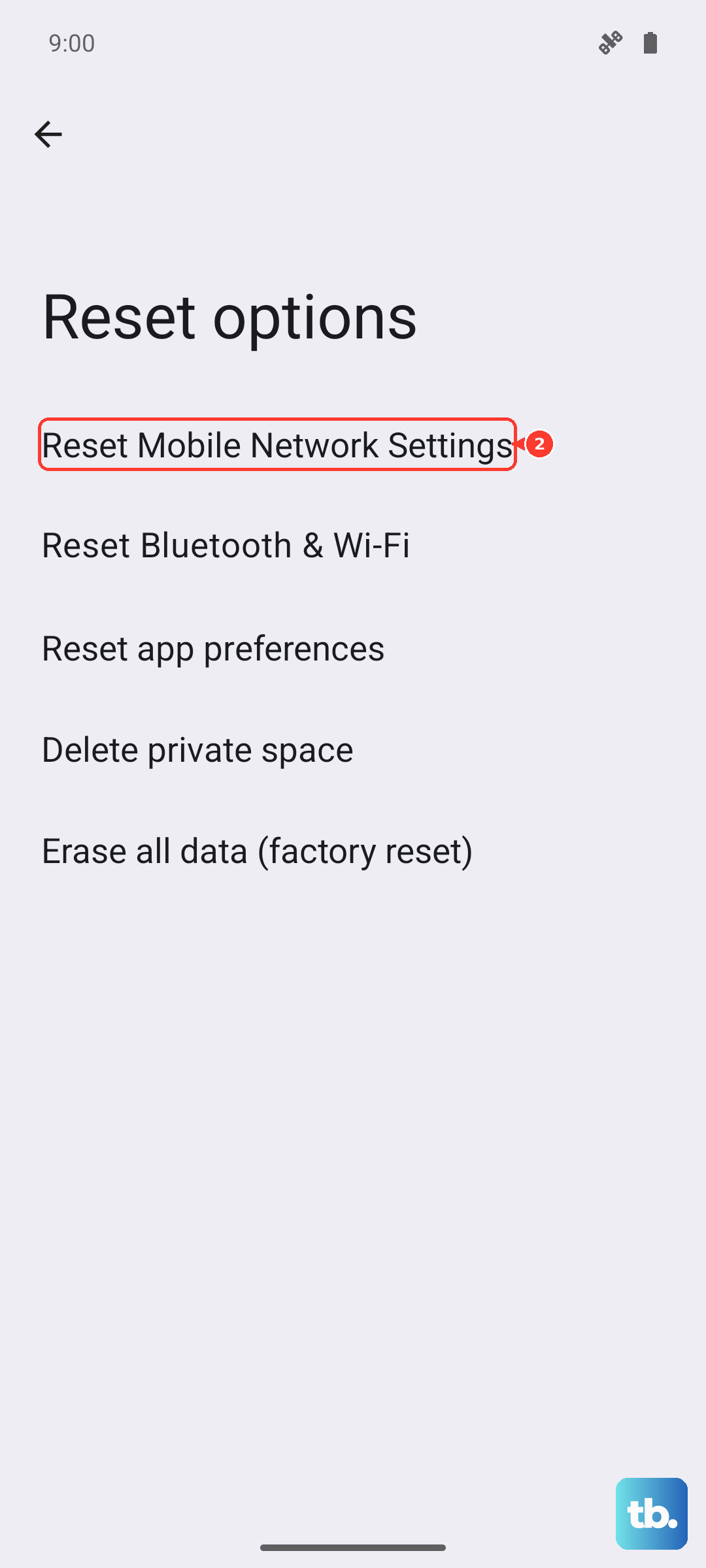
If you want a more thorough reset that also clears saved Wi-Fi and Bluetooth, choose Reset Wi-Fi, mobile & Bluetooth instead. Keep in mind that after either reset you will need to re-enter your Wi-Fi passwords and re-pair your Bluetooth devices.
Factory Reset as a Last Resort
If nothing else has worked, erasing the phone is the final on-device option. This is drastic, so treat it as a genuine last resort and back up everything you care about first. Google is unambiguous that a factory reset erases all your data from your phone.
- 1.Charge the phone to at least 70 percent before starting, as the reset can take up to an hour.
- 2.Go to Settings > System > Reset options > Erase all data (factory reset).
- 3.Tap Erase all data, enter your PIN if prompted, then tap Erase all data again.
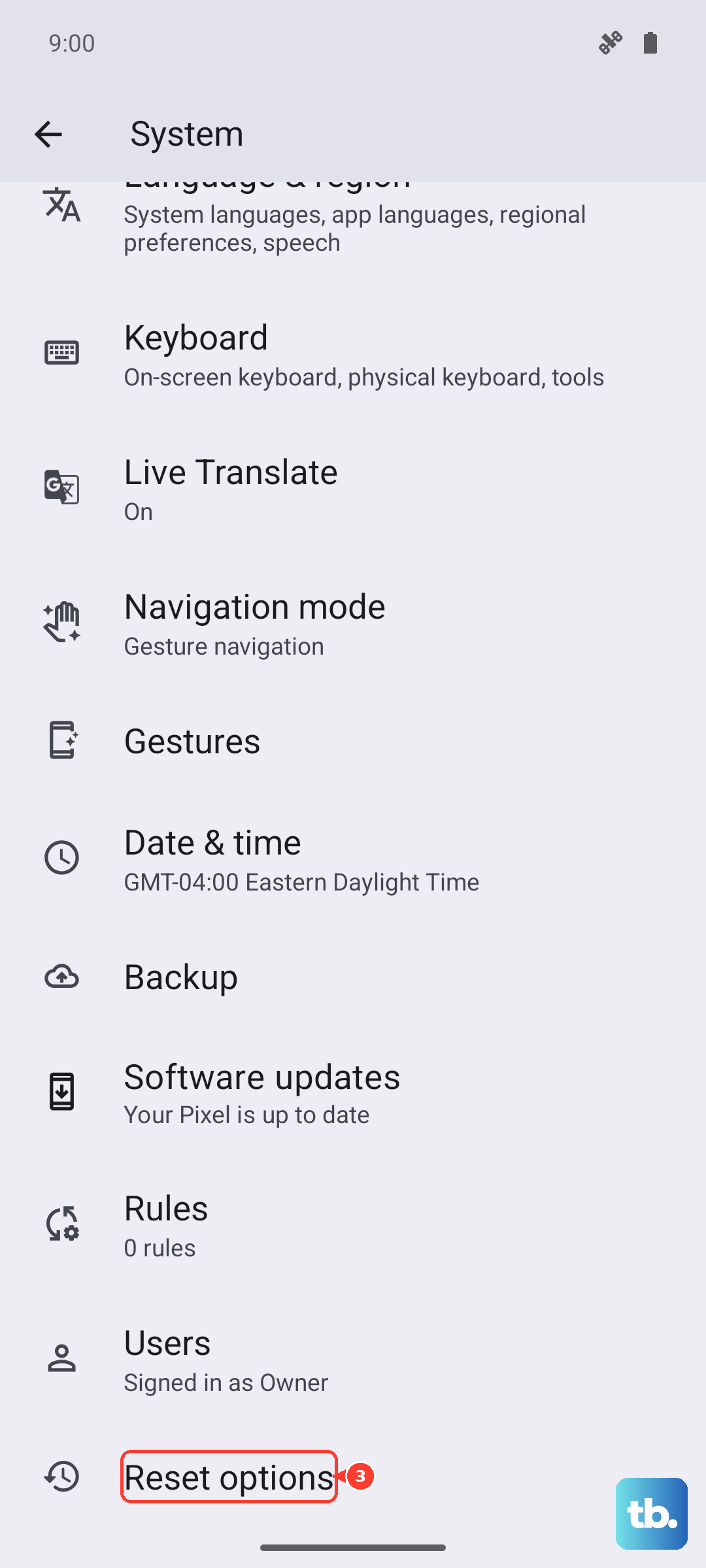
Once the phone restarts and you set it up again, test the hotspot before restoring all of your apps so you can confirm whether the reset actually fixed it.
When to Reach Out for Help
If the hotspot still will not work after every step above, the problem may sit outside your phone entirely. Carrier-side issues such as plan or tethering provisioning, a local outage, or an incorrect APN can all block tethering even when your Pixel is configured perfectly.
The official mobile-connectivity guidance recommends checking with your carrier about your data plan, 5G compatibility, and any outages in your area. For anything that looks like a hardware or deeper software fault, Pixel support is available through Google's official Pixel help.
Frequently Asked Questions
How many devices can the Pixel 9 Pro hotspot support at once?
The Google Pixel 9 Pro can share its mobile data with up to 10 other devices over a Wi-Fi hotspot. If you are near that limit and a new device cannot join, you may need to disconnect one of the existing devices first.
Why does my hotspot turn on but pass no data?
A common cause is Data Saver, which can block Wi-Fi tethering. Turn off Data Saver, then confirm that mobile data is enabled at Settings > Network & internet > SIMs and that airplane mode is off. Your hotspot can only share a connection the phone already has.
Can I use the hotspot without Wi-Fi?
Yes. If Wi-Fi hotspot will not connect, the Pixel 9 Pro also supports Bluetooth tethering and USB tethering. Pair the phone first for Bluetooth, or connect a USB cable, then enable the matching option under Settings > Network & internet > Hotspot & tethering.
Will resetting network settings delete my photos or apps?
No. Reset mobile network settings, or Reset Wi-Fi, mobile & Bluetooth, only clears connection configurations, and your personal data stays intact. You will need to re-enter saved Wi-Fi passwords and re-pair Bluetooth devices afterward. A factory reset, by contrast, erases all your data, so back up first.
My carrier says tethering is included, so why is it still blocked?
Even with tethering on your plan, provisioning errors, outages, or APN problems can block it. After working through the on-phone fixes, check with your carrier about your data plan, 5G compatibility, and outages, since these issues are resolved on the carrier side rather than on your Pixel.