You reach for your Pixel 9 Pro in a dark room, tap the flashlight tile, and nothing happens. Maybe the icon stays dimmed, maybe the LED flickers and dies, or maybe it was stuck on and now refuses to respond at all. The good news is that the Pixel 9 Pro's flashlight runs off the same rear LED flash the camera uses, so most failures come down to a misplaced tile, a conflicting app, or a phone that simply needs a restart. Work through the fixes below in order, starting with the quickest and safest, and save the reset and repair steps for last.
Start With the Quick Settings Tile
The single most common reason the flashlight "won't work" is that the tile got rearranged or removed, so there is nothing to tap where you expect it. Swipe down from the top of your screen, then swipe down again to see all your Quick Settings, and tap the flashlight icon to turn it on or off. Remember that dimmed settings are off, so a faint icon means the flashlight is simply not active rather than broken.
If the flashlight tile isn't there at all, you can add it back in a few taps. Swipe down twice to open the full Quick Settings panel, then put the tile where you want it.
- 1.Swipe down from the top of the screen, then swipe down again.
- 2.Tap the Edit (pencil) button.
- 3.Tap and drag the flashlight tile into the active area where you want it placed.
Once the tile is back in your Quick Settings, tap it to confirm the LED lights up. A tile that was only hidden or moved will work immediately with no further troubleshooting.
Make Sure the Camera Isn't Holding the Flash
The flashlight and the Pixel Camera app share the same rear LED flash, which means the flashlight can be unavailable while the camera is actively using that flash. If you just took a photo or recorded video with the flash on, the LED may still be reserved by the camera. Fully close the Camera app, along with any other app that uses the camera, then try the flashlight tile again.
You can also check how the camera is set to use the flash. In the Pixel Camera app, at the bottom left, tap Settings, then Flash, and confirm the flash behavior is set the way you expect. Clearing the camera's hold on the LED often restores the flashlight tile right away.
Let an Overheated Phone Cool Down
When the Pixel 9 Pro senses excessive heat, it protects itself by automatically turning off the camera's flash, and it may also reduce CPU performance, reduce charging speeds, enter low power mode, and ultimately turn the phone off to keep you and your phone safe. Using a flashlight setting, recording video, gaming, or charging in a hot place can all push the phone toward this cut-off. If your phone has been warm, the flashlight may be disabled on purpose rather than failing.
To recover, disconnect the phone from its power source if it's plugged in, move it to a cooler place, and don't use it until it has cooled down. Once it is back to a normal temperature, restart it and try the flashlight again. This is a deliberate safety behavior, so giving the phone time to cool is the only correct fix.
Restart to Clear a Temporary Glitch
A normal restart clears the temporary software glitches that can leave the flashlight stuck on or completely unresponsive. On the Pixel 9 Pro, which follows the Pixel 6 and later instructions, the restart is a simple button combination.
- 1.Press and hold the Power button and Volume up button for a few seconds.
- 2.Tap Restart.
After the phone comes back up, open Quick Settings and test the flashlight tile. A clean reboot resolves a surprising number of flashlight problems that look like hardware faults but are really just stuck processes.
Force a Restart When the Flashlight Is Stuck or the Screen Is Frozen
If the screen is frozen or the flashlight won't respond to anything, a force restart pulls the phone out of its stuck state. Press and hold the Power button for up to 60 seconds. Once your phone begins to reboot and the screen displays the "G" logo, release the Power button.
You do not always have to wait the full 60 seconds. The moment you see the "G" logo, you can let go and let the phone finish rebooting on its own. Once it restarts, check whether the flashlight responds normally again.
Boot Into Safe Mode to Rule Out a Downloaded App
A downloaded app, such as a third-party flashlight or camera app, can grab the LED and block the built-in flashlight from working. Safe mode starts the phone with only its built-in apps so you can test whether something you installed is the culprit.
- 1.Press and hold the Power and Volume Up buttons for a few seconds.
- 2.On your screen, tap and hold either the Power off or Restart button.
- 3.Tap OK to enter Safe mode.
Once in Safe mode, open Quick Settings and test the flashlight. If it works in Safe mode, a downloaded app is the problem, so remove recently installed apps one at a time until the flashlight works in normal mode too. To exit Safe mode, press and hold the Power button and Volume up button for a few seconds, then tap Restart.
Install the Latest Android Update
Keeping the Pixel 9 Pro on the latest available Android version can fix software-side flash and flashlight bugs that were introduced in older builds. Because this phone receives long-term updates, it is worth confirming you are current rather than running an outdated release. First, you can confirm your version in the Settings app under About phone, then Android version.
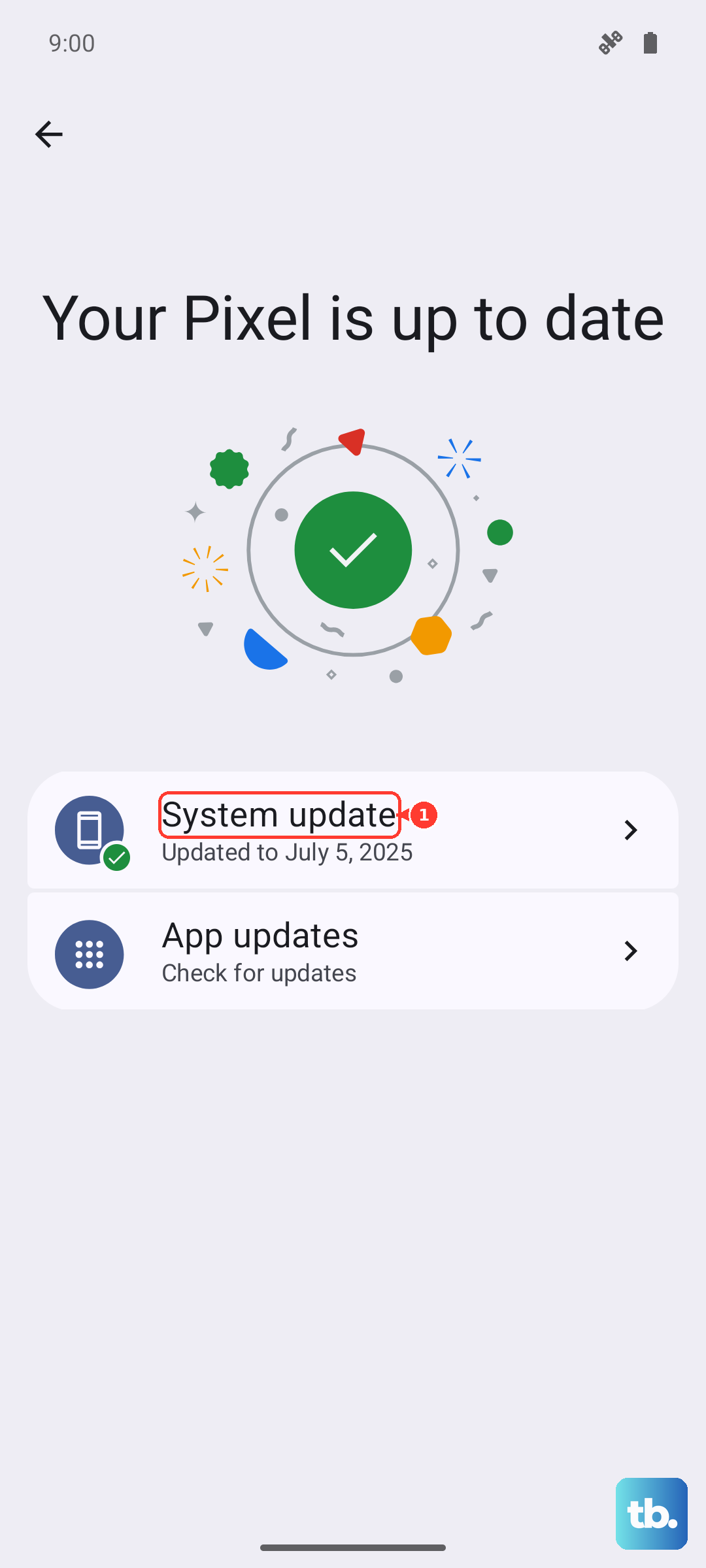
To check for and install an update, open the Settings app, tap System, then Software updates (on Pixel this shows "Software updates" or "System update"), and follow the on-screen instructions. Install whatever update is offered, let the phone restart, and then test the flashlight again.
Back Up and Factory Reset as the Last On-Device Step
If none of the steps above restores the flashlight, a factory reset returns the software to a clean state and can clear a deep configuration problem. This step erases your phone, so back up your data first. A factory reset erases all your data from your phone and uninstalls your apps and their data, though data stored in your Google Account can be restored.
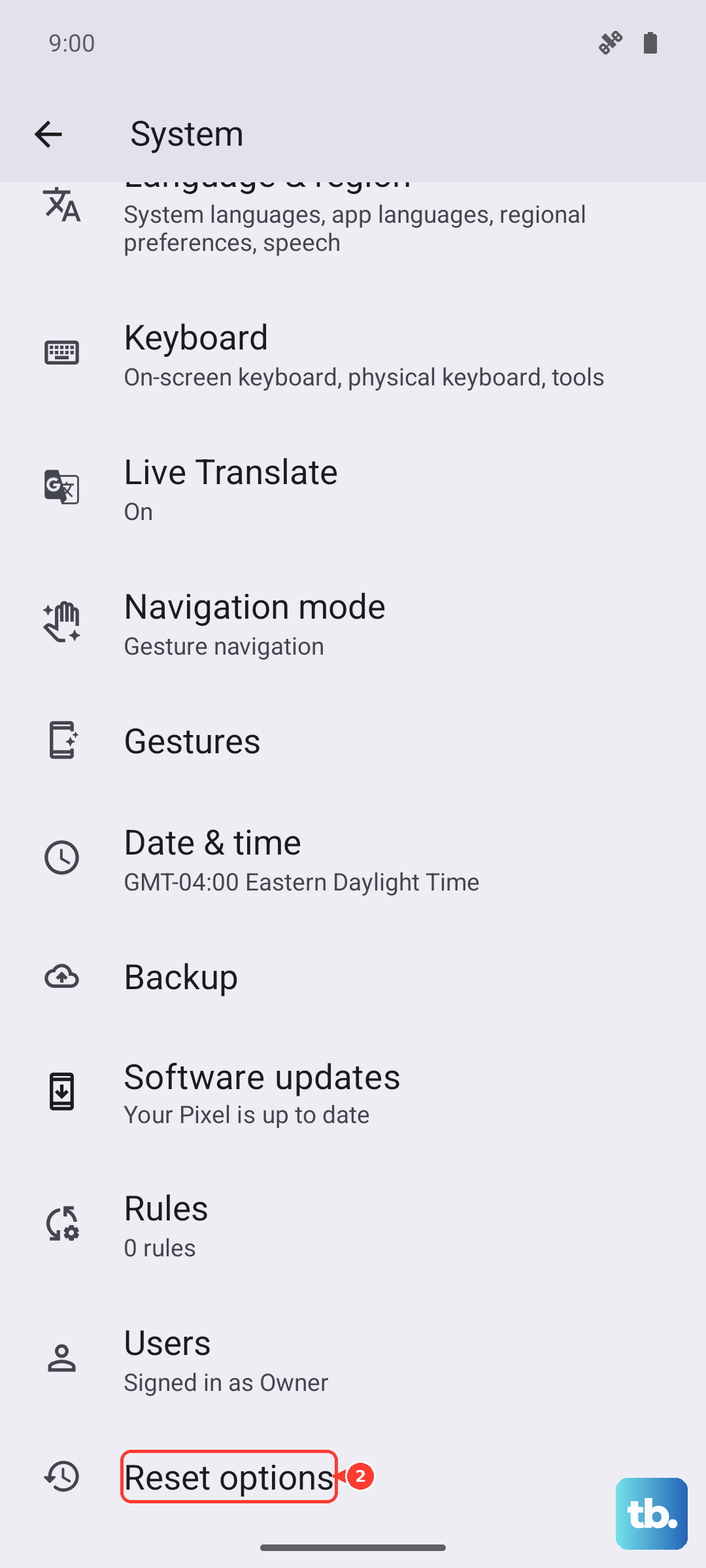
Before you begin, charge the phone to at least 70%, connect to Wi-Fi or a mobile network, and allow up to an hour for the process to finish. When you are ready, go to Settings, then System, then Reset options, then Erase all data (factory reset) and follow the prompts. Test the flashlight after setup completes; if it works now, a software fault was to blame.
Get Support or a Repair If the Flashlight Still Fails
If the flashlight still doesn't work after a factory reset, the rear LED flash hardware itself may be faulty, which is something you cannot fix from the settings menu. At that point, use Google's Pixel help and repair channels to get support or arrange a repair for the phone. When the flashlight fails because of a hardware flash failure, contacting support for a repair is the appropriate next move.
Frequently Asked Questions
Why does my Pixel 9 Pro flashlight turn off by itself?
The most common cause is heat. When the Pixel 9 Pro senses excessive heat, it automatically turns off the camera's flash and may reduce performance, enter low power mode, or shut down to protect itself. Disconnect it from power, move it somewhere cooler, and wait until it cools down before using the flashlight again.
Why can't I use the flashlight while the camera is open?
The flashlight and the Pixel Camera app use the same rear LED flash, so the flashlight can be unavailable while the camera is using the flash. Fully close the Camera app and any other app that uses the camera, then try the flashlight tile again.
The flashlight tile is missing from Quick Settings. How do I get it back?
Swipe down from the top of your screen, then swipe down again to see all your Quick Settings, tap the Edit (pencil) button, then tap and drag the flashlight tile into place. A tile that was simply removed or rearranged is the most common reason the flashlight seems to stop working.
How do I restart my Pixel 9 Pro if the flashlight is stuck on?
For a normal restart, press and hold the Power button and Volume up button for a few seconds, then tap Restart. If the screen is frozen or the flashlight won't respond, press and hold the Power button for up to 60 seconds, and release it once the screen displays the "G" logo.
Will a factory reset fix my flashlight?
A factory reset can clear a deep software fault, but it erases all your data from your phone and uninstalls your apps and their data, so back up first. Charge to at least 70%, connect to Wi-Fi or a mobile network, and go to Settings, then System, then Reset options, then Erase all data (factory reset). If the flashlight still fails afterward, the hardware may be faulty and you should contact support for a repair.