
If your Google Pixel 9 Pro's fingerprint scanner is acting up, you're probably stuck trying to unlock your phone or log into apps. The under-display optical sensor can be finicky, but there are several things you can try to get it working again.
Clean Your Finger and the Screen
This is the most common fix. The optical sensor needs a clear view of your fingerprint through the glass. Any smudges, grease, or moisture on your finger or the screen can block it.
Wipe your fingertip on your pants to dry it off, then use a soft, microfiber cloth to clean the entire screen, especially the lower area where the sensor is located. I've found that even a little hand lotion residue can cause the sensor to fail.
Restart Your Pixel 9 Pro
A quick reboot can clear out temporary software glitches that might be affecting the sensor. Just press and hold the power button, then tap "Restart" on the screen.
If the screen is unresponsive, you can force a restart. Press and hold the power button for about 30 seconds until you feel the phone vibrate and see the Google logo appear.
Check Your Screen Protector
Not all screen protectors play nice with under-display fingerprint sensors. If you recently installed a new one, that could be the culprit.
Try removing the protector temporarily to see if the scanner starts working. If it does, you'll need a protector specifically marketed as compatible with in-display fingerprint sensors. Look for ones that are extra thin or have a special coating.
Re-register Your Fingerprint
Sometimes the stored print data gets corrupted. Deleting and re-adding your fingerprint often solves the problem. Go to Settings > Security & privacy > Device unlock > Fingerprint Unlock.
Enter your PIN or password, then tap the fingerprint you're having trouble with and select "Remove." To add it again, tap "Add fingerprint" and follow the prompts. Make sure to roll your finger to capture the edges during enrollment.
Try a Different Finger or Position
If one finger isn't working, try registering and using a different one. Also, pay attention to how you place your finger on the screen.
Press firmly and hold your finger in place for a full second. Don't just tap it. Make sure the center of your fingertip is covering the sensor icon that appears on the lock screen.
Update Your Phone's Software
Google frequently releases updates that fix bugs, including ones related to biometric sensors. Make sure your Pixel 9 Pro is running the latest version of Android.
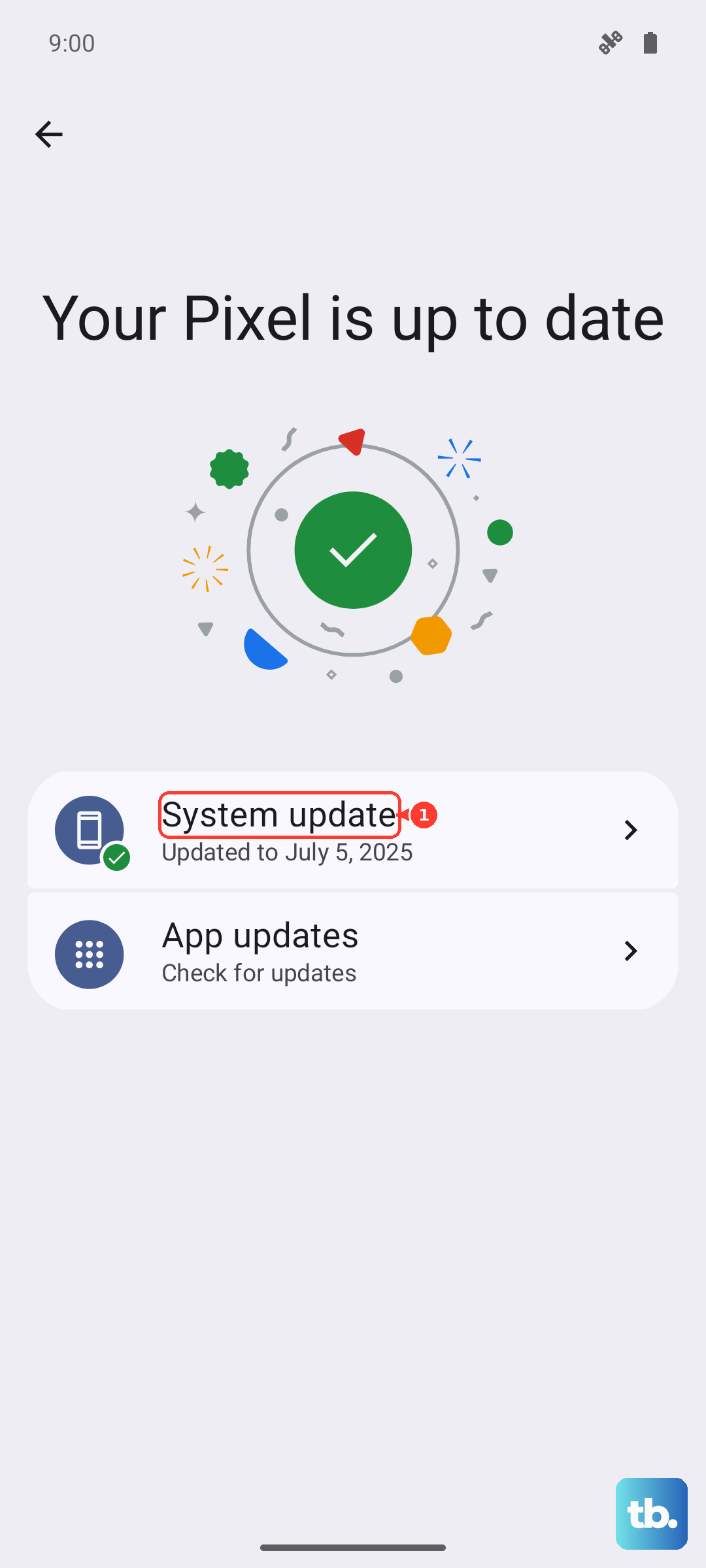
Go to Settings > System > System update and tap "Check for update." If an update is available, install it and restart your phone. This is a good habit to keep everything running smoothly.
Increase Touch Sensitivity
Android 15 includes a setting that can help with screen protector compatibility. Enabling it might improve fingerprint recognition.
Navigate to Settings > Display and look for "Screen protector mode" or "Increase touch sensitivity." Turn this option on and test your scanner again.
Boot Into Safe Mode
This step checks if a third-party app you installed is causing the issue. Safe Mode temporarily disables all downloaded apps.
Press and hold the Power button and Volume Up button together until the power menu appears. Then, press and hold the "Restart" option on the screen. Tap "OK" when asked to reboot to Safe Mode. If the fingerprint scanner works in Safe Mode, a recently installed app is likely the problem.
You'll need to uninstall apps one by one to find the culprit. To exit Safe Mode, simply restart your phone normally.
Update Android and test Safe mode
Use Pixel's supported troubleshooting steps instead of a recovery-cache wipe. Restart the phone, install any update under Settings > System > Software update, then test the fingerprint sensor again.
If the issue started after installing an app or utility, start the phone in Safe mode. If the sensor works in Safe mode, remove recently installed apps one by one and restart normally after each removal.
Check for Physical Damage or Moisture
While less common, physical issues can be the cause. Inspect the lower part of your screen for any new cracks or damage. Even a small hairline crack over the sensor area can disrupt it.
The Pixel 9 Pro's sensor is also known to be inconsistent with wet fingers. If your hands are damp from washing them or sweating, dry them thoroughly before trying the scanner. If the phone itself got wet, make sure it's completely dry, as moisture trapped inside could affect the components.