
If your Google Pixel 9 Pro is taking forever to charge, you're missing out on one of its key features. The 27W wired charging should get you from empty to a significant boost in under an hour, but several common issues can bring that speed to a halt.
Confirm You're Using a Fast Charger
Your Pixel 9 Pro needs a specific type of charger to hit its top speed. You must use a USB-C Power Delivery (PD) adapter rated for 30W or higher. The 27W maximum is a peak speed, and using an older, lower-wattage USB-C adapter or a basic USB-A charger will result in much slower charging. I'd check the small print on your wall adapter first.
Your Cable Matters Just as Much
Not all USB-C cables are created equal. For full fast charging, you need a high-quality USB-C to USB-C cable that can handle the power. The cable that came in the box is designed for it. Older, thinner, or damaged cables might only support slower charging speeds, even with the right adapter.
Check for Overheating
The Tensor G4 chip can get warm, especially after extended camera use, and heat is the enemy of fast charging. If your phone feels hot to the touch, it will automatically throttle the charging speed to protect the battery. Move it off soft surfaces like beds or couches and onto a cool, hard table. Taking off your case can also help it dissipate heat faster.
Clean the USB-C Port
A little pocket lint can cause a big problem. Gently inspect the charging port on your phone for any compacted dust or debris. Use a wooden toothpick or a soft, dry brush to carefully clean it out. Avoid using metal objects that could damage the delicate contacts inside. A clean connection is essential for full power flow.
Try a Force Restart
Sometimes a minor software glitch can mess with the charging system. A simple reboot often clears it up. Press and hold the Power button for about 30 seconds, until you see the Google logo appear and the phone restarts. This doesn't erase any data, and it's a good first step for many odd issues.
Review Your Charging Settings
Go to Settings > Battery on your Pixel. Look for an option called Adaptive Charging. This is a great feature for overnight charging, as it slows down the charge to complete by your morning alarm to preserve battery health. If you're trying to charge quickly during the day, however, you might want to temporarily disable it.
Don't Use the Phone While It's Plugged In
If you're gaming, streaming video, or using the camera while charging, you're fighting against the charger. The phone is using power to run those tasks, which generates heat and slows down the net charging rate. For the absolute fastest charge, let it sit idle or enable Airplane Mode.
Test with a Different Outlet and Adapter
Rule out the power source itself. Try plugging your charger into a different wall outlet. If you have access to another compatible 30W+ USB-C PD charger and cable, test with that combination. If fast charging works with the different gear, you've found your culprit.
Update Android
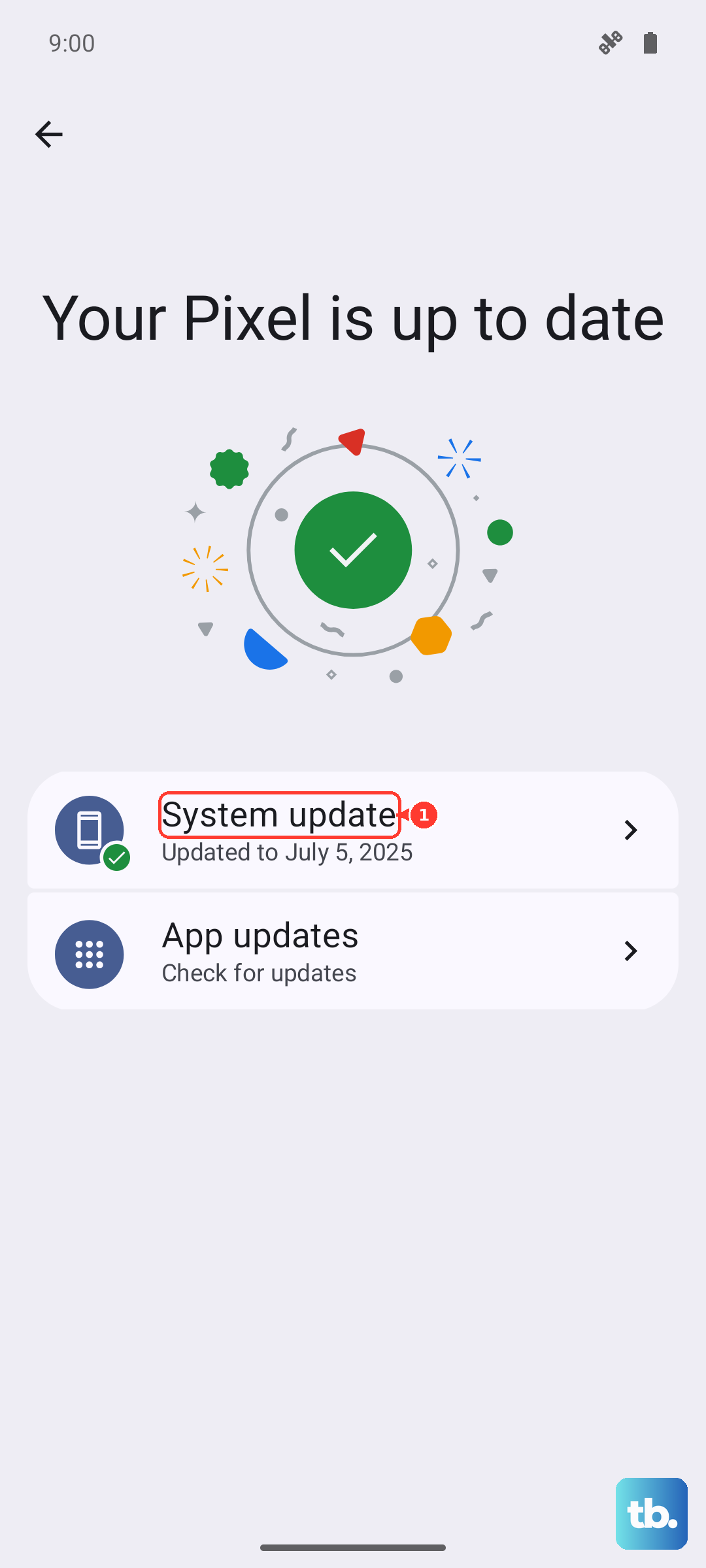
Head to Settings > System > System update to check for any available downloads. Google releases updates that can include optimizations for power management and charging behavior. Making sure you're on the latest available version of Android ensures all the built-in charging logic is current.
For Wireless Charging, Use the Right Stand
The Pixel 9 Pro supports up to 15W wireless charging, but only with the official Google Pixel Stand (2nd gen). Using a standard Qi charger will max out at around 12W, which is noticeably slower. Also, ensure the phone is centered correctly on the charging coil and, again, remove thick cases that can block the connection and cause heat buildup.