
If your Google Pixel 9 Pro camera app is crashing, freezing, or just showing a black screen, the first thing to try is a simple restart. Press and hold the power button until the shutdown menu appears, then tap Restart. This clears out any temporary software glitches that can lock up the camera system.
A browser based quick webcam test is the fastest way to check whether the camera works at all. It shows a live preview along with the detected resolution and frame rate.
Key Points
- Force Close and Restart the Camera App: Swipe up from the bottom of your screen to enter the app overview, then swipe the Camera app away to fully close it.
- Clear the Camera App's Cache and Data: Go to Settings > Apps > Camera > Storage & cache and tap Clear cache first. If that doesn't work, tap Clear storage next.
- Check for Android and App Updates: Outdated software is a common culprit for camera bugs on new devices like the Pixel 9 Pro.
- Boot Into Safe Mode: This temporarily disables all third-party apps to see if one is interfering with the camera.
- Inspect for Physical Damage or Obstructions: A cracked lens or a case blocking the camera array will cause immediate problems.
- Perform a Factory Reset: This is a last resort that will erase all your data, so back up everything first.
Give your phone a moment to reboot completely. Once it's back on, open the camera again to see if it's working. I'd start with this one, as it fixes most transient software hiccups.
Force Close and Restart the Camera App
Sometimes the camera app itself gets stuck in a bad state. To force close it, swipe up from the bottom of your screen and hold to enter the app overview, or recent apps menu. Find the Camera app preview and swipe it all the way up to close it.
Wait a few seconds, then tap the Camera icon again to relaunch it fresh. This is different from just going to the home screen, it completely shuts down the app's process. If the camera was just frozen, this often gets it working again right away.
Clear the Camera App's Cache and Data
If force closing doesn't help, the next step is to clear the app's temporary files. Go to Settings > Apps > See all apps. Find and tap on Camera in the list.
Tap Storage & cache, then tap Clear cache. This deletes temporary data without affecting your photos or settings. Try the camera again. If it's still broken, go back to the same menu and this time tap Clear storage or Clear data.
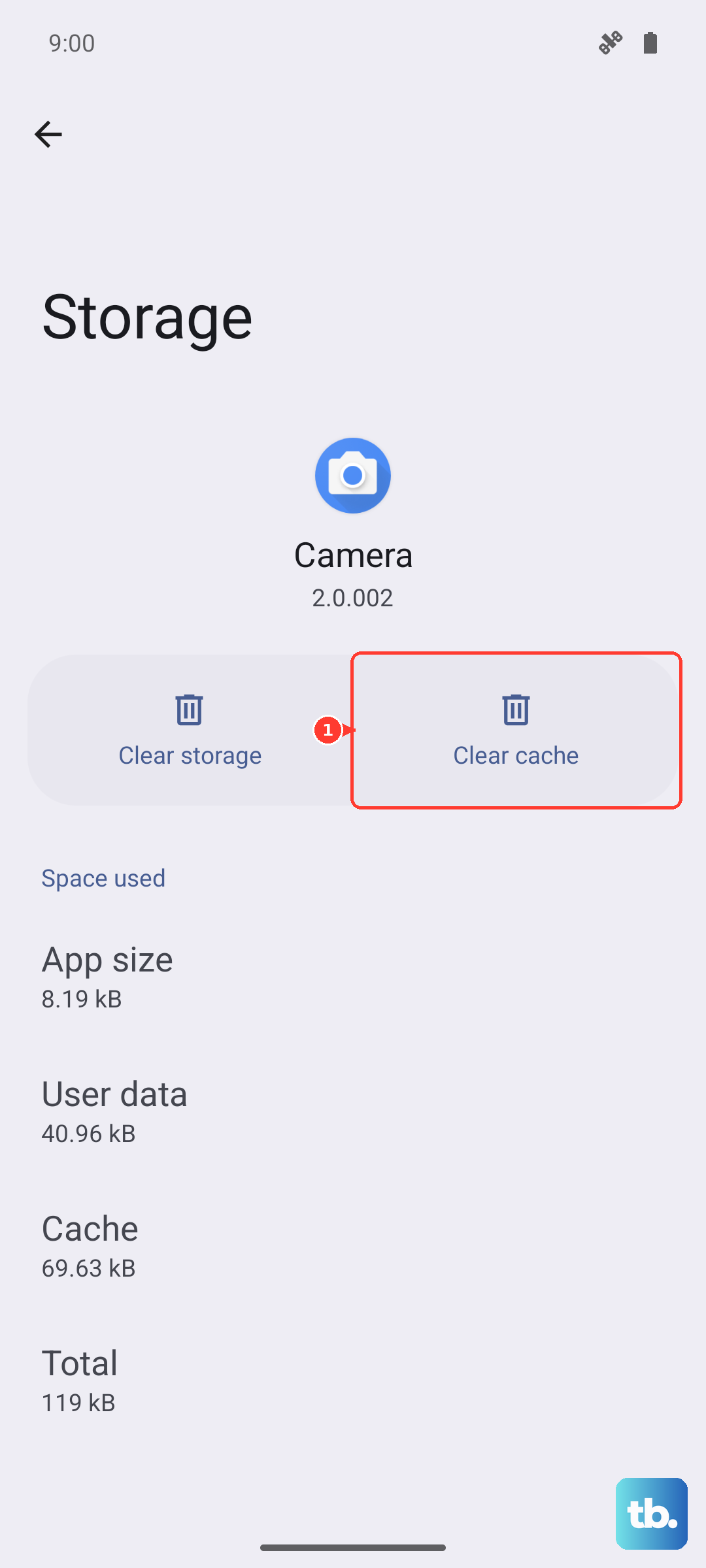
Clearing storage will reset the camera app to its default settings. You'll lose any custom modes or settings you've configured within the app, but your actual photos and videos in Google Photos are safe. This step can fix deeper corruption that a simple cache clear won't touch.
Check for Android and App Updates
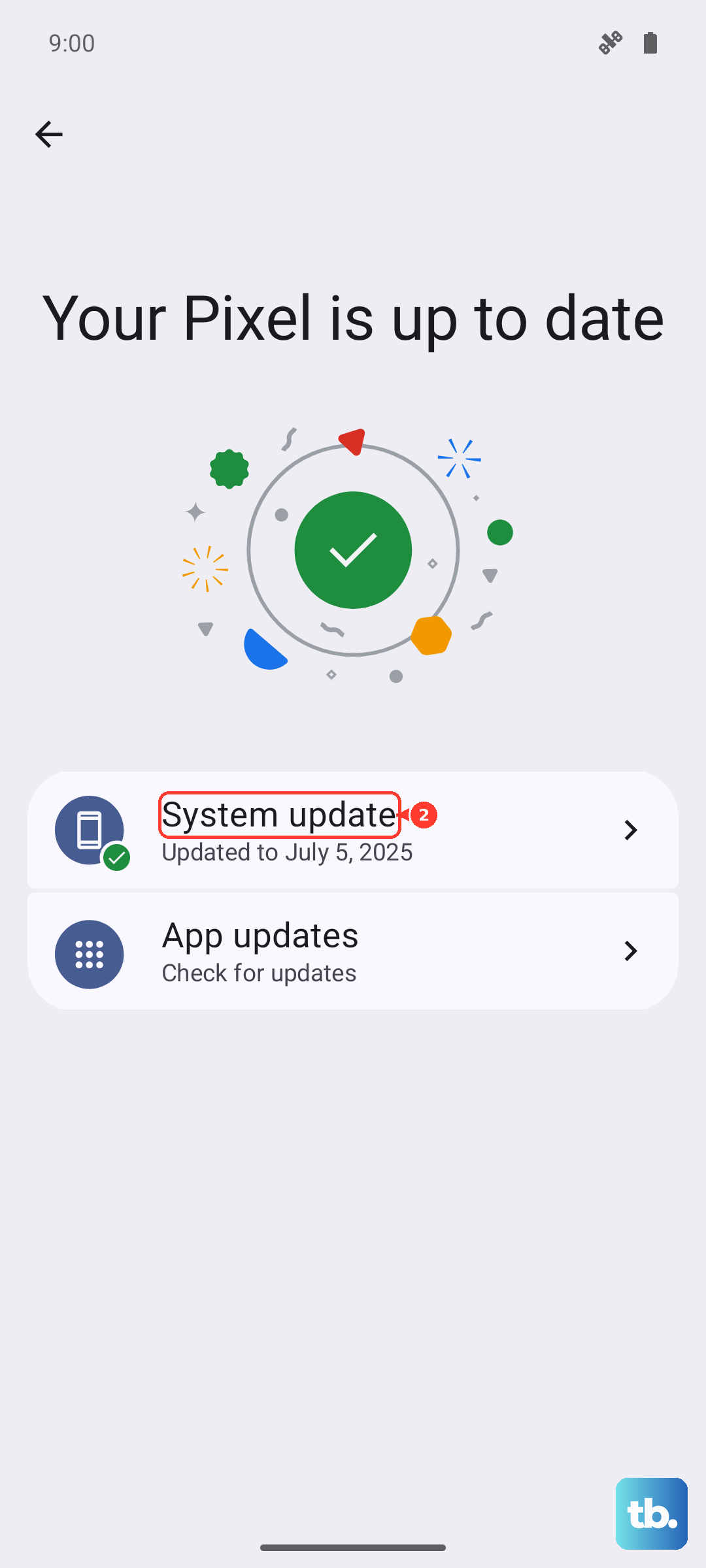
Outdated software is a frequent cause of camera issues, especially on a new device like the Pixel 9 Pro running Android 15. Google releases monthly updates that often include camera stability improvements. Open Settings > System > Software update and tap Check for update.
Install any available system update and restart your phone. Also, open the Google Play Store, tap your profile icon, and go to Manage apps & device > Updates available. Make sure the Camera app itself is updated. Developers push fixes for bugs that can appear after major OS updates.
Boot Into Safe Mode
If the camera works fine right after a restart but then fails again later, a third-party app might be causing a conflict. Booting into Safe Mode temporarily disables all apps you've installed. Press and hold the Power button and Volume Up button together until the power menu appears.
Then, press and hold the Power off option on your screen. A prompt will appear asking if you want to reboot to Safe Mode. Tap OK. Your phone will restart, and you'll see "Safe mode" in the bottom corner.
Try opening the camera now. If it works perfectly in Safe Mode, you know one of your downloaded apps is the problem. Start by uninstalling any recent apps, or apps that have camera permissions like social media or QR code scanners. Restart your phone normally to exit Safe Mode after testing.
Inspect for Physical Damage or Obstructions
Take a close look at the camera module on the back of your Pixel 9 Pro. Check for any cracks over the lenses or a deep scratch that could distort images. Also, make sure your phone case isn't misaligned and covering any part of the camera bump or the sensors next to it.
Gently clean the lenses with a soft, dry microfiber cloth. Fingerprints and smudges can cause blurry photos or make the camera struggle to focus. The Pixel 9 Pro can get warm during extended camera use, which is normal, but if it's overheating and then shutting the camera down, let it cool off for a few minutes.
Check Camera Permissions and Settings
It sounds simple, but sometimes permissions get revoked. Go to Settings > Apps > Camera > Permissions. Make sure the Camera permission is set to "Allowed." If you're trying to use the camera within another app, like Instagram or your banking app, check that app's permissions too.
Also, go into the Camera app's own settings by swiping down from the top within the app. Ensure nothing is set incorrectly, like being stuck in a specific mode (like Night Sight) that might be malfunctioning. Try switching between photo and video mode to see if one works and the other doesn't.
Perform a Network Settings Reset
This might seem unrelated, but some camera features, especially AI tools like Magic Eraser that process images in the cloud, rely on a stable network connection. Resetting your network settings can clear up underlying connectivity glitches. Go to Settings > System > Reset options.
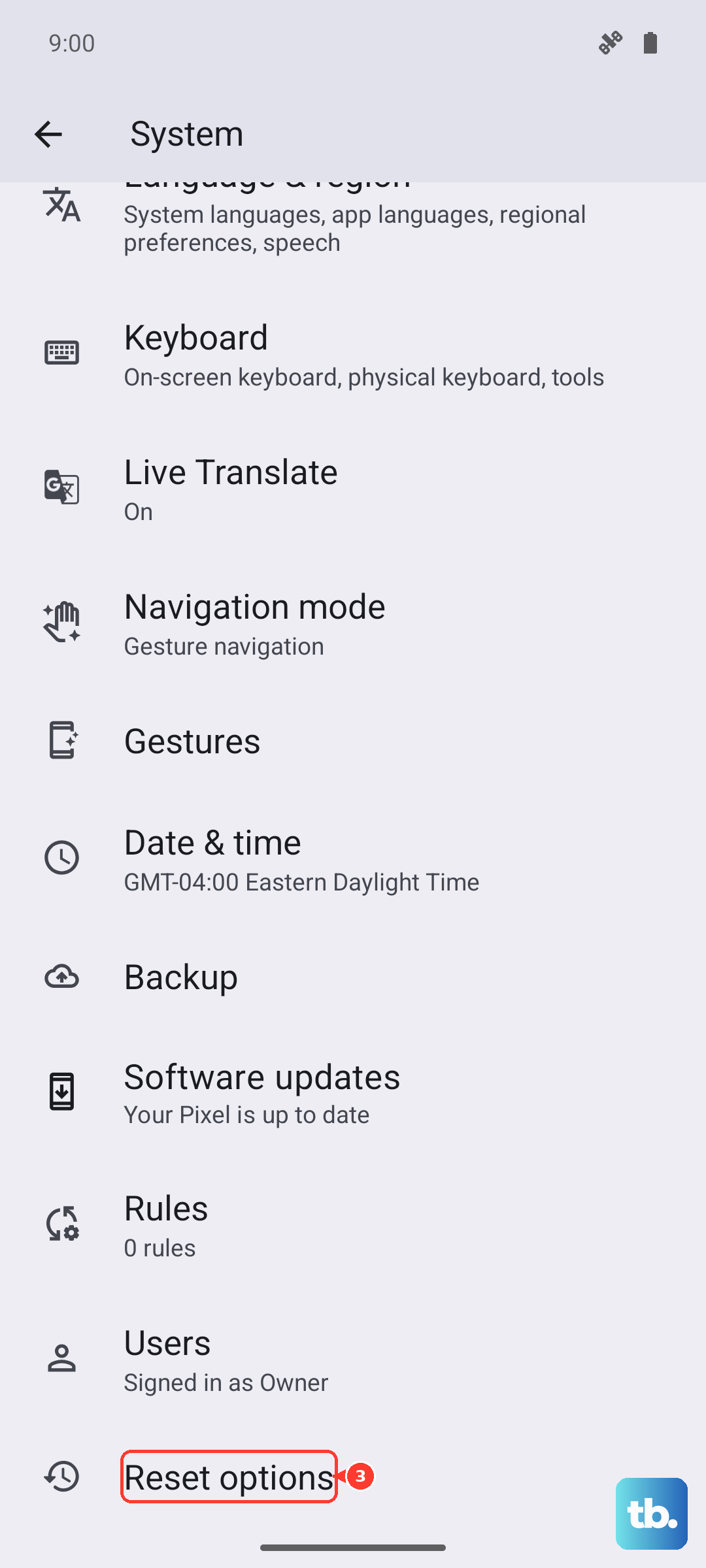
Tap Reset Wi-Fi, mobile & Bluetooth. This will erase all saved Wi-Fi networks, Bluetooth pairings, and mobile network settings. You'll need to reconnect to Wi-Fi and re-pair Bluetooth devices afterward. This won't delete any personal files or apps, but it can resolve deep-seated system conflicts affecting services the camera uses.
Perform a Factory Reset
If you've tried everything else and the camera is still completely non-functional, a factory reset is the final software step. This will erase all data from your Pixel 9 Pro and return it to its original out-of-the-box state. Back up everything important to Google Drive first.
To reset, go to Settings > System > Reset options > Erase all data (factory reset). Follow the prompts to confirm. After the reset is complete, set up your phone as new without restoring a backup immediately. Test the camera right away on the fresh system.
If the camera works after a factory reset, the problem was software corruption. If it still doesn't work on a completely clean software installation, the issue is likely with the camera hardware itself.