
If your Google Pixel 9 Pro is refusing to connect to your headphones, car, or smartwatch, it can be incredibly frustrating. Bluetooth issues are common, but on a new phone like the Pixel 9 Pro, they're often tied to software quirks that are easy to resolve. I'd start by checking a few basic things before moving on to more involved steps.
Check the Simple Stuff First
Before you dive deep, make sure you haven't overlooked the obvious. First, check that both your Pixel 9 Pro and the device you're trying to connect to have enough battery. A low battery can sometimes prevent a stable connection.
Pull down the quick settings shade from the top of your screen and make sure the Bluetooth tile is lit up blue. It's easy to accidentally tap it off. Also, ensure the other device is actually in pairing mode, not just powered on. Most headphones and speakers have a specific blinking light pattern for this.
Keep the devices within a few feet of each other while pairing. Walls and other electronics can interfere with the signal. Finally, try pairing your Pixel with a different Bluetooth device. This tells you if the problem is with your phone or that specific accessory.
Toggle Bluetooth and Restart
The quickest fix is often just turning Bluetooth off and back on. Swipe down twice from the top of your screen to open the full quick settings panel, then tap the Bluetooth icon to turn it off. Wait about ten seconds, then tap it again to turn it back on. Try the pairing process again.
If that doesn't work, a full restart of both devices is the logical next step. For your Pixel 9 Pro, press and hold the power button until you see the power menu, then tap "Restart." Do the same for your headphones, speaker, or car system. A fresh start clears out temporary glitches that can block connections.
Forget and Re-Pair the Device
Sometimes a pairing gets corrupted. The best way to fix this is to remove the device from your phone's memory and start fresh. Open the Settings app on your Pixel 9 Pro and go to Connected devices > Previously connected devices.
Find the problematic device in the list and tap the settings gear icon next to it. Then, tap Forget. Confirm your choice. Now, put the other device back into pairing mode and look for it in the "Available devices" list on your Pixel to pair from scratch.
Clear the Bluetooth System Cache
Android stores temporary data for system services like Bluetooth in a cache. If this data gets corrupted, it can cause connection problems. Clearing it is safe and won't delete your personal data or paired devices.
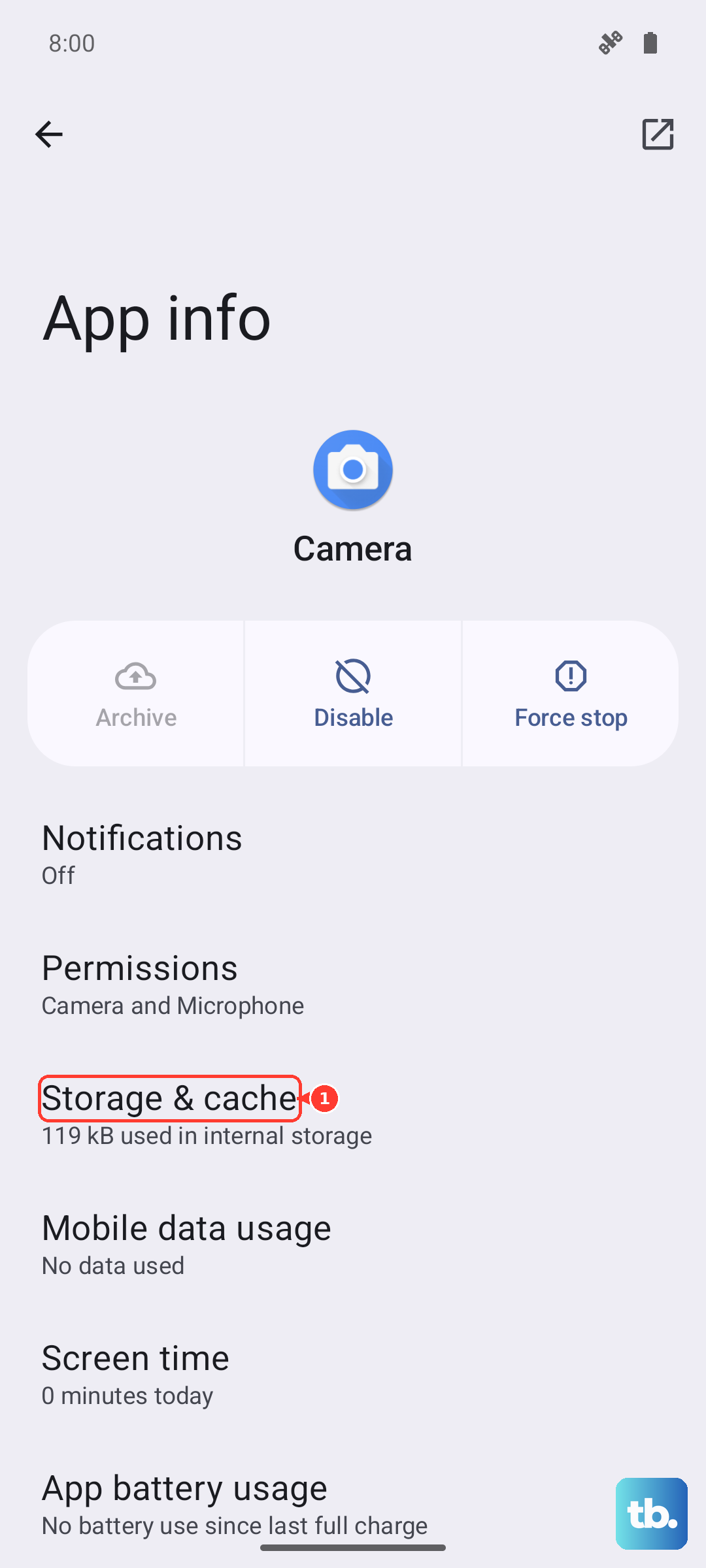
Go to Settings > Apps > See all apps. Tap the three-dot menu in the top right and select Show system. Scroll down and find "Bluetooth" in the list, then tap on it. Select Storage & cache and tap Clear cache.
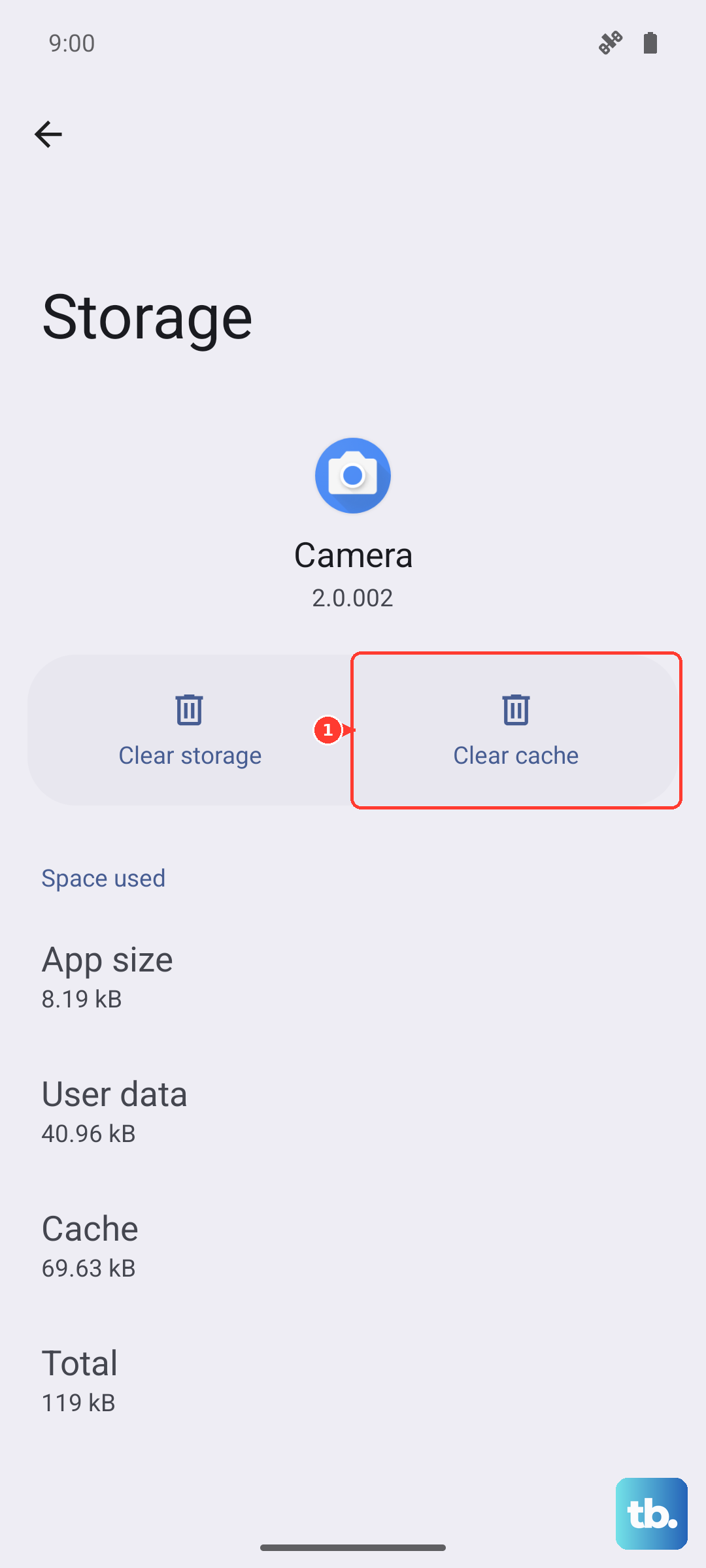
If clearing the cache doesn't help, you can take the more thorough step of clearing the Bluetooth data. This will forget all your paired devices, so you'll have to re-pair everything. In the same "Storage & cache" menu, tap Clear storage or Clear data and confirm.
Update Your Pixel's Software
Since the Pixel 9 Pro runs Android 15, Google is constantly releasing updates that fix bugs, including Bluetooth issues. Making sure you're on the latest software is crucial. Go to Settings > System > System update.
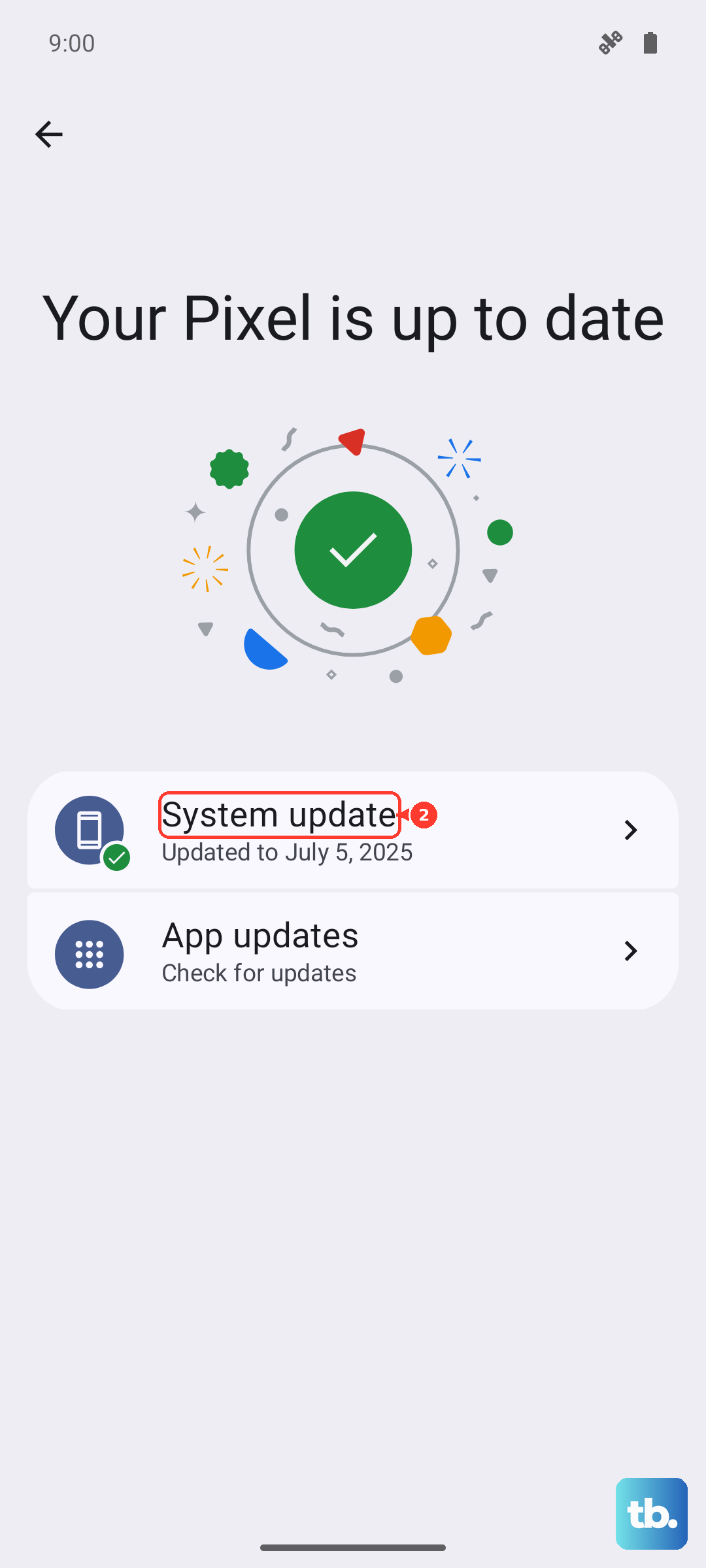
Tap "Check for update." If an update is available, download and install it. It's a good idea to connect to Wi-Fi and plug your phone into its 27W charger first. Also, check if the Bluetooth device itself has a companion app that might offer a firmware update.
Reset Your Network Settings
This resets all network-related features on your phone, Wi-Fi, mobile data, and Bluetooth, back to their default state. It's a powerful step that often resolves persistent connection woes. You will need to re-enter Wi-Fi passwords and re-pair Bluetooth devices afterward.
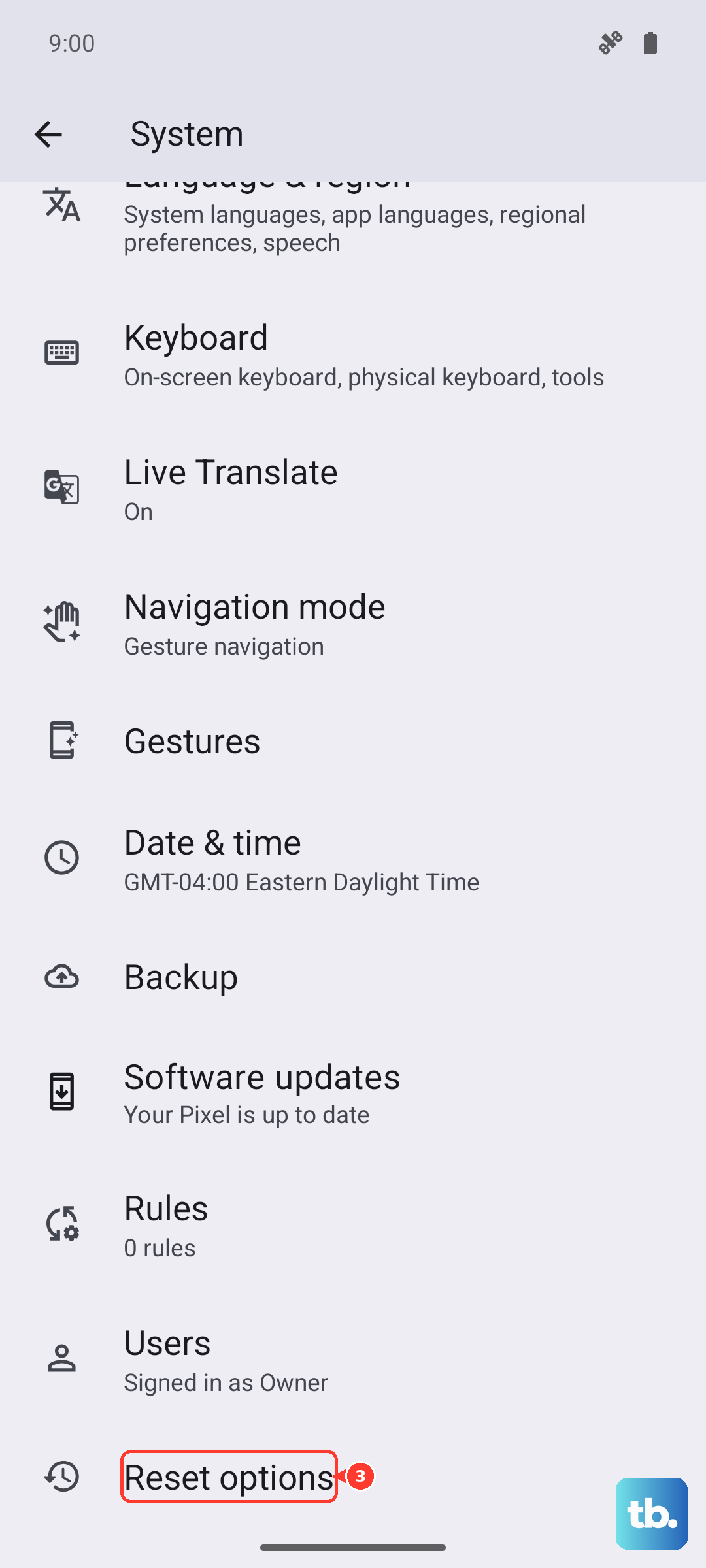
To do this, navigate to Settings > System > Reset options. Tap Reset Wi-Fi, mobile & Bluetooth and confirm by tapping the reset button at the bottom. Enter your PIN or pattern if prompted, and your phone will restart.
Boot Into Safe Mode
If a recently downloaded third-party app is causing a conflict, it can break Bluetooth. Safe Mode temporarily disables all apps you've installed, letting you test the core system. Press and hold the Power button and Volume Up button together until the power menu appears.
On the menu, tap and hold the "Power off" option. You'll see a prompt to reboot to Safe Mode. Tap "OK." Your phone will restart, and you'll see "Safe mode" in the bottom corner. Try pairing your Bluetooth device now. If it works, a third-party app is the culprit. Restart normally and try uninstalling recent apps one by one.
For a device as new as the Pixel 9 Pro, hardware failure is rare, but not impossible. If you've tried every software fix here, including a factory reset (after backing up your data), and Bluetooth still fails, it might be time to contact Google Support, especially if your phone is still under warranty. The Tensor G4 modem has been noted to be less robust in some conditions, which could theoretically affect Bluetooth stability, though that's more commonly associated with cellular signals.