
When your Google Pixel 9 Pro starts dropping apps like they're hot, it pulls you right out of whatever you were doing. It's a jarring experience, especially on a phone known for its clean Android 15 software. The good news is you can almost always get things running smoothly again without too much fuss.
I'd start with the quickest fix first. Just restart your phone. Press and hold the power button for about 30 seconds until you see the Google logo appear and the phone reboots. This force restart clears out any temporary glitches in the memory and is the single most effective step for random, widespread crashing.
Update Everything
Outdated software is a prime suspect. Head to the Google Play Store, tap your profile icon, and go to Manage apps & device. See if there are updates waiting under the "Updates available" section. Tap "Update all" to batch them.
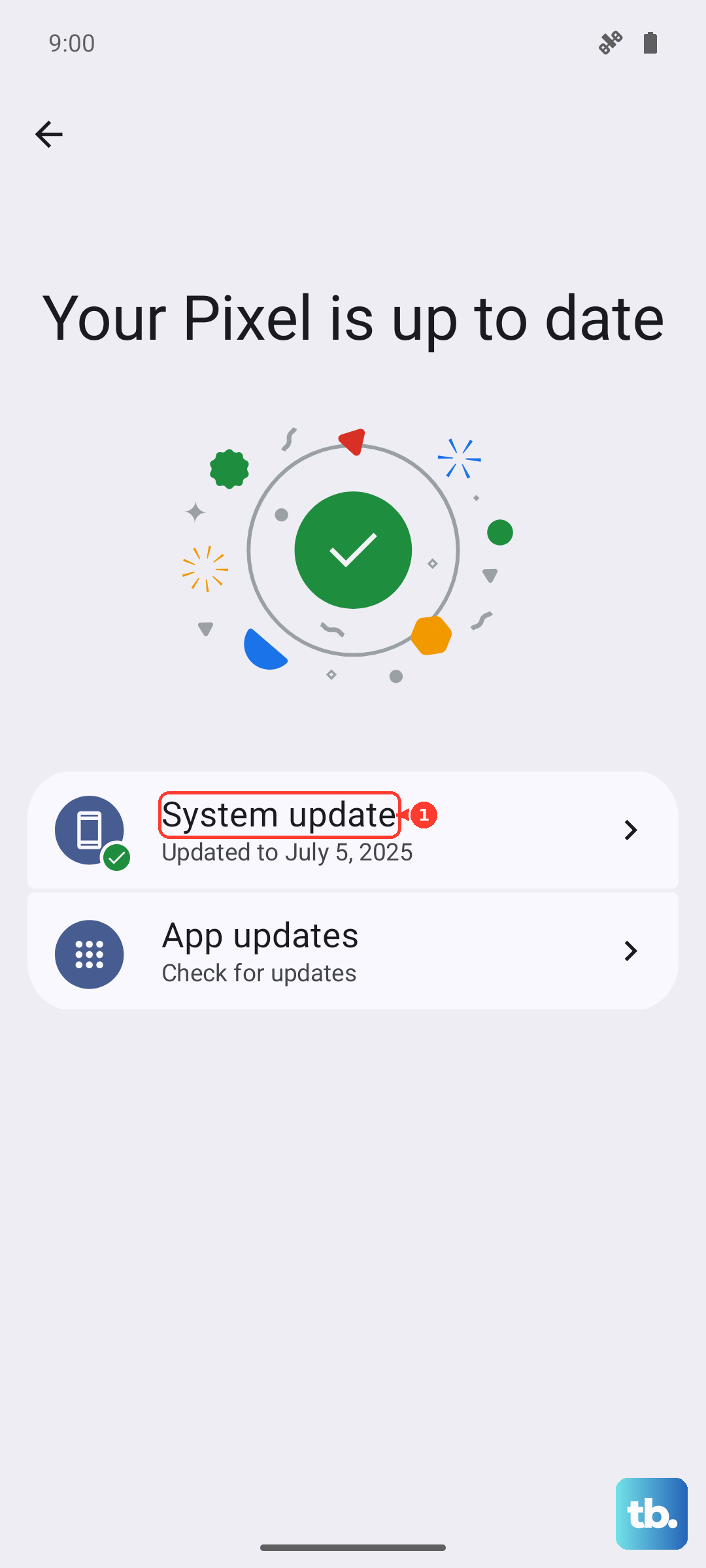
Don't forget the system itself. Go to Settings > System > System update to check for the latest Android 15 patch from Google. These updates often contain crucial stability fixes for the Tensor G4 chip and other components.
Give Problem Apps a Fresh Start
If it's just one or two apps misbehaving, force stop them. Go to Settings > Apps, select the troublesome app, and tap "Force stop." Wait a moment, then open it again. This is more thorough than just swiping it away from the recent apps view.
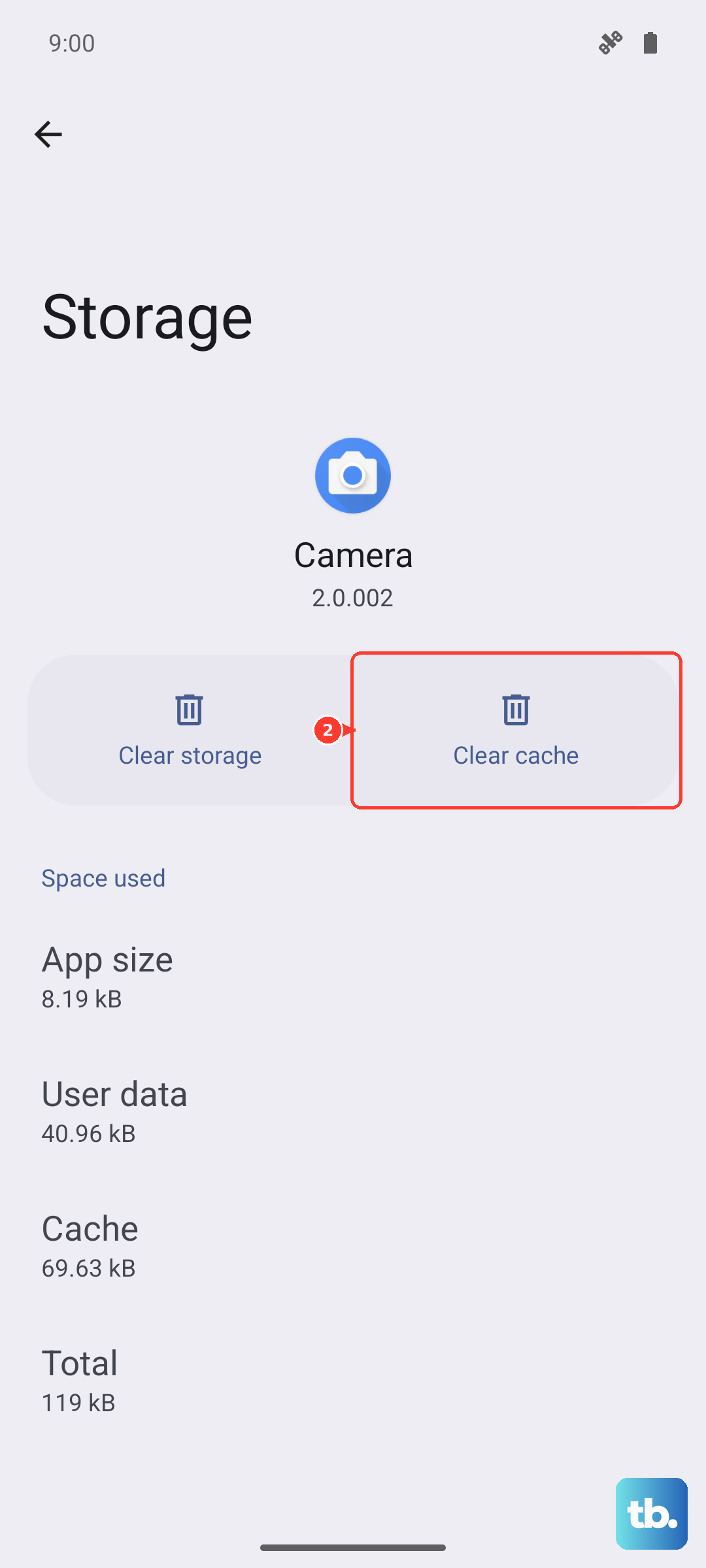
For a deeper clean, clear the app's cache. In the same app info screen, go to Storage & cache and tap "Clear cache." This deletes temporary files that might have become corrupted. Your login info and saved data should remain intact.
Check Your Connection and Storage
A weak or flaky internet connection can cause apps that rely on data to stutter and crash. This can be more noticeable if you're in an area with a poor cellular signal, as some users have reported the Tensor G4's modem can be less robust than others. Try toggling Airplane mode on and off, or switch between Wi-Fi and mobile data to see if stability improves.
Your Pixel 9 Pro also needs breathing room. Go to Settings > Storage to see how much space is left. If you're below 10% free space, apps can struggle to function. Use the built-in cleanup tool there, or manually offload old videos and photos to Google Photos, you can always use Magic Eraser on them later from the cloud.
Reinstall the Offending App
When an app is consistently problematic, a fresh install is the way to go. Uninstall it completely by long-pressing its icon and selecting "Uninstall," or via the Play Store. Then, reinstall it directly from the store. This ensures you have a clean, uncorrupted version of all its files.
Review App Permissions and Battery Settings
Sometimes an app crashes because it's being restricted. Go to Settings > Apps, select the app, and tap "Permissions." Ensure it has the permissions it needs to run (like Location for a maps app).
Also check the battery optimization setting. Go to the app's info page, tap Battery > Battery optimization. If it's set to "Optimized," try changing it to "Unrestricted" for that specific app. This prevents Android from overly restricting its background activity, which can sometimes cause issues.
Boot into Safe Mode
This is a great diagnostic step to see if a third-party app you installed is causing the chaos. Press and hold the power button, then long-press the "Power off" option on your screen. Tap "OK" to reboot into Safe Mode. You'll see "Safe mode" in the bottom corner.
If the crashing stops in Safe Mode, you know one of your downloaded apps is the culprit. You'll need to uninstall recently added apps one by one to find the offender. Restart your phone normally to exit Safe Mode.
Reset App Preferences
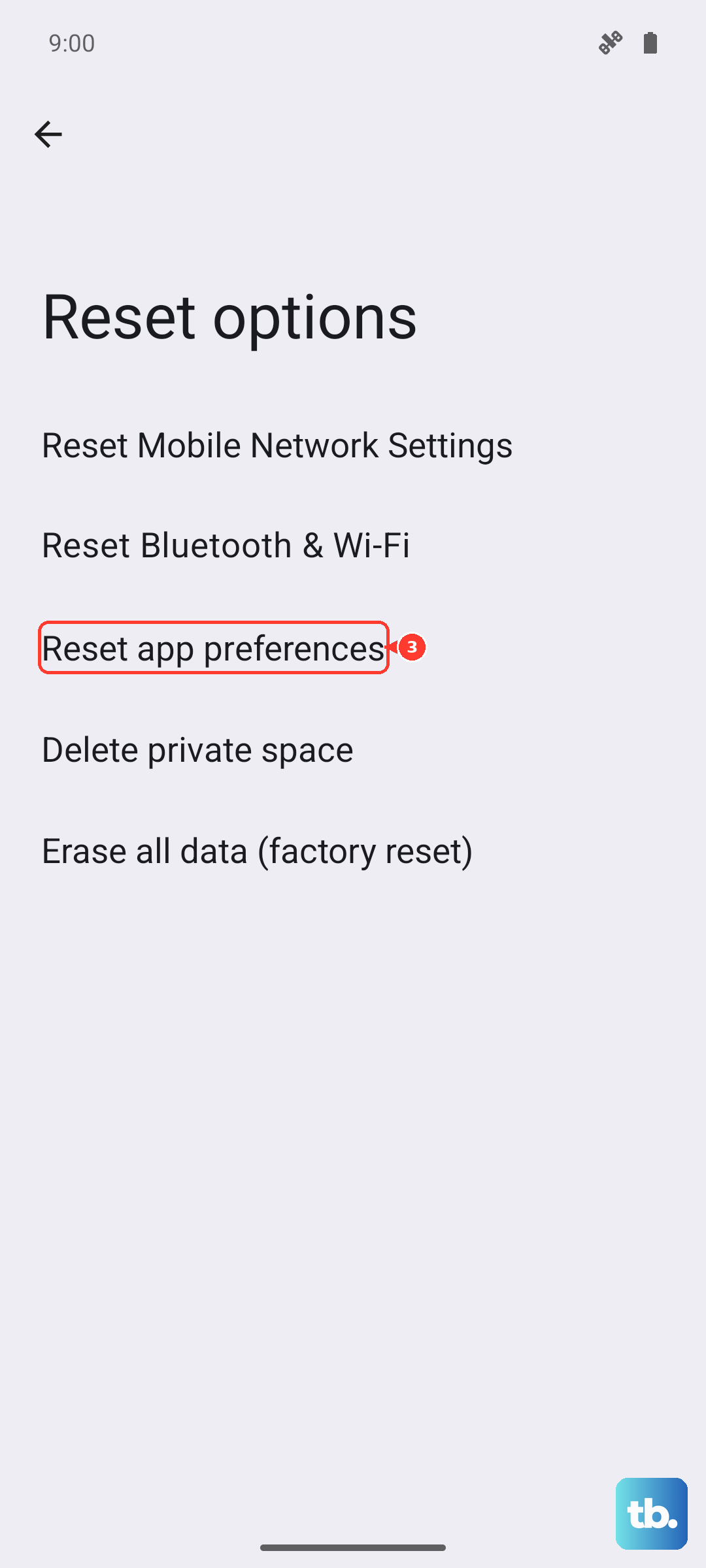
This is a less nuclear option that resets all your app-related settings without deleting any personal data. It will revert permissions, default apps, and background restrictions to their original states. Go to Settings > System > Reset options and tap "Reset app preferences." You'll just need to re-grant permissions to apps as you use them again.
Consider a Factory Reset
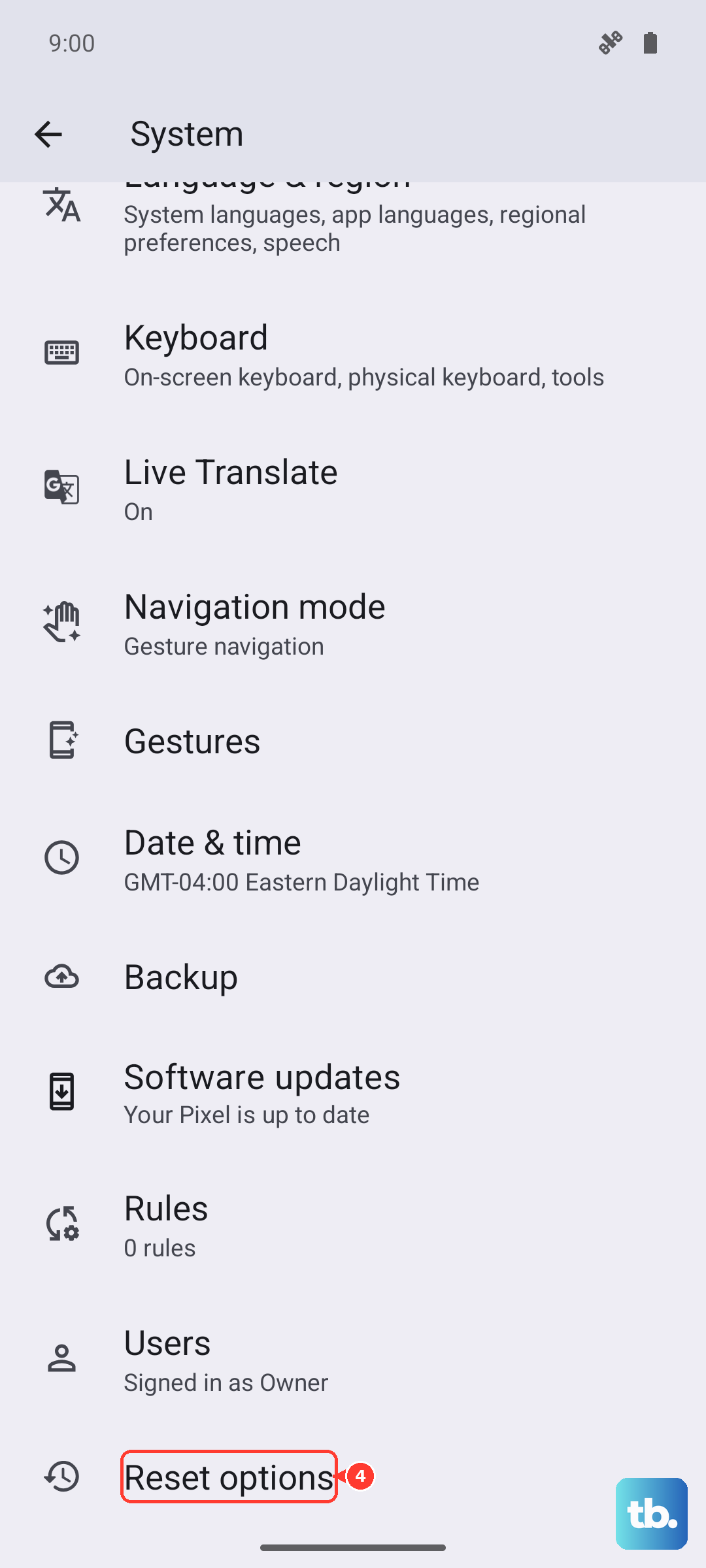
If you've tried all else and apps are still unstable, a factory reset is the final step. This will wipe your phone back to its out-of-the-box state. It's crucial to back up everything first using Google One. Once backed up, go to Settings > System > Reset options > Erase all data (factory reset).
After the reset, set up the phone as new initially to see if the crashing is gone. If it is, you can then restore your backup, though be aware a corrupted backup file could theoretically reintroduce the problem.