
When your Pixel 9 screen stays dark and silent, it's easy to miss important messages or alerts. This usually comes down to a notification setting that got changed or a temporary software hiccup. I'd start by checking the basics, as that resolves most cases pretty quickly.
First, pull down the quick settings panel from the top of your screen twice. Look for the "Do Not Disturb" icon, which looks like a circle with a line through it. If it's highlighted, tap it to turn it off. Also, check for a "Bedtime mode" tile, as this can silence notifications on a schedule.
Check App-Specific Notification Settings
Android 15 gives you a lot of control over notifications per app. If you're missing alerts from a specific app like Messages or Gmail, its settings might be the culprit. Open Settings and go to Notifications > App settings. Find the app that's not alerting you and tap on it.
Make sure the toggle at the top for "Show notifications" is turned on. Then, look at the different "Channels" listed below. For an app like Gmail, you might have separate channels for "Primary" and "Promotions." Tap into each important channel and ensure alerts are enabled and set to a sound or vibration you'll notice.
Restart Your Pixel 9
A simple restart clears out temporary system glitches that can stop notifications from coming through. Just press and hold the Power button and Volume Up button together until the power menu appears, then tap "Restart." If your phone is completely unresponsive, you can force a restart by pressing and holding the power button for about 30 seconds until you feel it vibrate and the Google logo appears.
Review Focus Mode and Digital Wellbeing
Google's Digital Wellbeing tools are great for managing screen time, but they can sometimes block notifications unintentionally. Go to Settings > Digital Wellbeing & parental controls. Check if "Focus mode" is scheduled or currently active for any of your apps, as this pauses notifications.
Also, look at the "Bedtime mode" settings here. If it's enabled on a schedule, it will turn your screen grayscale and silence notifications during those hours. You can adjust the schedule or turn it off if it's interfering with your daytime alerts.
Clear the Cache for the Problem App
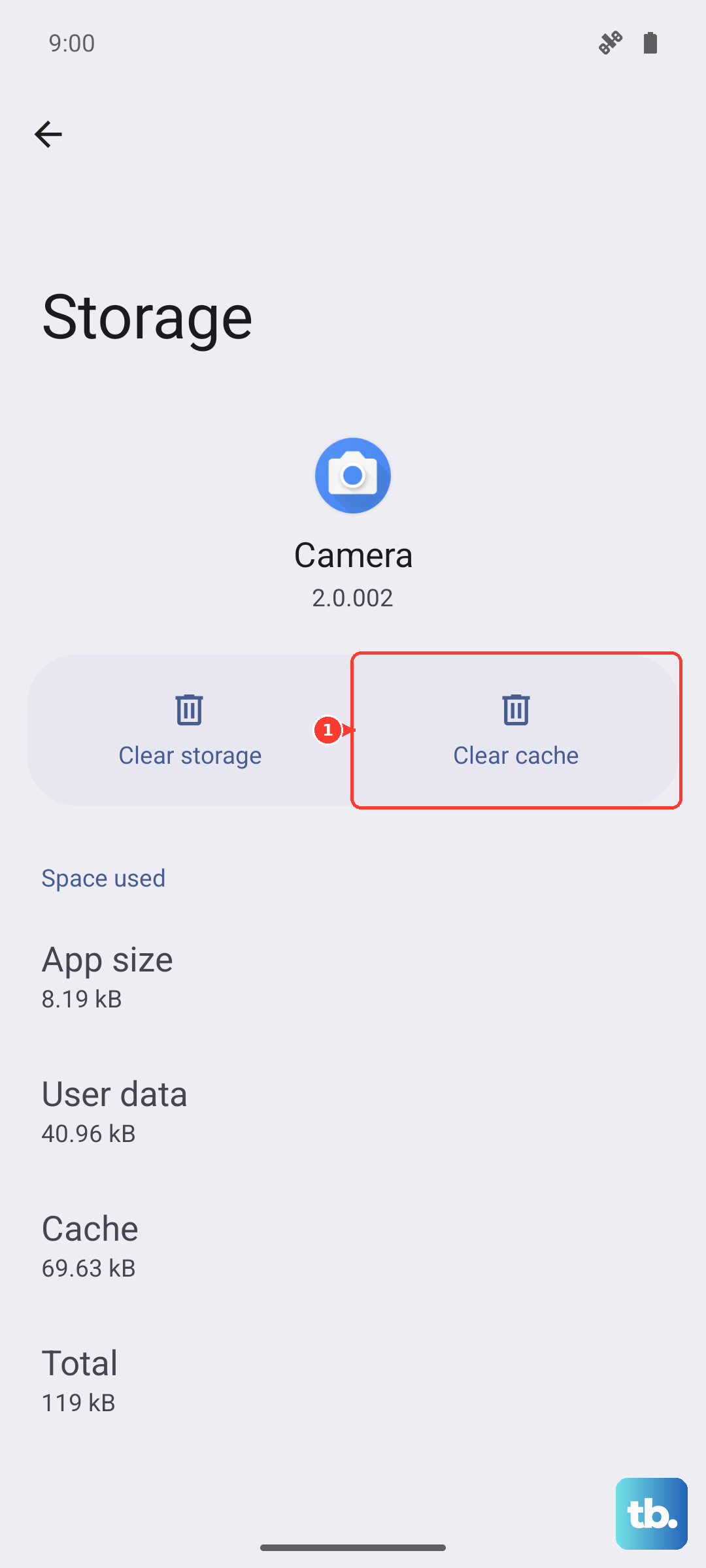
Corrupted temporary files in an app's cache can break its notification function. This won't delete your login info or personal data. Go to Settings > Apps and select "See all apps." Find the app that's having issues and tap on it.
Tap Storage & cache, then tap "Clear cache." After doing this, force close the app by swiping it away from your recent apps overview, then open it again. This gives it a fresh start.
Check Battery Optimization and Background Data
To save battery, Android can restrict what apps do in the background. If an app is overly optimized, it might not check for new messages. Go to Settings > Apps > [Your App] > Battery.
Set the battery mode to "Unrestricted." This allows the app to run in the background without limits. Also, while you're in the app's settings, go to Mobile data & Wi-Fi and make sure "Background data" is allowed.
Update the App and Your Android System
An outdated app version might have a bug that breaks notifications. Open the Google Play Store, tap your profile icon, and go to "Manage apps & device." Under "Updates available," see if the app in question is listed and update it.
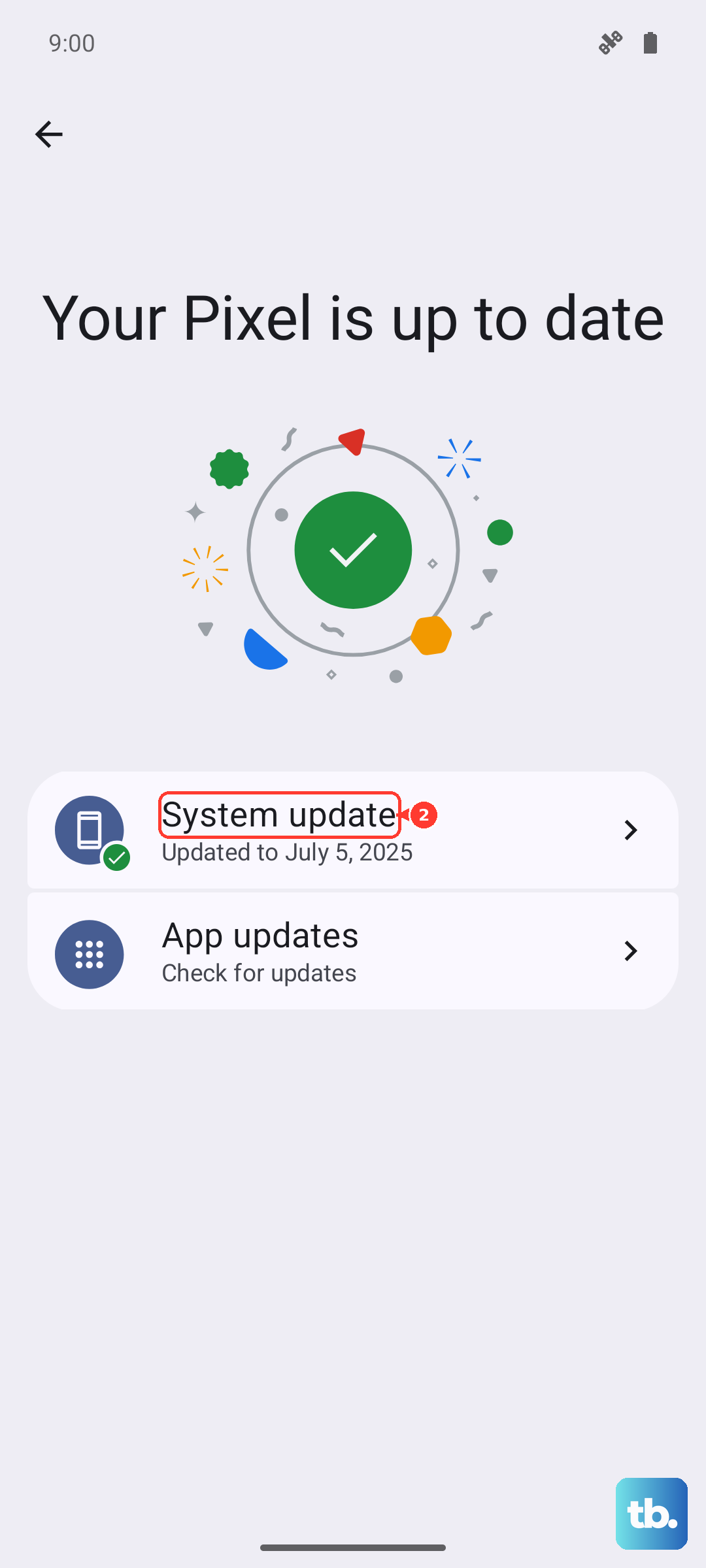
System updates are just as important. Go to Settings > System > System update to check for the latest Android security patch or Feature Drop. These updates often include fixes for notification delivery issues.
Reset App Preferences
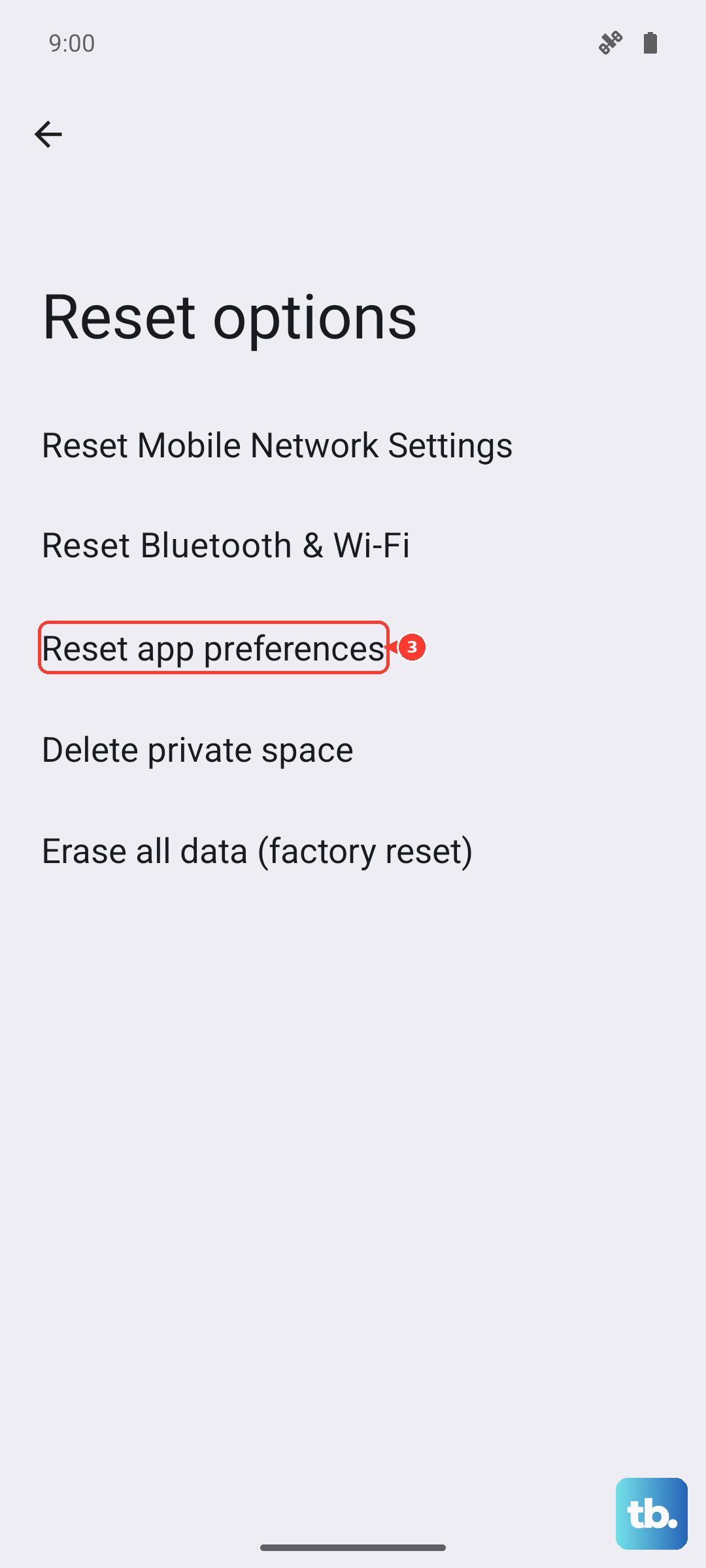
This is a useful nuclear option for app-related settings that won't delete any of your personal data. It resets permissions, background data restrictions, and notification settings back to their defaults for all apps. You'll just need to re-grant permissions when you use apps again.
To do this, go to Settings > System > Reset options. Tap "Reset app preferences" and confirm. After your phone reboots, test if notifications are working again.
Verify Notification Access for Specific Apps
Some apps, like fitness trackers or messaging apps that pop up over other screens, need special permission to display notifications. Go to Settings > Apps > Special app access > Notification access.
See if the app you're troubleshooting is listed here and make sure the toggle is switched on. If it's a messaging app you use for "bubbles," this permission is often required for that feature to work.
Disable Adaptive Notifications (If Enabled)
Pixel phones have a feature that tries to learn which notifications you interact with and quietly hide the ones you often ignore. Sometimes it gets it wrong. You can check if this is the issue by going to Settings > Notifications > Adaptive notifications.
Try turning this setting off temporarily. If your missing alerts start appearing again, you'll know this feature was the cause. You can always turn it back on later.
Check for Conflicting Third-Party Apps
If you've installed any apps that manage notifications, battery savers, or cleaner tools, they might be interfering. Try booting your Pixel 9 into Safe Mode to temporarily disable all third-party apps. Press and hold the power button, then tap and hold the "Power off" icon on your screen until you see the Safe Mode prompt.
Tap "OK" to reboot into Safe Mode. If notifications work normally here, a recently installed app is likely the problem. You'll need to restart normally and uninstall apps one by one to find the culprit.