
If your Google Pixel 9 shows a persistent "Not registered on network" message, you're stuck without calls, texts, or mobile data. This means your phone can't properly identify itself to your carrier's towers. Before you worry about a hardware problem, there are several steps you can take to get back online.
I'd start with the simplest fixes first, as a temporary glitch or a minor setting is often the culprit. The process is generally the same whether you're on Android 15 or a slightly earlier version.
Restart Your Pixel 9
It sounds too easy, but a restart clears out temporary software bugs that can interfere with the modem. Press and hold the power button, then tap "Restart" on your screen. Wait for the phone to fully boot up and see if it finds the network again.
Toggle Airplane Mode
This quickly resets your cellular radio without a full reboot. Swipe down from the top of your screen twice to open the full Quick Settings panel. Tap the Airplane Mode icon to turn it on, wait about 15 seconds, then tap it again to turn it off. Your Pixel will attempt to re-register with the network immediately.
Check Your SIM Card
A loose or dirty SIM is a common cause. Power off your Pixel 9, then use the SIM eject tool to pop out the tray. Remove the SIM card, gently wipe the gold contacts with a soft, dry cloth, and carefully reinsert it. Push the tray back in until it clicks, then power the phone on.
While you have the SIM out, it's a good time to check its condition. Look for any visible scratches or damage on the metal contacts.
Verify Your Carrier Account
Sometimes the issue is on your carrier's end, not your phone. An unpaid bill or a plan that needs renewal can trigger this error. Try logging into your carrier's account portal from a computer or another phone, or give them a quick call to confirm your service is active and in good standing.
Reset Your Network Settings
This clears all your saved Wi-Fi networks, Bluetooth pairings, and cellular configurations, which can resolve deeper software conflicts. Go to Settings > System > Reset options. Tap Reset Wi-Fi, mobile & Bluetooth and confirm.
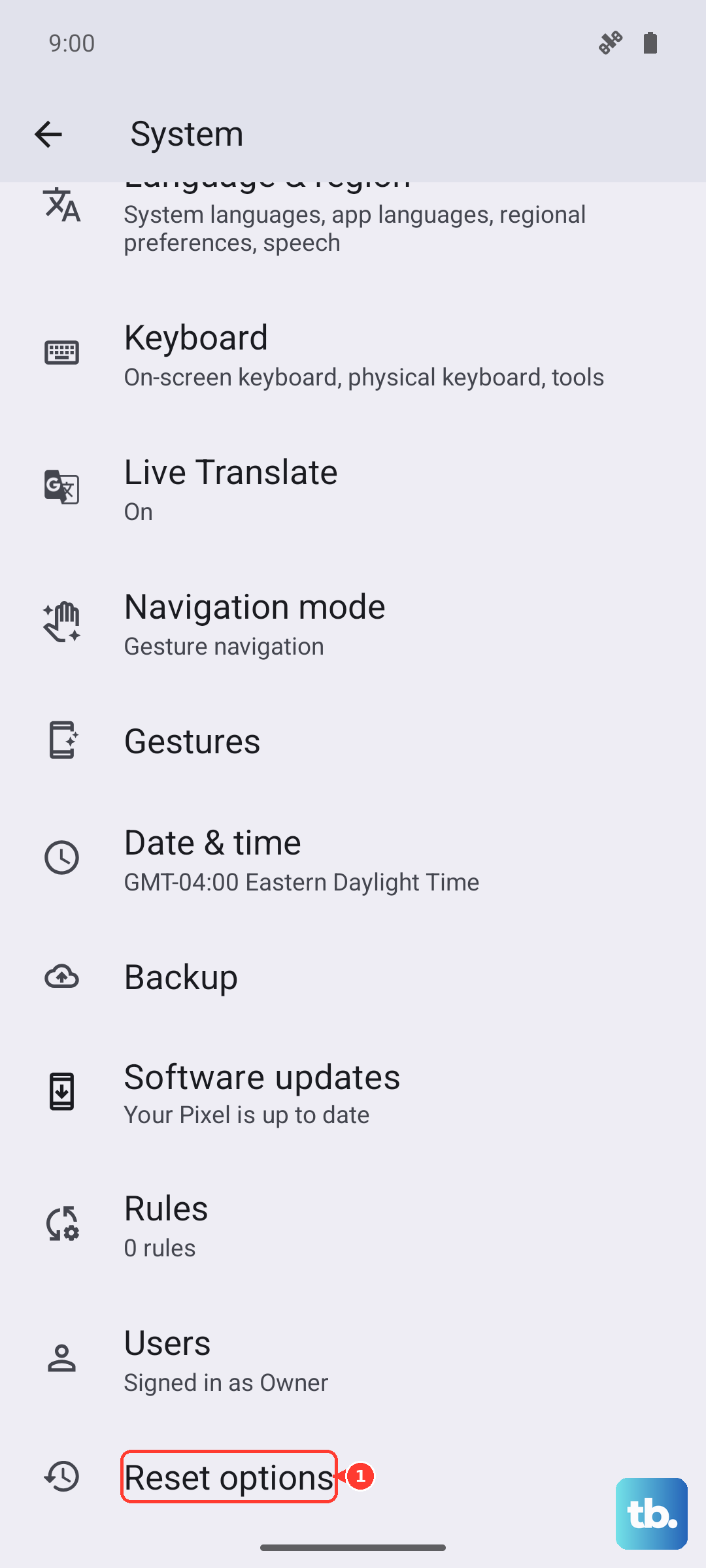
Remember, you'll need to reconnect to your Wi-Fi and re-pair Bluetooth devices afterward. Your phone will restart and try to connect to the mobile network with a fresh configuration.
Manually Select Your Network
Your Pixel might be trying to latch onto a weak or incompatible tower. You can force it to search for all available networks. Go to Settings > Network & internet > SIMs and tap your active SIM.
Tap Carrier and then Choose network. Let it search, then select your carrier's name from the list. If it fails to register, try toggling "Automatically select network" off and on again.
Update Your Software
Google frequently releases updates that fix connectivity bugs, especially after major Feature Drops. An outdated system could have a known network issue that's already been patched. Go to Settings > System > System update and tap "Check for update."
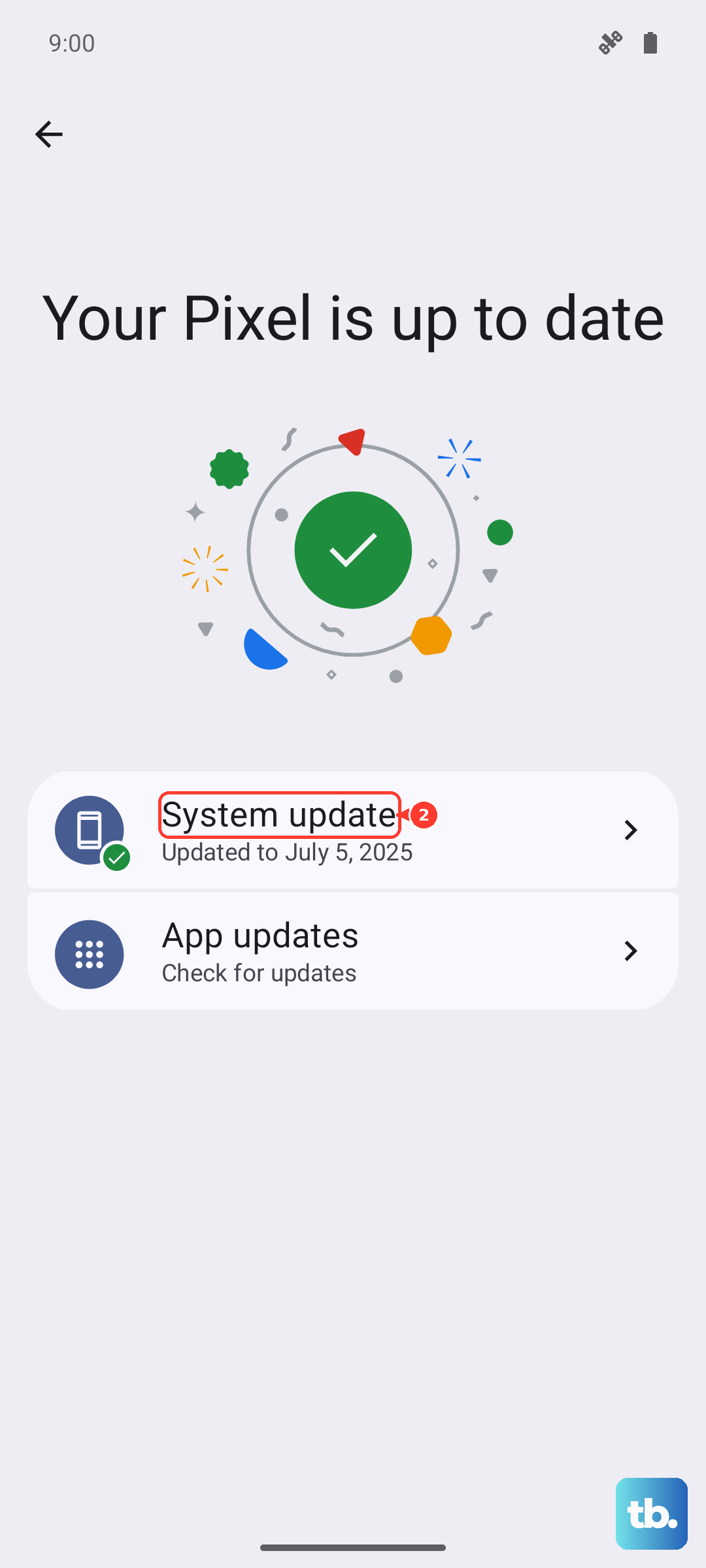
Install any available update and let your phone restart. After it boots, check if the network error is gone. It's worth making sure your carrier services are up to date too, via the Google Play Store.
Check for IMEI Issues
The IMEI is your phone's unique identifier for the network. Open your Phone app and dial *#06#. Your 15-digit IMEI number should display. If it shows "null," "unknown," or all zeros, there's a deeper problem with the device's identity.
You can also find your IMEI in Settings > About phone. Compare it to the number printed on your original box. If they don't match or the phone shows an invalid IMEI, the fixes below become more critical.
Try a Different SIM Card
This test determines if the problem is with your SIM or the phone itself. If you can, borrow a known-working SIM card from a friend (on any carrier) and insert it into your Pixel 9. If the new SIM connects to a network, your original SIM card is likely faulty and you need a replacement from your carrier.
If the borrowed SIM also shows "Not registered on network," the issue is almost certainly with your Pixel's hardware or software.
Perform a Factory Reset
This is your last software step before considering a repair. A factory reset wipes your phone back to its original state, eliminating any corrupted system data. Back up everything important first.
Go to Settings > System > Reset options > Erase all data (factory reset). Follow the prompts to confirm. After the reset, set up the phone as new without restoring a backup initially, just to test the network connection. If the error remains after a clean setup, a hardware issue with the cellular modem is the likely cause.