
When your Google Pixel 9's microphone stops picking up your voice, it can turn simple tasks into a hassle. Calls, voice commands, and video chats all rely on it. Before we jump into the fixes, it's a good idea to confirm which mic is acting up, as the Pixel 9 has several.
Test Your Pixel 9 Microphone
Open the Voice Recorder app that comes pre-installed on your phone. Tap the red record button and speak normally for a few seconds. Play it back to see if your voice is clear or muffled.
You can also test it by asking Google Assistant a question. Just say "Hey Google" or press and hold the power button. If it doesn't respond or consistently mishears you, that's a clear sign.
For a more thorough check, open the Camera app and switch to video mode. Record a short clip while talking, then watch it back with the volume up. This tests the primary microphone used for videos.
Quick Fixes to Try First
If your microphone just stopped working out of the blue, start here. These steps solve the majority of temporary glitches.
Remove Your Phone Case
Some cases, especially rugged ones with thick lips, can accidentally cover the microphone holes. Take the case off and test your mic again in a call or with the Voice Recorder app.
Restart Your Pixel 9
A simple reboot clears out temporary software bugs that might be affecting the audio system. Just press and hold the power and Volume Up buttons, then tap "Restart" on your screen.
If the screen is unresponsive, you can force a restart. Press and hold the power button for about 30 seconds until you feel a vibration and see the Google logo appear.
Disconnect Bluetooth Accessories
If you have Bluetooth headphones or a speaker connected, your Pixel might be routing all audio through them. Swipe down from the top of your screen twice to open the full Quick Settings panel and tap the Bluetooth icon to turn it off temporarily.
Check for Blocked Microphones
The Pixel 9 has microphone ports at the bottom near the USB-C charger, at the top of the frame, and on the back near the camera bar. Shine a light on these small holes to see if any are clogged with lint or pocket debris.
You can gently clean them with a soft, dry brush or a can of compressed air. Avoid using anything sharp like a pin, as you could easily damage the internal mic.
Software and Settings Solutions
If the quick fixes didn't work, the issue is likely tied to a setting or a software bug. Let's work through the Pixel's specific settings.
Force Stop and Reopen the Problem App
If the microphone only fails in one app like WhatsApp, Discord, or Zoom, that app might have crashed. Go to Settings > Apps > See all apps, find the app, and tap "Force stop." Then reopen the app and try the mic again.
Check App Microphone Permissions
Apps need explicit permission to use your microphone. Go to Settings > Security & Privacy > Privacy > Permission manager > Microphone (on Samsung Galaxy phones, go to Settings > Security and privacy > Permission manager > Microphone). Here you'll see a list of all apps that have requested access.
Make sure the toggle is switched on for the app you're having trouble with. If it's off, tap the app name and select "Allow only while using the app."
Update Android and Your Apps
Google frequently releases updates that fix bugs, including audio issues. Go to Settings > System > System update to check for the latest Android version.
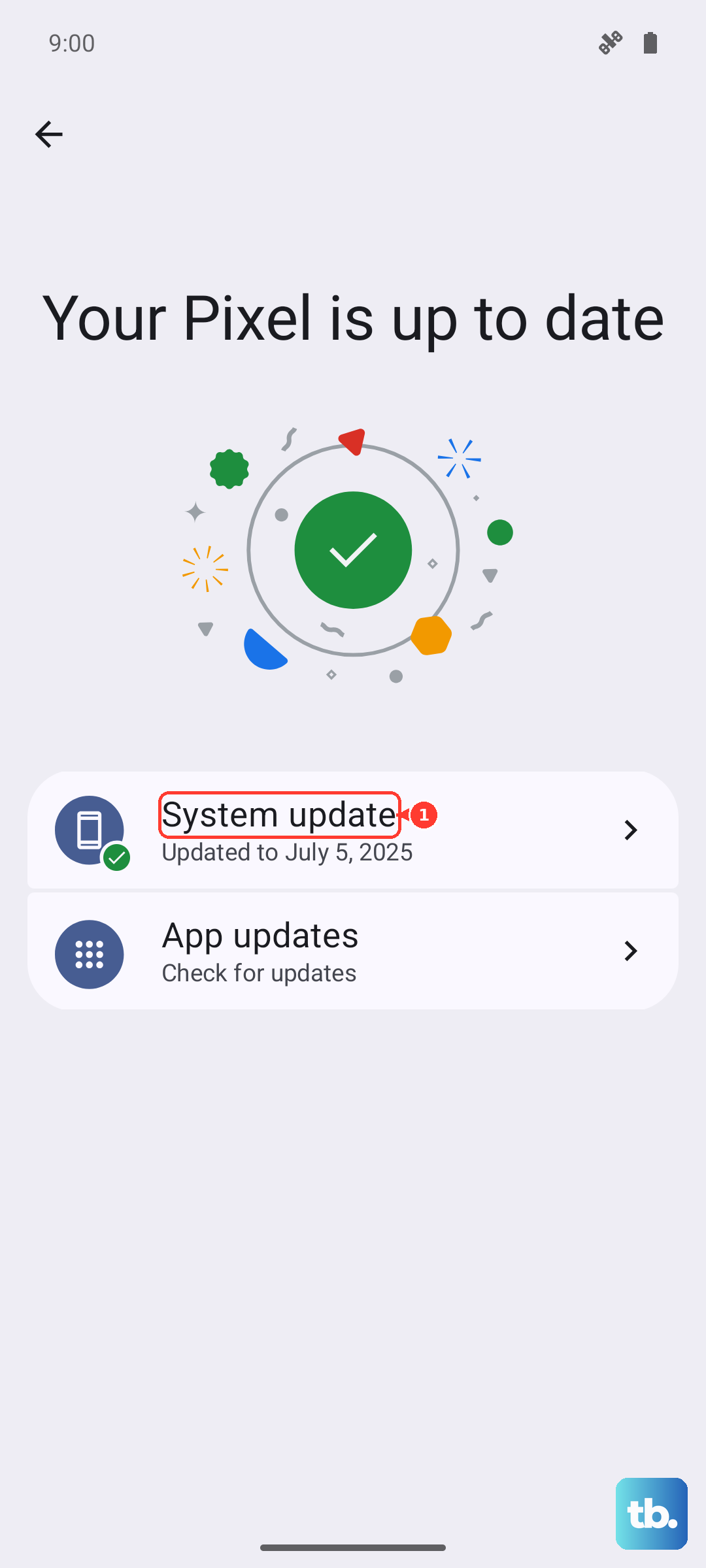
Also, open the Google Play Store, tap your profile icon, and go to "Manage apps & device." Tap "Update all" to ensure your apps aren't causing a conflict.
Disable Google's Audio Enhancements
The Pixel has some clever audio processing that can sometimes interfere. Go to Settings > Sound & vibration > Audio effects. Try turning off options like "Adaptive Sound" or "Audio Magic Eraser" to see if it makes a difference.
For call-specific issues, check your Phone app's settings. Open the Phone app, tap the three dots for More, then go to Settings > Voice and audio calls. Look for any noise reduction or call audio enhancement settings to toggle off.
Reset App Preferences or All Settings
This is a stronger step that resets all your app permissions and system settings to default, but it won't delete your personal data like photos or messages. Go to Settings > System > Reset options.
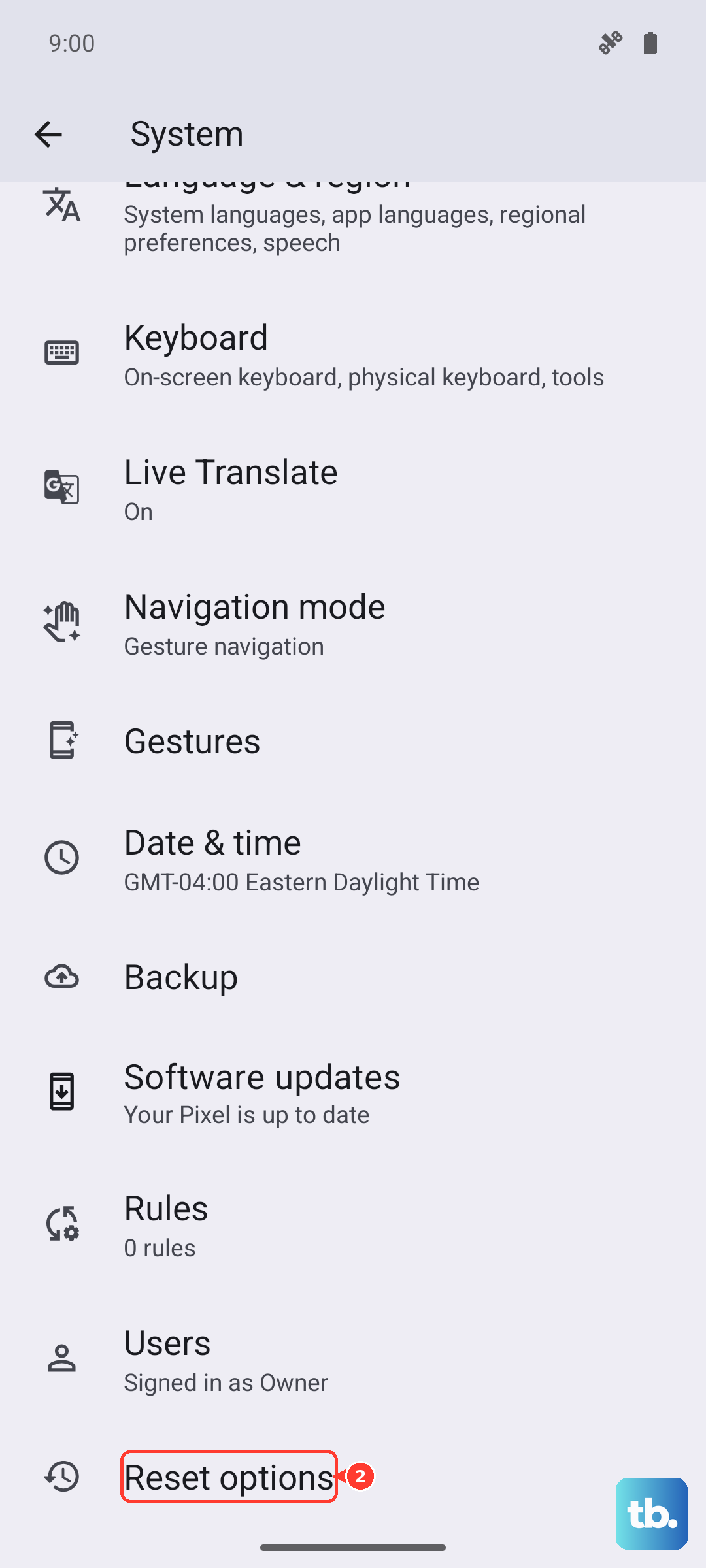
Tap "Reset app preferences." This resets permissions for all apps, so you'll need to re-allow microphone access the next time you use an app. If the problem persists, you can try "Reset all settings" from the same menu, which will also revert Wi-Fi and Bluetooth connections.
Check for Hardware Damage
Think back to whether your phone has had any recent exposure to water or a significant drop. Even with some water resistance, liquid damage can corrode microphone components over time.
If you suspect physical damage, and you've tried every software fix here, the microphone itself may need to be replaced. I've seen this happen more often after a hard drop directly onto a hard surface.