If your Google Pixel 9 is starting to feel sluggish, you're not alone. Even a phone with the latest Tensor G4 chip can hit performance snags. The good news is that Android 15 gives you plenty of tools to clear things up and get back to that smooth Pixel experience.
Lag is usually caused by a few common things on Android. Too many apps running in the background, storage space getting full, or a rogue app can all make your phone feel slow. Let's start with the quickest fix you can try right now.
Restart Your Pixel 9
It sounds too simple, but a restart clears out the phone's temporary memory and stops any background processes that might be stuck. Just press and hold the power button, then tap 'Restart' on the screen. If your screen is unresponsive, you can force a restart by holding the power button for a full 30 seconds until the phone reboots.
Check for Android and App Updates
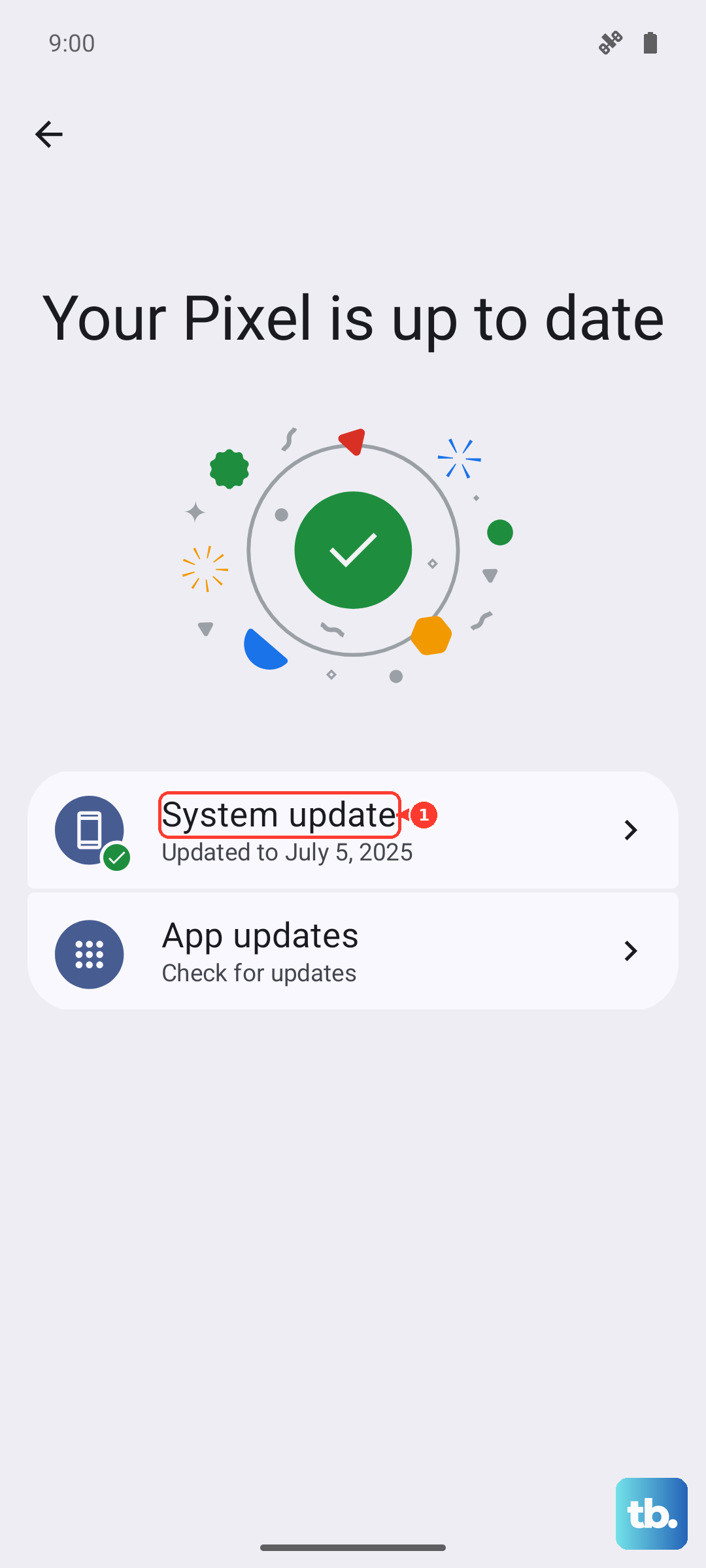
Outdated software is a common culprit for performance issues. Google's Feature Drop updates often include optimizations and bug fixes that can directly improve speed. Head to Settings > System > System update to check for the latest Android version.
Don't forget about your apps. Open the Google Play Store, tap your profile icon, and go to Manage apps & device. Under 'Updates available', you can update everything at once. I've seen phones get a noticeable boost just from a batch app update.
Free Up Storage Space
When your internal storage gets too full, everything slows down. Android needs free space to operate smoothly. Go to Settings > Storage to see what's taking up room.
The Pixel's Files app has a handy 'Clean' tool that can quickly find and suggest large files, duplicate downloads, and unused apps to remove. Also, check your photos and videos. If you're using Google Photos, you can free up gigabytes by using the 'Free up space' option after your media is safely backed up.
Manage Your Background Apps
Too many apps running in the background will drain your battery and your phone's processing power. You can view them by swiping up from the bottom and holding, then swipe through and swipe up on apps to close them.
For more control, go to Settings > Apps and look at which apps are using the most battery. If you see a social media or game app using a surprising amount, you can restrict its background activity. Tap on the app, then go to Battery > Background restriction.
Review Your Battery Health and Settings
While Android doesn't slow down phones like older iPhones did, battery-saving features can affect performance. Go to Settings > Battery to see what's going on.
If Extreme Battery Saver is on, turn it off. It severely limits background activity and can make the phone feel laggy. Also, check Adaptive Battery. It's usually helpful, but if your phone just updated, you might try turning it off for a day to see if performance improves while it relearns your habits.
Clear App Caches
Over time, apps store temporary data (cache) that can become corrupted and slow things down. You don't need to do this often, but it's a good deep-clean step. Go to Settings > Apps, select a large app like Chrome or Instagram, then tap Storage & cache and hit 'Clear cache'.
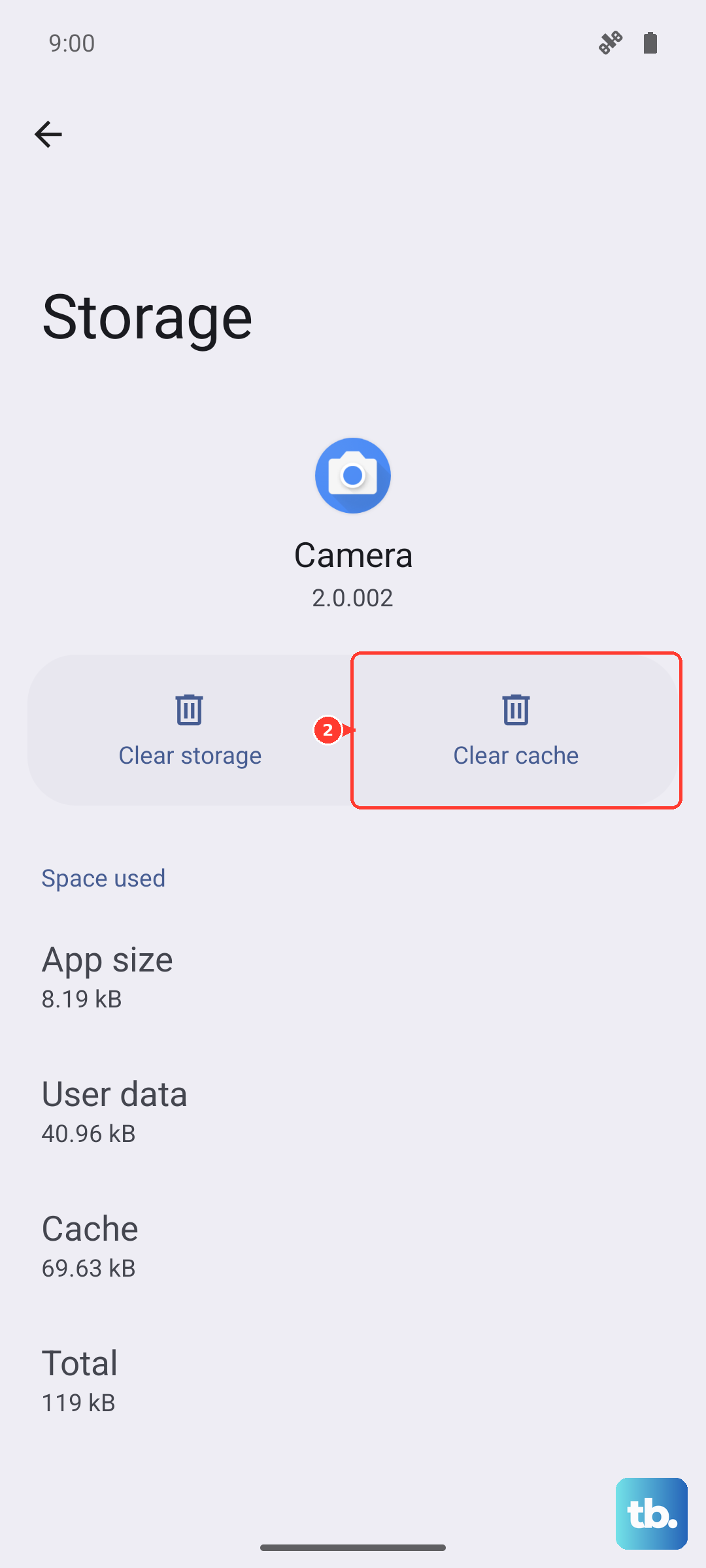
Warning: Do not tap 'Clear storage' or 'Clear data' unless you're prepared to log back into the app and potentially lose saved data. Clearing just the cache is safe.
Reduce Animations and Visual Effects
Fancy transition animations look great, but they use processing power. Speeding them up or turning them off can make your Pixel feel instantly snappier. You need to enable Developer Options first.
Go to Settings > About phone and tap 'Build number' seven times. Then, go back to Settings, into System > Developer options. Scroll down to the 'Drawing' section and look for 'Window animation scale', 'Transition animation scale', and 'Animator duration scale'. Change each from 1x to .5x or off completely.
Check for Problematic Apps
A single misbehaving app can drag down the whole system. Boot your Pixel 9 into Safe Mode to see if the lag disappears. This temporarily disables all third-party apps.
Press and hold the power button, then long-press the 'Power off' icon on your screen until you see the Safe Mode prompt. If your phone runs smoothly in Safe Mode, you know a downloaded app is the problem. Restart to exit Safe Mode, then uninstall apps you recently added one by one to find the culprit.
Disable or Remove Unused Widgets
Live widgets on your home screen are constantly updating with new information. Having too many, especially from social media or news apps, can use more resources than you think. Long-press on any widget and tap 'Remove' to get rid of ones you don't actively check.
Perform a Software Reset
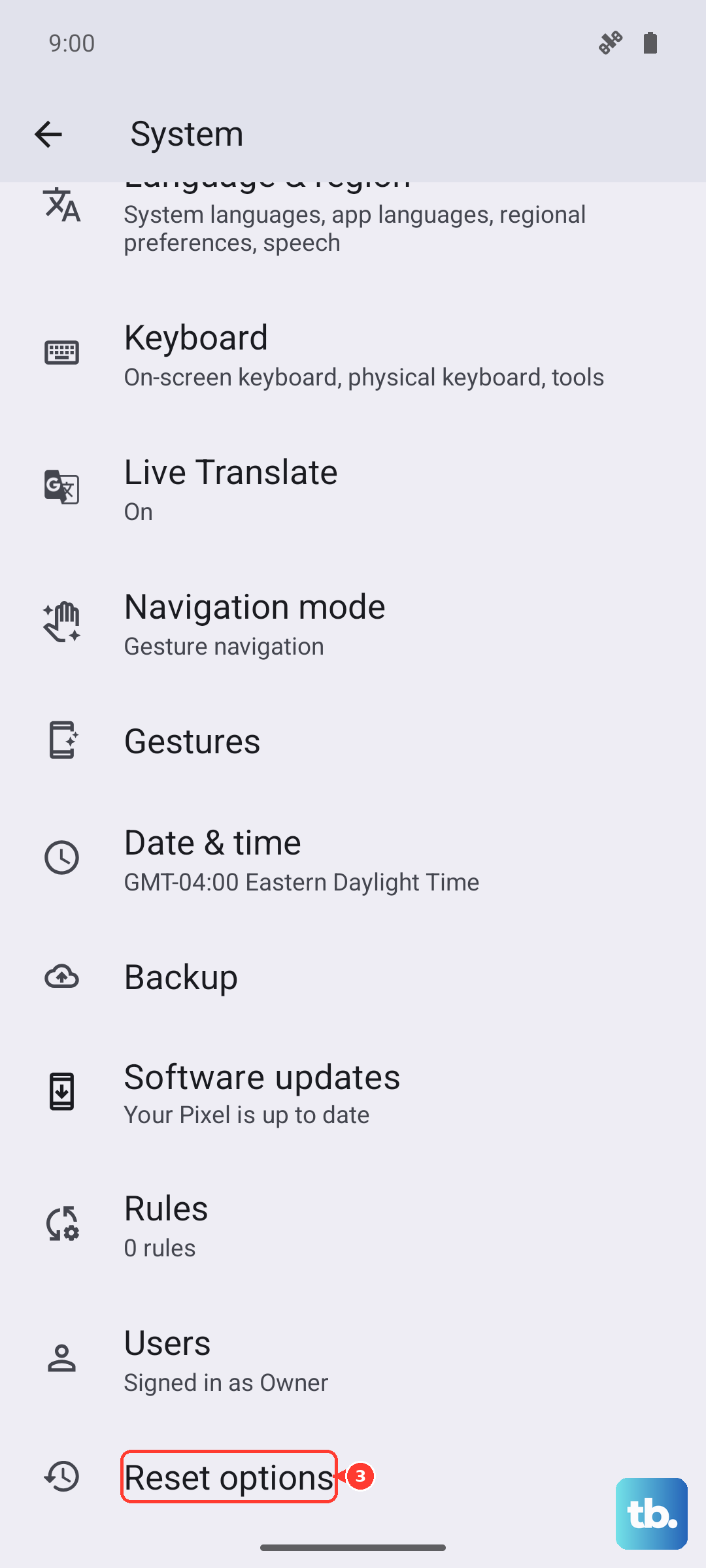
If you've tried everything and the phone is still slow, a software reset can clear out deeper glitches without erasing your personal data. This will reset all your system settings to default, like Wi-Fi passwords and ringtones, but your photos and apps will remain.
Go to Settings > System > Reset options. Tap Reset all settings and confirm. Your phone will reboot. You'll need to reconfigure some preferences, but it often resolves persistent performance hiccups after a major update.