If your Google Pixel 9's fingerprint unlock is failing, you're stuck outside your own phone. It's a common snag that can happen after an update, with a new screen protector, or seemingly out of nowhere. The good news is there are several straightforward things you can try to get back in.
Restart Your Pixel 9
This is almost always the first thing I'd try. A simple restart clears out temporary software glitches that can confuse the under-display fingerprint sensor. Just press and hold the power button, tap restart, and give it another go once it boots up.
If the screen is unresponsive and you can't use the software restart, you'll need to force it. Press and hold the power button for a full 30 seconds until you feel it vibrate and see the Google logo appear. This forces a hard reboot and can knock loose stubborn software issues.
Clean Your Screen and Finger
The Pixel 9's optical sensor reads your fingerprint through the screen, so any grime is a problem. Give the lower part of your screen a good wipe with a soft, dry microfiber cloth. Pay special attention to the area where the fingerprint icon appears.
Also, check your own finger. Lotions, oils, sweat, or even minor residue from food can create a barrier the sensor can't see through. Wash and thoroughly dry your hands, then try again. This fixes it more often than you'd think.
Check Your Screen Protector
A poorly applied or incompatible screen protector is the top culprit for fingerprint sensor failures on the Pixel 9. If the protector is too thick, has an air bubble over the sensor area, or isn't designed for optical sensors, it will block the scan.
Try removing the protector temporarily to see if the fingerprint reader springs back to life. If it does, you'll need a replacement. Look for ones specifically marketed as "compatible with Pixel 9 fingerprint sensor" or that have a "fingerprint-friendly" design.
Re-register Your Fingerprint
Your saved fingerprint data can get corrupted. Deleting the old one and setting it up fresh is a very effective fix. Go to Settings > Security & privacy > Device unlock > Fingerprint Unlock.
You'll need to enter your PIN or password. Tap the fingerprint you're having trouble with and select Remove. Then, tap Add fingerprint and follow the prompts. When it asks, make sure to roll the edges of your fingertip to capture as much data as possible.
Add the Same Finger Twice
For fingers you use constantly, like your primary thumb, it can help to register it as two separate fingerprints. The system will store more data points about that finger, making it more likely to recognize it from different angles or under less-than-ideal conditions.
Just go through the fingerprint enrollment process twice, using the same finger. You can label them "Right Thumb 1" and "Right Thumb 2" to keep track. I've found this dramatically improves reliability for a lot of people.
Update Your Software
Google frequently releases updates that include bug fixes for the fingerprint sensor and other system components. Go to Settings > System > System update and tap Check for update.
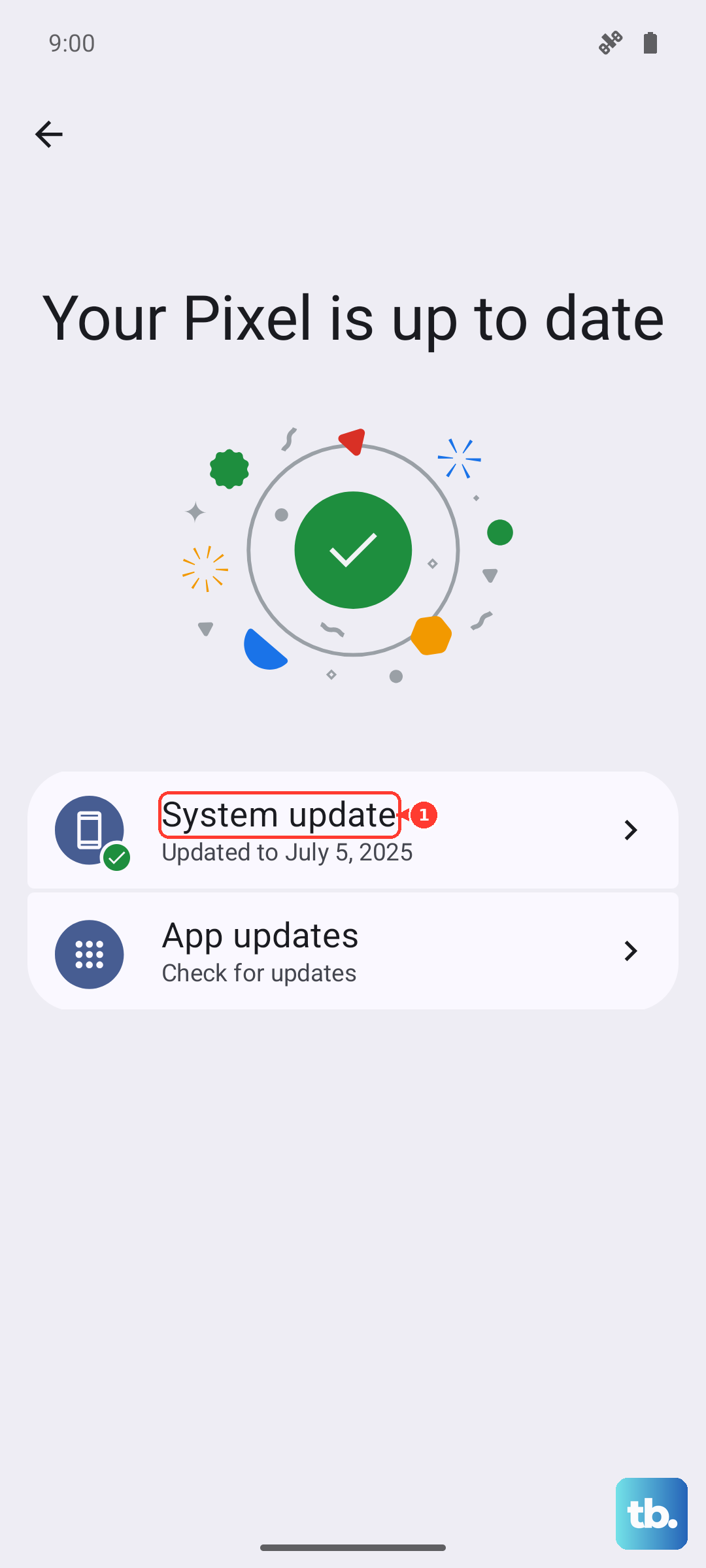
If an update is available, install it. It's a good idea to be on Wi-Fi and have your phone charged above 50% before starting. After the update completes, test your fingerprint sensor again, as the fix is often immediate.
Check for App Interference (Safe Mode)
A recently installed third-party app could be causing a conflict. Booting into Safe Mode temporarily disables all downloaded apps. If the fingerprint sensor works perfectly in Safe Mode, you know a third-party app is to blame.
To enter Safe Mode, press and hold the Power button and Volume Up button together until the power menu appears. Then, press and hold the "Restart" option on your screen. Tap OK when prompted to reboot to Safe Mode. Test your fingerprint. To exit, just restart your phone normally.
Improve Your Touch Technique
Optical sensors need a clear, steady press. Don't just tap the icon. Place your registered finger firmly on the target area for a full second without moving. Ensure your finger is covering the entire icon.
Also, try using a different part of your fingertip. If you usually use the very center, try the pad just below it. The sensor might read that area more clearly if your primary scan point has worn down slightly.
Increase Touch Sensitivity
The Pixel 9 has a setting that boosts screen sensitivity for use with screen protectors. Turning this on can sometimes help the fingerprint sensor read through a protector better. Go to Settings > Display and look for Screen protector mode or Increase touch sensitivity.
Toggle it on and see if it makes a difference. Be aware that with this on, your screen might be slightly more prone to accidental touches in your pocket.
Clear the Pixel Launcher Cache
The system launcher manages the lock screen, and its cached data can sometimes cause issues. Go to Settings > Apps > See all apps. Find and tap Pixel Launcher in the list.
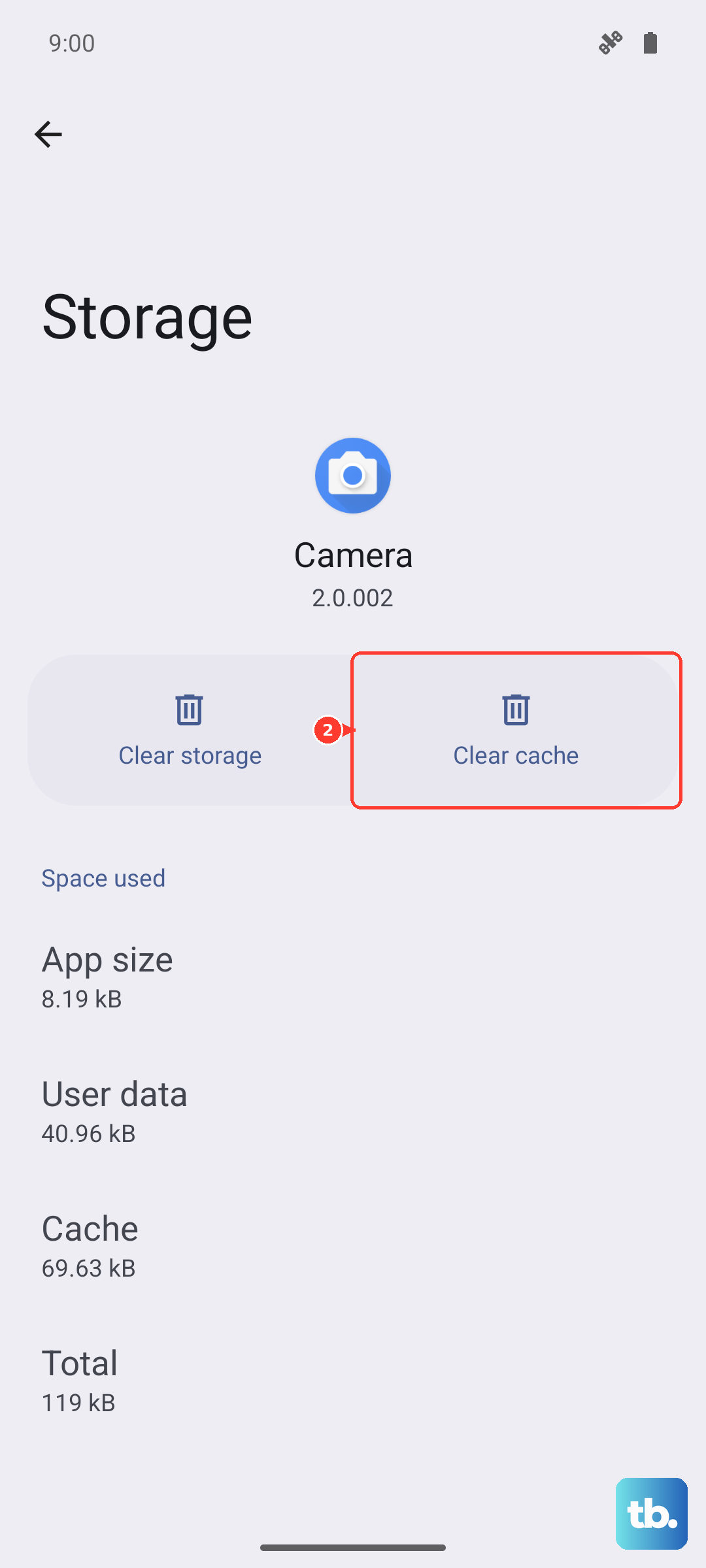
Select Storage & cache and then tap Clear cache. This doesn't delete any personal data. Restart your phone afterward and test the fingerprint reader on the lock screen.