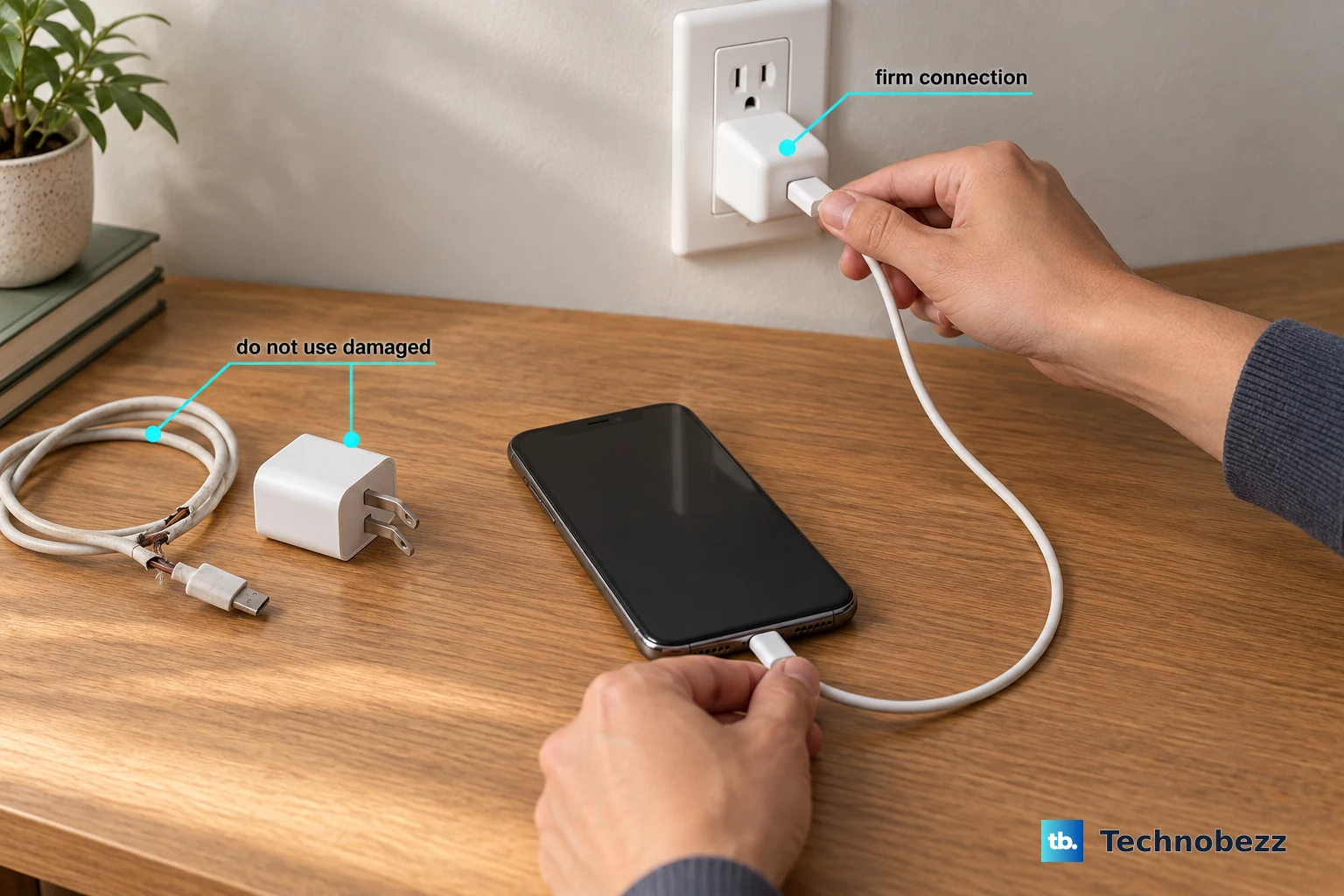
If your Google Pixel 9 is taking forever to charge, it's usually a simple fix. The phone supports up to 27W wired charging, so it should power up quickly when everything's working right.
Check Your Charger and Cable
For the fastest speeds, you need a USB-C Power Delivery (PD) charger rated at 30W or higher. The Pixel 9 works best with Google's official 30W charger. Using an older, lower-wattage USB-A adapter or a basic USB-C cable will drop your speed dramatically.
Make sure you're using a high-quality USB-C to USB-C cable. The one that came in the box is perfect. Worn-out or cheap cables can't handle the power needed for fast charging, so try swapping it with a known-good one.
Look at Adaptive Charging
This is a common reason Pixel owners think their phone is charging slowly overnight. Go to Settings > Battery > Adaptive charging. This feature learns your routine and intentionally holds the charge around 80% until just before your morning alarm.
It's great for battery health, but if you need a full charge right now, it will seem slow. You can temporarily turn it off for a quick top-up. I'd start by checking this setting first, as it catches a lot of people by surprise.
Clean the USB-C Port
Lint and pocket debris love to get packed into the charging port. This creates a weak connection that can limit power flow. Power the phone off and use a wooden toothpick or a soft plastic brush to gently scrape out any gunk.
Be very careful not to damage the central connector pin. A clean port makes a world of difference. After cleaning, plug the cable back in firmly until you feel a solid click.
Don't Use the Phone While Charging
Using your Pixel 9 for demanding tasks like gaming or video calls while it's plugged in generates heat. Android will throttle the charging speed to protect the battery from that heat. For the quickest charge, just let it sit.
Putting it in Battery Saver mode or even Airplane Mode can help speed things up if you absolutely need to use it. The cooler the phone stays, the faster it can charge.
Remove the Phone Case
A thick or insulating case can trap heat during a fast charging session. If your phone feels warm to the touch, take the case off. This is especially important for wireless charging, as cases create more of a barrier.
Letting the phone dissipate heat on a cool, hard surface like a nightstand or desk is ideal. I've seen this simple step resolve slow charging on many phones.
Restart Your Pixel 9
A quick reboot can clear out minor software glitches that mess with the charging system. Press and hold the Power button for about 30 seconds until the screen goes black and the Google logo reappears.
This force restart is often needed after a major software update. It's a good, harmless step to try before digging deeper into settings.
Check for Extreme Battery Saver
If you have Extreme Battery Saver enabled, it can sometimes interfere with how the phone reports its charging status. Go to Settings > Battery and make sure Extreme Battery Saver is turned off.
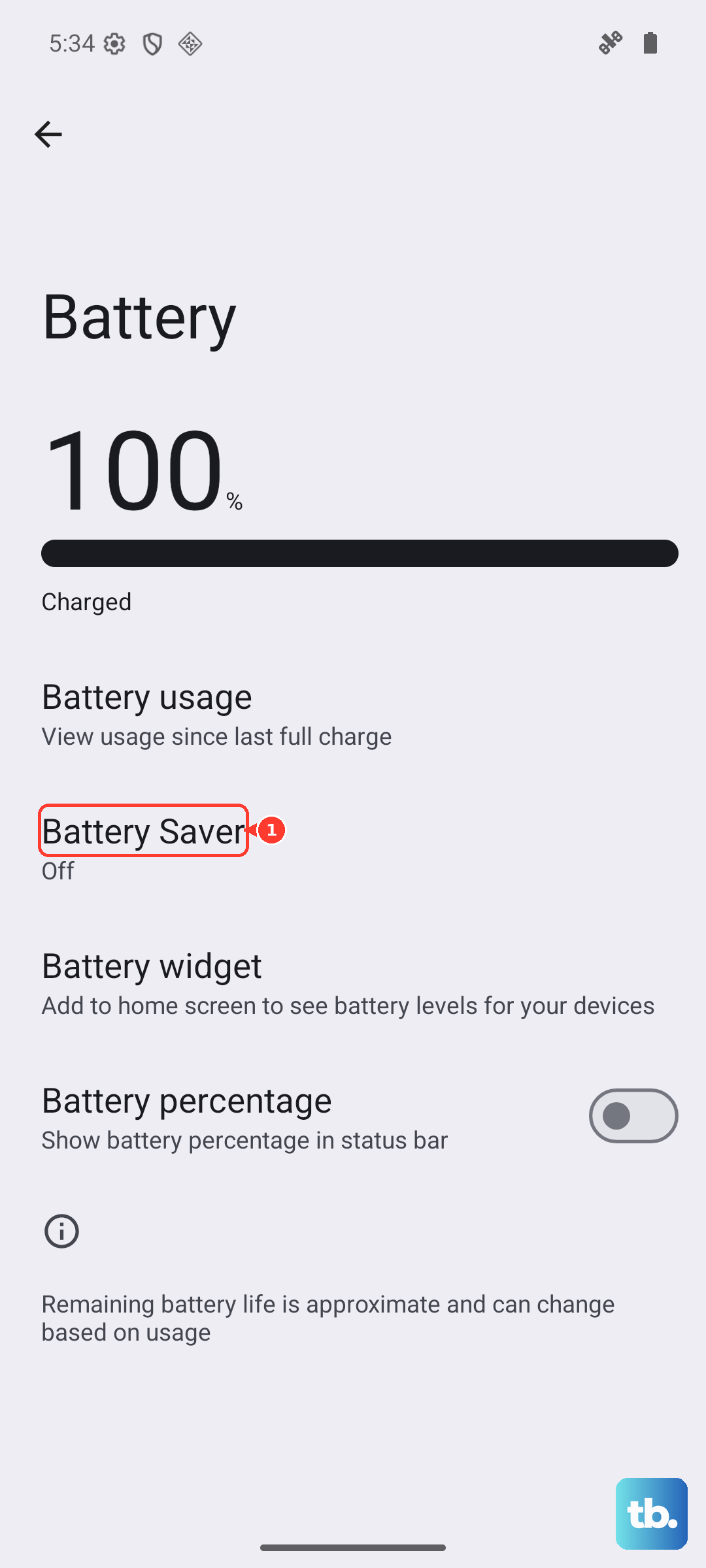
You might also want to check the Battery Share setting. If your phone is stuck trying to charge another device, you can toggle Battery Share off from the quick settings shade.
Update Your Software
Head to Settings > System > System update. Google releases Feature Drops and monthly updates that can include fixes for charging-related bugs. There have been specific updates in the past that addressed charging speed issues after a Feature Drop.
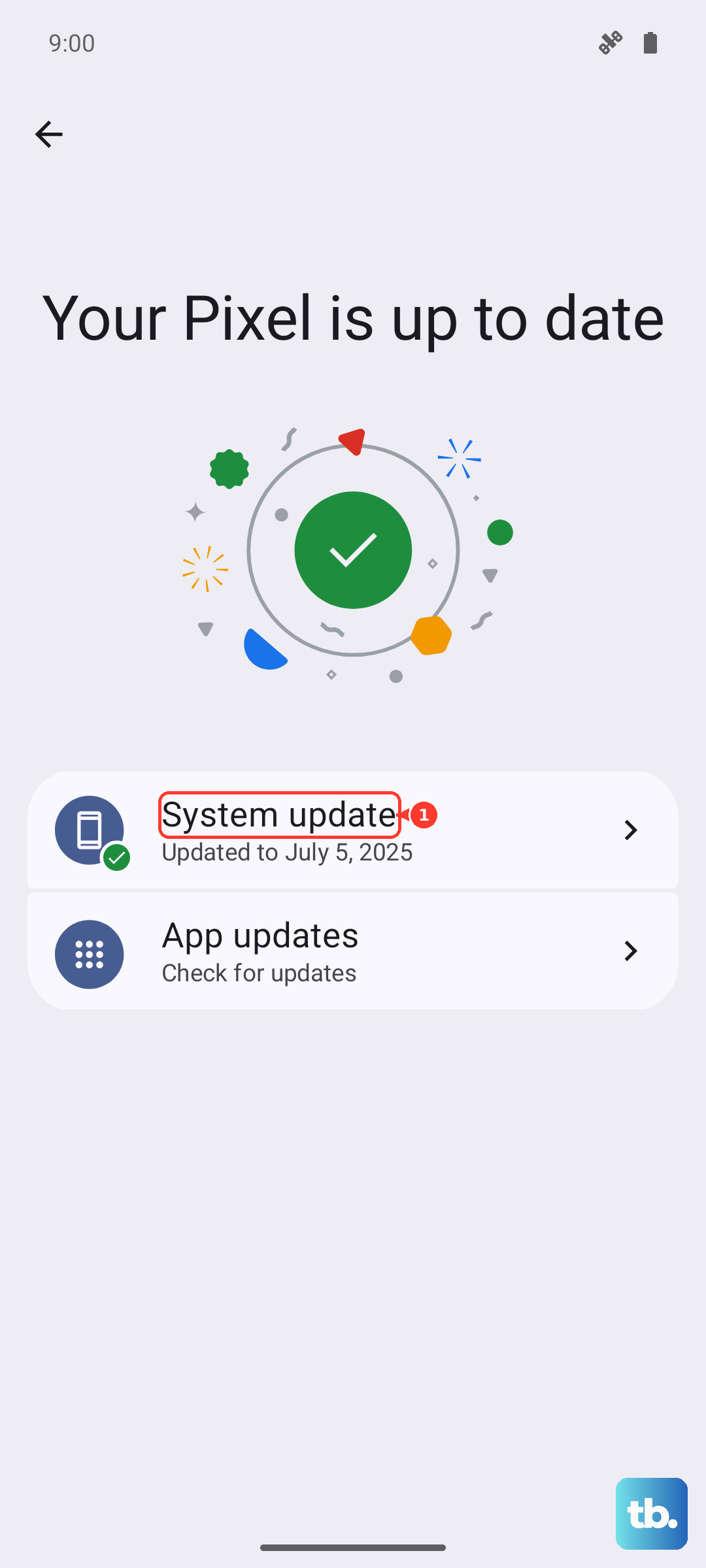
Running the latest version of Android ensures you have all the performance and battery management improvements.
Try a Different Outlet and Adapter
Sometimes the problem isn't your phone at all. Try plugging your charger into a different wall outlet. Also, test with a different high-wattage USB-C PD adapter if you have one.
This helps you isolate whether the issue is with the phone or the power source. If your phone charges fast with a friend's 30W charger, then you know your own charger or cable is the culprit.