
When your Google Pixel 9's email stops syncing, it can leave you waiting on important messages. Whether you're using Gmail, Outlook, or another client, the fixes are usually pretty straightforward. I'd start by checking the basics before moving to more involved steps.
First, make sure you have a solid internet connection, either on Wi-Fi or mobile data. It's also worth a quick check to see if your email provider is having a widespread outage, which happens more often than you'd think. Double-check that your email address and password are correct, as a simple typo can be the culprit.
Check Your Sync and Background Data Settings
Android manages how apps sync in the background, and if these settings are off for your email app, new messages won't arrive automatically. Head to Settings > Accounts and select your email account. Make sure the toggle for syncing Mail or that account is turned on.
Next, you'll want to ensure the app itself can use data in the background. Go to Settings > Apps, find your email app (like Gmail or Outlook), and tap Mobile data & Wi-Fi. Here, make sure "Background data" is enabled. If you see an option for "Unrestricted data usage," turning that on can help, too.
Toggle Airplane Mode to Reset Connections
A quick network reset can clear up temporary glitches. Swipe down twice from the top of your screen to open the full Quick Settings panel. Tap the Airplane mode icon to turn it on, wait about 15 seconds, and then tap it again to turn it off.
Your Pixel will reconnect to mobile networks and Wi-Fi. Give it a moment, then open your email app to see if it starts syncing. This is one of the fastest ways to rule out a simple network hiccup.
Force Stop and Restart Your Email App
If the app itself is frozen or buggy, force stopping it can give it a clean slate. Go to Settings > Apps, find your email app, and tap Force Stop. Confirm the action, then simply open the app again from your home screen.
You can also swipe up from the bottom and hold to enter the recent apps view, then swipe your email app up and off the screen to close it. Wait a few seconds before reopening it. This clears the app from your phone's memory and often resolves minor performance issues.
Switch Between Wi-Fi and Mobile Data
Sometimes the problem is with one specific type of connection. If you're on Wi-Fi and emails aren't coming through, try turning Wi-Fi off to force the phone to use mobile data. You can do this from the Quick Settings panel.
Conversely, if you're on mobile data, try connecting to a known, stable Wi-Fi network. If emails work on one network but not the other, you've isolated the issue to your connection, not the phone or app.
Verify Your Email Account Password
Passwords expire, get changed, or sometimes the saved credential just becomes corrupted. The easiest way to check is to open a web browser on your phone or computer and try to log into your email account's website directly.
If you can't log in there, you'll need to reset your password with your email provider. Once you have a new password, you'll need to update it on your Pixel. Go to Settings > Accounts, tap your email account, and look for an option to update your sign-in info or re-enter your password.
Check for App and System Updates
Outdated software is a common cause of email problems. First, open the Google Play Store, tap your profile icon, and go to Manage apps & device > Updates available. See if there's an update for your email app and install it.
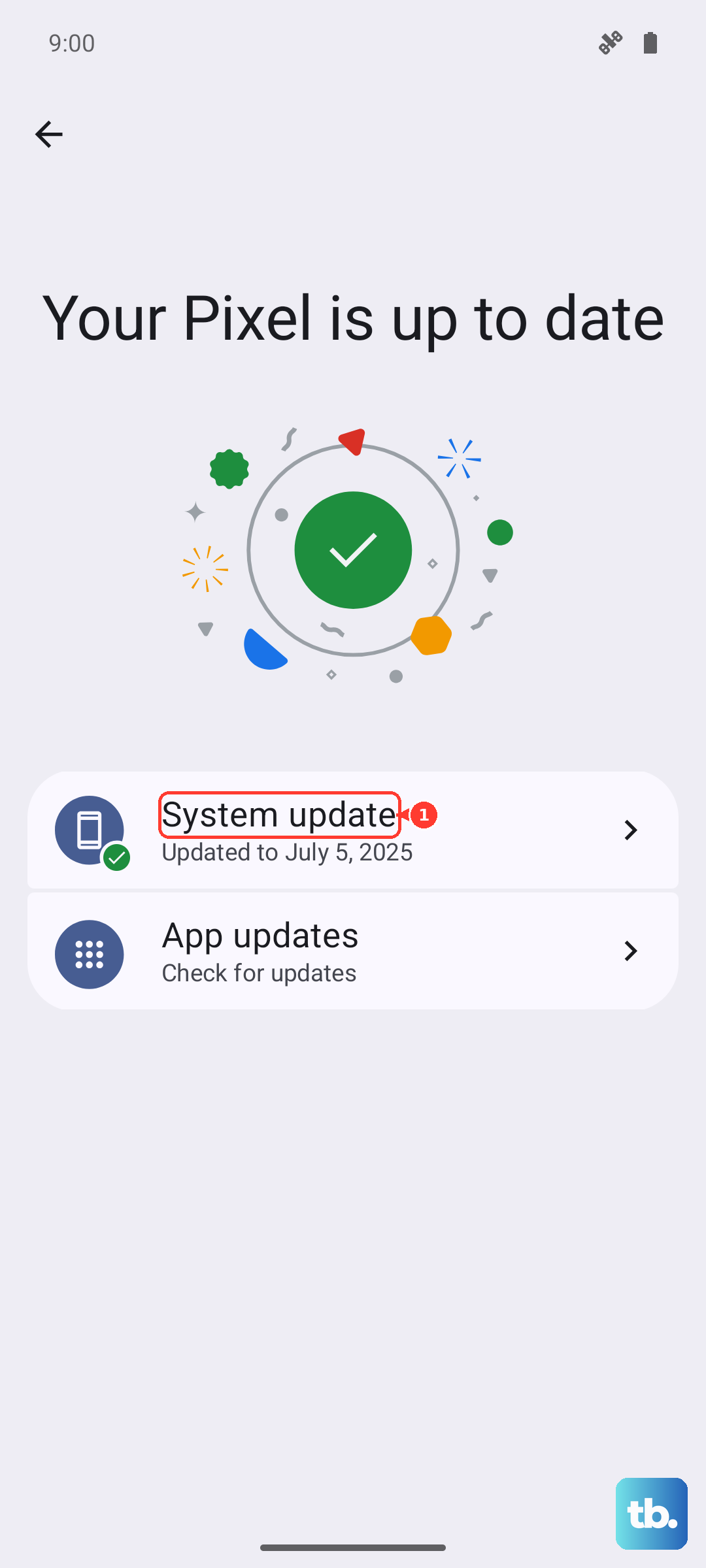
Next, check for a system update. Google's Feature Drops for the Pixel can include important bug fixes. Go to Settings > System > System update and tap "Check for update." If one is available, install it, as it may contain a patch specifically for email or sync issues.
Review Battery Optimization and Adaptive Settings
Android's battery-saving features can sometimes be too aggressive and stop apps from syncing. Go to Settings > Apps, select your email app, and tap Battery. Set the battery usage to "Unrestricted."
Also, check if Extreme Battery Saver is on, as it severely limits background activity. You can check this in Settings > Battery. If it's enabled, turn it off and see if your email starts working normally again.
Disable Any Active VPN
A VPN can interfere with your connection to your email provider's servers. If you're using a VPN app, open it and disconnect. You can also check by going to Settings > Network & internet > VPN and making sure no VPN profile is connected.
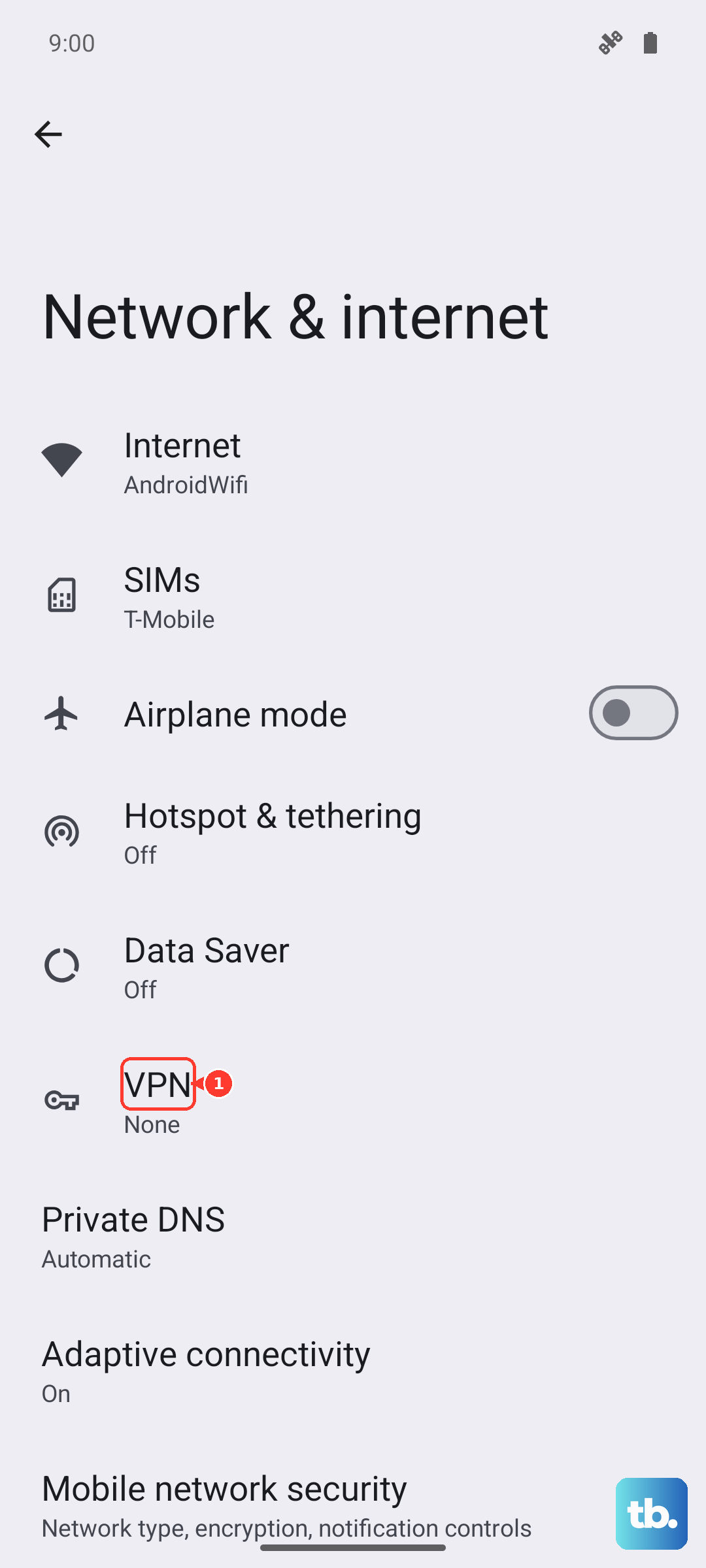
Try accessing your email with the VPN off. If it works, the issue is with your VPN configuration or server. You may need to whitelist your email app within the VPN's settings or try a different server location.
Clear the Email App's Cache and Data
Corrupted temporary files can cause all sorts of strange behavior. Clearing the cache is safe and won't delete your emails or account. Go to Settings > Apps, select your email app, tap Storage & cache, and then tap Clear cache.
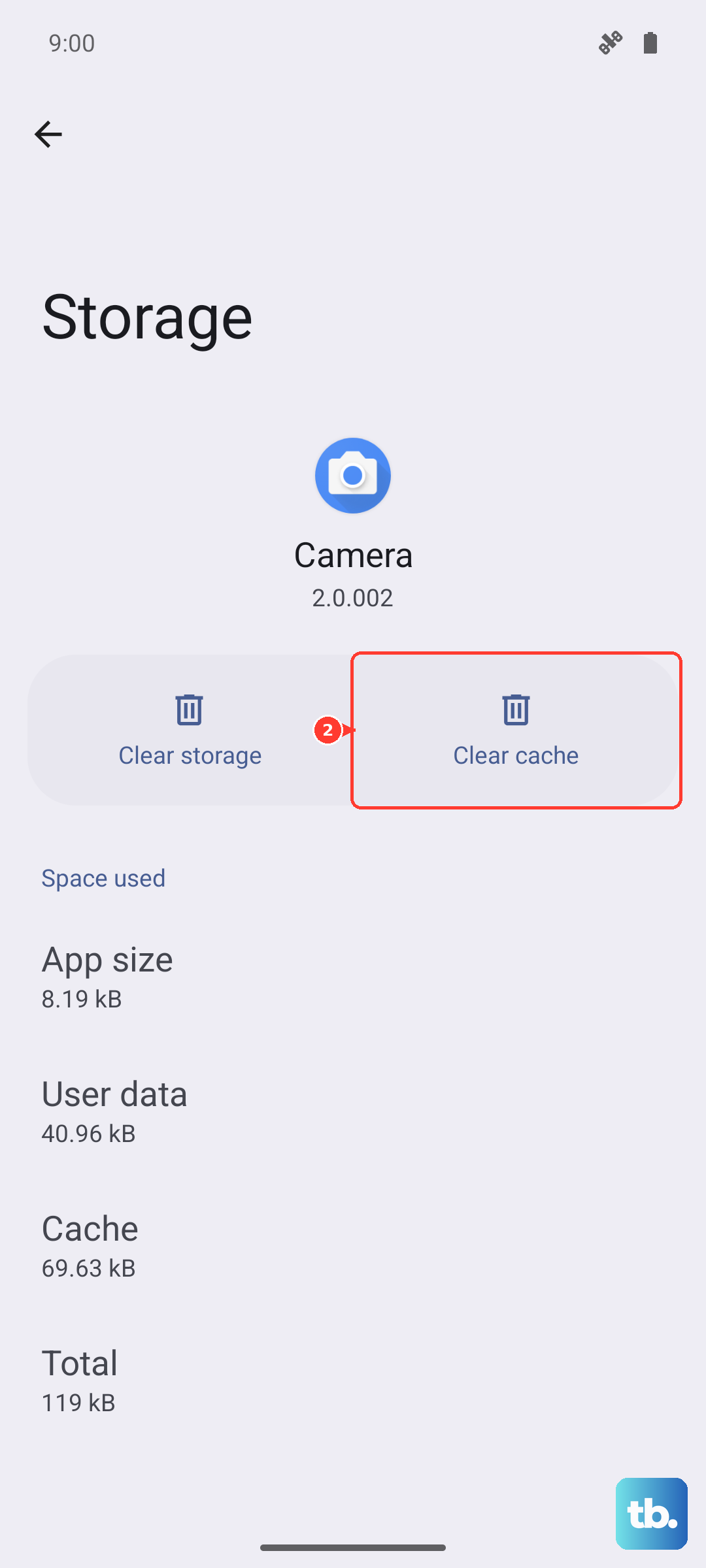
If the problem persists, you can try clearing the app's data as a last resort before removing the account. Tap Clear storage or Clear data. Be warned, this will remove the account from the app and any offline emails, so you'll have to set it up again.
Remove and Re-add Your Email Account
This is a very effective way to reset everything about that account on your phone. Go to Settings > Accounts and tap on the problematic email account. Tap Remove account and confirm.
After it's removed, go back to Settings > Accounts and tap Add account. Follow the prompts to add your email back. This process often resolves deeper sync issues that other fixes can't touch.
Ensure Date and Time Are Set Automatically
Incorrect date and time settings can break secure connections to email servers. Go to Settings > System > Date & time. Make sure the toggle for "Set time automatically" is turned on.
Also, verify that "Use location to set time zone" is enabled. This ensures your phone's clock is perfectly in sync, which is critical for the security certificates used by email services.
Check Your Email Notification Settings
If emails are arriving but you're not getting alerts, the issue is with notifications, not syncing. Go to Settings > Notifications > App notifications and find your email app. Make sure notifications are turned on for the app overall.
Then, within the app's own settings, look for notification categories. For example, in Gmail, you need to ensure notifications are enabled for your specific account and that high-priority notifications aren't being silenced by Do Not Disturb modes.
Restart Your Google Pixel 9
A simple reboot can clear out temporary software bugs affecting all apps. Press and hold the Power button on the side of your phone, then tap "Restart" on the screen. If your phone is unresponsive, you can force a restart by pressing and holding the Power button for about 30 seconds until you feel it vibrate and the Google logo appears.
Reset Your Network Settings
This is a more comprehensive step if you suspect network configuration is the root cause. It will reset Wi-Fi, mobile data, and Bluetooth settings. Go to Settings > System > Reset options and tap Reset Wi-Fi, mobile & Bluetooth.
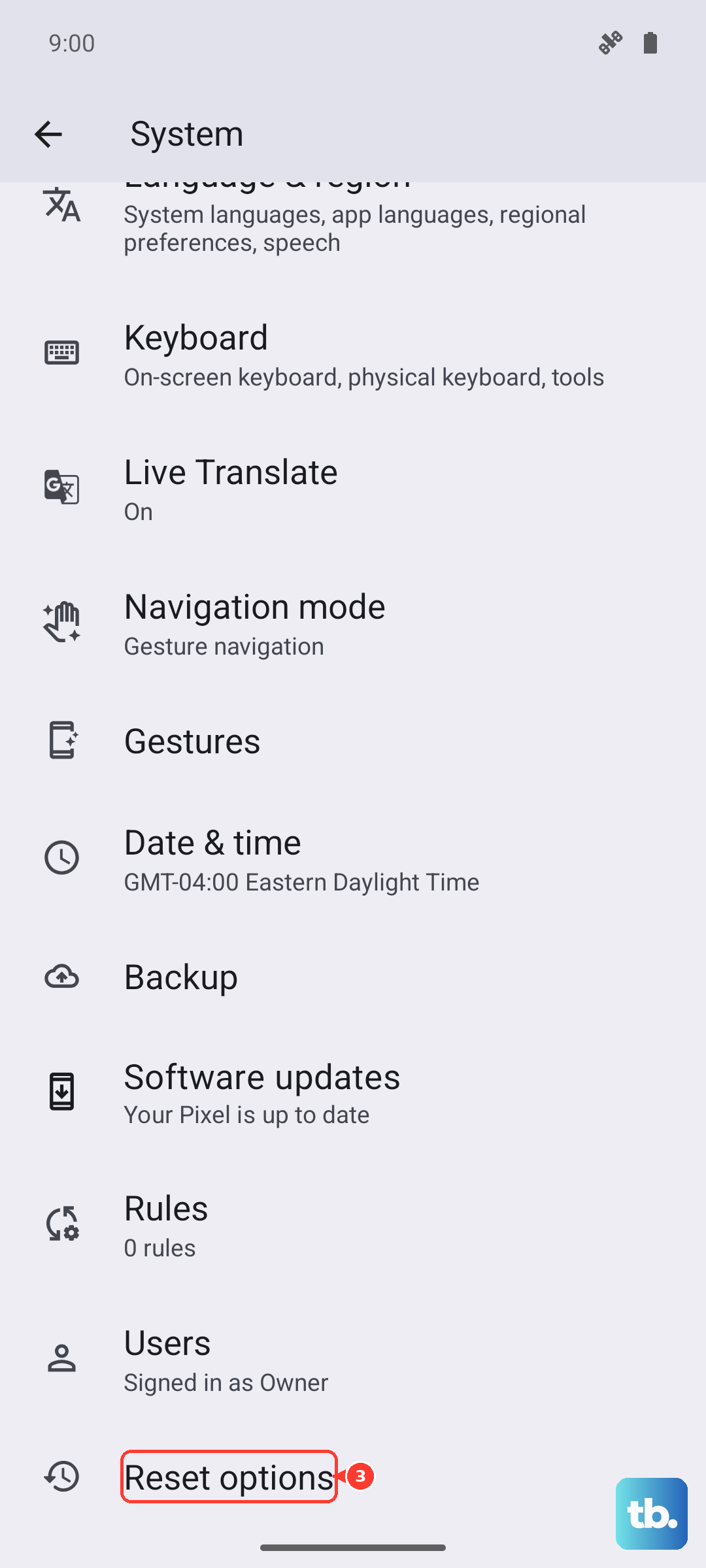
Tap "Reset settings" and confirm. Your phone will restart. Afterward, you'll need to reconnect to your Wi-Fi networks and re-pair Bluetooth devices, but it can resolve persistent connectivity issues that affect email.