
When your Google Pixel 9 won't install apps, it can bring your phone to a standstill. You tap install and nothing happens, or you get stuck with a frustrating error message. This is a common hiccup on Android, and it's almost always something you can fix yourself without too much hassle.
Let's go through the most reliable ways to get the Google Play Store working again on your Pixel.
Check Your Internet Connection First
This might seem obvious, but it's the most common culprit. The Play Store needs a stable connection to download apps. Pull down your notification shade twice to see the full quick settings panel.
Make sure Wi-Fi or mobile data is turned on and has a strong signal. If you're on Wi-Fi, try toggling it off and back on. Sometimes, switching to mobile data for a quick test can bypass a problematic Wi-Fi network.
Restart Your Pixel 9
A simple restart clears out temporary glitches that can freeze the Play Store. Just press and hold the power and Volume Up buttons, then tap "Restart" on your screen.
If your screen is unresponsive, you can force a restart by holding the power button for about 30 seconds until the phone vibrates and the Google logo appears. This is a safe first step that fixes more issues than you'd think.
Clear the Google Play Store Cache and Data
Corrupted temporary files in the Play Store app itself are a frequent cause of download hangs. Clearing this data is harmless and won't delete your apps or account.
Go to Settings > Apps > See all apps. Find and tap "Google Play Store." Tap Storage & cache, then hit "Clear cache." Try downloading an app again.
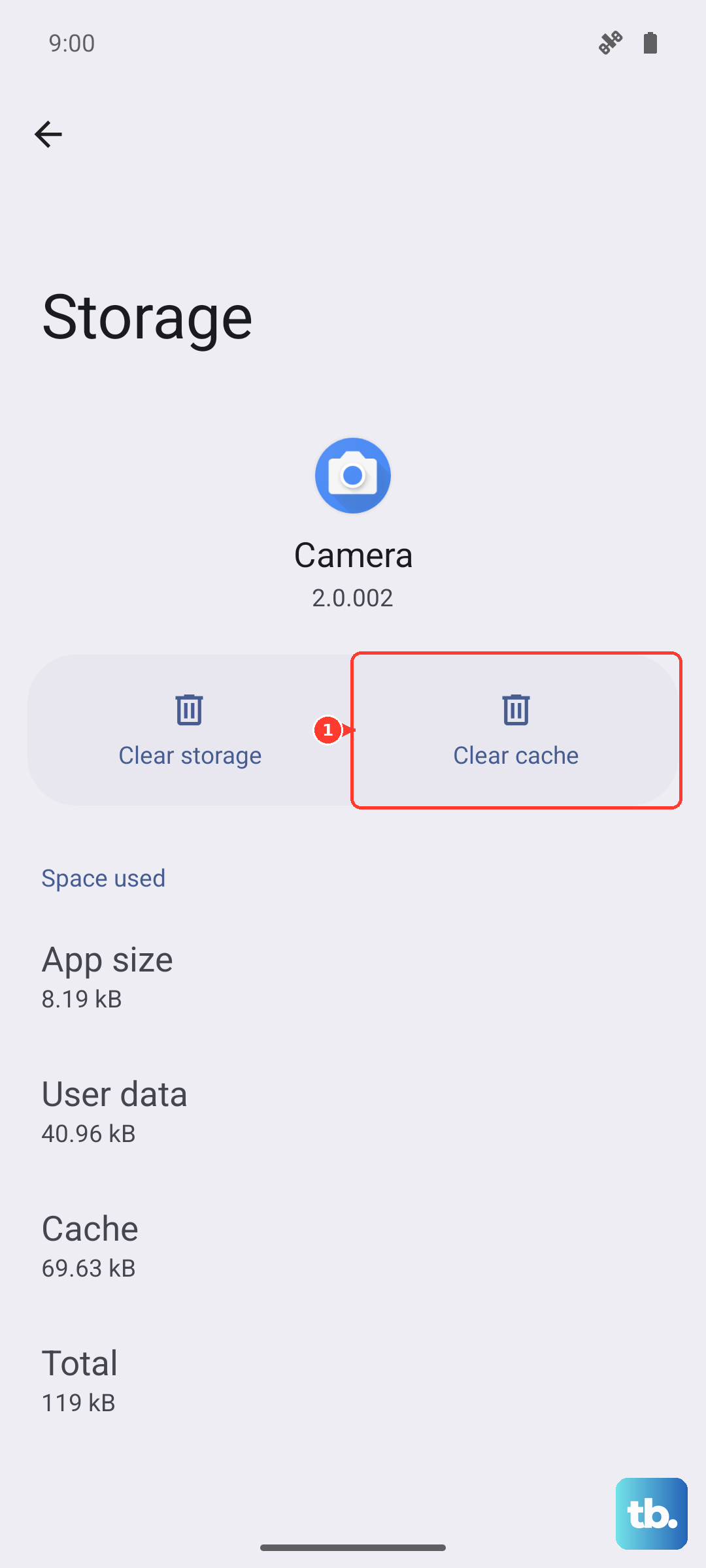
If that doesn't work, go back to the same screen and tap "Clear storage" (or "Manage space" then "Clear all data"). This will reset the Play Store to its default state, so you may need to re-accept its terms.
Update Google Play Services
Google Play Services is the background engine that makes app downloads and updates possible. If it's out of date or buggy, the whole system can stall.
Open the Play Store, tap your profile icon in the top right, and go to Settings > About > Play Store version. It will check for updates. More importantly, search for "Google Play services" in the Play Store and see if an update is available there.
Sometimes, you need to update the Play Store *and* Play Services to get things moving.
Check Your Date and Time Settings
Google's servers are very picky about time synchronization. If your phone's clock is off, it can silently block downloads.
Open Settings > System > Date & time. Make sure "Set time automatically" is switched on. If it's already on, try turning it off for a moment, then turn it back on to force a fresh sync.
An incorrect time zone can also cause issues, so verify that setting is correct too.
Review Your Google Account Sync
A stuck sync process for your Google account can interfere with app installations. Refreshing it can give the system a clean start.
Head to Settings > Passwords & accounts. Tap on your primary Google account. You'll see a list of items like Gmail, Contacts, and Drive syncing.
Tap the three-dot menu in the top right and select "Sync now." If things seem stuck, you can also tap "Remove account" and then add it back immediately. Don't worry, this won't delete anything from Google's servers.
Ensure You Have Enough Storage Space
The Pixel 9 might not always give a clear "storage full" warning before downloads fail. It's worth checking manually.
Go to Settings > Storage. You'll see a breakdown of what's using space. If you're critically low, the "Free up space" tool can help quickly delete junk files and old downloads.
For a more permanent fix, look at your photos and videos. Using Google Photos to back them up and then freeing up space on the device can reclaim gigabytes instantly.
Disable Any Active VPNs or Ad Blockers
VPN services or DNS-based ad blockers (like NextDNS or AdGuard) can sometimes interfere with the connection to Google's app servers.
If you're using one, try temporarily disabling it. Go to Settings > Network & internet and look for VPN or Private DNS settings. Turn the service off, then attempt your app download again.
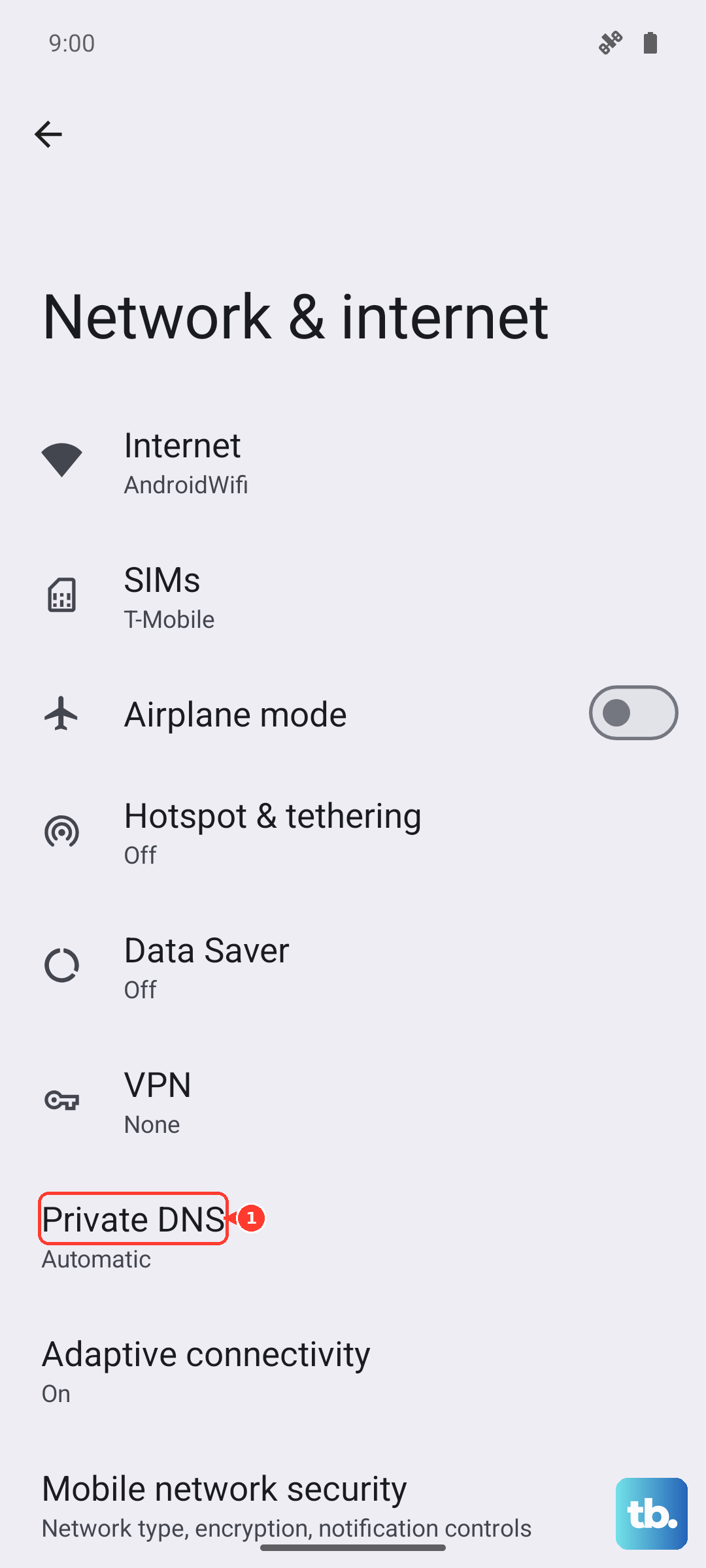
This helps determine if your security software is the source of the blockage.
Check for Android System Updates
Occasionally, a bug in the phone's system software can break app downloads. Google fixes these in monthly security updates and larger Feature Drops.
Navigate to Settings > System, then select System update (on some devices this option is labeled Software updates). Tap "Check for update." If an update is available, install it. Your phone will restart, and it's a good idea to check the Play Store again after it boots up.
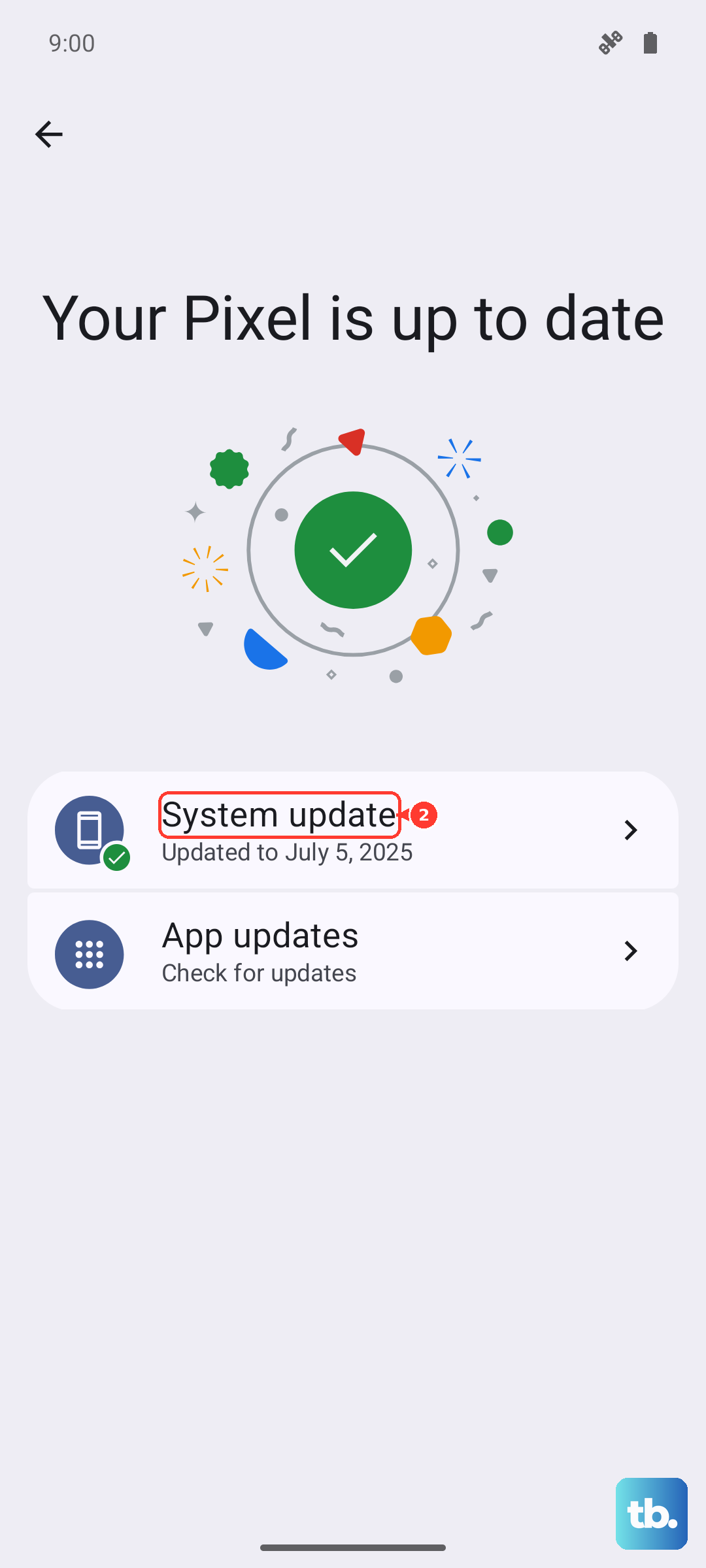
I've seen Pixel phones behave oddly right after a Feature Drop, and a subsequent small update often resolves it.
Reset App Preferences (A Safe Last Step)
This is a useful nuclear option that doesn't delete your personal data. It resets all your app permissions, default apps, and background restrictions back to factory defaults.
Go to Settings > System > Reset options. Tap "Reset app preferences." Confirm the action. This won't erase your apps or accounts, but you will need to re-grant permissions (like camera or location) to apps as you use them again.
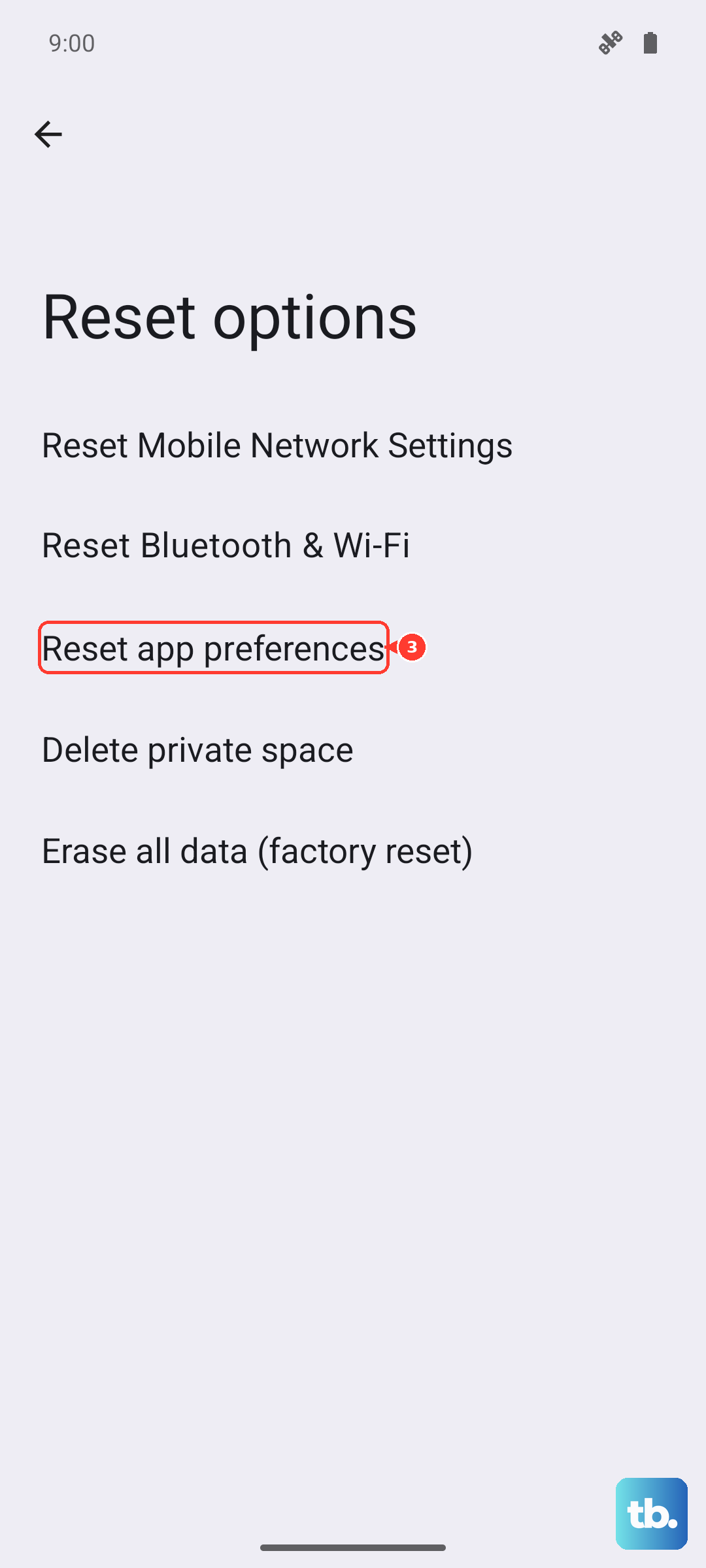
It effectively clears any system-level setting that might be preventing the Play Store from functioning correctly.