When your Google Pixel 9 apps keep closing unexpectedly, it pulls you right out of whatever you were doing. This is usually a software hiccup that you can sort out yourself. I'd start with a quick restart, as it clears out temporary glitches that can cause apps to misbehave.
Force Stop and Restart the App
If a single app is acting up, force stopping it is the fastest way to give it a clean slate. Head to Settings > Apps and find the problematic app in the list. Tap on it and select Force Stop, then open it again fresh.
This doesn't delete any of your data or login info. It just shuts down all the app's processes completely, which often resolves a temporary crash loop.
Check for App and System Updates
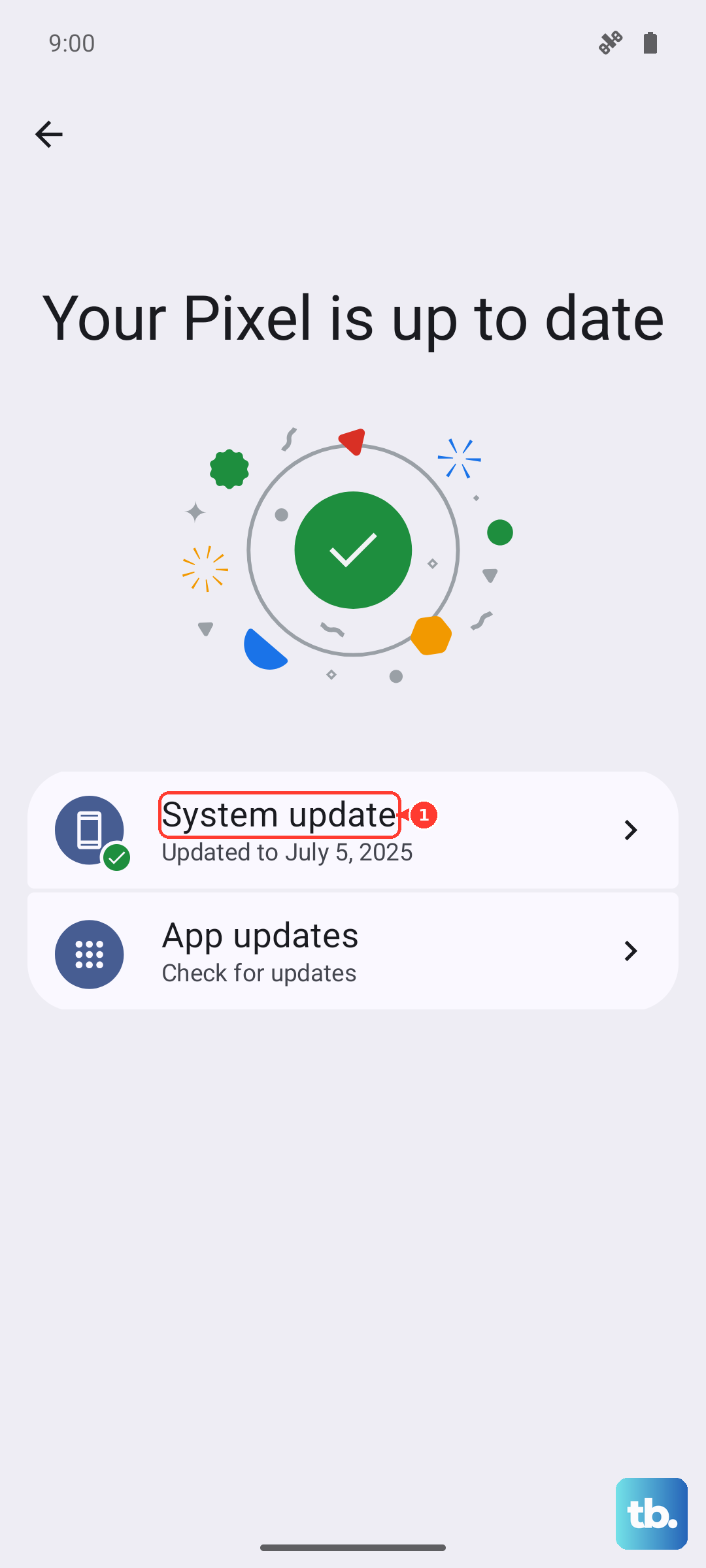
Outdated software is a common culprit for crashes. Open the Google Play Store, tap your profile icon, and go to Manage apps & device. Under "Updates available," you can update everything at once.
It's also crucial to keep Android itself updated. Go to Settings > System > System update to check for the latest Pixel Feature Drop or security patch. These updates frequently include stability fixes.
Clear the App's Cache
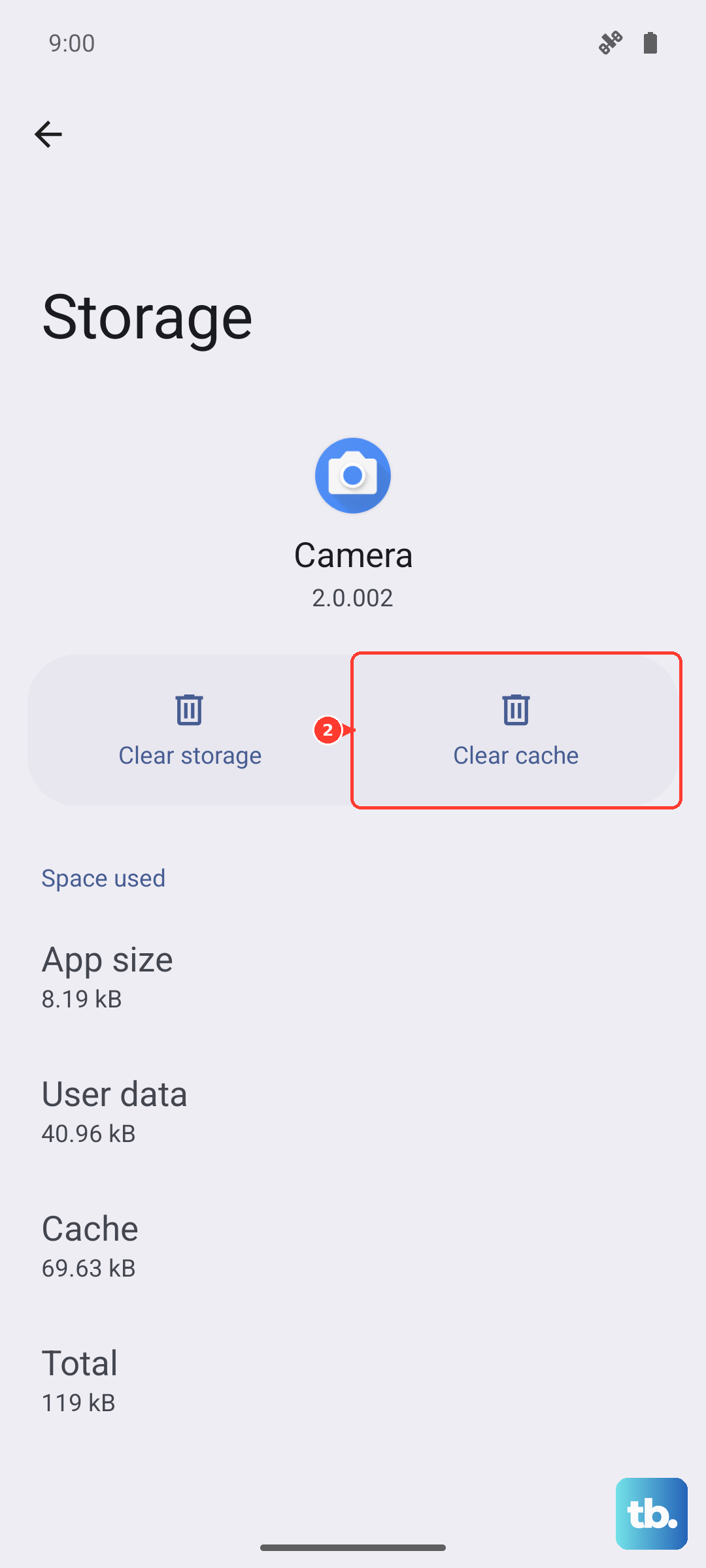
Apps store temporary data (cache) to load faster, but this data can become corrupted. Clearing it is a safe first step before more drastic measures.
Go back to Settings > Apps, select the app, and tap Storage & cache. Choose Clear cache. This won't erase your personal settings or accounts within the app.
Free Up Storage Space on Your Pixel
Android needs breathing room to operate smoothly. If your Pixel 9's storage is nearly full, apps can crash because they can't create necessary temporary files.
Check your storage under Settings > Storage. The Pixel's Files app has a handy "Clean" tool to suggest old downloads, screenshots, and app cache you can safely remove. Moving photos to Google Photos with the "Free up space" option is a great way to reclaim gigabytes instantly.
Reinstall the Problem App
When an app is consistently crashing and clearing the cache didn't help, a fresh install is the next move. Uninstalling removes all of its data, including any corrupted files that might be causing the issue.
Long-press the app icon on your home screen and tap Uninstall, or remove it from the Settings > Apps menu. Then, just reinstall it from the Play Store. You'll need to log back in, but it often solves persistent crashing.
Review App Permissions and Battery Settings
Sometimes, an app crashes because it's being restricted in the background. Go to Settings > Apps, select the app, and tap Permissions. Ensure it has the permissions it needs to function.
Also, check the battery optimization setting. Tap Battery for the app. If it's set to "Restricted," the system may be limiting it too aggressively. Changing it to "Unrestricted" can help for apps that need to run in the background.
Perform a System Restart
If multiple apps are crashing, a full system restart can resolve deeper software conflicts. For the Pixel 9, press and hold the Power button for about 30 seconds until the screen goes black and the Google logo reappears.
This force restart is different from a normal reboot and can clear more persistent system-level errors that might be affecting app stability.
Check for Conflicting Apps in Safe Mode
Booting into Safe Mode temporarily disables all third-party apps. If your apps stop crashing in Safe Mode, something you installed is likely causing the conflict.
To enter Safe Mode, press and hold the Power button, then long-press the "Power off" option on your screen until you see the Safe Mode prompt. Restart your phone normally to exit. You can then uninstall recently added apps one by one to find the culprit.
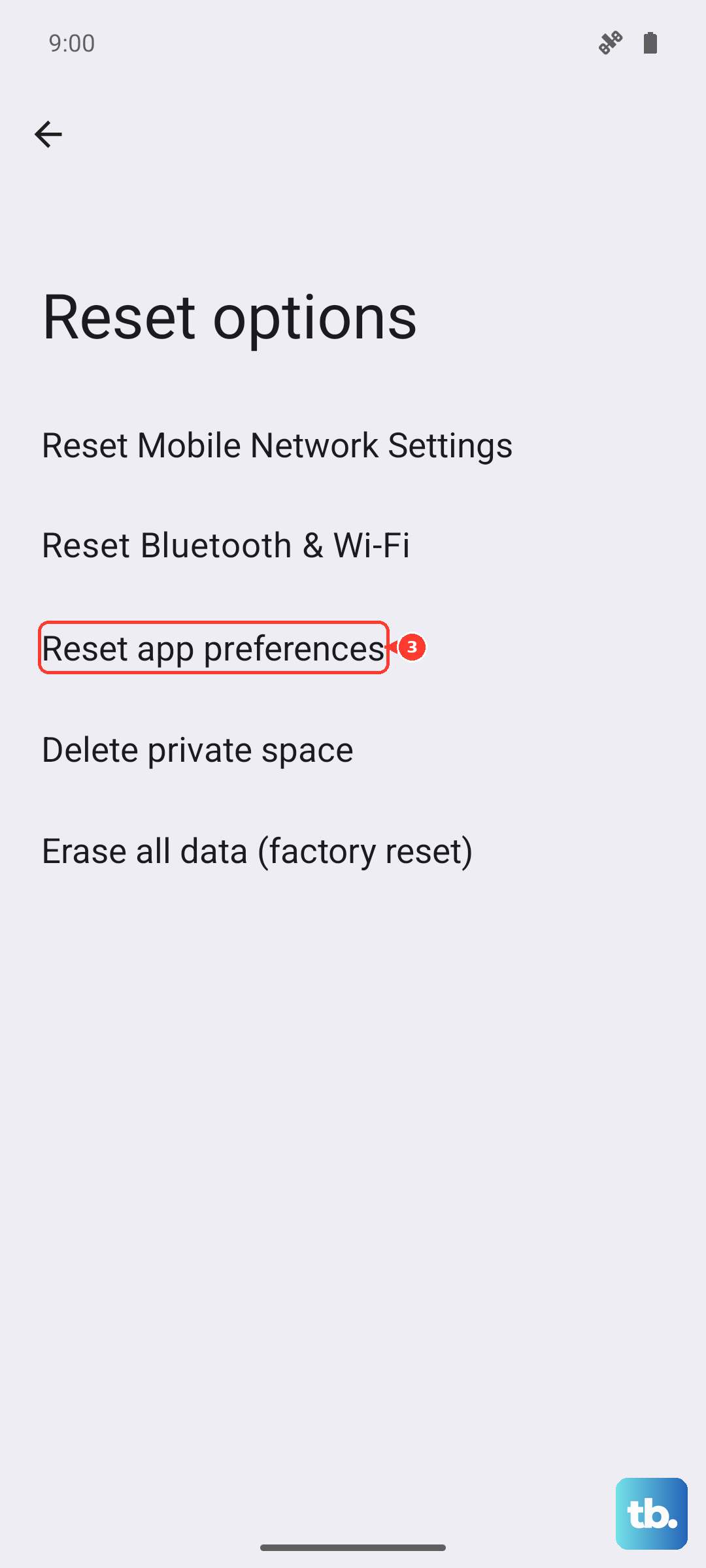
Reset App Preferences
This is a broader fix that resets all your app-related settings, like permissions, default apps, and background restrictions, without deleting any app data. It's a good middle-ground step.
Navigate to Settings > System > Reset options. Tap Reset app preferences and confirm. You'll need to re-grant permissions to apps when you use them next, but it can resolve weird, system-wide app behavior.