When your Google Pixel 8's volume buttons suddenly stop responding, it can throw you off. You press them and get no feedback, no change in your ringtone or media volume. The good news is this is often a software hiccup or a simple obstruction that you can fix yourself without a trip to the repair shop.
I'd start with the quick fixes at the top of this list, as they resolve the majority of these cases. Let's get your buttons working again.
Remove Your Phone Case
This is the easiest thing to check. Take your Pixel 8 out of its case. Some cases, especially rugged or ill-fitting ones, can press against the buttons or prevent them from being fully depressed. With the case off, test the volume rocker to see if it clicks properly.
Perform a Force Restart
A force restart clears out temporary software glitches that can cause the system to ignore hardware inputs. This won't delete any of your personal data or settings.
For the Google Pixel 8, press and hold the Power button for about 30 seconds. Keep holding it even after you see the Google logo or feel a vibration. Release the button only when you see the boot animation start. This is different from a normal restart and often kicks unresponsive buttons back into gear.
Clean the Volume Buttons
Dust, lint, or pocket debris can easily get packed around the slim volume rocker on the Pixel 8. This is a very common culprit. Use a can of compressed air to gently blow around the edges of the button. For any sticky residue, you can lightly dampen a cotton swab with isopropyl alcohol (90% or higher) and carefully clean the seam, being sure not to let liquid drip inside. Let it dry completely before testing.
Check for Software Updates
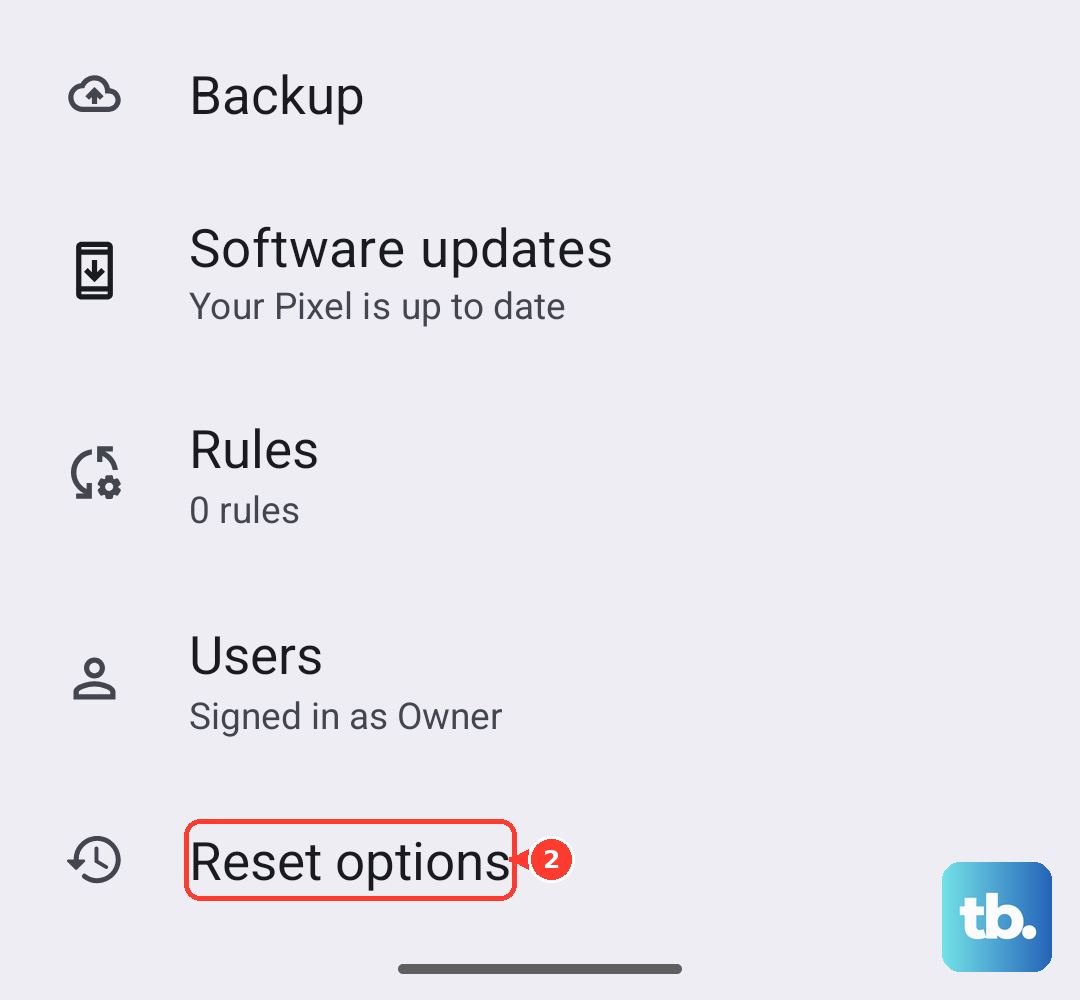
Google frequently releases updates that fix bugs, including ones related to hardware responsiveness. Make sure your Pixel 8 is running the latest version of Android.
Go to Settings > System > System update and tap "Check for update." If an update is available, install it. It's a good idea to connect to Wi-Fi and plug in your charger first. I've seen minor firmware patches specifically address button recognition issues on past Pixel models.
Test in Safe Mode
Booting into Safe Mode temporarily disables all third-party apps. If your volume buttons work perfectly in Safe Mode, then a recently installed app is likely interfering with them.
To enter Safe Mode, press and hold the Power button and Volume Up button together until the power menu appears. Then, press and hold the "Power off" option on your screen. You'll get a prompt to reboot to Safe Mode. Tap "OK." Test the buttons here. To exit, just restart your phone normally.
Verify Sound Settings
While Android doesn't have a master toggle for physical buttons like iOS, it's worth checking a few sound settings. Go to Settings > Sound & vibration. Make sure your media volume isn't already at zero. Also, try adjusting the different volume sliders (Ring, Media, Alarm, Notification) directly in the settings to ensure the sound system itself is functioning.
Inspect for Physical Damage
Take a close look at the volume rocker. Does it feel loose, stuck in one position, or does it have a different click feel than the power button? Check the side of the phone for any dents or cracks near the buttons. Even minor physical damage can disconnect the internal button mechanism from the logic board.
Try the On-Screen Volume Controls
While troubleshooting, you can still control your volume. Press any volume button once to bring up the on-screen volume panel, then use your finger to drag the slider. You can also adjust volume directly from the Quick Settings panel by swiping down twice from the top of your screen.
Check Accessibility Settings
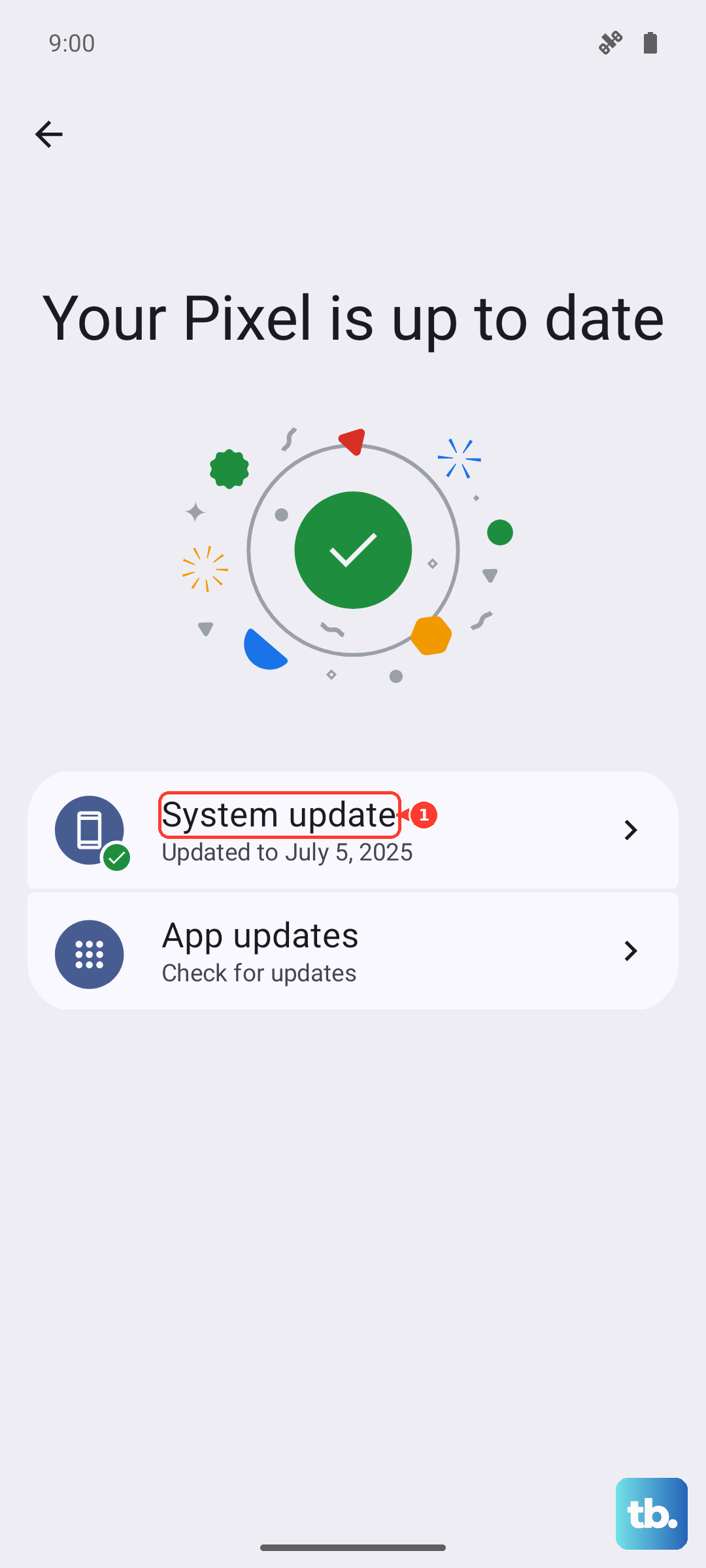
Some accessibility features can remap or change how buttons behave. Go to Settings > Accessibility. Look at features like "Volume key shortcut" or "Accessibility Menu" to see if they're enabled and could be affecting normal button operation. Temporarily turning them off can help diagnose the issue.
Reset App Preferences or Perform a Factory Reset
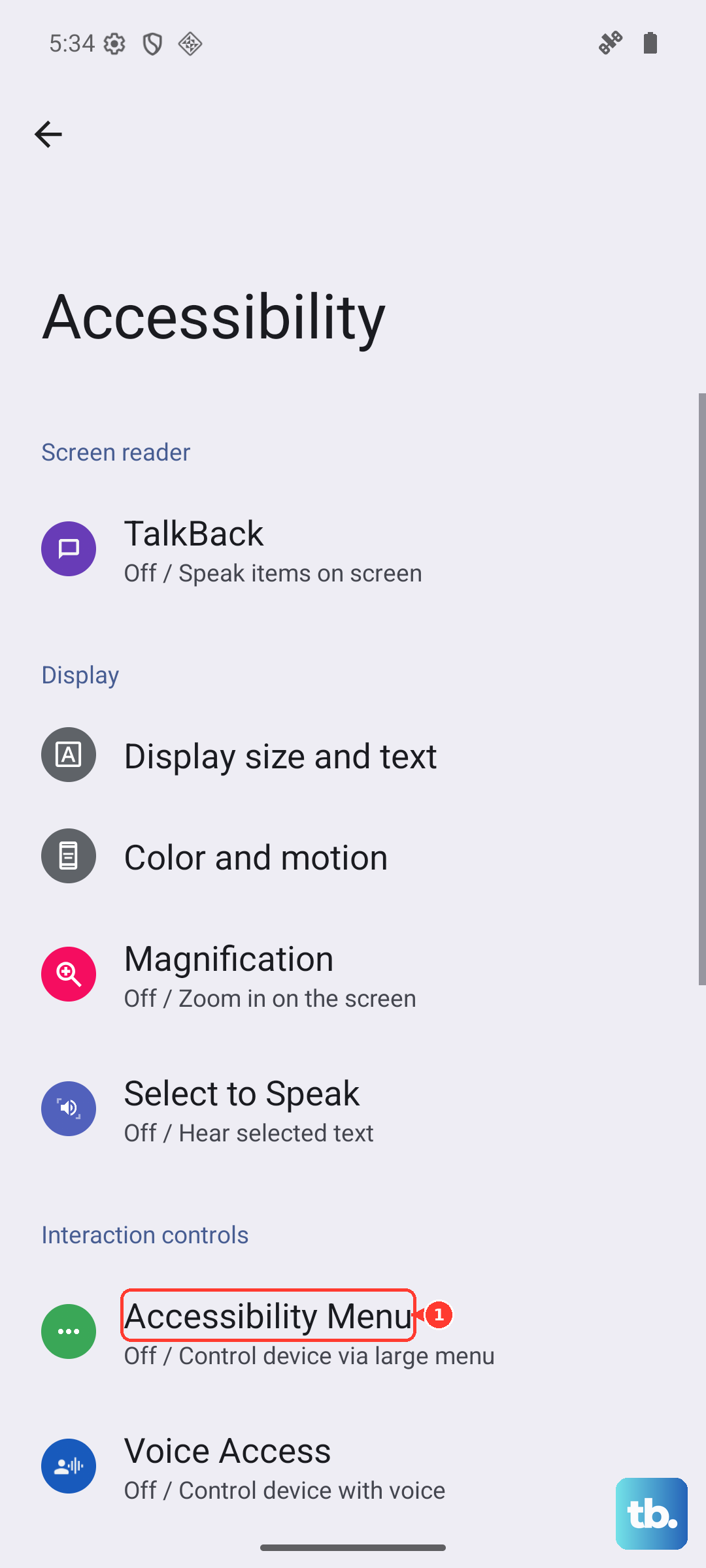
If the problem persists, you can reset all your app preferences. This won't delete app data, but it will reset notification settings, default apps, and background restrictions. Go to Settings > System > Reset options > Reset app preferences.
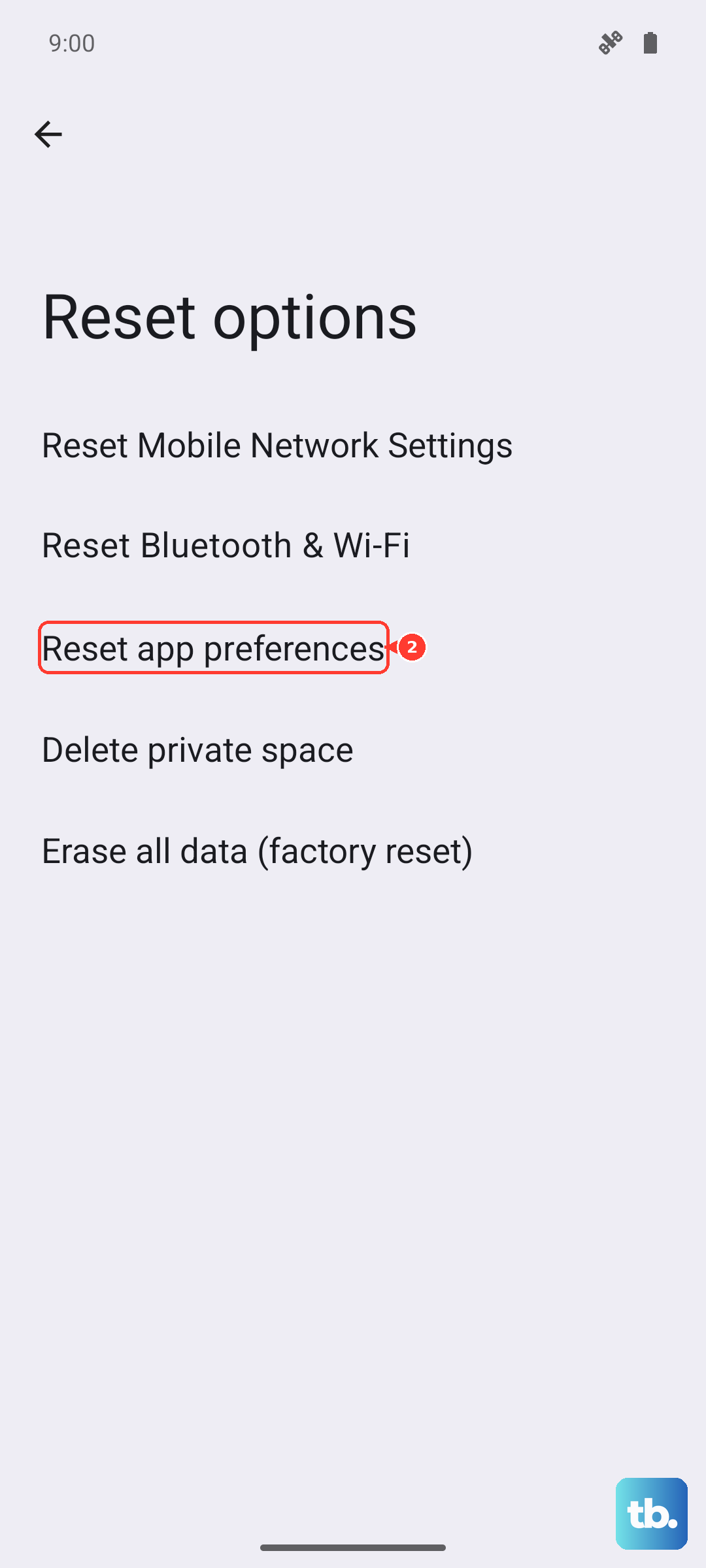
As an absolute last resort, a factory reset can eliminate deep-seated software corruption. This will erase everything on your phone. Make sure you have a complete backup in Google Drive first. You can initiate this from Settings > System > Reset options > Erase all data (factory reset).