
If your Google Pixel 8 videos are stuttering, freezing, or dropping frames, it can ruin the experience of watching anything. This is usually a software hiccup or a setting that needs adjusting, and I've found most cases are resolved without too much fuss.
Start with a free refresh rate test to confirm what the screen actually outputs. If the measured value is lower than expected, the fixes below show where to change it.
Restart Your Pixel 8
This is always the best place to start. A simple restart clears out temporary glitches in the system and apps that can cause playback issues. Just press and hold the Power button for about 30 seconds until you feel the phone vibrate and the Google logo appears on the screen.
It takes less than a minute and often fixes the problem right away. If the stuttering was caused by a one-time app crash or memory leak, this will take care of it.
Check Your Internet Connection for Streaming
If you're watching videos on YouTube, Netflix, or another streaming service, a weak connection is the most likely culprit. The Pixel 8 will try to buffer ahead, but on a slow network, it can't get the data fast enough, causing constant pauses and stutters.
Try switching from Wi-Fi to your mobile data, or vice versa, to see if the problem goes away. You can also run a quick speed test. For HD video, you generally want a steady connection of at least 5 Mbps.
Update Your Apps and Android Version
Outdated software is a common source of video problems. App developers and Google release updates specifically to fix bugs related to media playback and performance. Head to the Play Store, tap your profile icon, and go to Manage apps & device to see if any updates are pending, especially for your video apps.
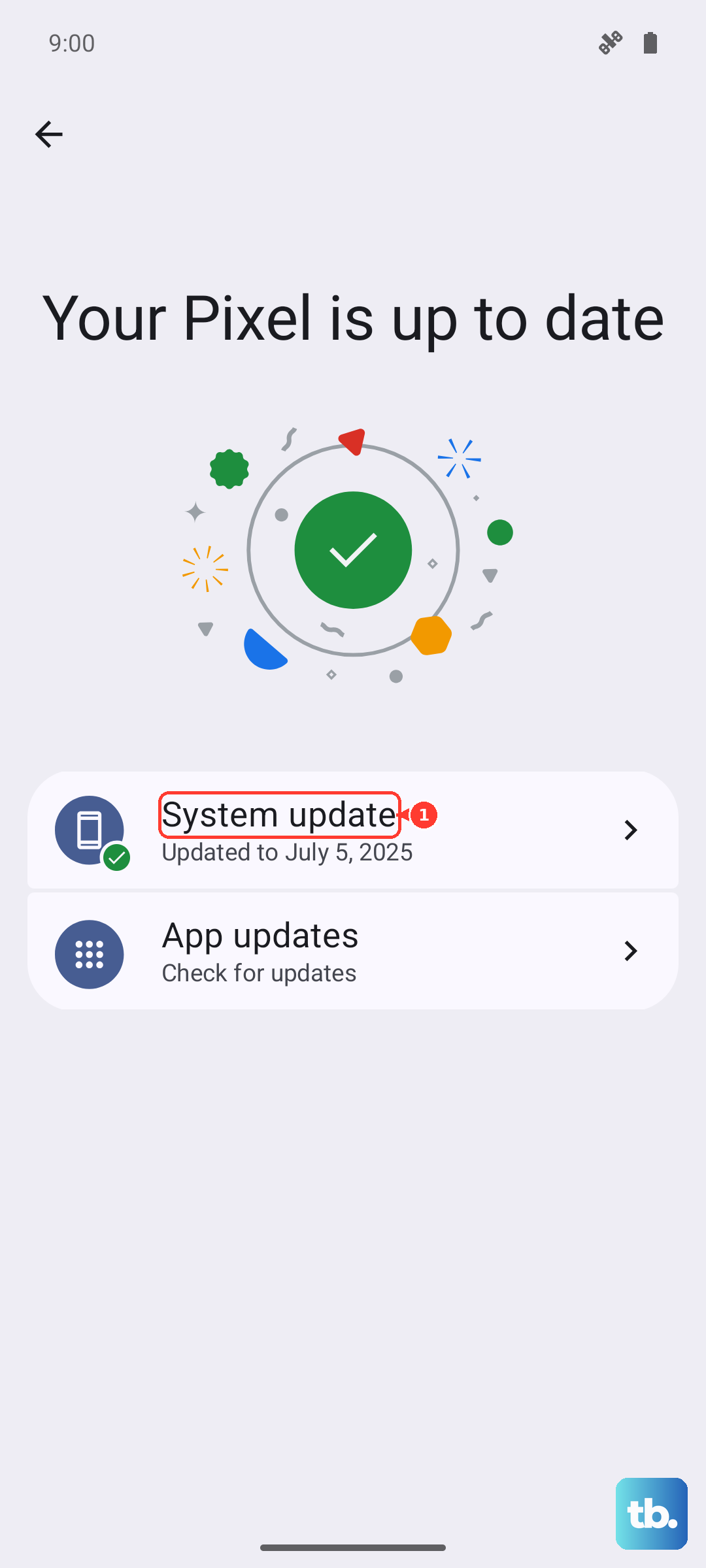
Then, check for a system update. Go to Settings > System > System update. The Pixel 8 runs Android 15, and Google is consistently pushing out monthly updates that can resolve these kinds of glitches.
Free Up Storage Space on Your Device
When your phone's storage is nearly full, the system struggles to operate smoothly. Video apps need space to cache data and work with large files. If space is critically low, you'll definitely see performance issues like stuttering.
Go to Settings > Storage to see how much free space you have. Aim to keep at least 10-15% of your total storage free. You can use the built-in cleanup tool here to remove junk files, old downloads, and cached data from apps.
Disable Adaptive Battery and Adaptive Charging Temporarily
These are great battery-saving features, but in some cases, they can be a bit too aggressive. Adaptive Battery learns your usage patterns and may limit resources for an app you haven't used in a while, which could include a video player.
You can find these in Settings > Battery. Turn off Adaptive Battery and Adaptive Charging for a day, then test your video playback again. If the stuttering stops, you can try turning Adaptive Battery back on later, it may have just needed to relearn your habits.
Clear the App's Cache and Data
If the problem is only happening in one specific app, like YouTube or Google Photos, its stored cache might be corrupted. Clearing this doesn't delete your account or saved videos, it just removes temporary files that could be causing trouble.
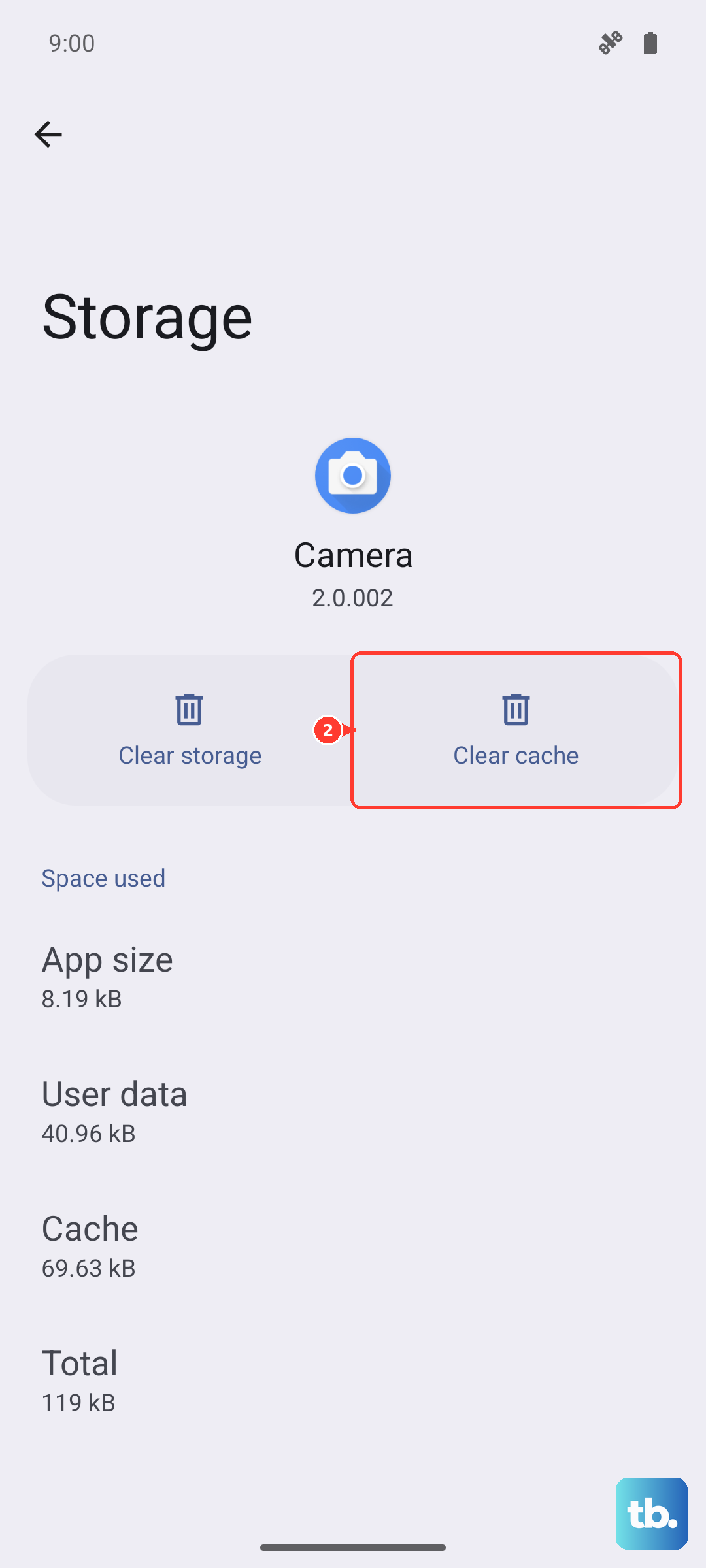
Go to Settings > Apps, select the problematic app, then tap Storage & cache. Tap "Clear cache" first. If that doesn't help, you can try "Clear storage" or "Clear data", just be aware this will reset the app to its default state, so you might need to log back in.
Check for Overheating
The Pixel 8's Tensor G3 chip is powerful, but it can get warm during extended video playback, especially if you're fast charging at the same time. When the phone overheats, it will throttle performance to cool down, which can lead to choppy video.
If the back of your phone feels hot to the touch, give it a break. Take it out of its case, move it away from direct sunlight, and stop charging it for a few minutes. Playing videos in a cooler environment usually prevents this throttle.
Try Safe Mode to Rule Out Third-Party Apps
This is a great way to check if a recently downloaded app is causing conflicts. Safe Mode temporarily disables all apps you've installed from the Play Store. Press and hold the Power button, then on the power menu screen, press and hold "Power off" until you see the option to reboot to Safe Mode.
If video playback is smooth in Safe Mode, you know a third-party app is the problem. Restart your phone normally to exit Safe Mode, then try uninstalling apps one by one, starting with the most recent, to find the culprit.
Adjust Developer Options (For Advanced Users)
There are a couple of settings here that can impact animation and rendering. First, enable Developer Options by going to Settings > About phone and tapping "Build number" seven times.
Then, go back to Settings and into System > Developer options. Look for "Window animation scale," "Transition animation scale," and "Animator duration scale." Try setting these to "Animation off" or "0.5x" to reduce the system's graphical load. Also, ensure "Disable HW overlays" is *off* (unchecked), as having it on can sometimes cause stuttering.
Perform a Factory Reset
This is your last resort if nothing else has worked. A factory reset will wipe your phone back to its original out-of-the-box state, so it's crucial to back up everything important first using Google One or your preferred method.
Once backed up, go to Settings > System > Reset options > Erase all data (factory reset). After the phone restarts and you go through setup, test video playback before restoring all your apps. If it's smooth, you can slowly restore your data to see if the issue returns.