
When your Google Pixel 8 goes silent, it can feel like you're suddenly cut off from everything. Whether it's a missed notification, a call you can't hear, or your favorite song playing to an audience of none, getting the sound back is usually a matter of working through a few specific checks. The Pixel 8's audio system is generally reliable, but like any modern smartphone, it can hiccup.
To separate hardware from software, open a speaker test and play the channel tones. What you hear, or do not hear, tells you which fixes below matter most.
Let's start with the quickest and most common fix. Press and hold the volume up button on the side of your phone. If you see the volume slider appear on screen but hear nothing, the issue is likely deeper than a simple mute. If you don't see the slider at all, your phone might be frozen, and a force restart is your next step.
Force Restart Your Pixel 8
This is the universal first step for any unresponsive behavior on a Pixel. It clears the phone's temporary memory (RAM) without deleting any of your personal data, photos, or apps. It's different from a standard restart and often resolves transient audio glitches.
To force restart, simply press and hold the Power button for about 30 seconds. Don't let go when you see the power menu or the screen goes black. Keep holding until you feel the device vibrate and see the Google logo appear, then release. The phone will boot up normally. Test your sound immediately after it finishes starting.
Check All Volume and Sound Settings
Android's sound controls are layered, so it's worth digging into the settings. First, open the Settings app and go to Sound & vibration. Here, you'll find master controls for your media, call, alarm, and ring volumes.
Make sure none of these sliders are all the way down. Tap on Volume in this menu to see a more detailed panel. While you're in the main Sound settings, also verify that Do Not Disturb is turned off. This mode can silence everything except alarms if it's configured to do so.
Disconnect Bluetooth and Other Audio Routes
Your Pixel might be trying to send sound somewhere else. Swipe down from the top of your screen twice to open the full Quick Settings panel. Look for the Bluetooth icon. If it's highlighted, tap it to turn Bluetooth off completely.
This ensures audio isn't being routed to a forgotten pair of headphones, a speaker, or your car. Also, physically check that nothing is plugged into the USB-C port. Even a charging cable without headphones can sometimes trigger the phone to look for an audio accessory.
Clean the Speaker Grilles
The Pixel 8's bottom-firing speaker grille is a magnet for pocket lint and dust. A physical blockage is a common, simple cause of muffled or absent sound. Grab a small, dry, soft-bristled brush like a clean makeup brush or a new toothbrush.
Gently brush across the speaker slit at the bottom edge of the phone. You can also use a can of compressed air, but hold it upright and use very short bursts from a few inches away. Never use a pin or paperclip, as you can easily puncture the speaker diaphragm behind the grille.
Boot Into Safe Mode to Check for App Conflicts
If the sound works during a call but not in apps like YouTube or Spotify, a third-party app could be interfering. Booting into Safe Mode temporarily disables all apps you've installed. To enter Safe Mode, press and hold the Power button on screen until the power menu appears.
Then, tap and hold the Power off option. A prompt will ask if you want to reboot to Safe Mode. Tap OK. If your sound works perfectly in Safe Mode, you know a downloaded app is the culprit. Restart normally to exit Safe Mode, and try uninstalling apps you installed around the time the sound issue began.
Check for Android and App Updates
Google is consistently releasing updates for the Pixel line. A bug in a recent update you installed, or a bug that a pending update is meant to fix, could be affecting your audio. Go to Settings > System > System update and tap Check for update.
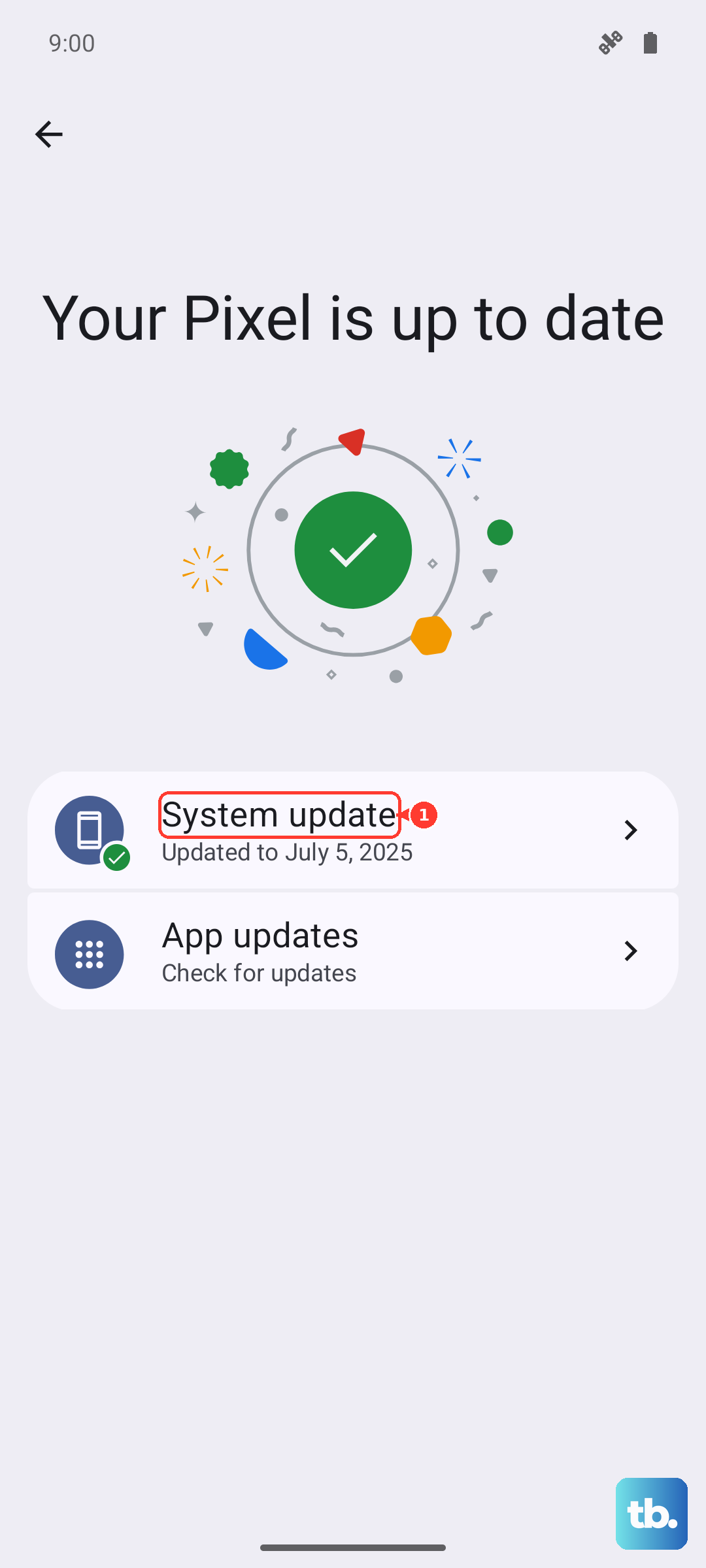
Also, open the Google Play Store, tap your profile icon, and go to Manage apps & device > Updates available. Update all apps, especially any related to audio, media, or system utilities. I've seen media player apps get into weird states that a simple update clears right up.
Review Accessibility and Special Audio Features
Some features designed to help can accidentally mute output. Go to Settings > Accessibility. Scroll down to the Audio & on-screen text section. Ensure Mono audio is off (unless you need it for hearing assistance).
Also, check the Sound amplifiers and Sound notifications settings to make sure they aren't hijacking or modifying your audio stream in an unexpected way. It's rare, but toggling these off and on can reset a stuck process.
Reset App Preferences or Network Settings
This is a less invasive step before a full reset. Resetting app preferences returns all app permissions, notifications, and default app assignments to their factory state. It won't delete any app data. Go to Settings > System > Reset options.
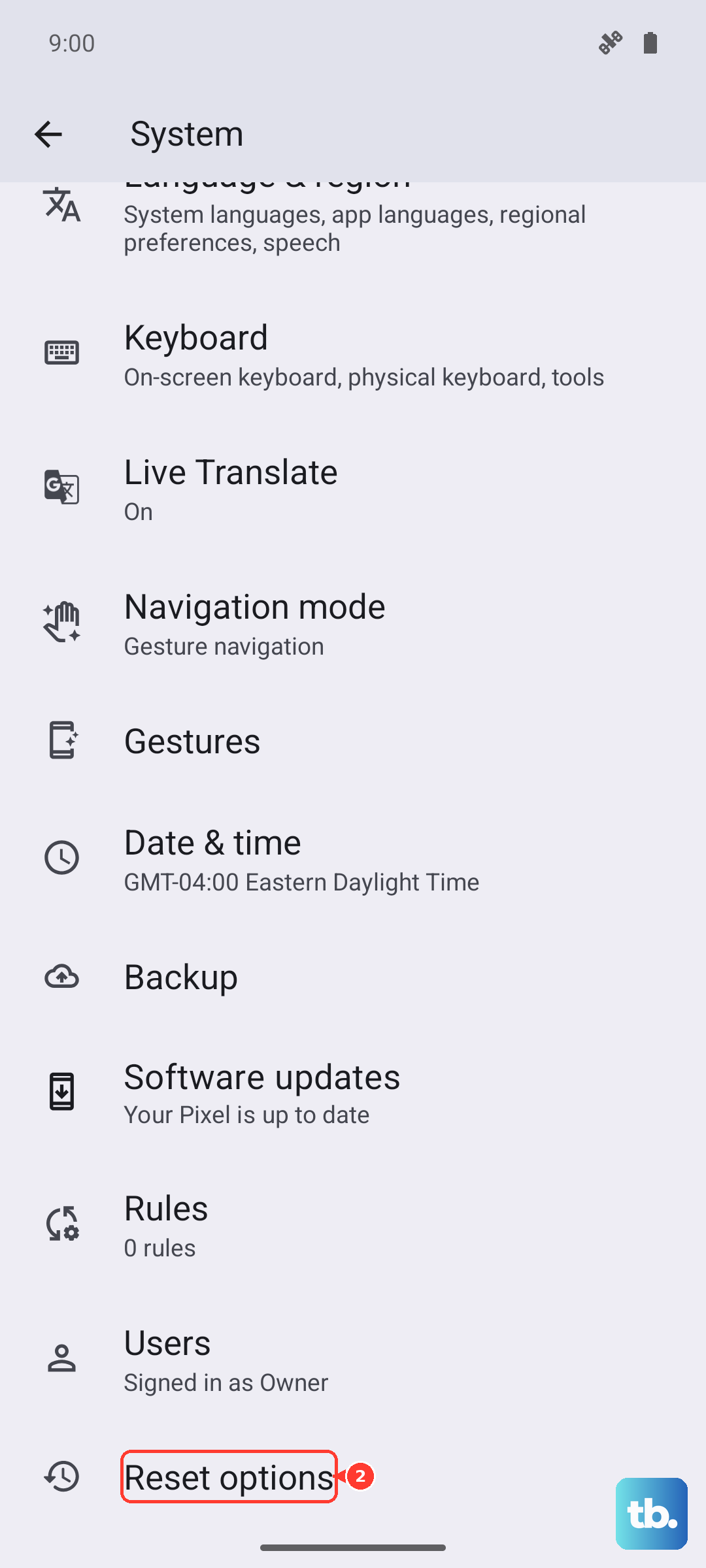
Tap Reset app preferences. If your sound issue is related to calls or media streaming, you could also try Reset Wi-Fi, mobile & Bluetooth from this same menu. You'll have to reconnect to your Wi-Fi and re-pair Bluetooth devices afterward.
Perform a Factory Reset
If you've tried everything else and the hardware speaker is confirmed to work (you heard sound during the force restart boot-up chime, for instance), a software corruption might be the cause. A factory reset will erase all data on your phone and return it to its out-of-the-box state.
Before you do this, ensure everything is backed up to your Google account or manually transferred. Go to Settings > System > Reset options > Erase all data (factory reset). Follow the prompts. After the reset, set up the phone as new without restoring a backup immediately to see if the sound works on a clean system.