If your Google Pixel 8 is crawling online, it's usually a quick setting or a temporary network glitch. I'd start by toggling Airplane mode on and off, as this forces your phone to reconnect to the cellular network from scratch. Swipe down from the top of your screen twice to open the Quick Settings panel and tap the Airplane icon, wait about ten seconds, then tap it again to turn it off.
Check Your Mobile Network Mode
Your Pixel 8 might be using a slower network type even when 5G is available. Go to Settings > Network & internet > SIMs, select your carrier, then tap Preferred network type.
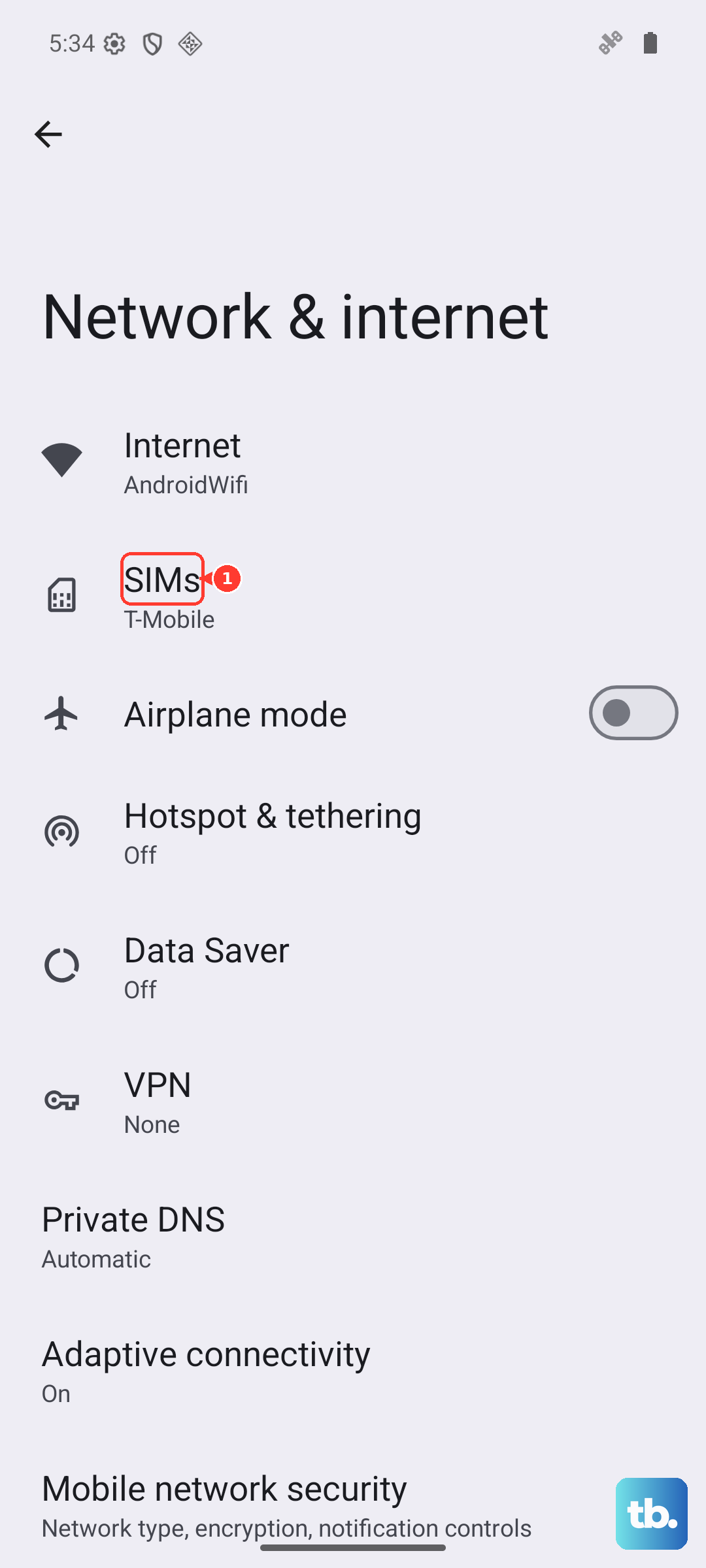
Select 5G (recommended) if it is available, or the 5G option your carrier shows. If 5G is not available or your carrier does not show it, choose from the listed options, such as LTE.
Clear Your Browser's Cache and Data
Over time, Chrome stores a lot of temporary files that can get corrupted and slow down page loading. Clearing this cache is a good refresh. Open the Chrome app, tap the three-dot menu in the top right, and go to History > Clear browsing data.
Make sure "Cached images and files" is selected. You can also check "Cookies and site data" for a more thorough clean, but note this will sign you out of most websites. Tap "Clear data" to finish. This process only takes a moment and can make a noticeable difference.
Enable Adaptive Connectivity
The Pixel 8 has a smart feature called Adaptive Connectivity that manages your network usage to save battery. Sometimes, it can be a bit too aggressive. You can try turning it off to see if your speed improves. Head to Settings > Network & internet > Adaptive Connectivity.
Toggle the switch off. Test your internet speed with it off for a day. If you don't see an improvement or your battery drains faster, you can always turn it back on. It's a useful feature, but it's worth checking if it's the culprit for your slow speeds.
Review and Restrict Background Data
Apps running in the background can silently eat up your bandwidth, slowing down what you're actively trying to do. You can see which apps are using the most mobile data and restrict them. Go to Settings > Network & internet > SIMs, then tap App data usage.
Look below the graph for the app list and each app's mobile data use. If you see a social media or streaming app using a lot of data, tap it and turn off background data for that app where Android offers that control.
Reset Your Network Settings
If you're still having issues, resetting network settings can clear out deeper configuration problems. For mobile data problems, go to Settings > System > Reset options > Reset mobile network settings. If Wi-Fi is also affected, use Reset Bluetooth & Wi-Fi from the same menu, which deletes saved Wi-Fi connections.
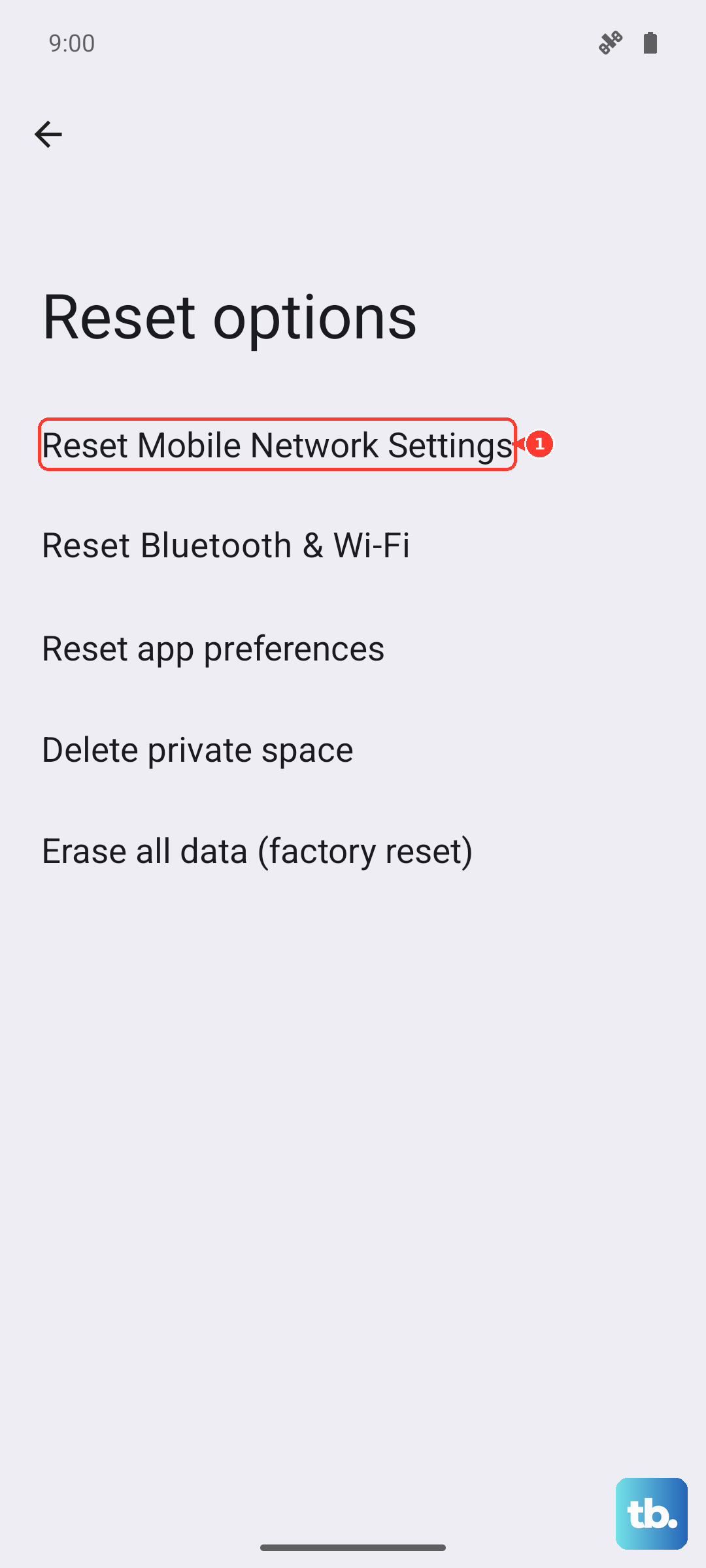
Confirm the reset when prompted, then reconnect to Wi-Fi if you reset Bluetooth and Wi-Fi. Afterward, test your mobile data speed again. This fix can resolve persistent connectivity problems caused by bad network settings.
Update Your Phone's Software
Google frequently releases updates that include performance improvements and fixes for network-related bugs. Making sure you're on the latest version of Android is crucial. Go to Settings > System > System update.
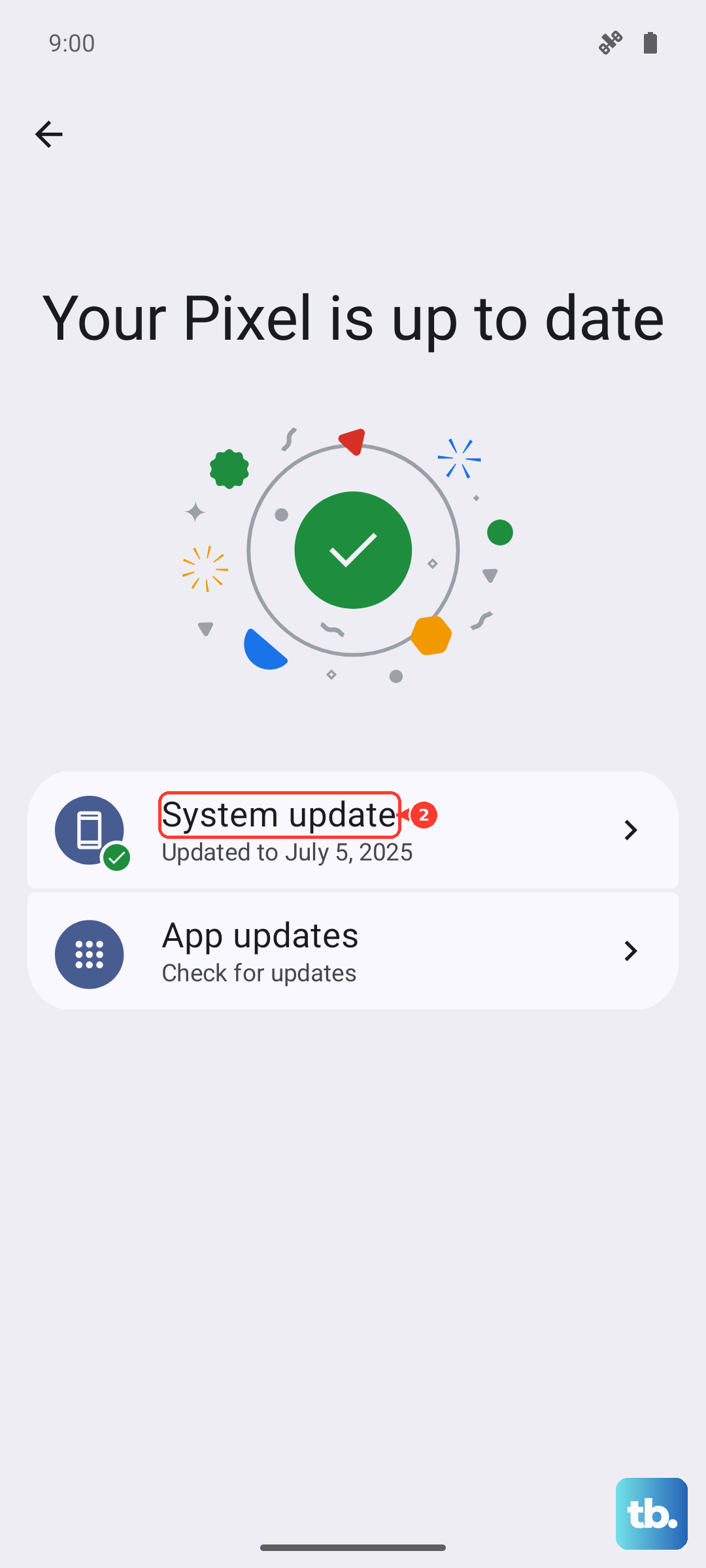
Tap "Check for update". If an update is available, download and install it. It's best to do this while connected to Wi-Fi. I've seen updates specifically address modem firmware issues that were causing slow data speeds on earlier Pixel models, so this step is always worth doing.
Check for a Physical SIM Card Issue
If you're using a physical SIM card, a poor connection in the tray can cause intermittent and slow service. First, try a simple restart by holding down the Power button for about 30 seconds until the Google logo appears. If that doesn't help, you can try reseating the SIM.
Use a SIM eject tool or small paperclip to open the tray from the small hole on the phone's left edge. Gently remove the SIM card, inspect it, and put it back into the tray. Push the tray back in and wait for your phone to reconnect to the network. If your Pixel says the SIM is no longer supported, contact your carrier for a replacement SIM; Pixel 8 can also use eSIM if your carrier supports it.
Disable Any Active VPN
While VPNs are great for privacy, they route your traffic through another server, which almost always slows down your connection. If you have a VPN app running, try disabling it to test your raw speed. Swipe down twice from the top of your screen to open the Quick Settings panel and look for a VPN tile.
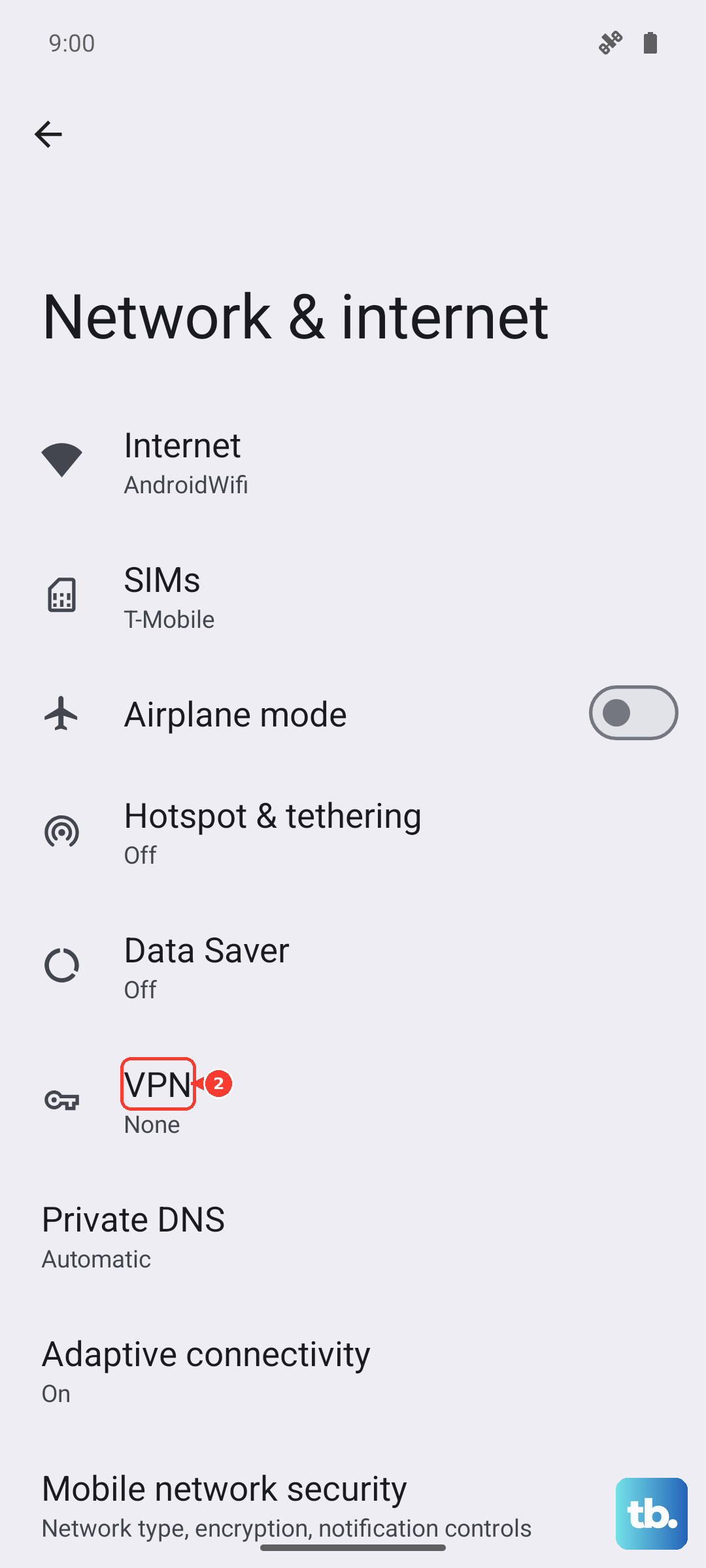
If you see one, tap it to disconnect. Alternatively, go to Settings > Network & internet > VPN and toggle off any active connection. Browse for a few minutes without the VPN and see if pages load significantly faster. If they do, you might need to try a different VPN server or provider.