
Seeing the "Settings keeps stopping" message on your Google Pixel 8 can lock you out of important controls. This usually means the Settings app has crashed or its data has become corrupted. Let's get it working again.
Force Restart Your Pixel 8
This is the quickest thing to try. A force restart clears the phone's temporary memory and can stop a misbehaving app in its tracks. Just press and hold the Power button for about 30 seconds.
You'll see the screen go black and the Google logo appear as it boots back up. This doesn't delete any of your personal data, so it's a safe first step.
Clear the Settings App Cache
Cache files help apps load faster, but they can get corrupted. Clearing them for the Settings app often fixes this exact crash. Start by opening your main phone Settings.
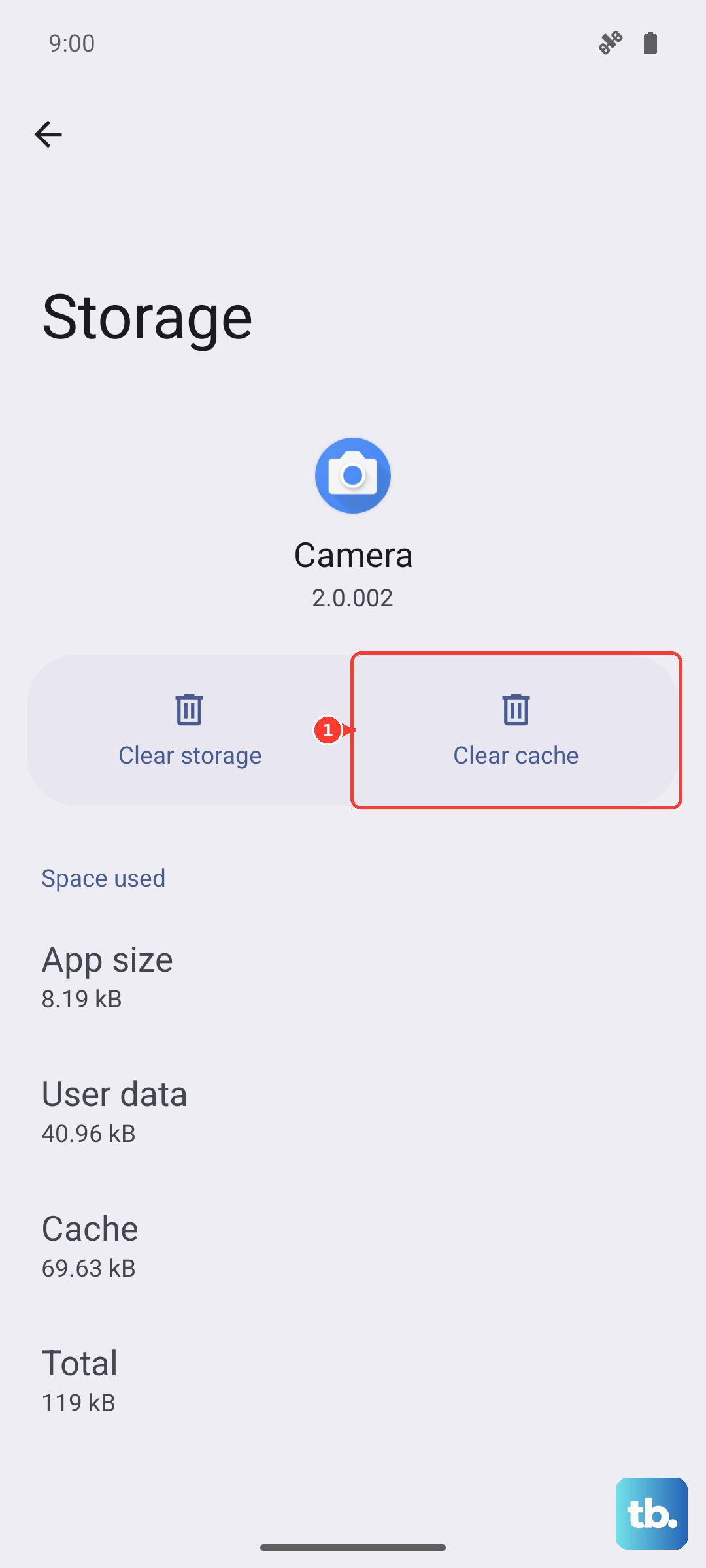
Tap on Apps and then find Settings in the list (you might need to tap "See all apps"). Once you're on the Settings app info page, select Storage & cache.
Tap Clear cache. Don't clear the data here unless you've tried everything else, as that will reset all your preferences. After clearing the cache, go back and try opening Settings again.
Force Stop the Settings App
If the app is stuck in a bad state, forcing it to stop and restart can help. You'll do this from the same app info screen. Go to Settings > Apps > Settings.
On the app's details page, you'll see a Force stop button. Tap it and confirm. The app will completely shut down. You can then try launching it again from your app drawer or by pressing the gear icon.
Check for a System Update
Google frequently releases updates that fix bugs like this. Since you can't get into Settings normally, you can check for updates through the Google Play Store as a workaround.
Open the Play Store, tap your profile icon in the top right, and go to Settings > About > Play Store version. The store will check for its own updates. More importantly, you should check for a full system update.
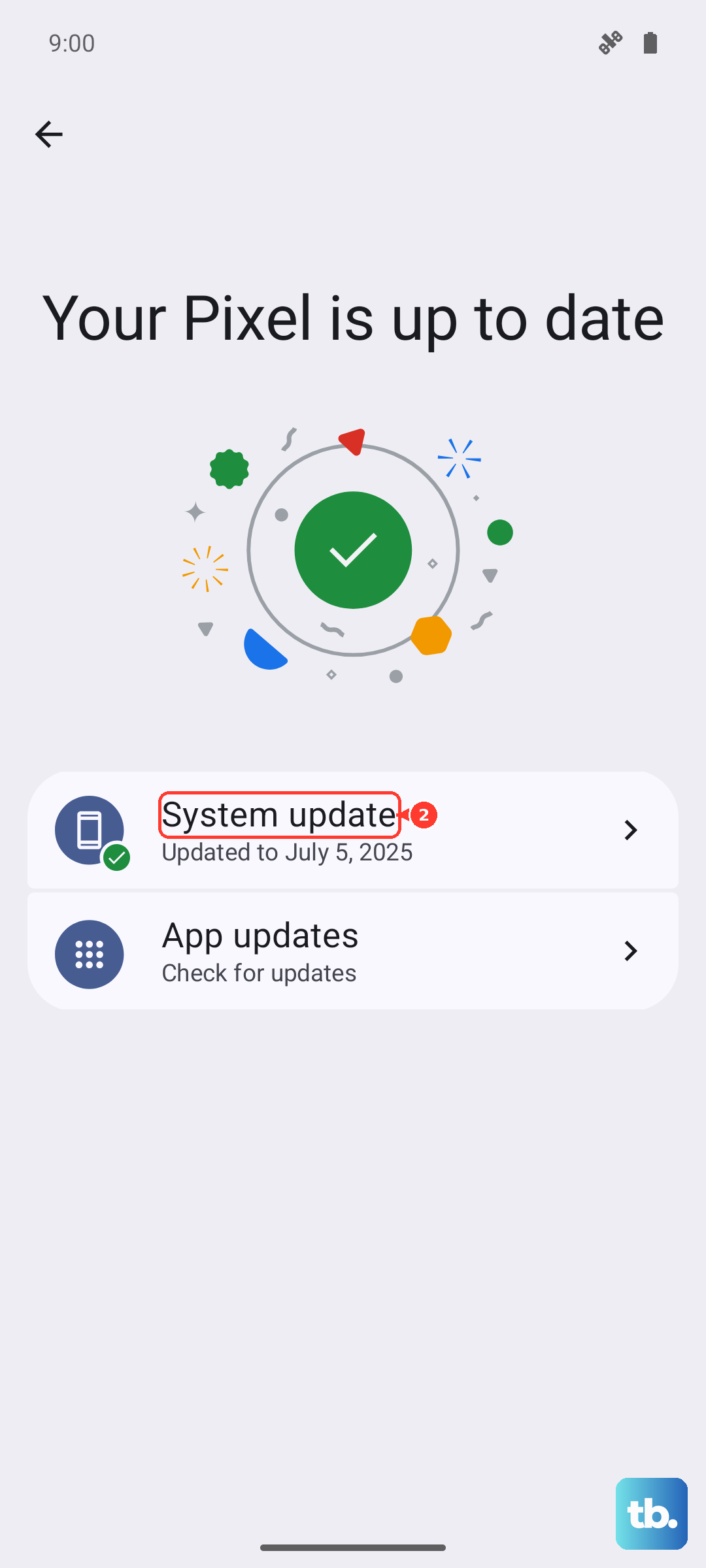
Pull down your notification shade twice and tap the gear icon in the bottom right. If that crashes, you can often get to the update screen by asking Google Assistant: "Hey Google, check for system updates." Installing any available update can resolve underlying compatibility issues.
Manage Google Play Services
Google Play Services is the backbone for many system functions, including Settings. Problems here can cause all sorts of app crashes. Head to Settings > Apps > See all apps and find Google Play Services.
Tap on it, then go to Storage & cache. First, tap Clear cache. If the problem continues, you can tap Manage space on that same screen. This will show you an option to Clear all data for Play Services.
Clearing this data will reset some permissions and sign you out of a few services, but it often resolves deep system app conflicts. Your phone will rebuild this data as you use it again.
Boot Into Safe Mode
This step checks if a recently downloaded third-party app is causing the conflict. Safe mode temporarily disables all apps you installed. Press and hold the Power button and Volume Up button together until the power menu appears.
Then, press and hold the Power off option on your screen. A prompt will ask if you want to reboot to safe mode. Tap OK. If Settings works perfectly in safe mode, you know a third-party app is the culprit.
You'll need to restart your phone normally to exit safe mode. Then, think about any apps you installed just before the problem started and try uninstalling them one by one.
Reset App Preferences
This is a less nuclear option than a factory reset. It resets all your app permissions, default apps, and background data restrictions without deleting any personal app data. Go to Settings > System > Reset options.
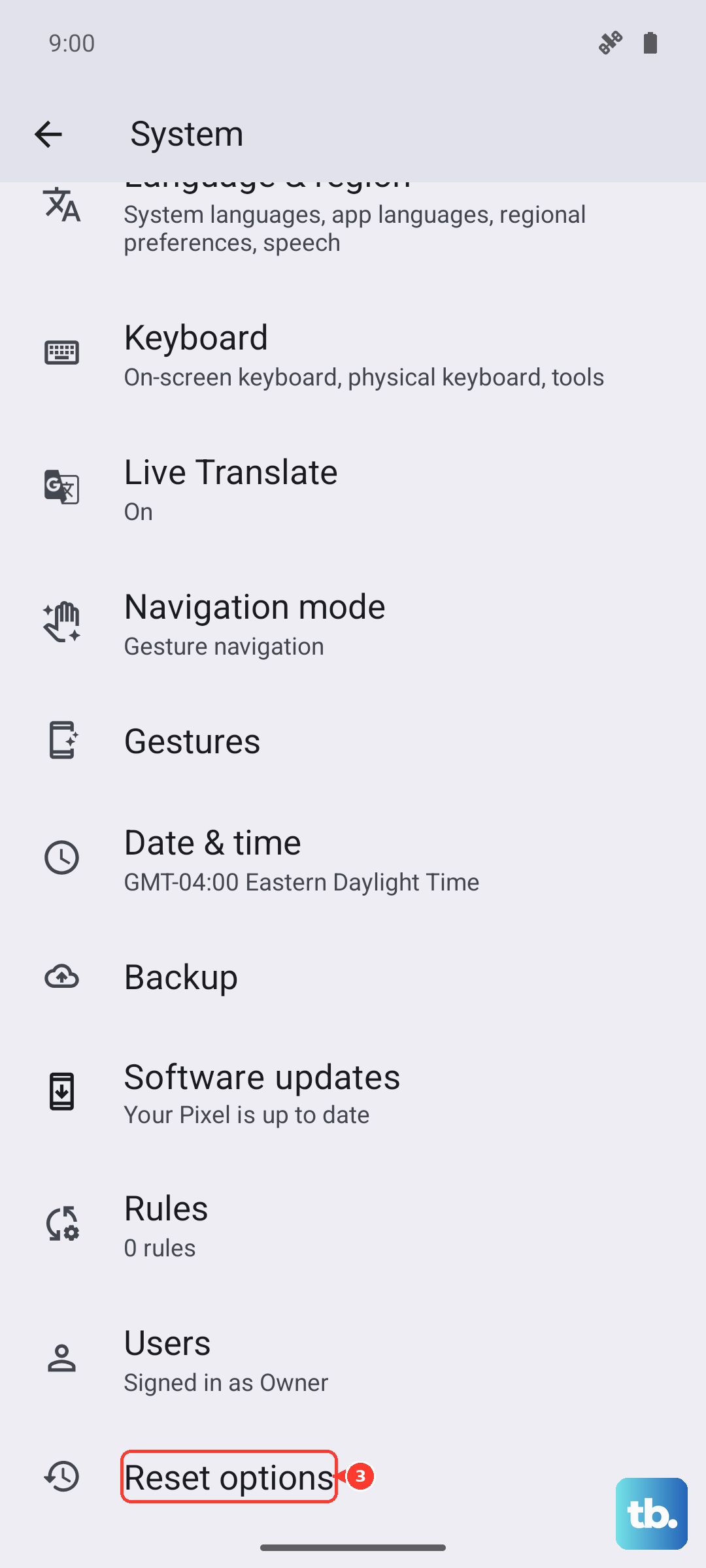
Tap on Reset app preferences and confirm. After the reset, you'll need to re-grant permissions when apps ask for them, but it can clear up conflicts that are crashing system apps like Settings.
Perform a Factory Reset
If nothing else has worked, a factory reset is the final step. This erases everything on your phone and returns it to its original state, so a full backup is essential first. Since Settings is broken, you may need to back up using Google One or another cloud service.
You can initiate the reset through the recovery menu. Turn off your phone completely. Then, press and hold the Power and Volume Down buttons together until the bootloader screen appears.
Use the volume buttons to highlight Recovery mode and press the power button to select it. When you see the Android robot with an exclamation mark, hold Power and press Volume Up once. Use the volume keys to select Wipe data/factory reset and confirm.