A screen that flickers, strobes, or shows a faint flashing band on your Google Pixel 8 is unsettling, especially when it comes and goes for no obvious reason. The flicker might track your brightness slider, flare up when the display changes refresh rate, or appear as a thin vertical line creeping up from the bottom of the panel.
Because the Pixel 8 uses an OLED display with a 60-120 Hz Smooth Display feature, flickering can be a genuine symptom rather than your imagination. The good news is that Google formally acknowledges this exact problem on a limited number of units and offers a free fix, so you have both software steps to try and an official hardware remedy if those fall short.
Start with a free screen test to check the panel with fullscreen test patterns. What you see there tells you whether to blame the display, the cable, or the source.
Work through the fixes below in order. The first ones are quick, safe, and reversible, and the more involved steps (including a factory reset and an official repair path) come last so you only reach for them if you truly need to.
Start with a clean reboot
A normal restart clears temporary glitches that can make the display flicker, so it is always the right first move. It costs you nothing and often resolves a one-off software hiccup without any further work.
Press and hold the Power button and the Volume up button together for a few seconds.
Tap Restart for a normal reboot.
Give the phone a minute to settle after it boots back up, then use it normally to see whether the flicker returns. If it does, move on to the next steps rather than restarting repeatedly.
When the screen is frozen or flickering hard
If the display is unresponsive or flickering so badly that you cannot reach the Restart option, a forced restart will power-cycle the hardware. This is safe and does not erase any of your data.
Press and hold the Power button for up to 60 seconds.
Once your phone begins to reboot and the screen displays the G logo, release the Power button.
If the screen comes back stable, keep an eye on it over the next day. A forced restart that fixes the flicker only briefly usually points to a deeper software or hardware cause covered later in this guide.
Rule out brightness and refresh rate
Some flicker is tied to how the screen manages brightness or switches between refresh rates, so changing a few display settings helps you isolate the cause. Open your phone's Settings app, then tap Display & touch, and adjust the options below one at a time.
Adaptive brightness is on by default and constantly fits your screen's brightness to the light around you; turning it off and setting the brightness manually tells you whether the flicker follows automatic brightness changes.
Toggling Dark theme on or off shows whether the issue appears mainly on light or dark backgrounds.
Finally, check the Smooth Display setting, which on the Pixel 8 runs at 60-120 Hz, to see whether the flicker is linked to the phone shifting refresh rate.
Change one setting, then watch the screen for a while before changing the next. If a particular setting clearly stops the flicker, you have found a strong clue about whether the problem is software-related or hardware-related.
Install the latest Android update
Display flicker can be a software bug that Google has already fixed in a newer release, so keeping the phone current is one of the highest-value steps here. The Pixel 8 receives long-term updates, so by now it should be running a later Android version than it shipped with; the goal is simply to be on whatever is current.
First confirm where you stand by going to Settings > About phone > Android version, which also shows your Android security update and Google Play system update.
Then go to Settings > System > Software updates (it may appear as Software updates or System update) and follow the on-screen instructions.
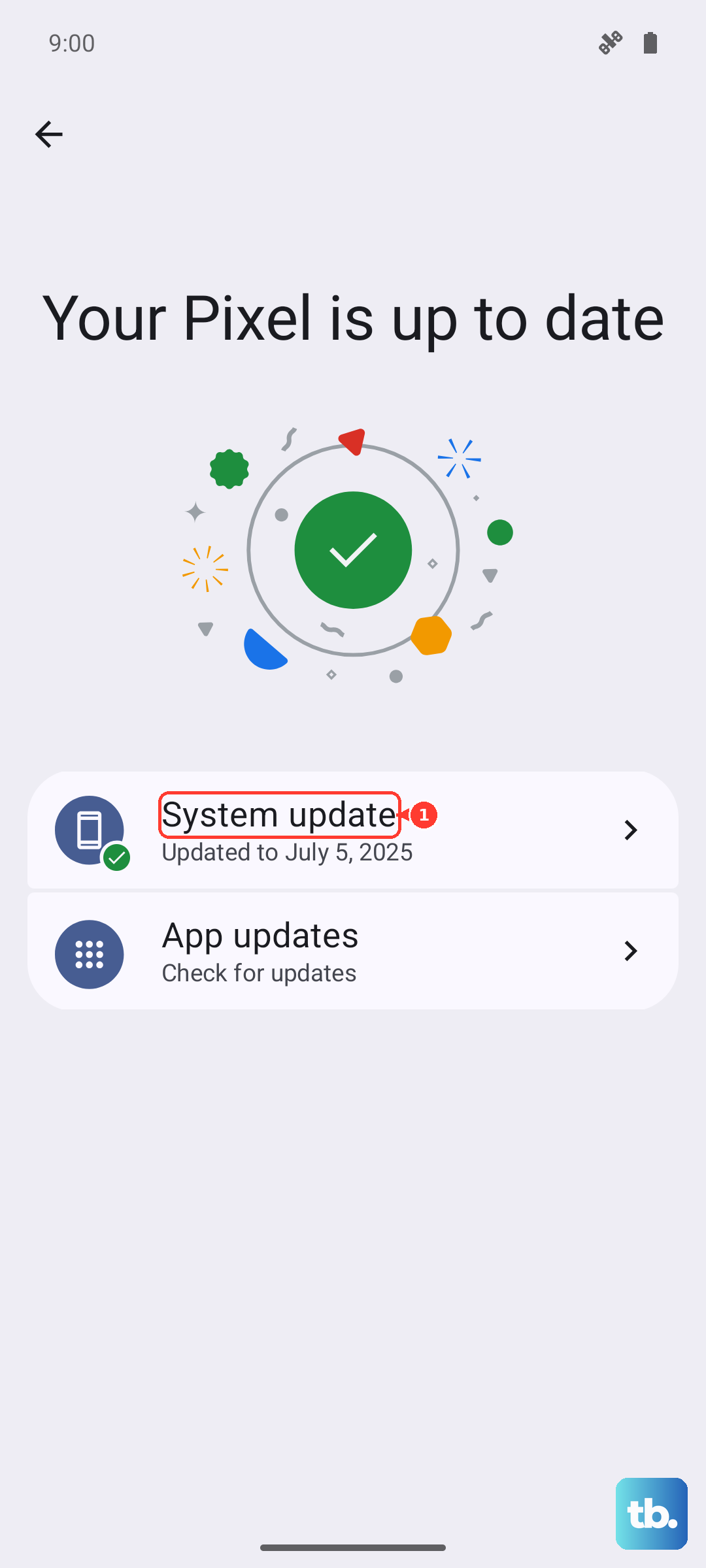
Updates download in the background and apply the next time the phone restarts, so let the process finish completely. After it reboots, check the screen again before deciding whether you still have a problem.
Clear storage pressure and misbehaving apps
A phone that is nearly full can develop display and performance problems; Google notes that issues can occur when less than 10% of storage is available. Check your usage at Settings > Storage and clear out space if you are running low.
Outdated or buggy apps can also disturb the screen, so open the Play Store and update your apps.
If you suspect one specific app, open Settings, tap Apps, select the app, and force it to stop, then watch whether the flicker eases afterward.
Test in Safe mode to expose a rogue app
Safe mode temporarily disables every app you have downloaded, which is the fastest way to tell whether a third-party app is behind the flicker. If the screen behaves perfectly in Safe mode, a downloaded app is almost certainly the culprit.
Press and hold the Power and Volume Up buttons for a few seconds.
On your screen, tap and hold either the Power off or Restart button.
Tap OK to start in Safe mode.
Use the phone in Safe mode for a while and watch the display.
If the flickering stops, uninstall recently added apps one at a time, starting with the most recent, until you find the offender.
To leave Safe mode, restart normally by pressing and holding the Power button and Volume up button for a few seconds, then tapping Restart.
The last software reset before hardware
If the flicker persists and still seems software-related, a factory reset wipes the phone back to a clean state and removes any deep software fault. Treat this as a last do-it-yourself step, because it is destructive.
Warning: a factory reset erases all your data from your phone. Back up everything you want to keep first, and charge the phone to at least 70% before you begin so it does not power off mid-reset.
- 1.Open Settings, then tap System.
- 2.Tap Reset options.
- 3.Tap Erase all data (factory reset).
- 4.Tap Erase all data to confirm.
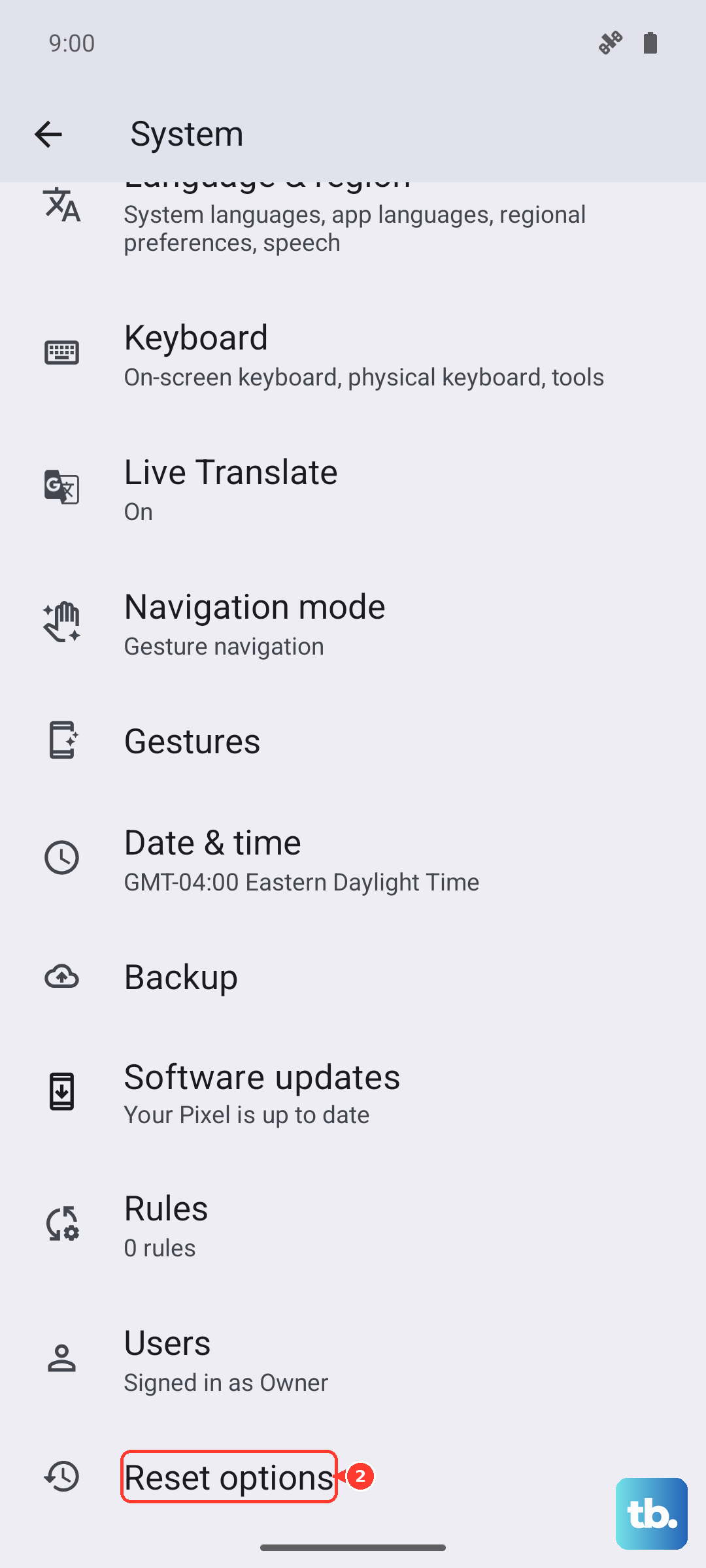
Set the phone up again and test the screen before reinstalling all your apps. If a clean, freshly reset phone still flickers, the cause is very likely hardware, which leads directly to the official remedy below.
Check the free display replacement program
Google officially recognizes that a limited number of Pixel 8 devices exhibit a vertical line running from the bottom of the display to the top, or a display flicker. For affected units, the Pixel 8 Extended Repair Program provides one free display replacement, and coverage lasts 3 years after the date of original retail purchase.
To check whether your phone qualifies, use Google's eligibility checker and enter your IMEI to verify eligibility. The program is aimed specifically at the flicker and vertical-line symptom, so confirming your unit against that exact issue is the fastest way to know where you stand before booking anything.
If your phone is eligible, this is by far the best route, because it addresses the hardware directly at no cost to you. If it is not eligible, the final step covers how to get it repaired anyway.
Book a repair through the Google Store
When your Pixel 8 is not covered by the Extended Repair Program, or the flicker continues despite everything above, the next move is an official repair. You can start one through Google Store repair services.
Go to Google Store repair services and sign in.
Select your device, or enter your IMEI or serial number.
Choose a walk-in, mail-in, or authorized repair partner option.
Before you hand over or ship the phone, back up your data and remove the SIM card. That protects your information and ensures nothing important is lost while the device is out of your hands.
Frequently Asked Questions
Is Pixel 8 screen flickering a known problem?
Yes. Google officially acknowledges that a limited number of Pixel 8 units can show a vertical line running from the bottom of the display to the top, or a display flicker. Because of that, Google runs an Extended Repair Program that offers one free display replacement for eligible devices.
How long is the free Pixel 8 display repair available?
Coverage under the Extended Repair Program lasts 3 years after the date of original retail purchase. You can confirm whether your specific unit qualifies by entering your IMEI into Google's eligibility checker.
Will a factory reset stop the flickering?
A factory reset can resolve flicker that is caused by a software fault, since it returns the phone to a clean state. It will not fix a hardware defect, and it erases all your data, so back up first, charge to at least 70%, and treat it as your last do-it-yourself step.
Could a refresh-rate setting be causing the flicker?
It can contribute, because the Pixel 8 switches between 60 and 120 Hz through its Smooth Display feature. In Settings > Display & touch you can check the Smooth Display setting along with Adaptive brightness to see whether the flicker is tied to brightness or refresh-rate behavior.
What should I do before sending my Pixel 8 in for repair?
Back up your data and remove the SIM card before handing the phone over or mailing it. Then start the repair through Google Store repair services by signing in, selecting your device or entering your IMEI or serial number, and choosing a walk-in, mail-in, or authorized repair partner.