
When your Google Pixel 8 goes silent, missing alerts for messages, emails, or calls, it can feel like you're cut off. This is a common hiccup, often tied to a specific app's settings or a system-wide toggle that got flipped. Let's get your notifications flowing again.
Check Do Not Disturb and Focus Modes
The quickest fix is often right in your quick settings panel. Swipe down from the top of your screen twice to see the full menu. Look for tiles labeled "Do Not Disturb" or any "Focus" modes, like Work or Sleep. If they're highlighted, tap them to turn them off.
Sometimes these modes are on a schedule. Go to Settings > Sound & vibration > Do Not Disturb to check the schedule and rules. Make sure apps you need alerts from are set as "Allowed" under "Apps and notifications."
Review App-Specific Notification Settings
Android gives you fine-grained control per app. If you're missing alerts from Gmail or Messages, their notification channel might be blocked. Open Settings > Apps > [App Name] > Notifications.
Here, ensure notifications are turned "On" at the top. Then, tap on each notification category (like "Inbox" for Gmail). Make sure the toggle is on and the behavior (Sound, Pop on screen) is set how you want it. I've seen this fix most issues where one app is silent but others work.
Disable Adaptive Notifications
The Pixel's Adaptive Notifications feature tries to learn which alerts you ignore and silence them. It can sometimes get overzealous. You can turn this off to see if it's the culprit.
Head to Settings > Notifications > Enhanced notifications. Toggle it off. This resets any learned silencing and gives you back manual control over every alert.
Check Battery Optimization for Key Apps
Android's battery saver features can restrict background activity, which stops apps from checking for new messages. Go to Settings > Apps > [App Name] > Battery.
For critical apps like your messaging service, set the battery option to "Unrestricted." This allows the app to run in the background freely, ensuring timely notifications.
Force Stop and Relaunch the Problem App
A temporary glitch in the app's process can stall its notification service. Go to Settings > Apps, select the app that's not alerting you, and tap "Force stop." Then, just open the app again normally. This gives it a fresh start without affecting your data.
Clear the App's Cache
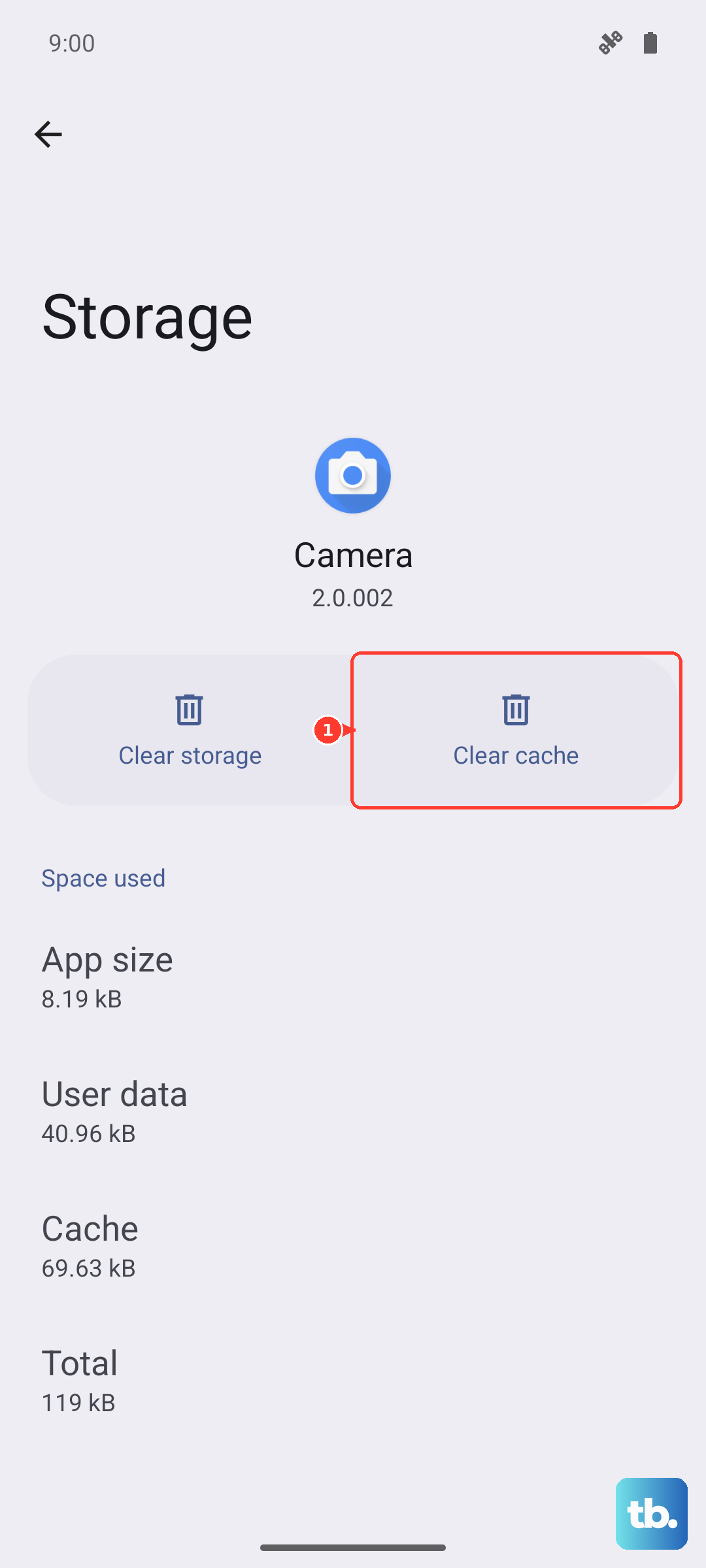
Corrupted temporary files can cause all sorts of strange behavior, including silent notifications. For the affected app, navigate to Settings > Apps > [App Name] > Storage & cache.
Tap "Clear cache." This only deletes temporary files and is completely safe. Don't clear "Storage" or data unless you're prepared to sign back into the app, as that removes your login info and settings.
Restart Your Pixel 8
It's the classic fix for a reason. A simple restart clears out system memory and resets all running services, including the notification manager. Just press and hold the power button and the volume up button together, then tap "Restart." If your phone is unresponsive, you can force a restart by holding the power button for about 30 seconds until the Google logo appears.
Update Your Apps and System Software
Outdated software is a common source of bugs. First, open the Play Store, tap your profile icon, and go to "Manage apps & device" to update all your apps. More importantly, check for a system update.
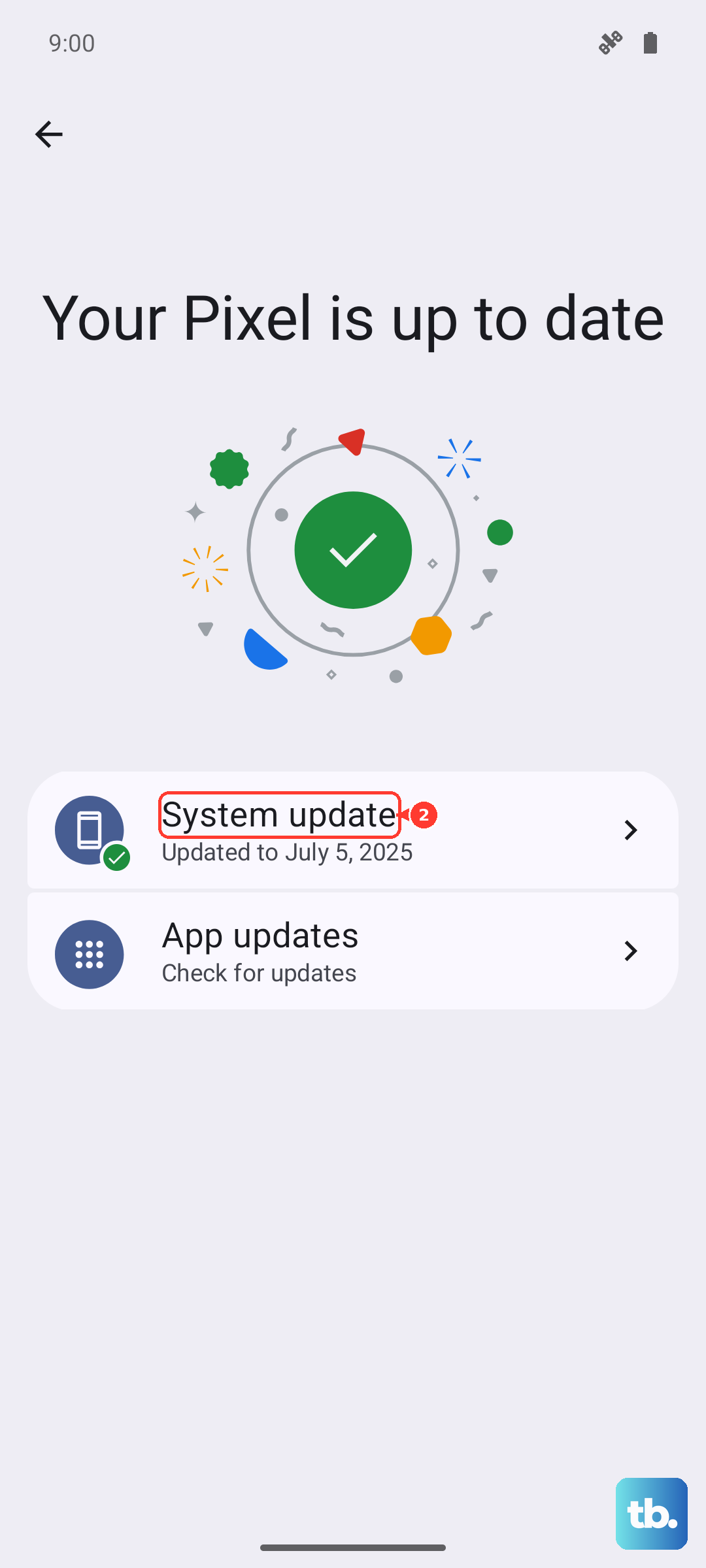
Go to Settings > System > System update. Google has released several firmware updates for the Pixel 8 that address various stability issues. Installing the latest update can resolve underlying notification problems.
Reset App Preferences
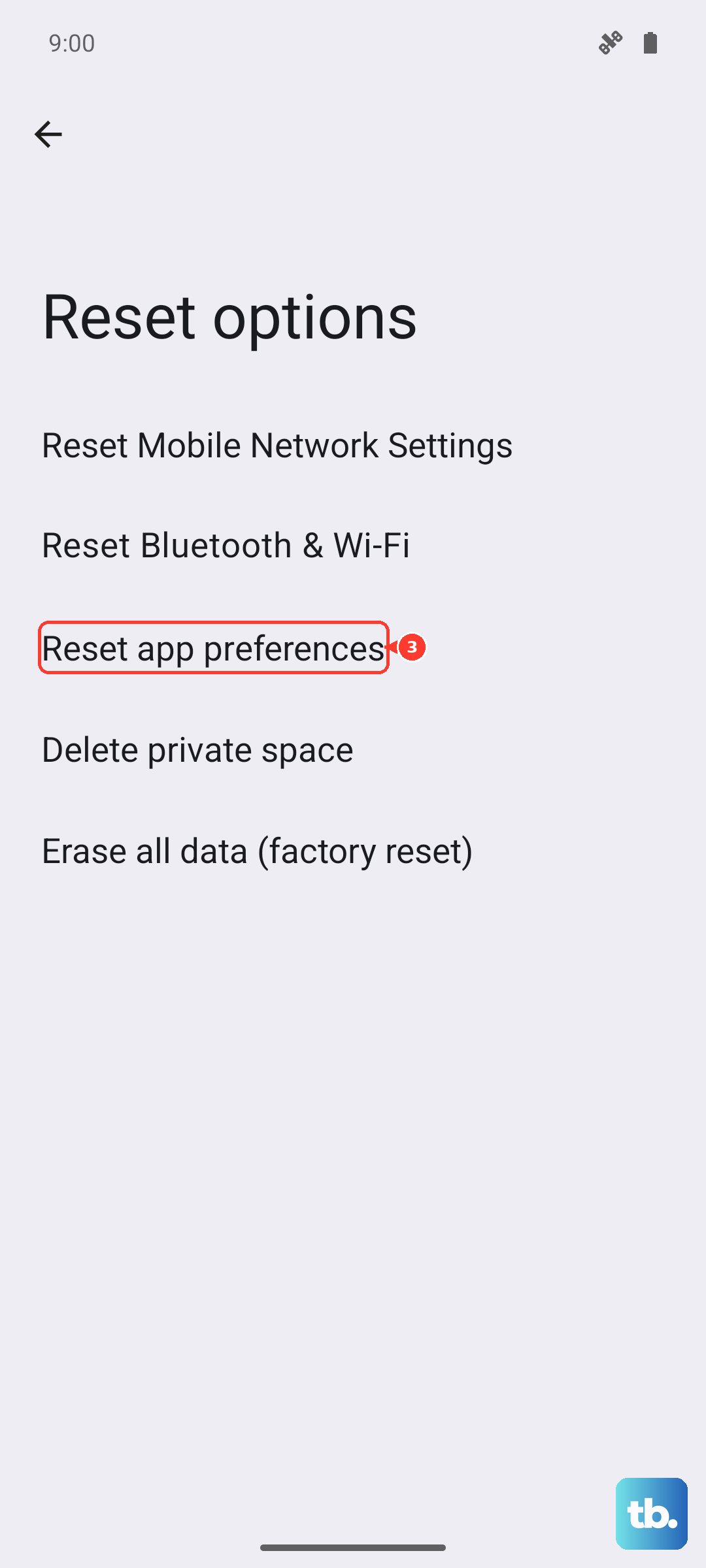
This is a useful middle-ground step. It resets all your permission decisions, notification settings, and default app assignments without deleting any personal data. You'll just need to re-grant permissions when apps ask.
Go to Settings > System > Reset options. Tap "Reset app preferences" and confirm. After your phone reboots, test your notifications.
Check for Notification Access and Special App Access
Some apps, like digital wellbeing tools or third-party launchers, require special access to manage notifications. If these are misconfigured, they can block alerts. Go to Settings > Apps > Special app access.
Review the sections for "Notification access" and "Device & app notifications." If you see an app here you don't recognize or no longer use, consider revoking its access to see if that fixes the problem.
Verify Network Connections
For apps like WhatsApp, Slack, or email clients, notifications rely on a stable data connection. If you're on Wi-Fi, try toggling it off and using mobile data, or vice versa. You can also try turning Airplane mode on for 10 seconds and then off again to reset your network radios.
For some chat apps, ensure you haven't accidentally paused syncing or put the app to "sleep" in any battery-saving profiles. The settings for this are usually in the app's own preferences menu.