You tap send in Google Messages, the text sits there with a spinning circle or a red exclamation mark, and the person on the other end never hears from you. On a Google Pixel 8, which runs Google Messages as its default texting app and sends both SMS and MMS over your carrier network plus RCS chats over mobile data or Wi-Fi, a stuck message is almost always a connection or settings problem rather than a broken phone. The good news is that the same handful of checks Google recommends will clear up the large majority of these failures, and you can work through them in minutes.
The fixes below are ordered from the quickest and safest to the most thorough, so start at the top and stop as soon as your messages start going through. Only the final escalation involves erasing data, and it comes with the official warning so you know exactly what to expect.
Start with signal and Airplane mode
SMS and MMS travel over your carrier connection, so the first thing to confirm is that your Pixel 8 actually has cellular signal and that Airplane mode is switched off. A single quick toggle often forces the phone to re-register on the network, which is one of Google's first suggested checks when messages will not send or receive.
- 1.Check that you have bars of cellular signal and that Airplane mode is off.
- 2.Turn Airplane mode on, wait a few seconds, then turn it off again to reconnect to the network.
- 3.Confirm your carrier supports SMS, MMS, and RCS on your plan, and that your account has any required credit or balance.
Restart the phone, or force it if the screen is frozen
A normal restart clears temporary glitches that can stall the messaging service. If your Pixel 8 responds normally, press and hold the Power button and the Volume up button for a few seconds, then tap Restart.
If the screen is frozen and will not respond, use the official force restart for the Pixel 6 and later, which includes the Pixel 8. Press and hold the Power button for up to 60 seconds; once your phone begins to reboot and the screen displays the G logo, release the Power button.
Make sure Google Messages is your default texting app
If no app is set as the default for texting, your messages have nowhere to go and will not send. Confirm that Google Messages holds that role.
Open Settings > Apps > Default apps.
Tap the SMS or messaging category.
Select Messages so that Google Messages is set as your default texting app.
Update the Google Messages app
An out-of-date messaging app is one of Google's listed causes of send and receive problems. Open the Play Store and make sure you are running the most current version of Google Messages, then try sending again. Updating the app on its own resolves bugs that block delivery without changing any of your conversations.
Get picture and group messages moving again
Picture messages and most group threads are sent as MMS, which depends on mobile data rather than plain SMS signaling. If only your MMS messages fail, the cause is usually a data or carrier-profile issue.
First make sure you have an active mobile data connection, not just Wi-Fi.
Then reset your APN settings back to default through the device Settings.
The correct APN values are carrier-specific, so resetting them to default lets your phone pull the right configuration rather than relying on a manually changed profile.
When only one person never gets your texts
If everything works except for messages to a single contact, the problem is tied to that thread rather than to the phone overall. Work through the contact itself before touching any system settings.
Remove and re-add the contact to rebuild a clean entry.
Next, confirm the contact is not blocked.
Check that the phone number is correct, including the country code (for example +1 for the United States).
One common version of this problem affects people who recently moved to the Pixel 8 from an iPhone. If your old number is still registered with iMessage, texts from iPhone users can fail to reach your Android phone. Deactivate iMessage on the old iPhone or Apple ID so those messages route to you as standard texts.
Toggle RCS chats off and back on
RCS chats power typing indicators, read receipts, and higher-quality media, but a stuck RCS connection can also keep messages from sending. Turning the feature off and on again refreshes it, which is especially helpful after switching apps or phones.
Open Google Messages and tap your Profile picture or Initial.
After that, tap Messages settings, then RCS chats (if you cannot find RCS chats, tap Chat features).
Toggle it off, wait a moment, then toggle it back on.
RCS needs mobile data or Wi-Fi to work; when it is unavailable, Google Messages can still send your text as SMS or MMS. Avoid flipping this toggle repeatedly, because doing so can remove you from group conversations.
Clear the Google Messages cache
A corrupted temporary cache can make the app misbehave, and clearing it is safe because it leaves your actual messages intact.
Open Settings and tap the Messages app.
Choose Storage & cache.
Tap Clear cache.
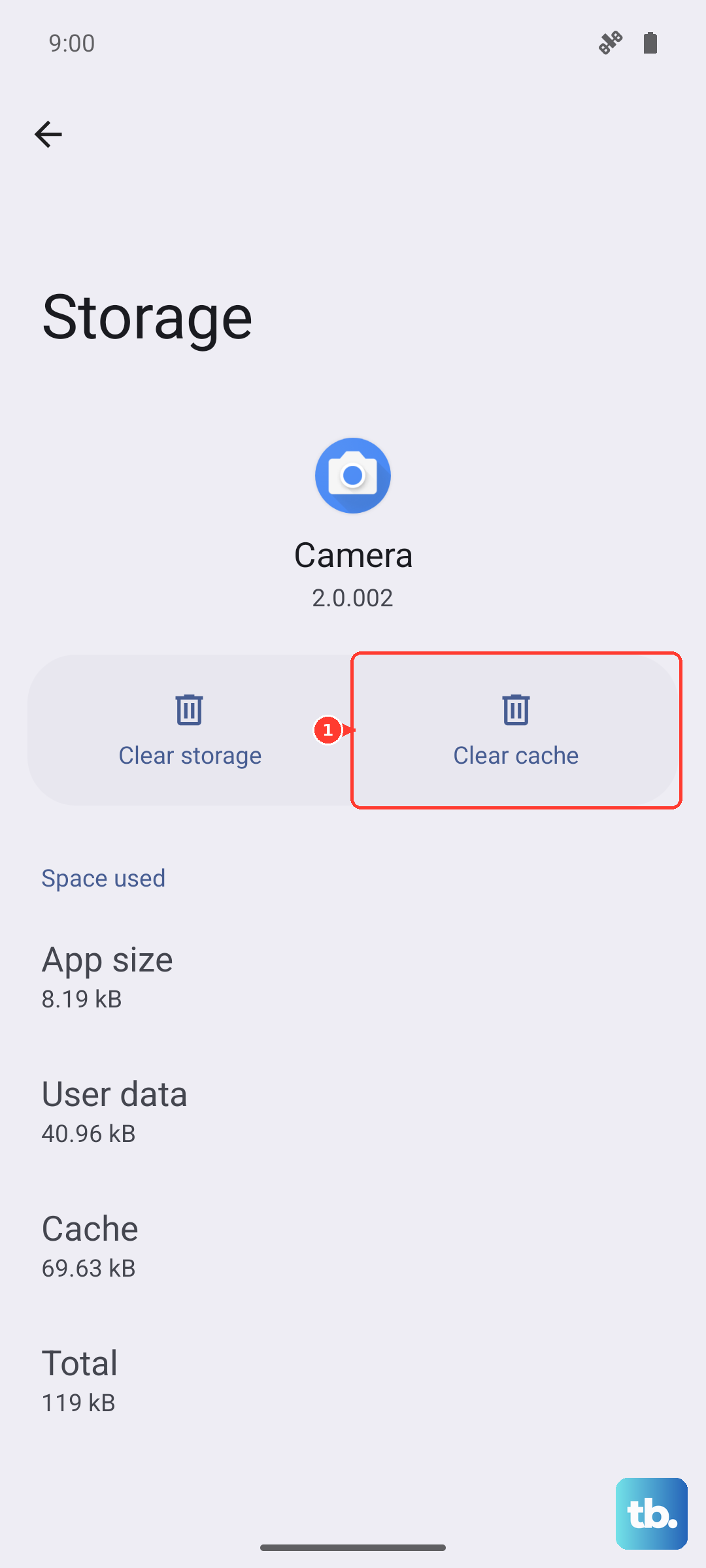
Clearing the cache will not delete your data. Only Clear storage removes your settings and saved data, so stick to Clear cache here unless you intend to reset the app entirely.
Install pending Android updates
System and security updates frequently fix the connectivity and messaging bugs behind failed texts, so make sure your Pixel 8 is fully up to date.
Open Settings > System > Software updates (this menu may appear as System update).
Follow the on-screen instructions to download and install anything pending.
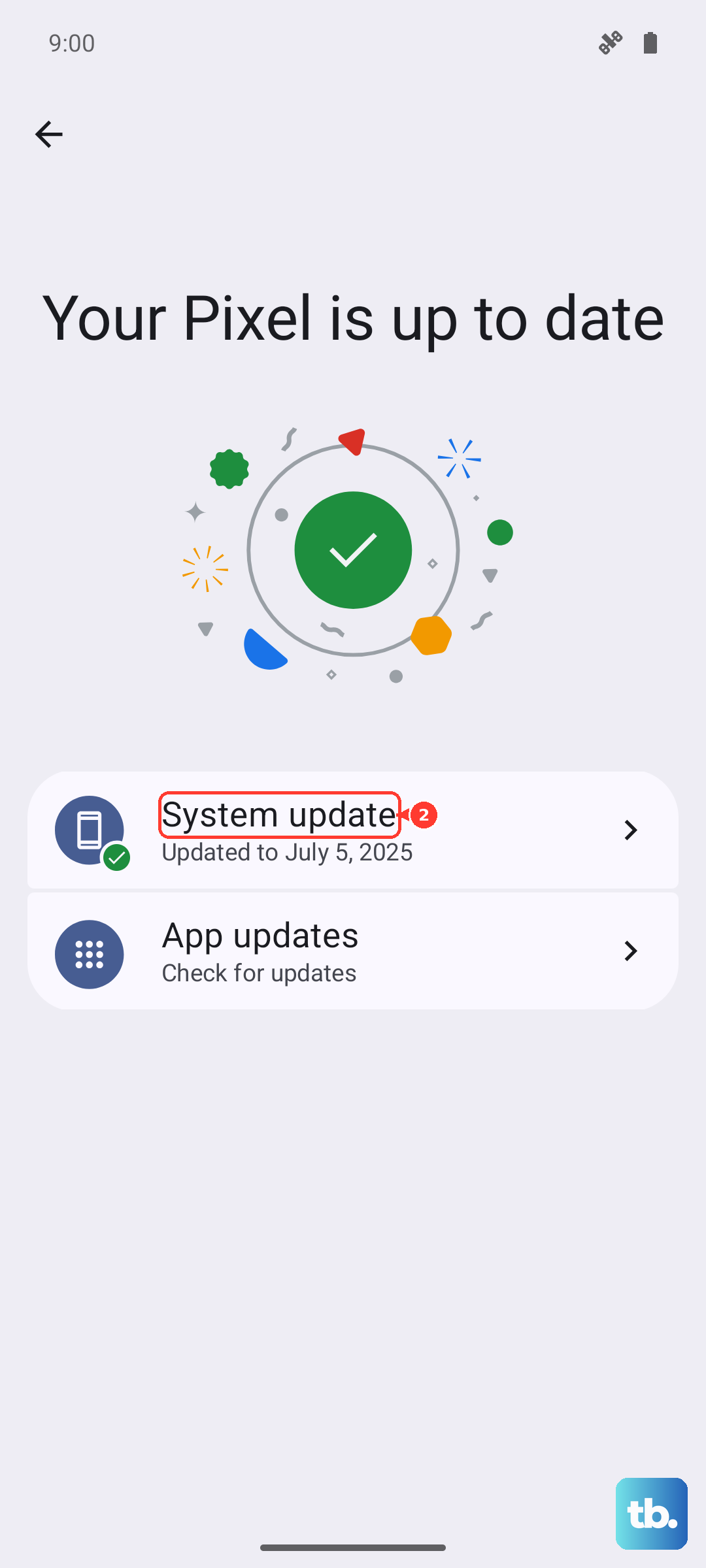
Keeping the phone current matters for the long haul too, since the Pixel 8 is committed to receiving updates for 7 years.
Reset the network settings
If connectivity still feels broken after the steps above, resetting your network settings re-establishes your mobile, Wi-Fi, and Bluetooth connections without touching your personal data, photos, or messages.
Open Settings > System > Reset options.
From there, tap Reset Wi-Fi, mobile & Bluetooth (depending on your build, this label may also read Reset Bluetooth & Wi-Fi or Reset Mobile Network Settings).
Tap Reset settings to confirm.
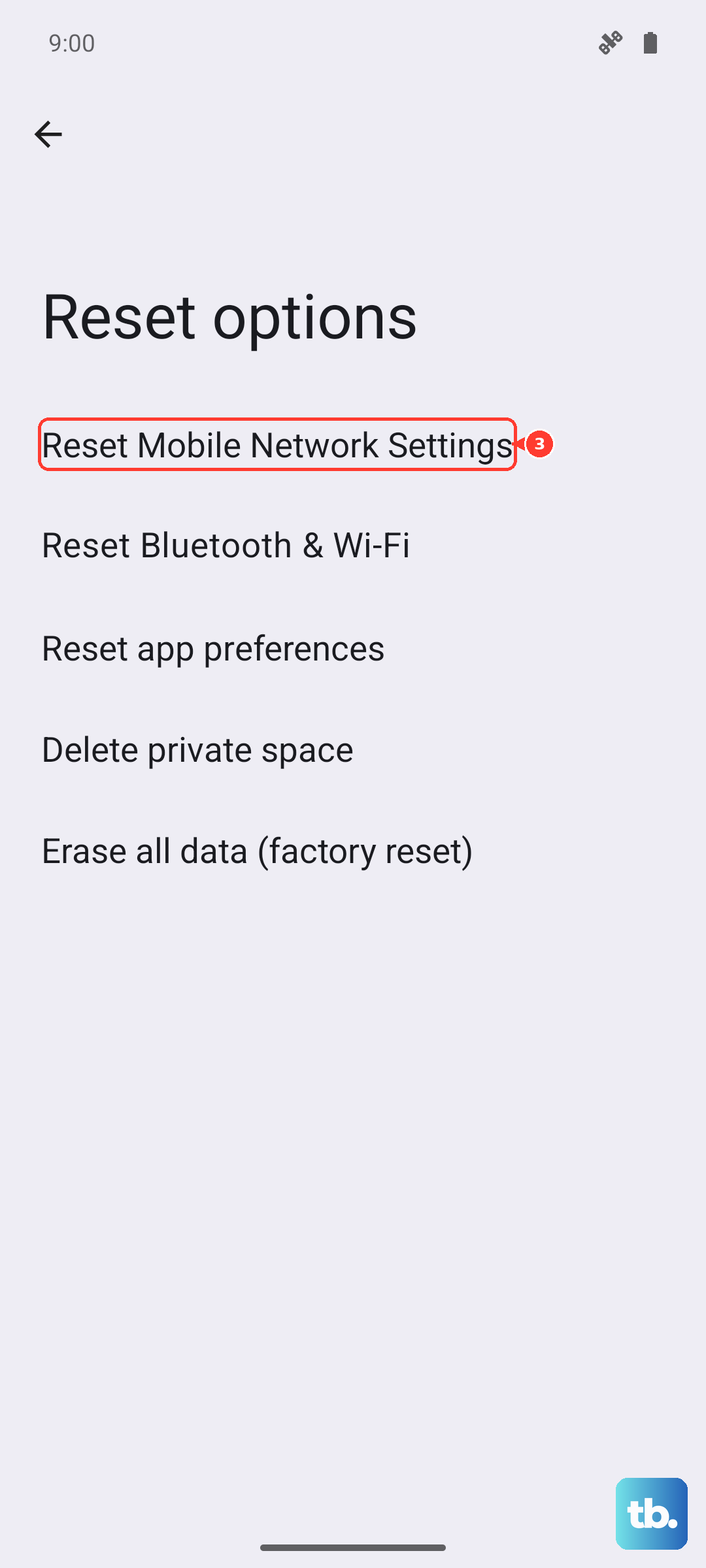
After the reset, reconnect to Wi-Fi if needed and send a test message to check whether texting is back to normal.
If texting still fails, the last-resort options
When none of the above works, a factory reset is the deepest fix, but it erases the phone, so treat it as a final step and back up first. Make sure your data is saved to your Google Account before you begin.
Open Settings > System > Reset options.
Then tap Erase all data (factory reset), then tap Erase all data.
Enter your PIN if prompted, then tap Erase all data again to confirm.
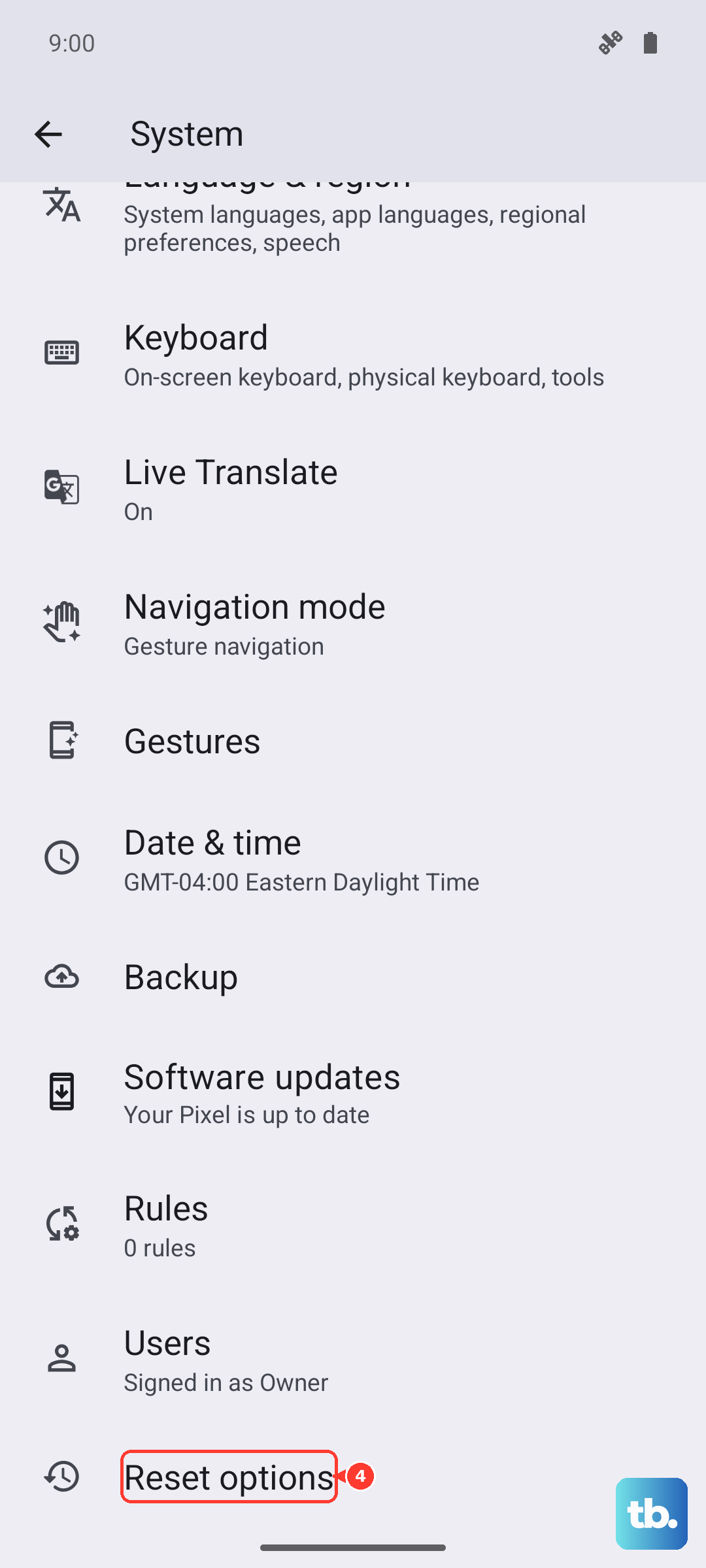
Be aware of exactly what this does: a factory data reset erases all your data from the phone. While data stored in your Google Account can be restored, your apps and their data are uninstalled.
If texting still fails even after a reset, the issue may sit with your carrier or need direct help. Contact your carrier to confirm your plan supports messaging and that nothing is blocked on your account, then reach out through Google's official Pixel Phone support to contact Google directly.
Frequently Asked Questions
Why do my texts show a red exclamation mark or will not send on my Pixel 8?
That symbol means the message failed to leave the phone, which usually points to a connection or settings issue rather than hardware. Start by confirming you have cellular signal and that Airplane mode is off, then check that Google Messages is your default texting app and that the app is up to date.
Will clearing the Google Messages cache delete my conversations?
No. Clearing the cache through Settings > Messages > Storage & cache > Clear cache will not delete your data. Only the separate Clear storage option removes your settings and saved data, so you can clear the cache safely.
Why can iPhone users no longer text me after I switched to a Pixel 8?
If your number is still registered with iMessage, texts from iPhone users can fail to arrive on your new Android phone. Deactivating iMessage on your old iPhone or Apple ID releases the number so those messages reach your Pixel 8 as standard texts.
What is the difference between SMS, MMS, and RCS on the Pixel 8?
SMS and MMS are sent over your carrier network, with MMS handling pictures and many group messages, while RCS chats run over mobile data or Wi-Fi through Google Messages for richer features. When RCS is unavailable, Google Messages can still fall back to sending your message as SMS or MMS.
Does the Pixel 8 still receive software updates?
Yes. The Pixel 8 is committed to 7 years of updates, and you can install the latest system and security fixes from Settings > System > Software updates. Keeping the software current is one of the most reliable ways to prevent messaging bugs.