
Missing calls on your Google Pixel 8 can be a real headache, especially when you're expecting something important. You check your phone and see a missed call notification, but you never heard a sound. The good news is this is usually a simple setting or a minor software hiccup that you can fix yourself.
I'd start by checking the most obvious things first, like your volume and Do Not Disturb mode. Android 15 on the Pixel has a few specific places where these settings hide, so we'll walk through exactly where to look.
Check Your Volume and Silent Mode
First, unlock your Pixel 8 and press the volume up button on the side. You'll see a volume slider appear on the screen. Make sure the slider for "Ring & notification volume" is all the way up, not just the media volume.
You can also adjust this in your settings. Go to Settings > Sound & vibration and drag the "Ring & notification volume" slider to the right. While you're there, tap on "Vibration & haptics" to ensure your phone is set to ring, not just vibrate.
Turn Off Do Not Disturb and Focus Mode
Do Not Disturb is a common culprit. When it's on, your phone stays silent for calls and notifications unless you've made exceptions. Swipe down from the top of your screen twice to open the full Quick Settings panel and look for the "Do Not Disturb" tile. If it's highlighted, tap it to turn it off.
You can also check and configure it more thoroughly in Settings > Sound & vibration > Do Not Disturb. Look at any schedules that might be turning it on automatically, and review the "People" and "Apps" sections to see if you've accidentally blocked calls from everyone.
Disconnect Bluetooth Accessories
If your Pixel 8 is connected to a Bluetooth speaker, headphones, or your car, incoming call audio might be routing there instead of your phone's speaker. The quickest fix is to swipe down and tap the Bluetooth icon in your Quick Settings to turn it off temporarily.
For a more permanent solution for certain devices, go to Settings > Connected devices. Tap on the device you don't want calls to go to, and look for a "Call audio" toggle to turn off, or simply forget the device.
Review Your Call Settings for Blocks and Redirects
It's worth checking if you've accidentally blocked the person trying to call you. Open your Phone app, tap the three-dot menu in the top right, and go to Settings > Blocked numbers. If you see the number there, unblock it.
Also, check for call forwarding. In the Phone app settings, look for "Call forwarding" under the "Calls" section. Make sure it's not set to forward all your calls to another number, which would prevent your Pixel from ringing.
Change Your Ringtone
Sometimes the specific ringtone file can get corrupted. Try switching to a different one to see if that's the issue. Go to Settings > Sound & vibration > Phone ringtone.
Pick a new tone from the list and tap "OK." Have a friend call you right away to test it. If the new ringtone works, you know the problem was with that specific sound file.
Check App-Specific Notification Settings
If you're missing calls from apps like WhatsApp, Facebook Messenger, or Skype, the issue might be with that app's notifications, not your system settings. Open Settings > Apps, select the app in question, and tap "Notifications."
Make sure notifications are turned on for that app. Look for a specific category like "Incoming calls" or "Voice calls" and ensure it's set to "Make sound and pop on screen."
Disable Flip to Shhh
The Pixel has a feature called "Flip to Shhh" that automatically enables Do Not Disturb when you place the phone screen-down on a table. If your phone is on its face, it won't ring.
You can turn this off in Settings > System > Gestures. Find "Flip to Shhh" and toggle the switch off. This is an easy one to forget about.
Restart Your Pixel 8
A simple restart clears out temporary glitches in the software that might be messing with your ringer. Just press and hold the power button until the power menu appears, then tap "Restart."
If your screen is unresponsive, you can force a restart by pressing and holding the Power button for about 30 seconds until you feel a vibration and see the Google logo.
Update Your Software
Google regularly releases updates that fix bugs, including ones related to audio and calling. Make sure you're on the latest version of Android and the latest security patch.
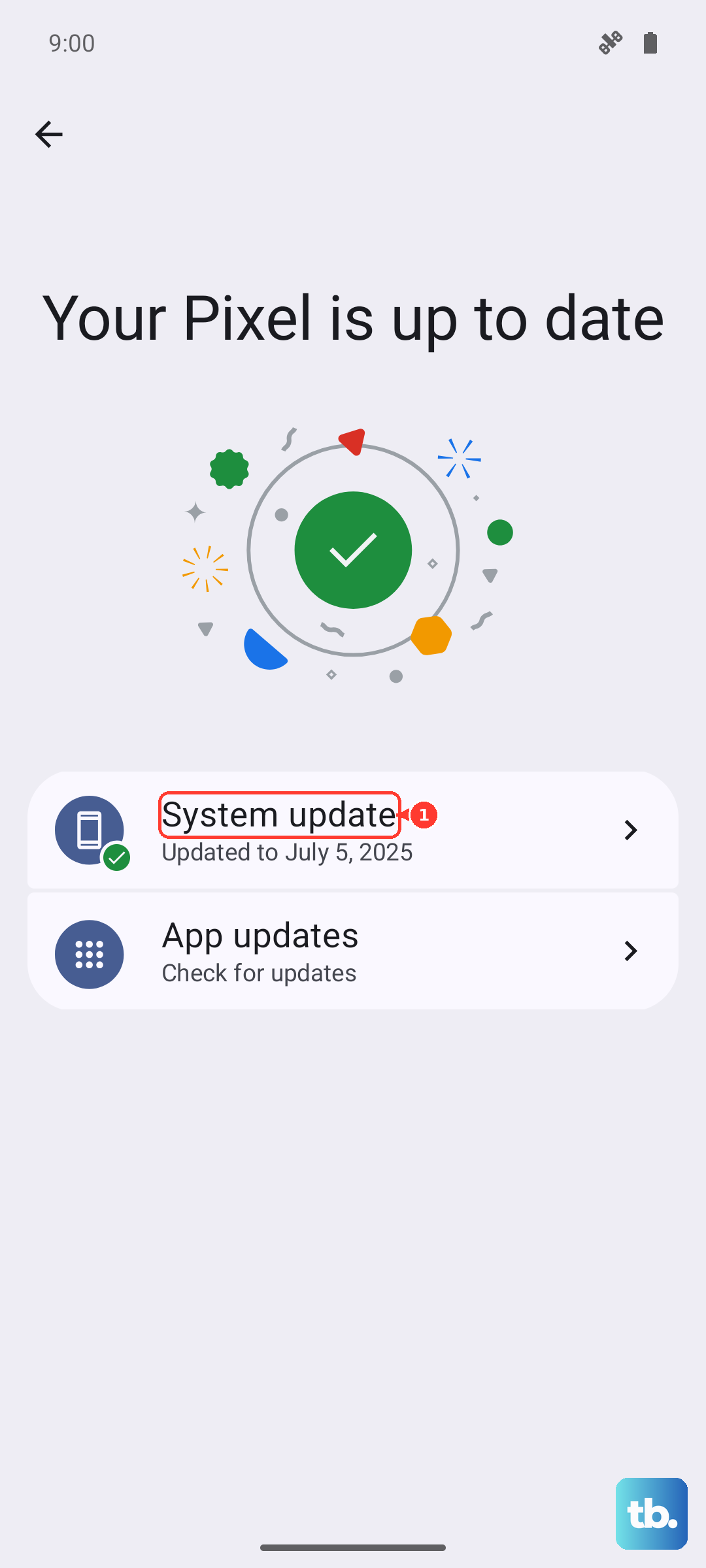
Connect to Wi-Fi, then go to Settings > System > System update. Tap "Check for update" and install anything available. I've seen updates resolve weird audio issues on Pixels more than once.
Reset App Preferences
This is a lighter reset that won't delete your app data. It resets notification permissions, default apps, and background data restrictions back to their original settings, which can fix misbehaving apps.
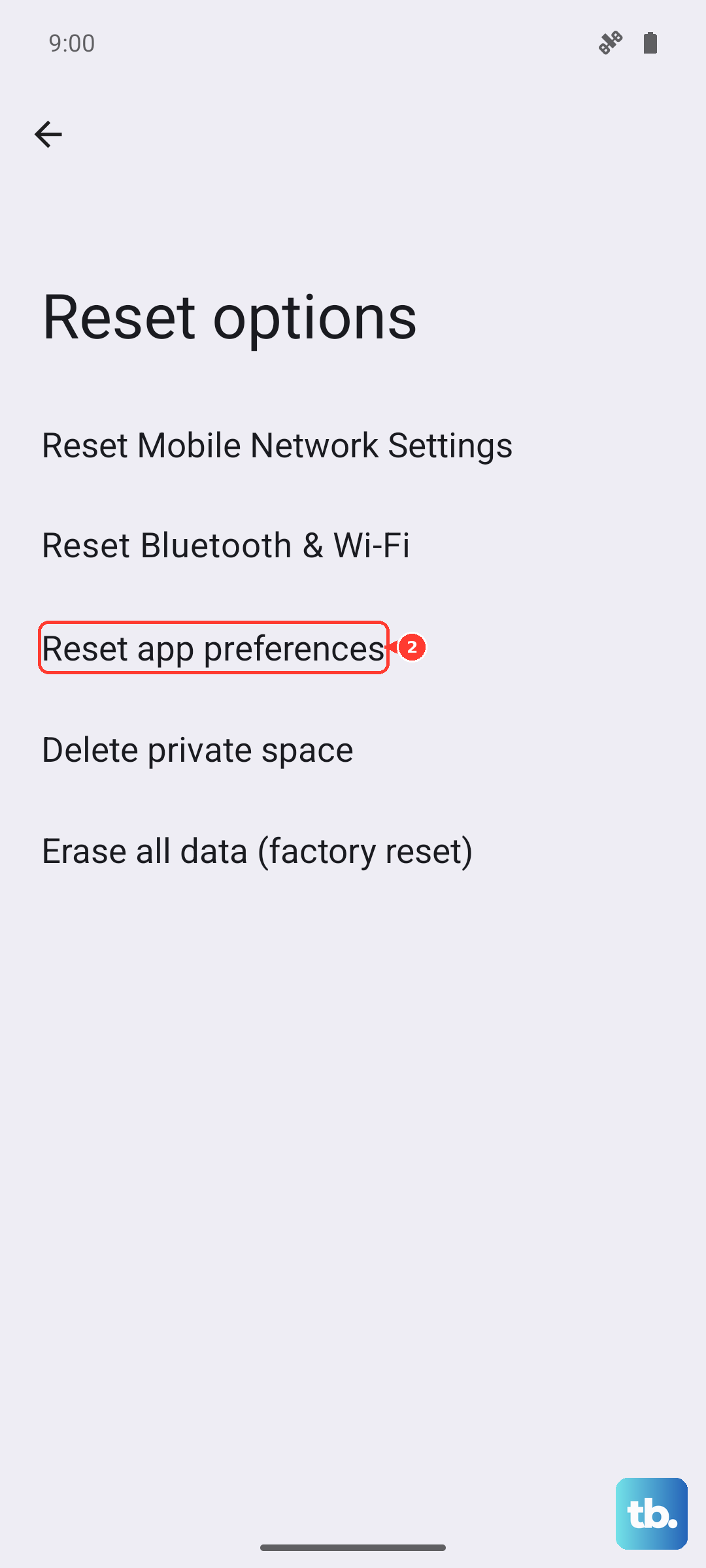
Go to Settings > System > Reset options. Tap "Reset app preferences" and confirm. You'll need to re-grant notification permissions to apps afterward, but it's a very effective troubleshooting step.
Check for Interference with Digital Wellbeing
Features in Digital Wellbeing, like Bedtime mode, can silence your phone during certain hours. Open Settings > Digital Wellbeing & parental controls and check your dashboard.
Look at any schedules for "Bedtime mode" or "Focus mode." If they're on, tap into them and adjust the schedules or turn them off completely to see if that's what's silencing your calls.
Boot Into Safe Mode
Safe Mode temporarily disables all third-party apps. If your ringer works in Safe Mode, you know a downloaded app is causing the conflict. To enter Safe Mode, press and hold the power button, then on the power menu, tap and hold "Power off" until you see the "Reboot to safe mode" prompt.
Test a call in Safe Mode. If it rings normally, restart your phone to exit Safe Mode. You'll then need to uninstall recently downloaded apps one by one to find the culprit.
Reset Network Settings
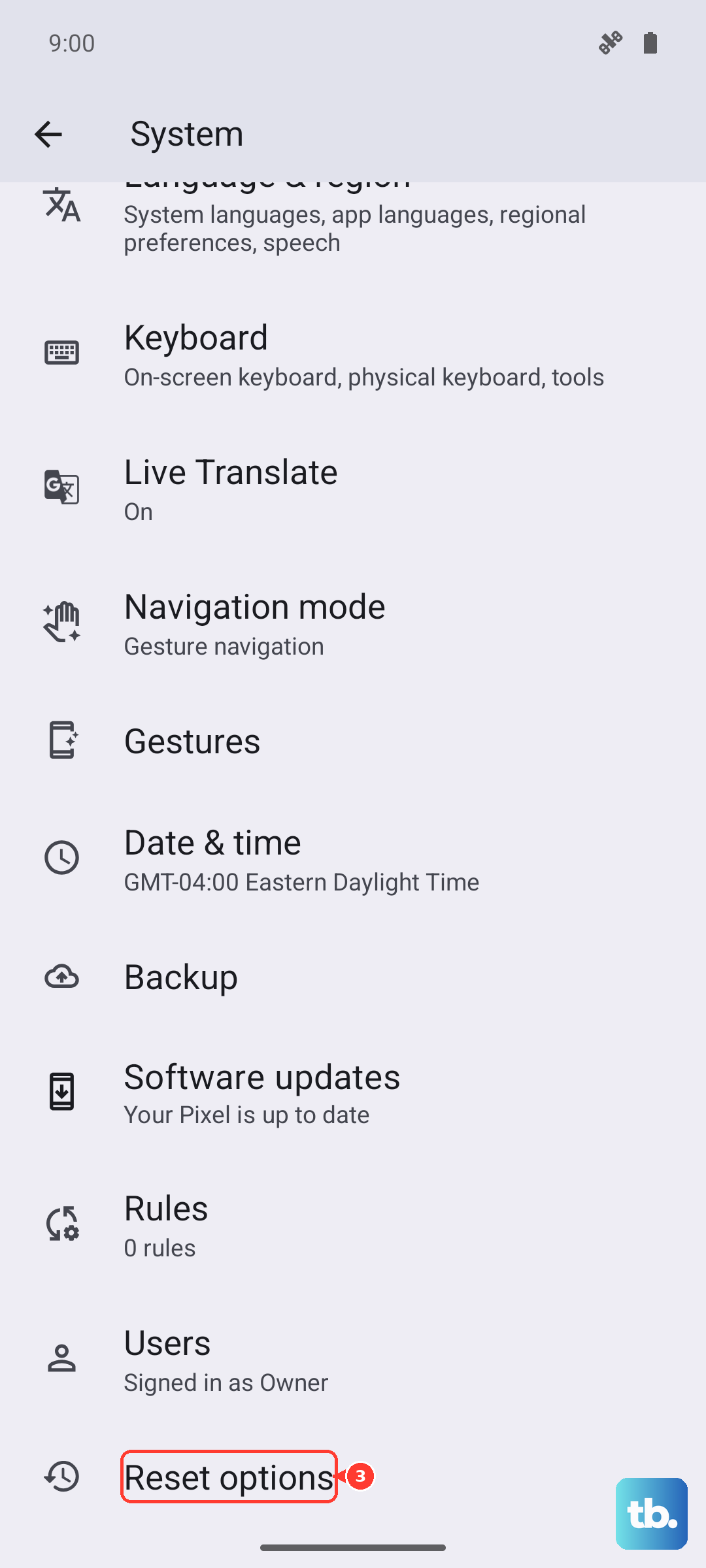
This can help if the issue seems related to your mobile network or Wi-Fi calling. It will reset Wi-Fi, mobile data, and Bluetooth settings. Go to Settings > System > Reset options.
Tap "Reset Wi-Fi, mobile & Bluetooth." Confirm and enter your PIN if prompted. You'll have to reconnect to your Wi-Fi networks and re-pair Bluetooth devices afterward.
Perform a Factory Reset
This is your last resort and will erase everything on your phone. Before you do this, make absolutely sure you have a recent backup. Go to Settings > System > Reset options > Erase all data (factory reset).
Follow the on-screen instructions. After the reset, set up your phone as new initially to test if the ringer works. If it does, you can then restore your backup, though be aware the problem could return if it was tied to your data.