
If your Google Pixel 8 is feeling sluggish, you're not imagining it. Even a powerful phone with the latest Tensor G3 chip can start to lag. The good news is that Android gives you a lot of control to speed things back up.
Performance slowdowns on the Pixel 8 usually come from a few common places. Too many apps running in the background, storage getting too full, or a pending software update can all make things feel sticky. Let's start with the quickest fix you can try right now.
Force Restart Your Pixel 8
This is the universal first step for any weird phone behavior. A force restart clears out the phone's temporary memory and stops any stuck processes. Just press and hold the Power button for a full 30 seconds.
You'll see the screen go black and the Google logo appear as it boots back up. I'd start with this one, as it solves a surprising number of temporary glitches instantly.
Check for Android and App Updates
Google is constantly releasing updates that include performance improvements and bug fixes. A known bug, for instance, could cause your phone to feel slow. Head to Settings > System > System update to check for the latest Android version.
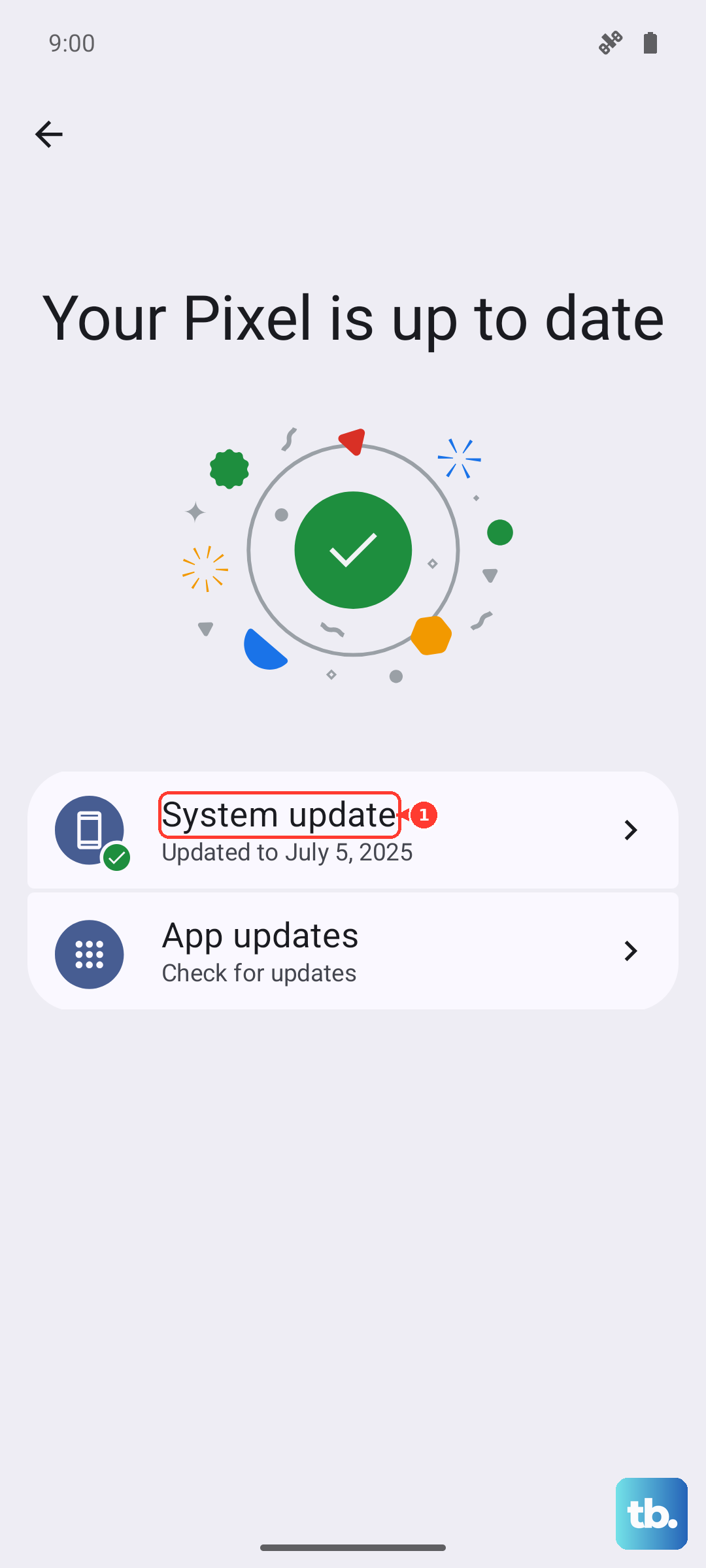
For your apps, open the Google Play Store, tap your profile icon, and go to Manage apps & device. Tap "Update all" to get the latest versions. Outdated apps can sometimes cause conflicts and slowdowns.
Free Up Storage Space
When your internal storage gets too full, your phone has less room to operate efficiently. The Pixel 8 has a great tool to help. Go to Settings > Storage to see what's taking up space.
You'll get a breakdown by category like photos, apps, and system files. Tap into each section to review and delete items you don't need. The "Free up space" button at the top can also suggest files to remove, like old screenshots or downloaded documents.
Close Unused Background Apps
While Android is good at managing memory, having dozens of apps suspended in the background can still use resources. Swipe up from the bottom of your screen and hold to enter the app overview screen.
You can swipe through and swipe up on each app card to close it. You don't need to do this constantly, but if your phone feels slow, it's a good way to give it a fresh start.
Review Battery Usage and Adaptive Features
Sometimes, a feature designed to help can inadvertently affect performance. Go to Settings > Battery and then tap on Battery usage.
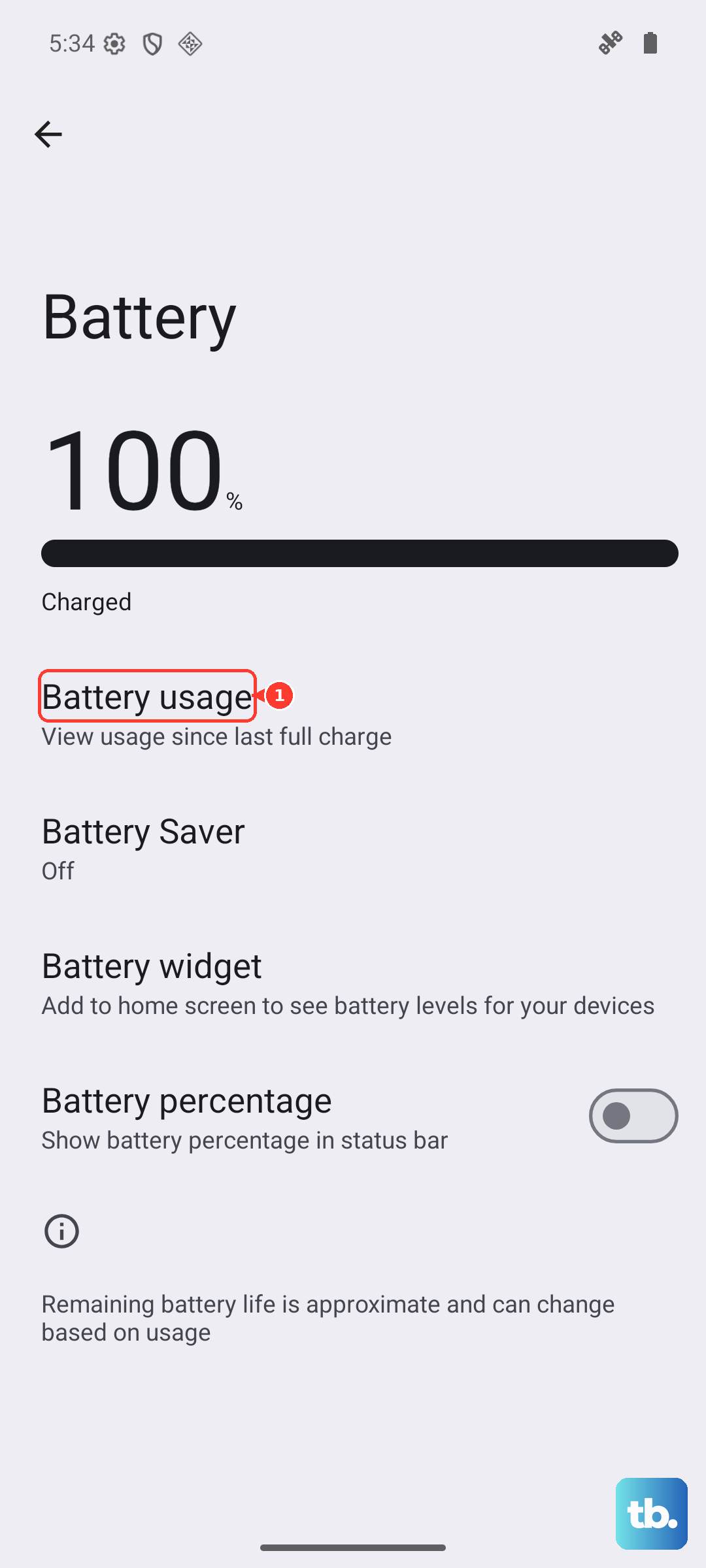
This shows you which apps have been using the most power recently. If you see an app you rarely use consuming a high percentage, it might be running intensive tasks in the background. You can also check Settings > Battery > Adaptive charging.
If Adaptive Charging is on, your phone might learn your routine and intentionally slow charging overnight to preserve battery health. This isn't a performance issue, but it's good to know it's working as intended.
Clear App Caches
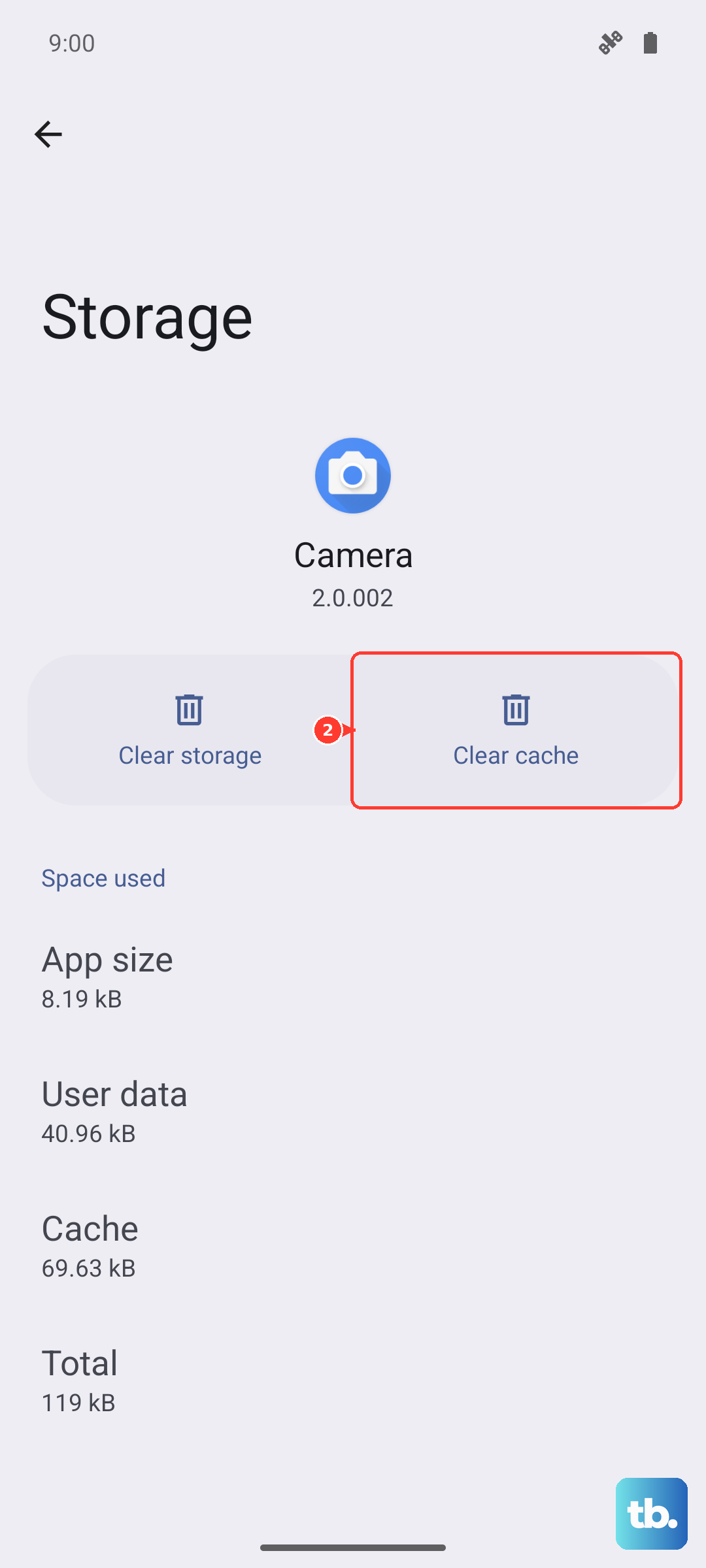
Apps store temporary data, called cache, to load faster. Over time, this cache can get corrupted or too large, slowing the app down. You can clear an individual app's cache without losing your login or data.
Go to Settings > Apps, select the app that's feeling slow, then tap Storage & cache. Tap "Clear cache." I'd do this for browsers, social media apps, and any other app you use daily that seems laggy.
Manage Background Data and Restrictions
Android lets you control which apps can run and refresh in the background. Go to Settings > Apps and select a specific app. Tap on Mobile data & Wi-Fi.
Here, you can toggle off "Background data" for apps that don't need to update when you're not using them. For a more nuclear option on apps that are real battery hogs, you can go back to the app's main page and tap Restrict to prevent all background activity.
Reduce Animations and Visual Effects
The smooth animations on the Pixel 8 look great, but they take processing power. Speeding them up or turning them off can make the phone feel snappier. You need to enable Developer Options first.
Go to Settings > About phone and tap "Build number" seven times. Then, go back to Settings, into System > Developer options. Scroll down to the "Drawing" section.
Look for "Window animation scale," "Transition animation scale," and "Animator duration scale." Change each of these from 1x to .5x to speed them up, or turn them off entirely.
Check for Overheating
The Pixel 8's Tensor chip can get warm during intensive tasks like gaming or fast charging. If the phone gets too hot, it will automatically throttle performance to cool down. If your phone feels warm and slow, set it down for a few minutes.
Avoid using it while it's charging with a 27W fast charger, especially if it's on a soft surface like a bed. Let it cool down, and performance should return to normal.
Reset App Preferences or Perform a Factory Reset
If you're still having issues, you can reset all your app preferences. This won't delete any app data, but it will reset permissions, background restrictions, and default apps. Go to Settings > System > Reset options and tap "Reset app preferences."
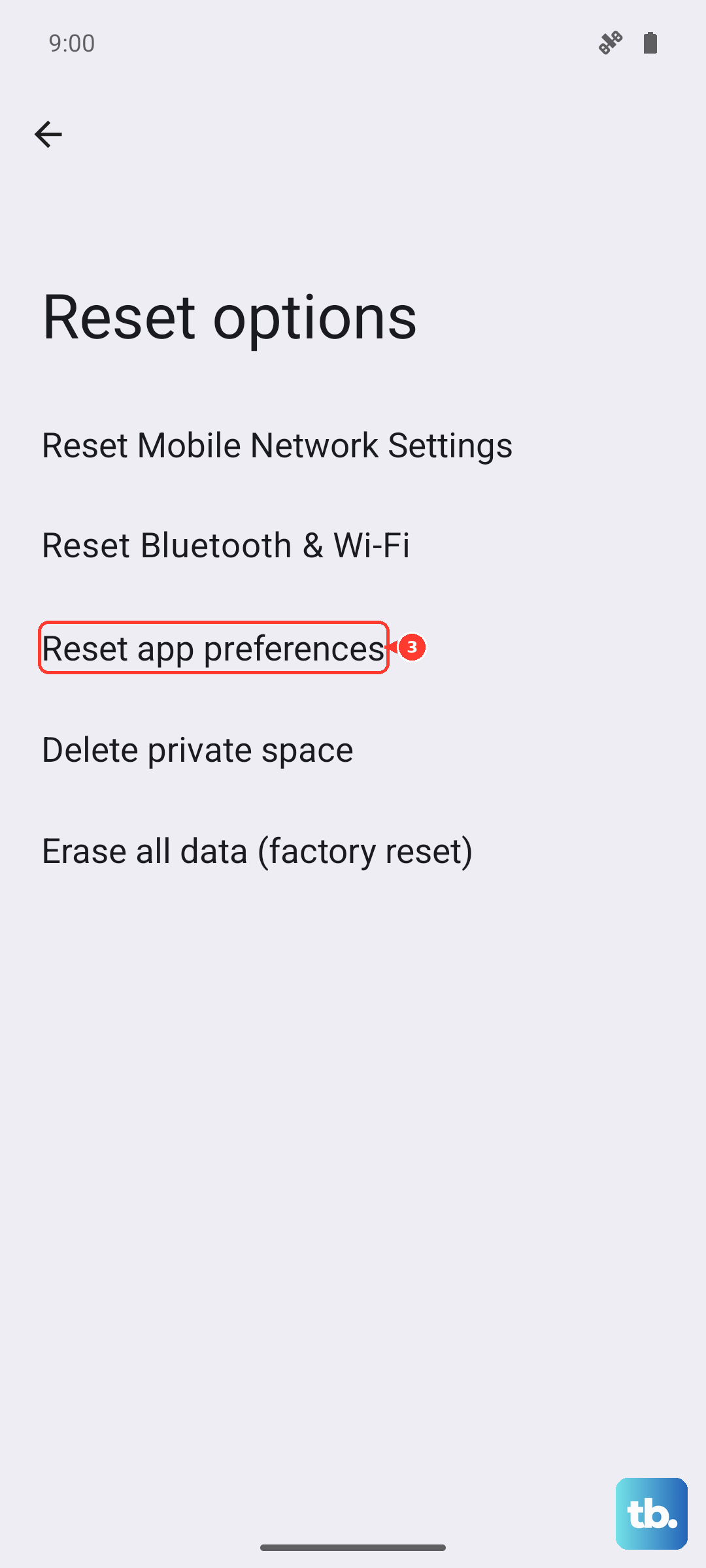
As a last resort, a factory reset will wipe the phone back to its original state. Before you do this, make sure everything is backed up to your Google account. You can find this option in the same Reset options menu under "Erase all data (factory reset)."