
That "Unfortunately, Gboard has stopped" message popping up on your Pixel 8 can really halt your conversation. It's a common hiccup, but you can usually get your keyboard back with a few straightforward steps.
Restart the Gboard App
Force stopping the app clears out any temporary glitch that's causing it to crash. This is the quickest fix and often works right away.
Head to Settings > Apps > See all apps. Find and tap on Gboard. On the app info screen, tap Force stop and confirm. Now just exit and try opening your keyboard again in any app.
Clear Gboard's Cache and Data
If a simple restart doesn't cut it, the app's stored data might be corrupted. Clearing the cache is safe and won't delete your personal dictionaries or saved snippets.
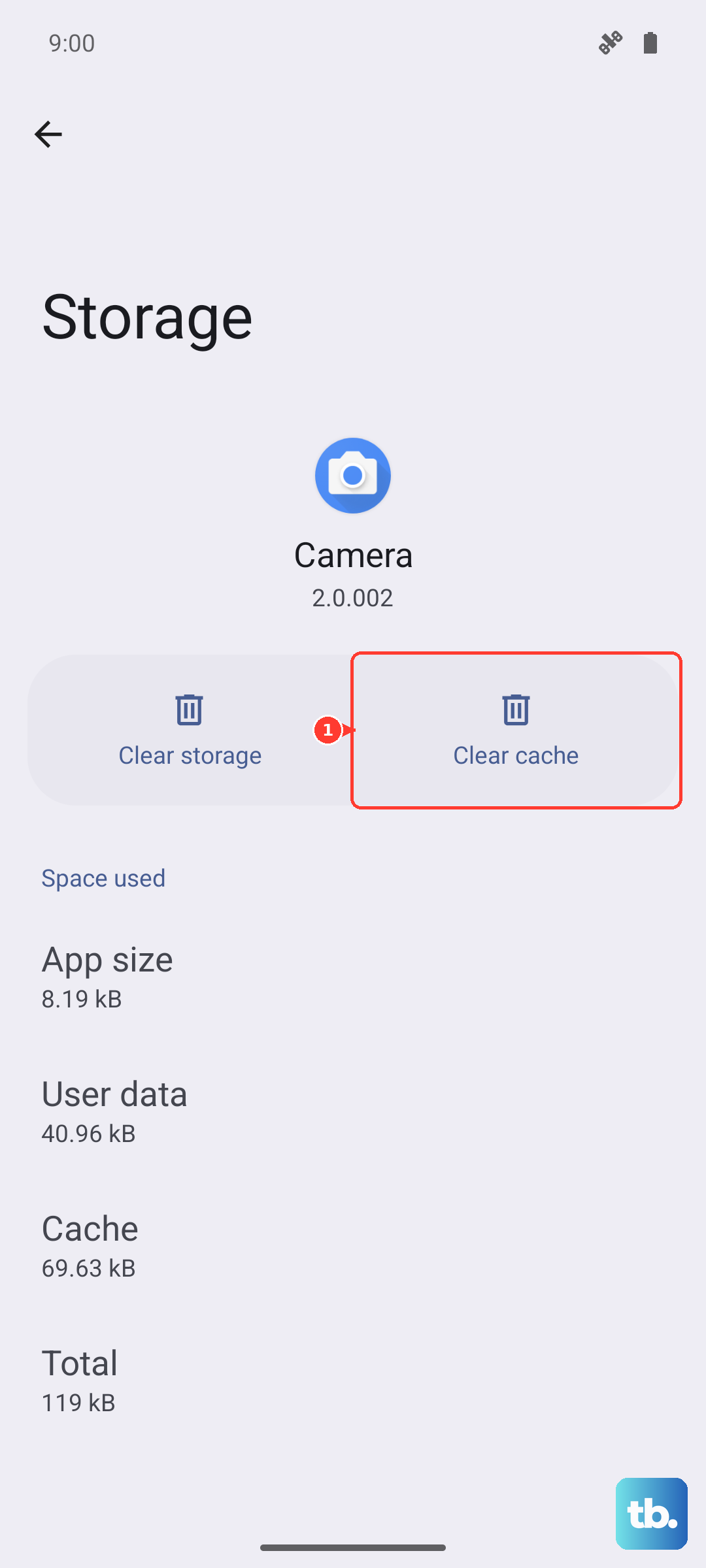
Go back into Settings > Apps > Gboard > Storage & cache. Tap Clear cache. If the problem persists, you can try Clear storage or Clear data next, but be aware this will reset Gboard to its default settings and you'll lose any custom words you've added.
Check for Gboard Updates
An outdated version of the keyboard app can have bugs that newer updates fix. Google updates Gboard through the Play Store independently of system updates.
Open the Google Play Store, tap your profile icon, and go to Manage apps & device. Under "Updates available," see if Gboard is listed. If it is, tap Update next to it. I've seen pending updates cause this exact crash on several Pixels.
Restart Your Pixel 8
A full reboot of your phone can resolve deeper system conflicts that might be affecting the keyboard. It's a classic tech fix for a reason.
Just press and hold the Power button until the power menu appears, then tap Restart. If your screen is unresponsive, you can force a restart by pressing and holding the Power button for about 30 seconds until the device vibrates and reboots.
Boot Into Safe Mode
If the keyboard works fine after a restart but then fails again, a recently installed third-party app could be the culprit. Safe Mode temporarily disables all apps you've downloaded.
To enter Safe Mode, press and hold the Power button on the screen. When the power menu appears, press and hold the Power off option. You'll see a prompt to reboot to Safe Mode; tap it. If your keyboard works normally here, you'll need to uninstall apps one by one to find the conflict.
Reset App Preferences
This is a useful middle-ground step. It resets permissions, background restrictions, and default app assignments without deleting any of your personal data or apps.
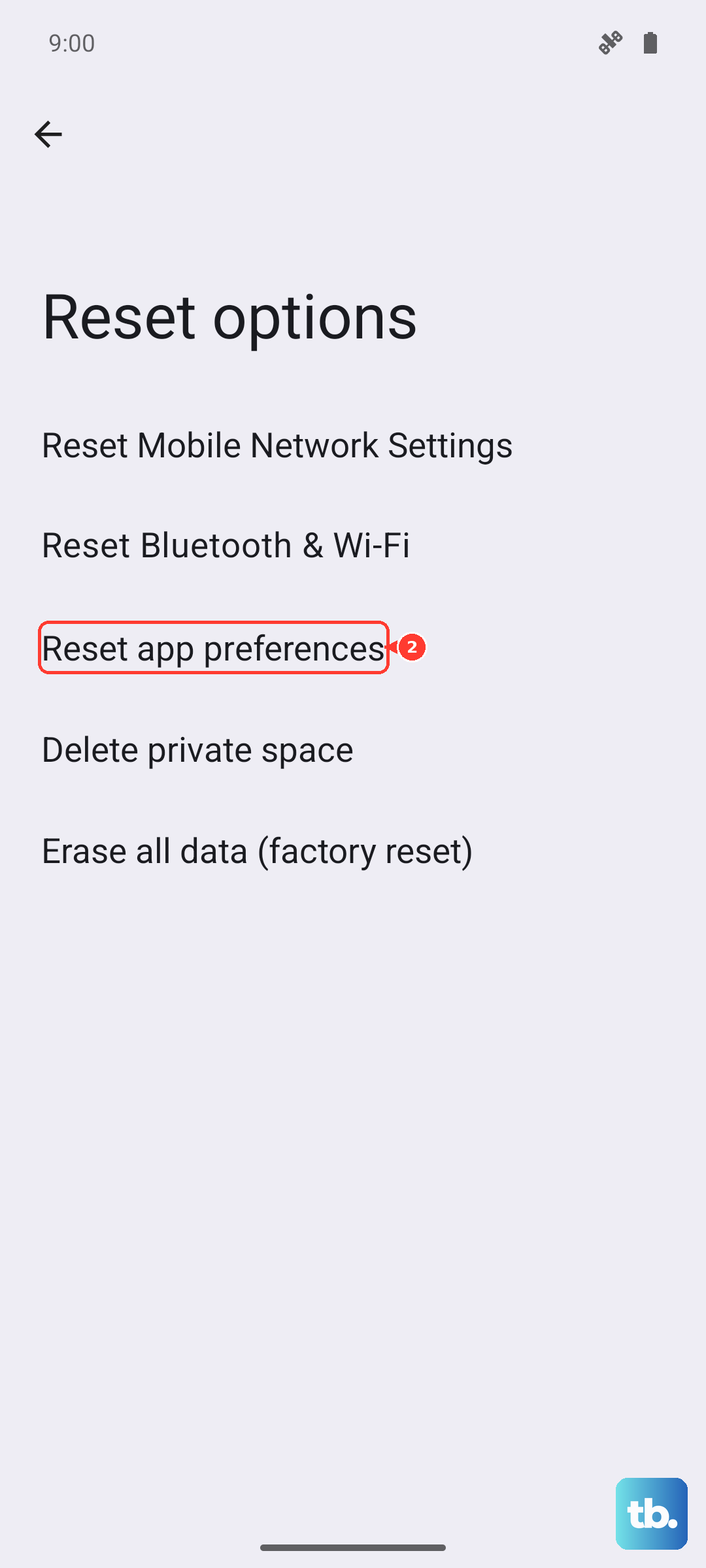
Navigate to Settings > System > Reset options. Tap on Reset app preferences and confirm. After your phone reboots, you may need to re-grant permissions to some apps, but it can clear up conflicts causing the keyboard to fail.
Try a Different Keyboard App
Sometimes the fastest workaround is to just switch keyboards temporarily. This can confirm if the issue is with Gboard specifically or with the system's ability to run any keyboard.
Go to Settings > System > Languages & input > On-screen keyboard. Tap Manage on-screen keyboards. Here, you can enable another keyboard like Microsoft SwiftKey. You can then switch between them by tapping the keyboard icon in your navigation bar.
Update Your Pixel's System Software
Google frequently releases system updates that include stability patches. If there's a known bug affecting Gboard in your current version, an update will likely contain the fix.
Check for updates by going to Settings > System > System update. Tap Check for update. If an update is available, I'd recommend installing it while connected to Wi-Fi and a charger, as it can take a few minutes.
Check for Android System Intelligence Updates
This is a Pixel-specific tip. Android System Intelligence handles a lot of on-device smarts, including some language and input features. If it's out of date or buggy, it can interfere with Gboard.
Open the Google Play Store and search for "Android System Intelligence." If you see an Update button, tap it. You can also find it in your app list under Settings > Apps > See all apps and check its version info.