You slide your headphones into the Google Pixel 8, press play, and get nothing but silence, or the sound keeps pouring out of the phone speaker instead. Because the Pixel 8 has no 3.5mm headphone jack, wired listening runs entirely through the USB-C port and everything else goes over Bluetooth, so a single incompatible adapter, a clogged port, or one stray audio setting can leave you with no sound at all. The encouraging part is that most headphone problems on the Pixel 8 (and the Pixel 8 Pro, which behaves the same way) are software or accessory issues you can sort out in a few minutes. Work through the fixes below in order, starting with the safest checks and saving the factory reset and repair options for last.
A browser based headphone test makes this easy to confirm. If both sides play test tones correctly there, the headphones are fine and the problem is in the device or app.
Confirm how your headphones are actually meant to connect
This is the single most common reason audio fails on a Pixel 8, so check it first. The phone has no 3.5mm headphone jack; Google lists only the Pixel 3a, 4a, and 4a (5G) as having one, and states that "All Pixel phones work with audio accessories that have USB-C connections or Bluetooth." That means your headphones must either plug into the USB-C port or connect wirelessly over Bluetooth.
If you are using USB-C wired headphones or a USB-C adapter, the accessory has to support USB-C digital audio. Google's advice is direct here: "Make sure the device uses USB-C digital audio. To find out, check the device's tech specs or contact the manufacturer." Analog-only USB-C earbuds and analog-only adapters will not produce any sound on the Pixel 8, no matter what else you try.
Turn the volume up and rule out one app or file
Before blaming the hardware, raise the volume and confirm the basics. Google's sound guidance is to adjust the volume up or down, and during a call to turn speakerphone on and then off again. It is easy to be fooled by a media stream that is simply muted or turned all the way down.
Next, turn Bluetooth off so your audio is not being quietly routed to a different paired device by mistake.
Then play two or three different songs or videos from different apps. If only one app or one file is silent while everything else plays, the problem is a corrupted file or that single app, not your headphones or your phone.
Reconnect the headphones, then try a different pair
A loose or momentary connection can stop audio from passing through. Unplug or disconnect your headphones and then reconnect them, making sure a wired plug is seated fully in the USB-C port.
If there is still no sound, try a completely different pair of headphones. This quickly tells you whether the fault lies with the original headphones or cable, or with the phone itself, which decides how much of the rest of this list you need.
Remove the case, clean the USB-C port, and clear any debris
A blocked or dirty USB-C port can stop wired headphones from seating properly or being detected at all. Remove any screen protector or case that might be in the way, and if the port looks dirty, clean it gently with a soft, lint-free cloth.
If your Pixel shows a "Liquid or debris in USB port" message, do not force the connection. Let the port dry and wait until you see the "OK to use USB port" message, and with the port facing down, gently tap the phone against your hand to dislodge any debris.
Finish headphone setup for Pixel USB-C earbuds
When you plug Pixel USB-C earbuds into the phone, you should see a "Pixel USB-C earbuds connected" notification, which means audio is being routed to them. If that notification never appears, the phone may not have completed detection.
Plug your Pixel USB-C earbuds into the phone.
If you do not see a notification, press and hold Home.
Tap Finish headphones setup so the phone detects the earbuds and sends audio to them.
Reset the connection on Bluetooth headphones
For wireless headphones, start with the simple Bluetooth reset that Google recommends. Turn Bluetooth off and then on again, confirm that your devices are paired and connected, and restart both the phone and the headphones.
Make sure the headphones are charged and in pairing mode, which is often signalled by a blinking blue light, if they are refusing to connect at all.
If they connect but still play no music, go to Settings > Connected devices > Bluetooth > Saved devices, tap the device's Settings, and turn on Media audio (turn on Phone audio to cover call sound).
If audio still will not route, forget and re-pair them.
Go to Settings > Connected devices > Saved devices (or Bluetooth) > [device name] Settings > Forget > Forget device.
Put the headphones back into pairing mode.
Go to Settings > Connected devices > Pair new device > [device name] to set them up again from scratch.
Restart your Pixel 8
A restart clears the temporary audio-routing glitches that often cause sound to stop after a connection change. On the Pixel 8 (and any Pixel 6 or later), the sequence is specific, so use the right buttons.
Press and hold the Power button and the Volume up button together for a few seconds.
Tap Restart.
Once the phone is back on, reconnect your headphones and test the audio again.
Install the latest Android update
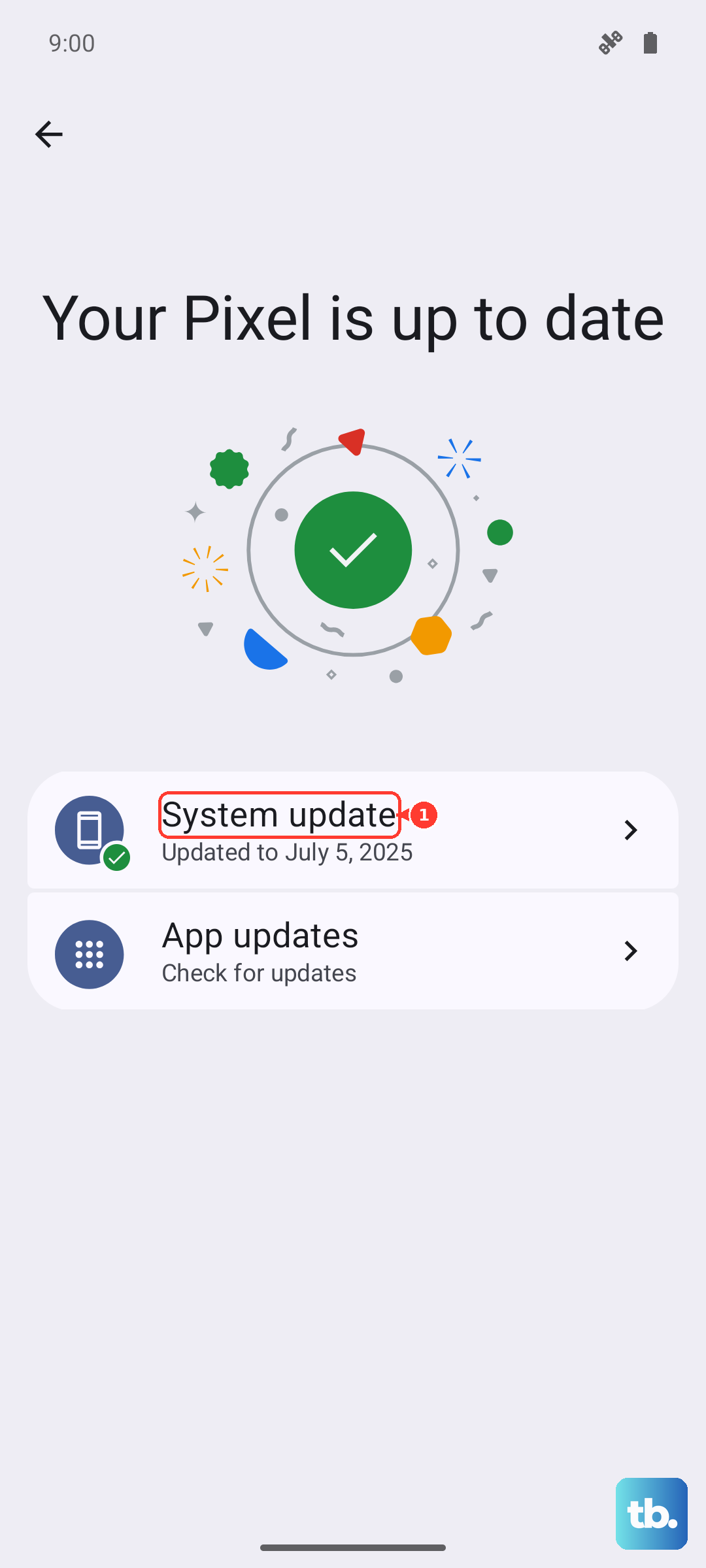
Software updates regularly include bug fixes that resolve audio and Bluetooth problems, so make sure your Pixel 8 is current. The phone launched on Android 14 and is supported with seven years of updates, so it is worth checking for a newer build rather than chasing a specific version number.
Open Settings > System > Software updates (it may be labeled "Software updates" or "System update"), then follow the on-screen instructions.
Connect to Wi-Fi and charge the battery first, as Google advises.
You can confirm what you are running under Settings > About phone > Android version.
Force restart a frozen or unresponsive Pixel 8
If the phone is frozen and will not restart the normal way, you can force it to reboot. This is the recovery move for an unresponsive Pixel, and it works across all Pixel models.
Press and hold the Power button for up to 60 seconds. Once the phone begins to reboot and the screen displays the "G" logo, release the Power button. Google notes that for a phone that is frozen with the screen on, holding the power button for about 30 seconds may be enough to trigger the restart.
Erase everything with a factory reset
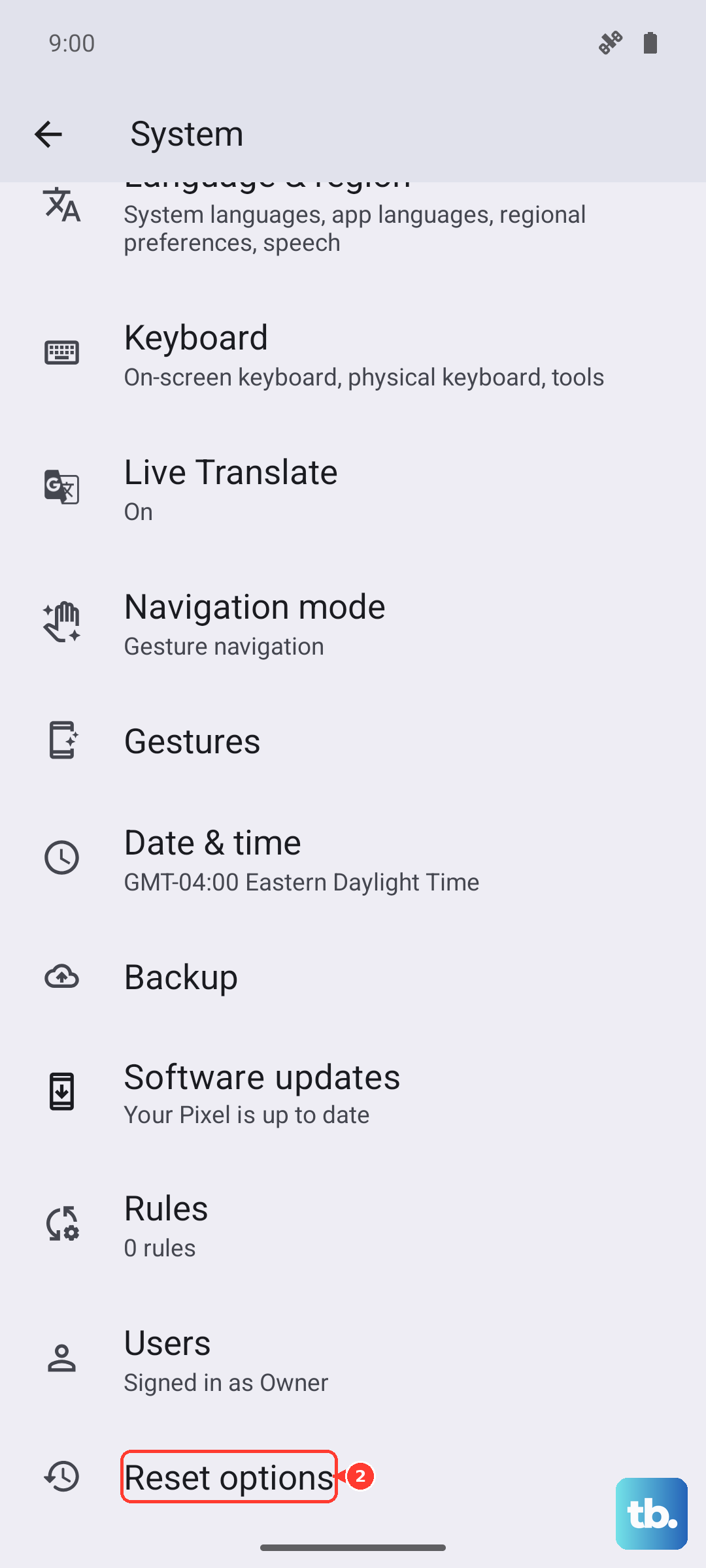
If nothing above restores your audio, a factory reset is the recommended last software step. This is a serious action: Google warns, "Important: A factory reset erases all your data from your phone." Treat it as a final option, not a quick fix.
Before you begin, back up your data, make sure you know your Google Account username and password and your screen lock, charge the phone to at least 70 percent, and connect to Wi-Fi or a mobile network. The reset itself can take up to an hour.
- 1.Go to Settings > System > Reset options.
- 2.Tap Erase all data (factory reset).
- 3.Tap Erase all data to confirm and let the phone complete the reset.
When to contact Google or book a repair
If your headphones still produce no sound after a factory reset, the cause is likely a hardware fault rather than software, and that is the point to bring in official support. Use the Pixel Phone Help "Get your device repaired" flow, which routes you to Google Store Repair services or an authorized repair partner for either a walk-in or a mail-in repair.
You can also select Contact us at the bottom of any Pixel Phone Help page and choose Chat or Get a call to talk things through first.
Frequently Asked Questions
Does the Google Pixel 8 have a headphone jack?
No. The Pixel 8 does not have a 3.5mm headphone jack. Google lists only the Pixel 3a, 4a, and 4a (5G) as having one, and says all Pixel phones work with audio accessories that use USB-C connections or Bluetooth.
Why do my USB-C headphones not work on the Pixel 8?
Wired headphones and adapters only work on the Pixel 8 if they support USB-C digital audio. Analog-only USB-C earbuds and adapters will not play any sound. Google suggests checking the device's tech specs or contacting the manufacturer to confirm it uses USB-C digital audio.
My Bluetooth headphones connect but play no music. What do I do?
Go to Settings > Connected devices > Bluetooth > Saved devices, tap the device's Settings, and turn on Media audio. The separate Phone audio toggle handles call sound. If it still fails, forget the device and pair it again.
Will a factory reset delete everything on my Pixel 8?
Yes. Google warns that a factory reset erases all your data from the phone, so back up first and have your Google Account credentials and screen lock ready. Charge to at least 70 percent, connect to Wi-Fi or mobile data, and allow up to an hour for it to finish.
How do I restart a Pixel 8 that has frozen?
Press and hold the Power button for up to 60 seconds. When the phone starts to reboot and the "G" logo appears on screen, release the button. For a normal restart on a working phone, hold the Power button and Volume up button together, then tap Restart.