Your Google Pixel 8 should fire up its rear LED the instant you tap the Flashlight tile, so it is genuinely frustrating when the light stays dark, flickers, or refuses to switch on right when you need it in a dim room or a roadside emergency. The good news is that a dead Pixel 8 flashlight is almost always a software hiccup or a heat-related safety cut-off rather than a burned-out bulb, so most of these fixes take seconds and cost nothing.
The flashlight on the Pixel 8 is a rear LED that you control from the Flashlight toggle in Quick Settings. Work through the steps below in order, starting with the quickest taps and finishing with repair, so you try the safest, easiest options before anything drastic. In most cases the light comes back long before you reach the end.
Flick the Flashlight Tile Off and On Again
Most of the time a stuck flashlight clears the moment you cycle the toggle, so this is always the first thing to try. Swipe down from the top of your screen, then swipe down again to see all of your Quick Settings. To turn a setting on or off, tap the icon; dimmed settings are off.
Tap the Flashlight icon to switch the light on, and if nothing happens, tap it again to turn it off and then back on. This is the official flashlight control on a Pixel 8, and a quick off-and-on cycle often clears a stuck state with no further steps needed.
Give the Phone a Clean Restart
A normal restart clears most of the temporary software glitches that can leave the flashlight unresponsive. Press and hold the Power button and Volume up button for a few seconds, then tap Restart.
Wait for the phone to come all the way back to your home screen, then open Quick Settings and tap the Flashlight tile again. If the light works now, a background process had simply gotten stuck and the reboot cleared it out.
Cool the Phone Down When It Feels Warm
Heat protection is a common reason a Pixel flashlight suddenly goes dark. When your Pixel senses that it is too hot, it can turn off your camera's flash and turn off your camera, and that same protection can leave the flashlight unavailable until the phone cools off.
If the temperature keeps climbing, the phone could show a warning, enter low power mode, and turn off entirely. If your phone turns off, let it cool down, then restart it. Take it out of direct sunlight, slip it out of a thick case, and set it down for a few minutes before you try the flashlight again.
Force a Reboot When the Screen Is Frozen
If the screen is frozen and a normal restart will not work, you can force the phone to reboot instead. Press and hold the Power button for up to 60 seconds; once your phone begins to reboot and the screen displays the "G" logo, release the Power button.
The time it takes can vary, so the key is to keep holding until that logo appears rather than watching the clock. Once the phone restarts, open Quick Settings and test the Flashlight tile.
Clear Storage and Update Your Apps
A misbehaving app or a nearly full phone can stop the flashlight from responding the way it should. Free up storage if your phone is running low on space, then open the Google Play Store and update your apps so any buggy version is replaced with the latest release.
Restart the phone after each of these steps so the changes take effect, then test the flashlight again. Freeing up room and getting your apps current removes two of the most common reasons a control stops responding.
Install the Latest System Update
Software updates bundle bug fixes that can resolve flashlight problems rooted in the system itself. Open the Settings app, tap System, then tap Software updates (on some Pixels this reads System update) and follow the on-screen instructions.
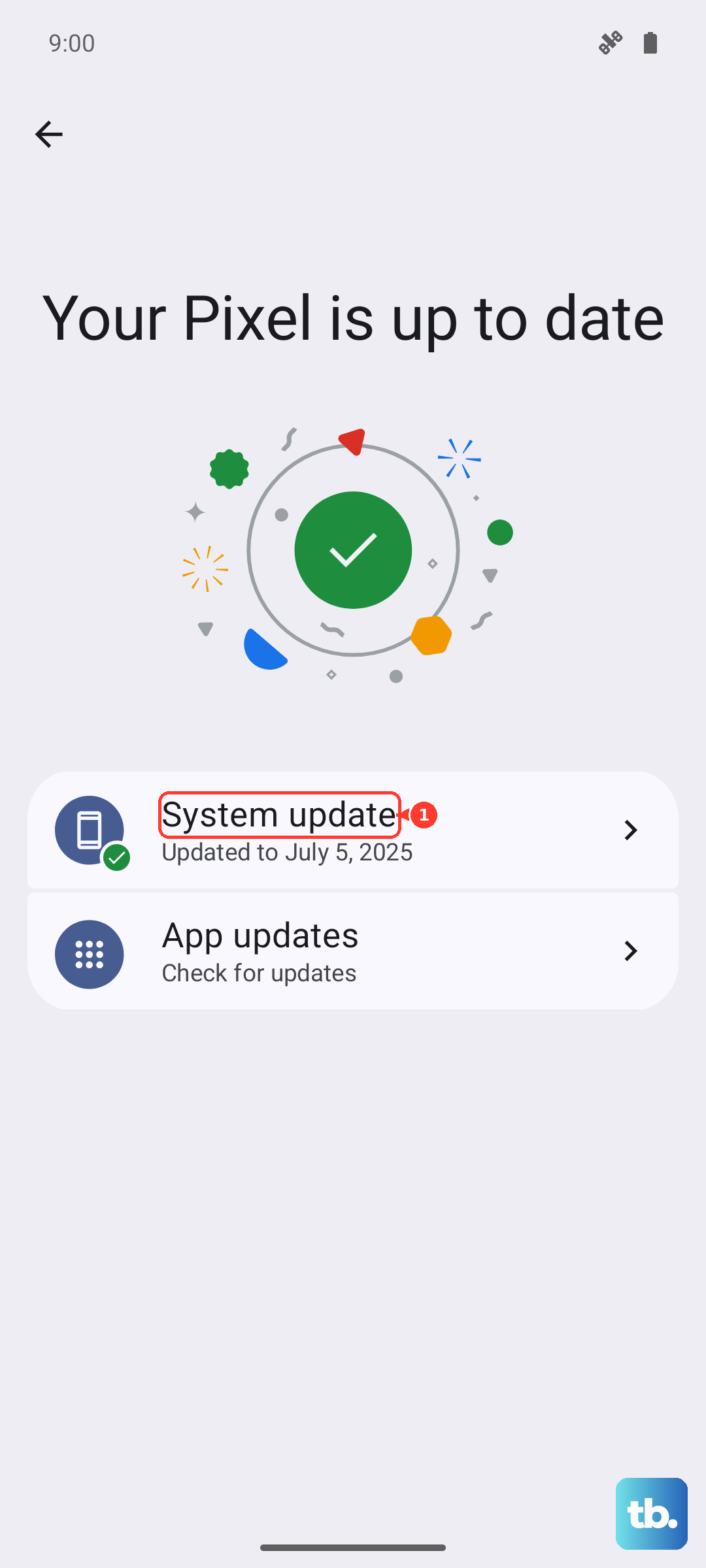
Let the phone download and install anything it finds, and allow it to restart so the update can finish applying. After it reboots, open Quick Settings and confirm the flashlight is back to normal.
Boot Into Safe Mode to Catch a Rogue App
Safe mode temporarily disables every app you have downloaded, which makes it the fastest way to tell whether one of them is interfering with the flashlight. Press and hold the Power and Volume Up buttons for a few seconds, then tap and hold either the Power off or Restart button, then tap OK. You will see "Safe mode" at the bottom of the screen.
Try the Flashlight tile while you are in safe mode. If it works there, a downloaded app is the cause, so uninstall recently added apps one at a time until the problem is gone. Restart the phone normally to exit safe mode when you are finished.
Erase Everything as a Final Software Reset
If none of the steps above bring the light back, a factory reset wipes the software clean and rules out any deeper system fault. Important: a factory reset erases all of your data from your phone, so back up your photos, files, and accounts first, and make sure you know your Google Account sign-in details before you begin.
Google advises charging your phone to at least 70% before you start. Then open the Settings app, tap System, tap Reset options, and tap Erase all data (factory reset), following the prompts to confirm the wipe.
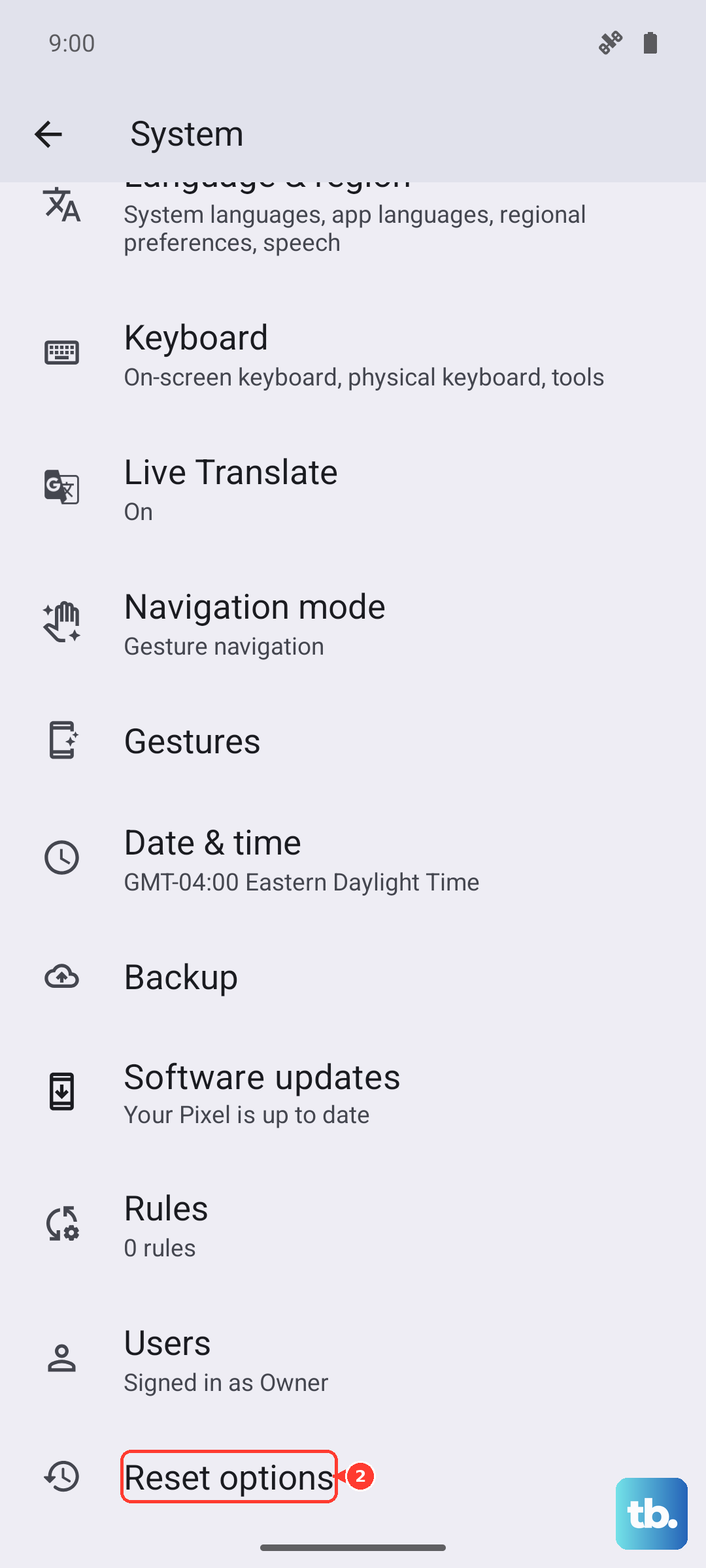
Once the phone restarts and you finish the initial setup, test the flashlight before you restore your backup. If the light works on the fresh software, you can reload your apps and data knowing the hardware is fine.
When to Hand It to Google for Repair
If the flashlight still fails after a factory reset, the problem is very likely a hardware fault with the LED rather than anything in the software. At that point the fix is a repair, not another setting to change.
You can use Google Store Repair services, or contact Pixel support directly. At the bottom of any Help page, under "Need more help," select Contact us. Back up your data and remove the SIM card before you send the phone in for service.
Frequently Asked Questions
Where is the flashlight on a Google Pixel 8?
It lives in Quick Settings. Swipe down from the top of your screen, then swipe down again to see all of your Quick Settings, and tap the Flashlight icon; a dimmed icon means it is off.
Why does my Pixel 8 flashlight keep turning off by itself?
A common cause is heat. When the phone gets too hot it turns off the camera's flash and the camera, and that protection can leave the flashlight unavailable until the device cools down.
Does a factory reset erase my data?
Yes. A factory reset erases all of your data from the phone, so back everything up first, charge to at least 70%, and have your Google Account sign-in ready before you start.
Will a software update fix a flashlight that will not turn on?
It can. Updates include bug fixes that resolve system-level flashlight problems, so open Settings, tap System, then tap Software updates (or System update on some Pixels) and install anything available before moving on to bigger steps.
How do I know if my flashlight problem is a hardware fault?
If the flashlight still does not work after a restart, a software update, safe mode, and a factory reset, the issue is most likely hardware. Use Google Store Repair services, or select Contact us under "Need more help" at the bottom of any Help page.