Your Google Pixel 8 has been dependable, so it feels jarring when an app you rely on slams shut the second you tap its icon, freezes halfway through a task, or quietly vanishes back to the home screen. App crashes on the Pixel 8 are almost always a software hiccup rather than a broken phone, which means you can usually clear them yourself. The fixes below run from the quickest and safest options to the more involved ones, so work through them in order and stop as soon as the app behaves again.
Restart the Pixel 8 before you change anything
A reboot clears the temporary glitches that often make apps crash, and it costs you nothing, so it is the right place to start. Closing and reopening the app rarely flushes the underlying problem, while a full restart gives the whole system a clean slate.
Press and hold the Power button + Volume up button for a few seconds.
Tap Restart.
If the screen is frozen and will not respond to taps, you can force a restart instead. Press and hold the Power button for roughly 30 to 60 seconds, and once the phone begins to reboot and the screen shows the "G" logo, release the Power button.
Rule out a shaky connection first
Plenty of apps that look "broken" are simply starving for data. Many apps, especially those that stream media or pull in live information, need a stable internet connection to work, and a dropped or weak signal can make them stall or quit in a way that mimics a true crash.
Before you assume the app itself is at fault, confirm that Wi-Fi or mobile data is switched on and actually working, for example by loading a page in your browser. If the connection is the real problem, fixing your network is far simpler than touching the app at all.
Force stop the app that keeps quitting
Force stopping fully shuts down an app and its background processes so it can start fresh, which often resolves a single misbehaving app without affecting anything else. Use this whenever one specific app, rather than the whole phone, is the troublemaker.
Open Settings > Apps > See all apps.
Tap the app that keeps crashing.
Tap Force stop, then tap OK.
Reopen the app and see whether it holds steady. If problems continue even after force stopping, you may eventually need to contact the app's developer, but keep working through the steps below first.
Update the crashing app in the Play Store
Outdated apps are a common cause of crashes, because old versions can clash with newer phone software. Installing the latest version frequently fixes the exact bug that is shutting the app down.
Open the Google Play Store.
Tap your profile icon.
Tap Manage apps & devices.
Update the app under "Updates available."
If an update is waiting, install it and then reopen the app to confirm the crashing has stopped.
Install the latest Pixel 8 software
Just as apps need updating, so does the phone underneath them. The Pixel 8 launched on Android 14 and is eligible for seven years of operating system and security updates, so keeping it current closes off bugs that can destabilize your apps.
Open Settings > System > Software update (a Pixel may show this as "Software updates" or "System update").
Follow the on-screen steps.
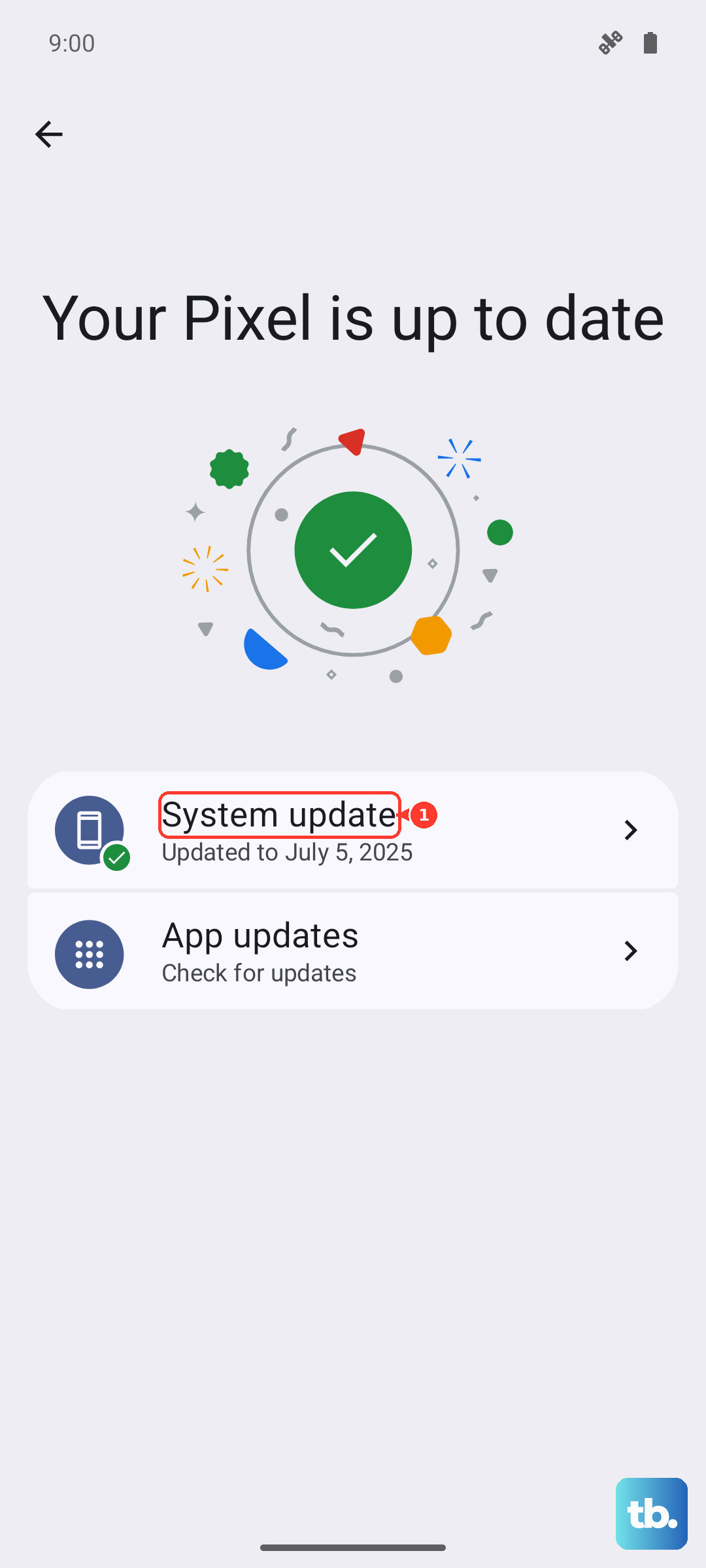
Connect to Wi-Fi and keep the phone charged or plugged in before you begin, since the update downloads and then takes effect after a restart. To confirm what you are running, check Settings > About phone > Android version.
Free up room when storage runs low
A nearly full phone struggles to run apps smoothly. Performance issues tend to appear when less than 10% of storage is available, so leaving headroom can stop crashes that have nothing to do with the app's own code.
Open Settings > Storage to see how much space is free. If you are running low, delete unused apps, old photos, or large files until you are comfortably above that 10% mark, then test the app again.
Clear the app's cache, then its stored data
Cached files speed an app up, but when they become corrupted they can make it crash. Clearing the cache removes those temporary files without deleting your in-app data, which makes it a safe next step for a single stubborn app.
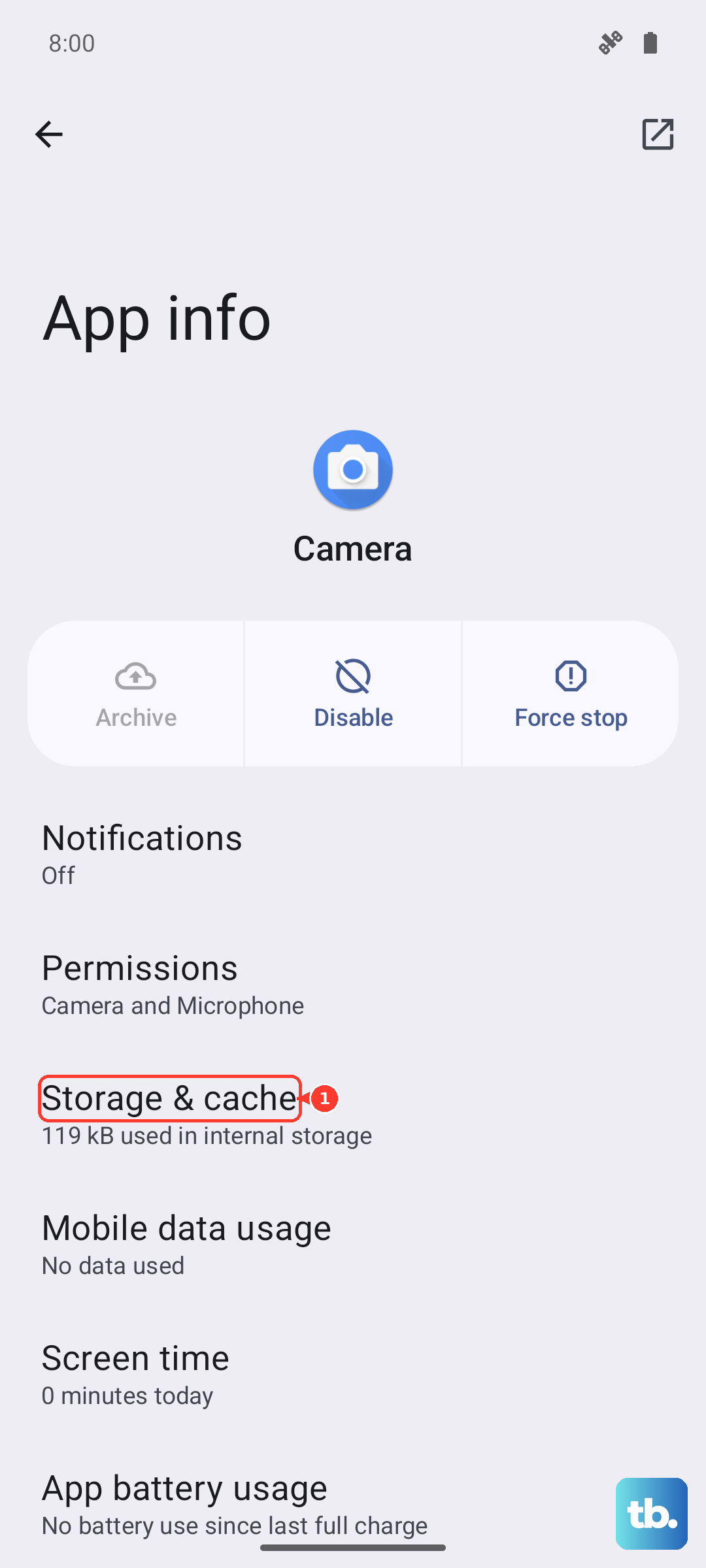
Open Settings > Apps > See all apps.
Tap the app.
Tap Storage & cache.
Tap Clear cache.
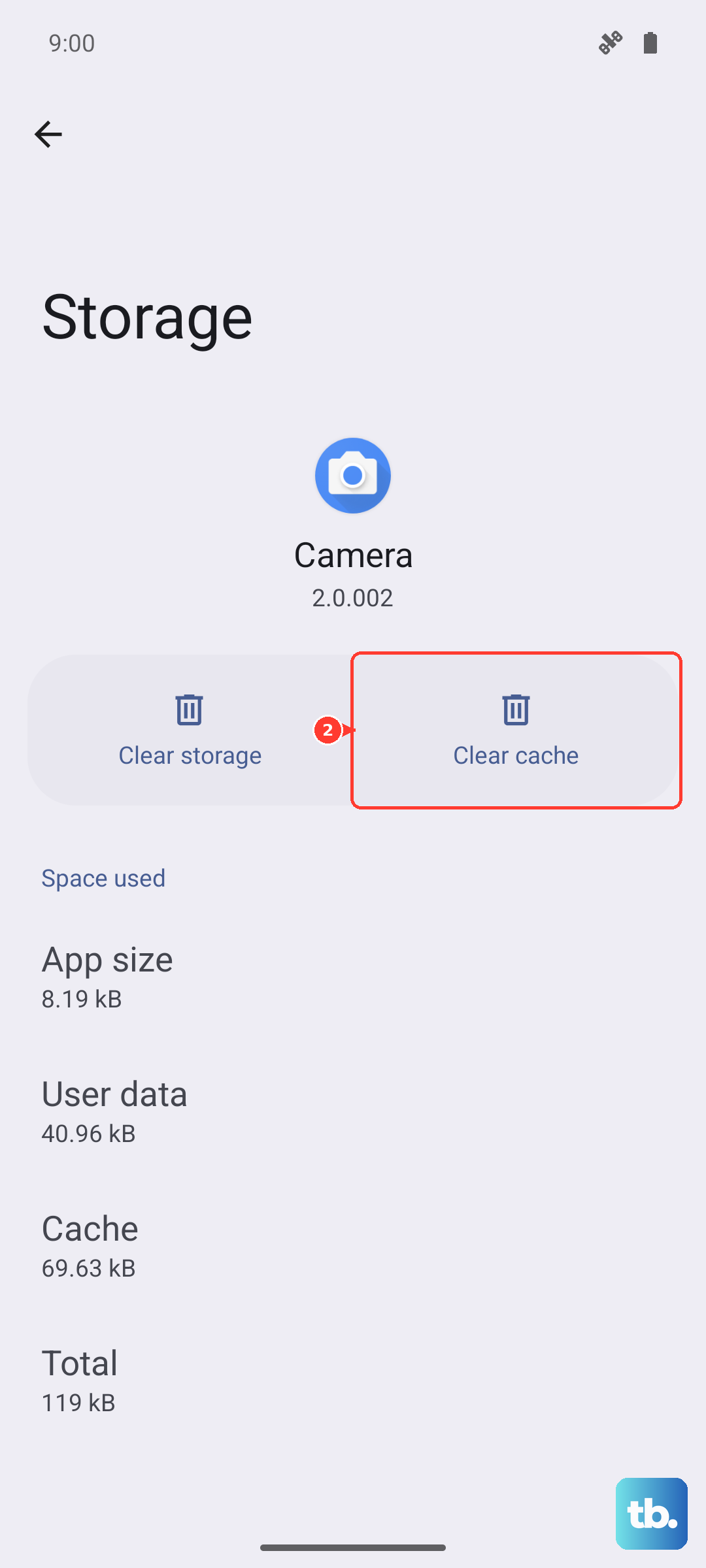
If clearing the cache does not help, you can escalate to clearing the app's stored data. From the same Storage & cache screen, tap Clear storage. Be aware of the warning that any data saved in this app will be erased, so you may need to sign in or set the app up again afterward.
For a built-in Pixel app that you cannot uninstall, there is an alternative that rolls it back to its original version. Touch and hold the app, then tap App info > More > Uninstall updates.
Use Safe mode to unmask the troublemaker
If several apps are crashing, or you cannot tell which one is responsible, Safe mode temporarily turns off every app you have downloaded and runs only the software the phone shipped with. That makes it the cleanest way to confirm whether a downloaded app, rather than the system, is to blame.
With the phone on, press and hold the Power and Volume Up buttons for a few seconds.
Tap and hold either the Power off or Restart buttons.
Tap OK and wait for the Safe mode indicator to appear.
Use the phone normally for a while. If the crashing stops in Safe mode, a downloaded app is the cause. To leave Safe mode, press and hold the Power button + Volume up button for a few seconds, then tap Restart.
Back in normal mode, remove your recently downloaded apps one at a time, restarting after each removal, until the crashes disappear. The last app you took out before things settled is almost certainly the culprit.
Reset as the last resort, then reach out to support
If nothing above works, a factory reset wipes the phone back to its original state and clears whatever software fault has been causing the crashes. Because it is destructive, treat it as a genuine last resort and prepare carefully, since a factory reset erases all your data from your phone.
Before you start, back up to your Google Account, charge the phone to at least 70%, connect to Wi-Fi or a mobile network, and make sure you know your Google Account username and password.
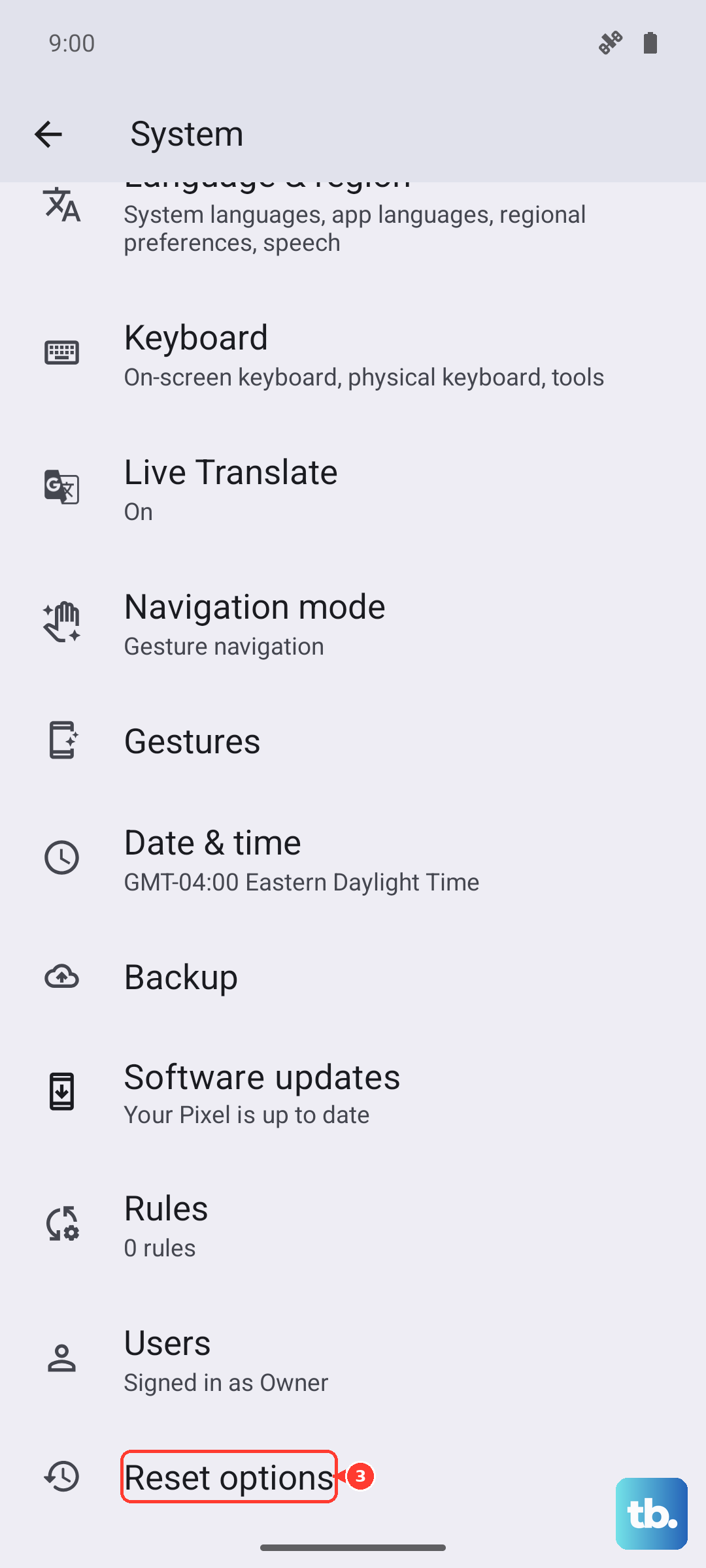
- 1.Open Settings > System > Reset options.
- 2.Tap Erase all data (factory reset).
- 3.Tap Erase all data (enter your PIN if prompted), then confirm.
If the phone is too unresponsive to reset from Settings, or if the crashes persist even after a reset, contact Google Pixel support directly for further help.
Frequently Asked Questions
Why do my Pixel 8 apps keep crashing after a software update?
App crashes after an update usually mean the app and the phone software are briefly out of step. Update the app in the Google Play Store under Manage apps & devices, confirm your Pixel 8 is fully up to date in Settings > System > Software update, and restart the phone so both changes take effect.
Will clearing the cache delete my photos or app data?
No. Clearing the cache only removes temporary files and leaves your in-app data intact, which is why it is a safe early fix. Clearing storage is the stronger option, and that one does erase any data saved in the app, so try Clear cache first and only move to Clear storage if the crashing continues.
How can I tell if a downloaded app is causing the crashes?
Boot into Safe mode by pressing and holding the Power and Volume Up buttons, then tapping and holding Power off or Restart and tapping OK. Safe mode disables every downloaded app, so if the crashing stops there, a downloaded app is responsible. Exit Safe mode and remove recent apps one at a time, restarting after each, to find it.
What should I do before a factory reset on the Pixel 8?
Back up your phone to your Google Account, charge to at least 70%, connect to Wi-Fi or a mobile network, and confirm you know your Google Account username and password. A factory reset erases all your data from your phone, so these steps make sure you can restore everything and sign back in afterward.
The app still crashes after every fix. What now?
If a single app keeps crashing after you force stop, update, clear its cache and storage, and even reinstall it, the problem may sit with the app itself, so contacting its developer is the next move. If many apps crash and a factory reset does not help, contact Google Pixel support for further assistance.