
Your Pixel 10a is stuck on a system update. The screen says "installing" but nothing is moving, or an error message just won't go away. Let's get this resolved.
Check your Wi-Fi connection first
Updates won't download without a stable internet connection. Open Chrome and try loading a web page to see if your Wi-Fi is working. If it's slow or unreliable, restart your router or toggle Airplane mode on and off to refresh the connection.
Free up enough storage space
Large OS updates need breathing room. Go to Settings > Storage and check how much free space you have left. You'll want at least 5 to 7 GB available. The Files by Google app can quickly find old downloads, blurry photos, and unused apps you can safely delete.
Clear the cached system update data
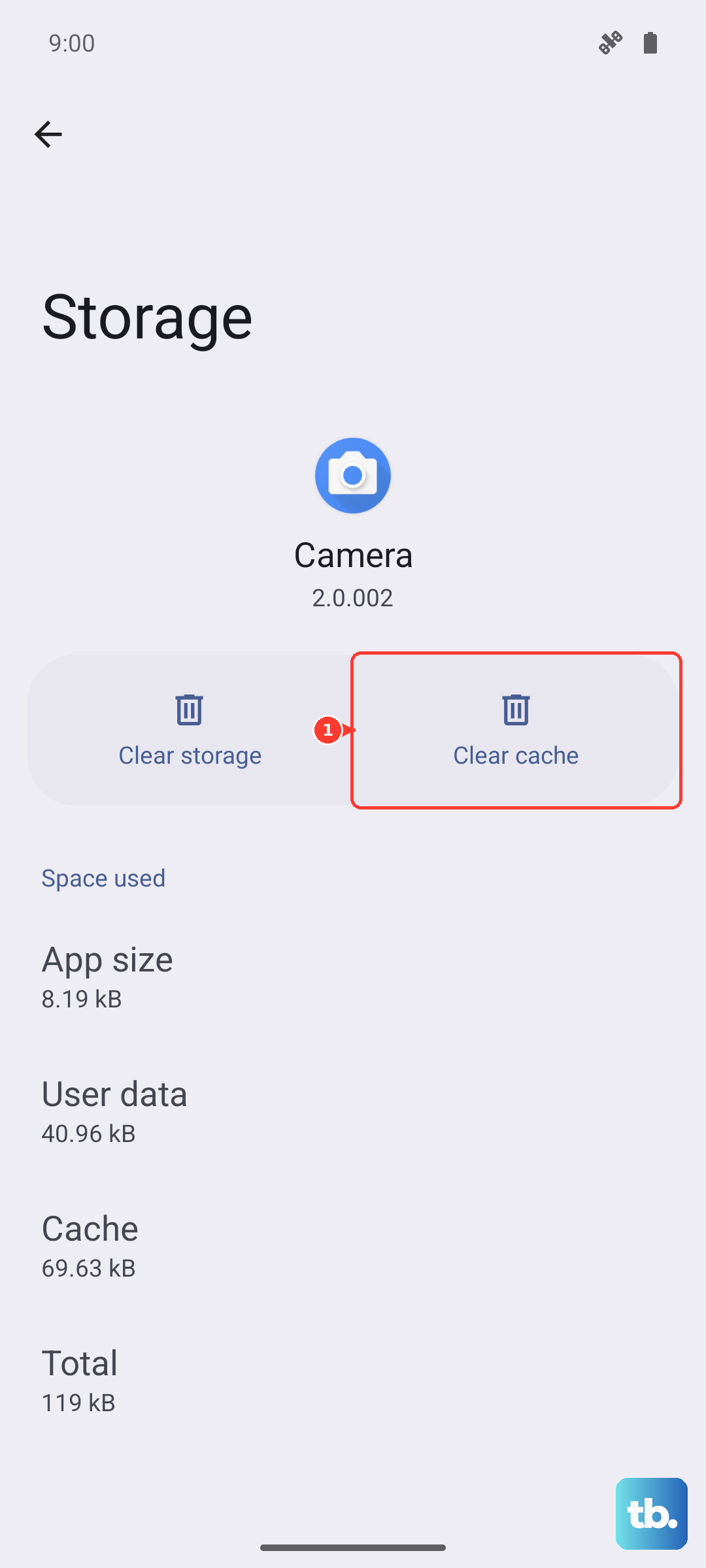
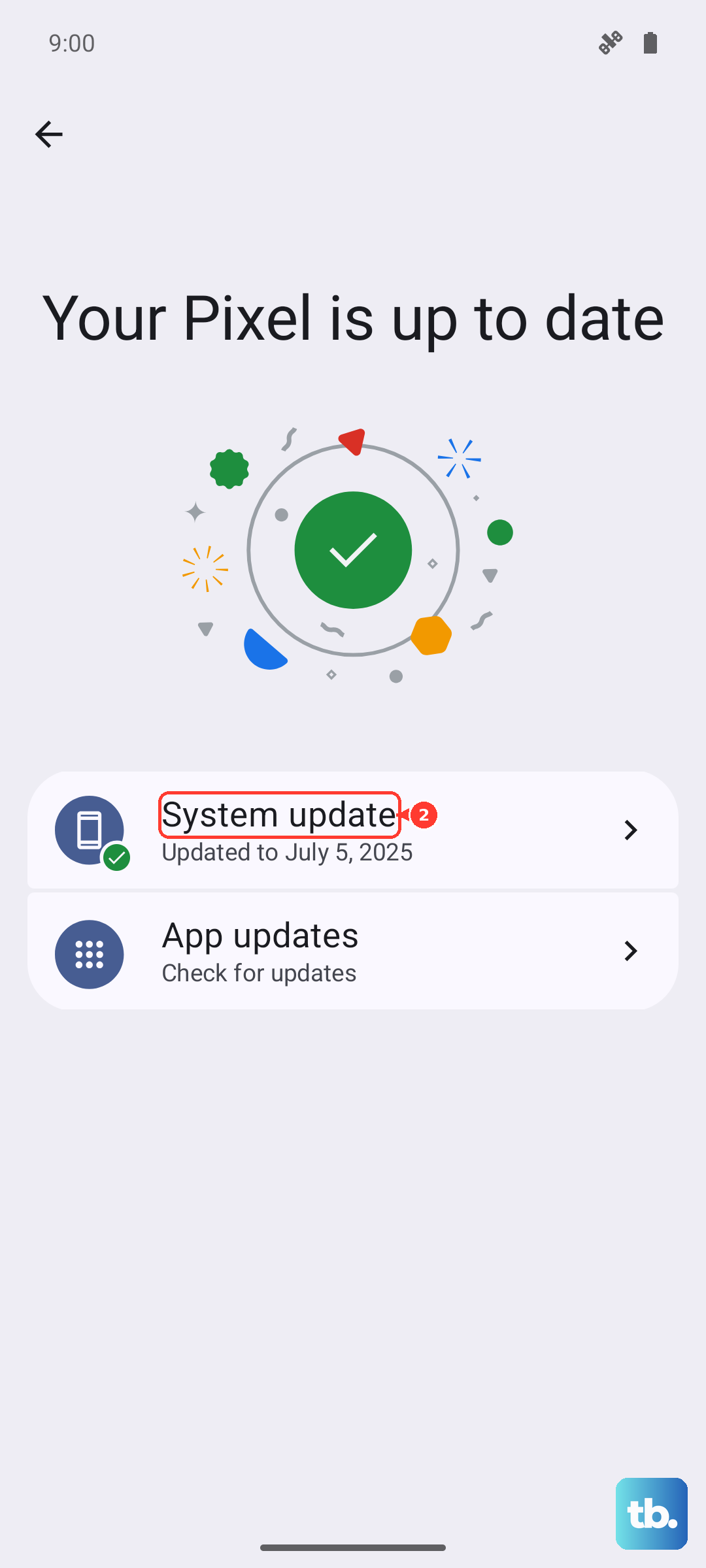
A corrupted partial download is one of the most common reasons updates get stuck. Open Settings > Apps > See all apps, tap the three dots, and select Show system. Find Google Play Services, head to Storage & cache, and hit Clear cache. Do the same for the Settings app. Then go back to Settings > System > System update and try the download again with a clean slate.
Force restart your Pixel 10a
Sometimes the update just needs a clean restart to proceed. On the Pixel 10a, press and hold the Power button for 30 seconds, or press and hold Power + Volume Down for 10-15 seconds until the device restarts. This doesn't erase any data and can fix minor software glitches blocking the install.
Is Google's server just busy?
When a new Android version or security patch launches, millions of Pixel devices start downloading at once. Check the Google Pixel Help Community or a service status page to see if others are reporting the same issue. If servers are slammed, just wait a few hours and try updating later at night when traffic is lower.
Update your Google Play Services
The update engine itself depends on Google Play Services being current. Open Settings > Apps > Google Play Services > App details and check if a newer version is available. Outdated Play Services can cause the update process to hang right at the start.
Watch out for overheating
Your Pixel 10a will throttle or even stop certain processes if it gets too hot. System updates are processor-heavy and generate heat, especially if you're also charging. Remove the case, keep the phone out of direct sunlight, and let it cool down before trying the update again.
Try updating in Safe Mode
Third-party apps sometimes interfere with system updates. Long press the Power button, then touch and hold Power off on the screen until you see the Safe Mode prompt. Tap OK and your phone will restart without any unnecessary apps running. Head back to Settings > System > System update and see if the update works now.
Reset your network settings
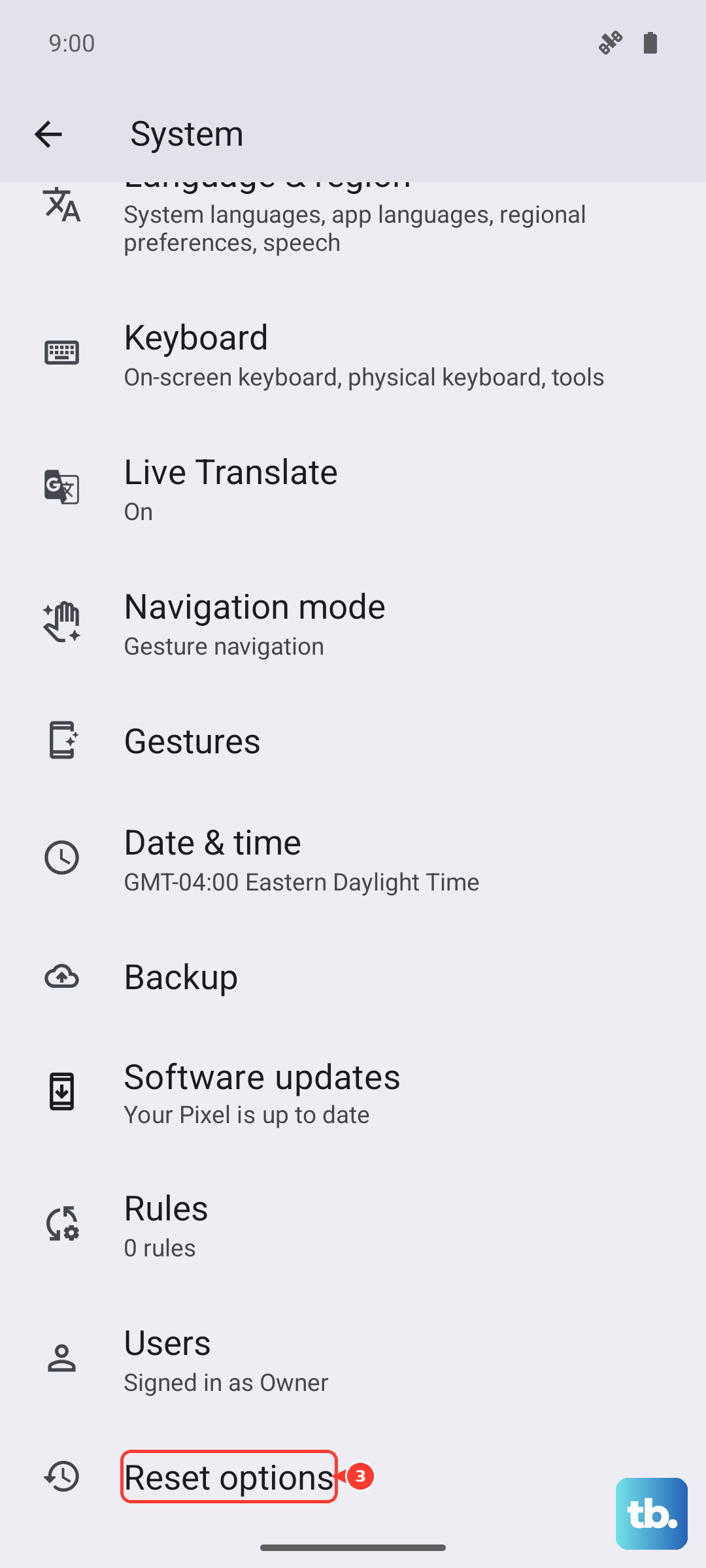
If the download keeps failing with a generic error, your network configuration might be off. Go to Settings > System > Reset options > Reset Wi-Fi, mobile & Bluetooth. This clears all saved networks and APN settings, so have your Wi-Fi password handy. It often resolves stubborn download errors that nothing else fixes.
Use the Pixel Repair Tool from a computer
If none of the above works, skip the phone's built-in updater entirely. Connect your Pixel 10a to a Windows PC or Mac and open the official Pixel Repair Tool website. This will download the full Android 16 system image and flash it directly to your phone. It's the most reliable method and bypasses almost every common update error.