When your Google Pixel 10a stops charging wirelessly, it's usually something simple like bad alignment, a thick case, or a minor software hiccup. Here's how to track down the problem and get back to cable-free charging.
Check Your Position on the Charging Pad
Qi wireless charging requires the coil in your Pixel 10a to line up with the coil in the charger. Place the phone flat in the center of the pad and check the screen for the charging indicator. Even a small shift can break the connection. If your charger has a sweet spot marked, aim for that.
Try repositioning the phone a few times. Sometimes rotating it 90 degrees or sliding it a centimeter to the left makes the difference. The Pixel 10a doesn't use magnetic alignment like some phones, so you'll need to find the right spot manually.
Remove the Case First
Cases are the most common culprit with wireless charging. Thick protective cases, wallet cases, or any case with metal plates, magnets, or credit card slots can block the charging signal completely. Pop the case off and try charging without it. If it works, your case is the problem.
Most thin silicone or plastic cases work fine with Qi charging. But anything over about 3mm thick, or anything containing metal, will interfere. You can buy a wireless-charging-compatible case if you need thick protection.
Clean the Back of Your Pixel 10a and the Charger
Dirt, dust, and grease buildup on the back of your phone can weaken the wireless connection. Wipe the glass back with a soft, lint-free cloth. Do the same for the surface of the charging pad. Even a thin film of residue can reduce charging efficiency or stop it entirely.
If the charger has been sitting on a desk for months, it's probably collected dust. A quick wipe with a slightly damp cloth (unplugged) can help restore full contact.
Make Sure the Charger Is Getting Enough Power
Wireless chargers need a power adapter that delivers enough wattage. Many Qi pads require at least a 10W or 15W adapter to work properly. If you plugged the charger into a low-power USB port or used an old 5W adapter, it might not have enough juice to start charging.
Try the adapter that came with your charger. If you don't have it, use a USB-C adapter rated for at least 18W. The Pixel 10a supports up to 10W wireless charging, but the pad itself needs sufficient input power to deliver that.
Force Restart the Pixel 10a
Press and hold the Power button for 30 seconds, or press and hold Power + Volume Down for 10-15 seconds until the device restarts. This clears out temporary software glitches that can prevent the phone from recognizing the charging pad. After it boots back up, place it on the charger and check if charging starts.
A force restart is different from a normal power off and on. It clears system-level caches and can fix issues a regular restart won't touch.
Update to the Latest Android 16 Version
Software bugs can break wireless charging. Go to Settings > System > Software Update and install any pending updates. Google has patched wireless charging issues in past Android builds, so making sure you're on the latest version is worth checking.
If you haven't updated in a while, the update process itself might take 10-15 minutes. Plug your phone in with a cable during the update so you don't run out of battery mid-install.
Check for Overheating
Wireless charging generates heat, and the Pixel 10a will stop charging if it gets too hot to protect the battery. This can happen if you're using the phone while it's on the pad, if it's sitting in direct sunlight, or if the charger itself is running hot.
Take the phone off the charger and let both cool down for 10-15 minutes. Try charging in a cooler spot, away from direct sunlight or other heat sources. If the phone keeps overheating on wireless but charges fine with a cable, the wireless charger might be defective.
Try a Wired Charger as a Backup Test
Plug your Pixel 10a into a 45W USB-C PPS charger with a USB-C cable. If it charges fine with a cable but not wirelessly, the phone's battery and charging port are likely fine. The problem is with the wireless charging system, the charger itself, or some software setting. If it also won't charge with a cable, the issue might be the port, the cable, or the battery's internal protection circuit.
Keep a Qi wireless charger handy as a backup when wired charging gives you trouble. The Pixel 10a supports standard Qi, so any Qi-certified pad should work.
Clean the Charging Port Gently
Even if you're primarily using wireless charging, debris in the USB-C port can sometimes confuse the phone's charging circuitry. Inspect the port with a flashlight. If you see lint or dirt, gently remove it with a wooden toothpick or compressed air. Don't use anything metal, which can damage the pins inside.
Reset App Preferences or Network Settings
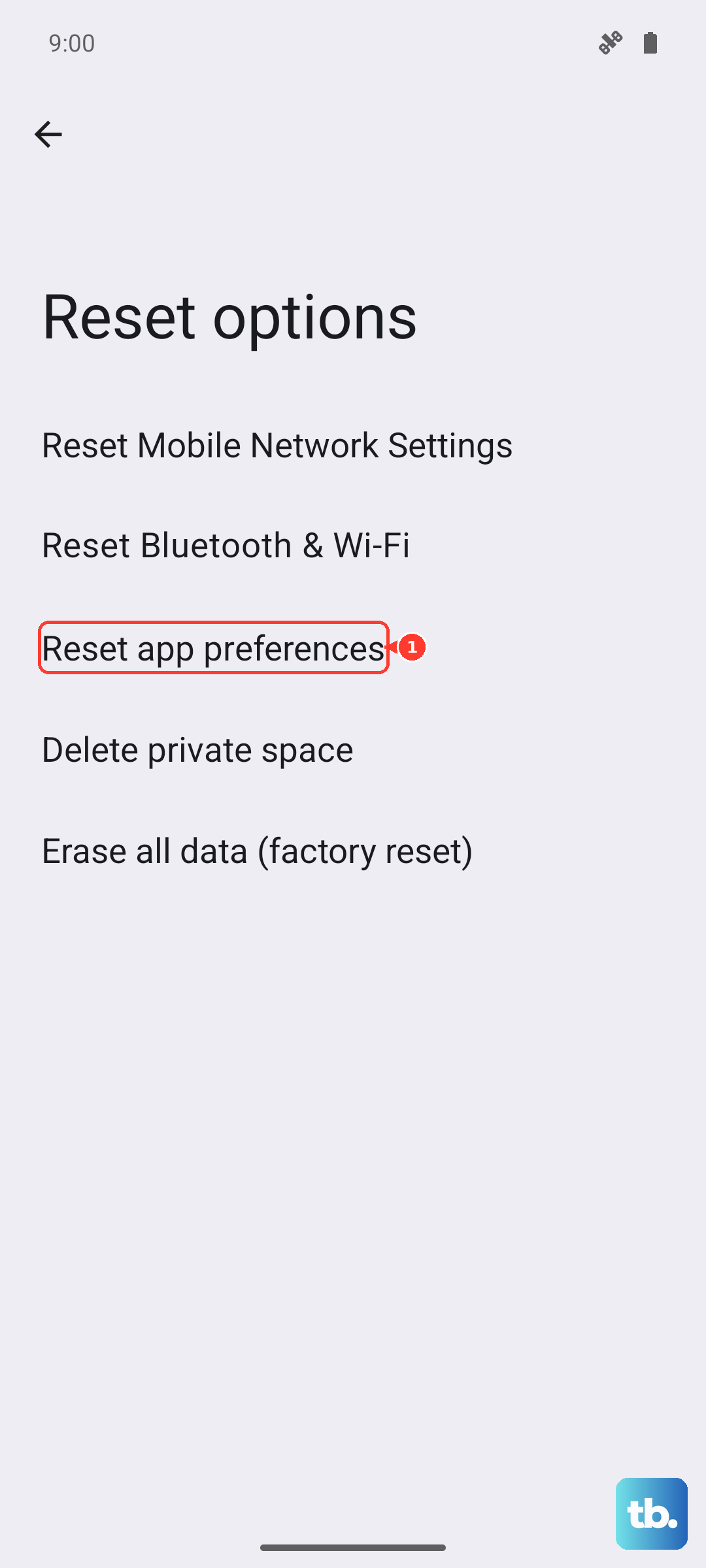
Go to Settings > System > Reset Options > Reset App Preferences. This won't delete your data but resets disabled apps, notification permissions, and default app settings. It's a lighter reset that can sometimes clear up charging-related software conflicts. If that doesn't work, try Reset Wi-Fi, mobile & Bluetooth to clear network-related glitches that can interfere with charging detection.