You say "Hey Google" and nothing happens. Your Pixel 10a just sits there, ignoring you completely. It's a solid phone, so the fault is usually a setting, a blocked mic, or a software hiccup. Let's work through the most likely causes and get your Assistant back on its toes.
Check Your Google Assistant Settings
The first thing to verify is that "Hey Google" detection is actually on. It sounds basic, but it's the most common fix.
Open the Google app, then tap your profile picture in the top-right corner. Go to Settings > Google Assistant > Hey Google & Voice Match. Make sure Hey Google is toggled on. If it's off, turn it on and follow the voice training prompts.
While you're there, check that Lock screen access is allowed. Tap Lock screen and select While unlocking or On lock screen (depending on your preference). Without this, Assistant won't respond when the phone is locked.
Your Mic Might Be Blocked
The Pixel 10a has microphones at the bottom (near the USB-C port) and on the top edge. If either is covered by dirt, lint, or a case, you'll get silence when you say the wake word.
Take off any case or screen protector and look at the tiny holes. Use a soft, dry toothbrush or a can of compressed air to gently clean them. Avoid sticking anything sharp in there you don't want to damage the membrane.
Also check the bottom charging port area. Lint buildup near the mic grille can muffle sound. A wooden toothpick carefully used to nudge debris free works well, but be gentle.
Is Your Phone Facing Down or Covered?
By default, Pixel phones can suppress "Hey Google" when they're face down or in a dark pocket. This is a battery-saving feature, but it can confuse things if you expect it to work from a pocket.
To change this, go to Settings > Accessibility > Assistant > Always listen for "Hey Google" on lock screen and toggle it on. Now it'll listen even when face down or covered.
Bluetooth and Other Audio Conflicts
Connected Bluetooth devices can sometimes steal the audio channel or cause conflicts. If you have headphones, a smartwatch, or a car kit paired, try disconnecting them temporarily.
Go to Settings > Connected devices and tap each Bluetooth device to select Forget. Test Assistant after each one. I've seen a misbehaving Bluetooth speaker lock up voice recognition entirely.
Do Not Disturb and Sound Settings
Do Not Disturb mode can block Assistant from giving audible responses, but it shouldn't stop it from hearing you. Still, it's worth a quick check. Swipe down twice from the top and tap the Do Not Disturb tile to toggle it off.
Also make sure media volume isn't turned all the way down. Assistant uses the media volume for responses. Press the volume button, tap the three-dot menu, and ensure Media volume is at least halfway up.
Retrain Your Voice Model
If Assistant hears you but doesn't respond reliably, the voice model might need a refresh. Android learns your specific voice over time, but it can drift or get corrupted.
Go to Google app > Settings > Google Assistant > Hey Google & Voice Match. Tap Voice model and then Retrain voice model. Follow the prompts to say "Hey Google" three times in a quiet environment. This takes about 30 seconds and often clears up recognition issues.
Software Glitches: Restart and Update
A simple restart fixes many temporary bugs. If your Pixel 10a is unresponsive altogether, use the force restart: Press and hold the Power button for 30 seconds, or press and hold Power + Volume Down for 10-15 seconds until the device restarts. This won't erase any data.
Next, make sure you're on the latest software. Go to Settings > System > Software update. Android 16 has had patches that improve voice recognition. Install any updates and test again.
Clear the Google App Cache
Corrupted cache files in the Google app can cause "Hey Google" to fail. This is a quick fix with no data loss.
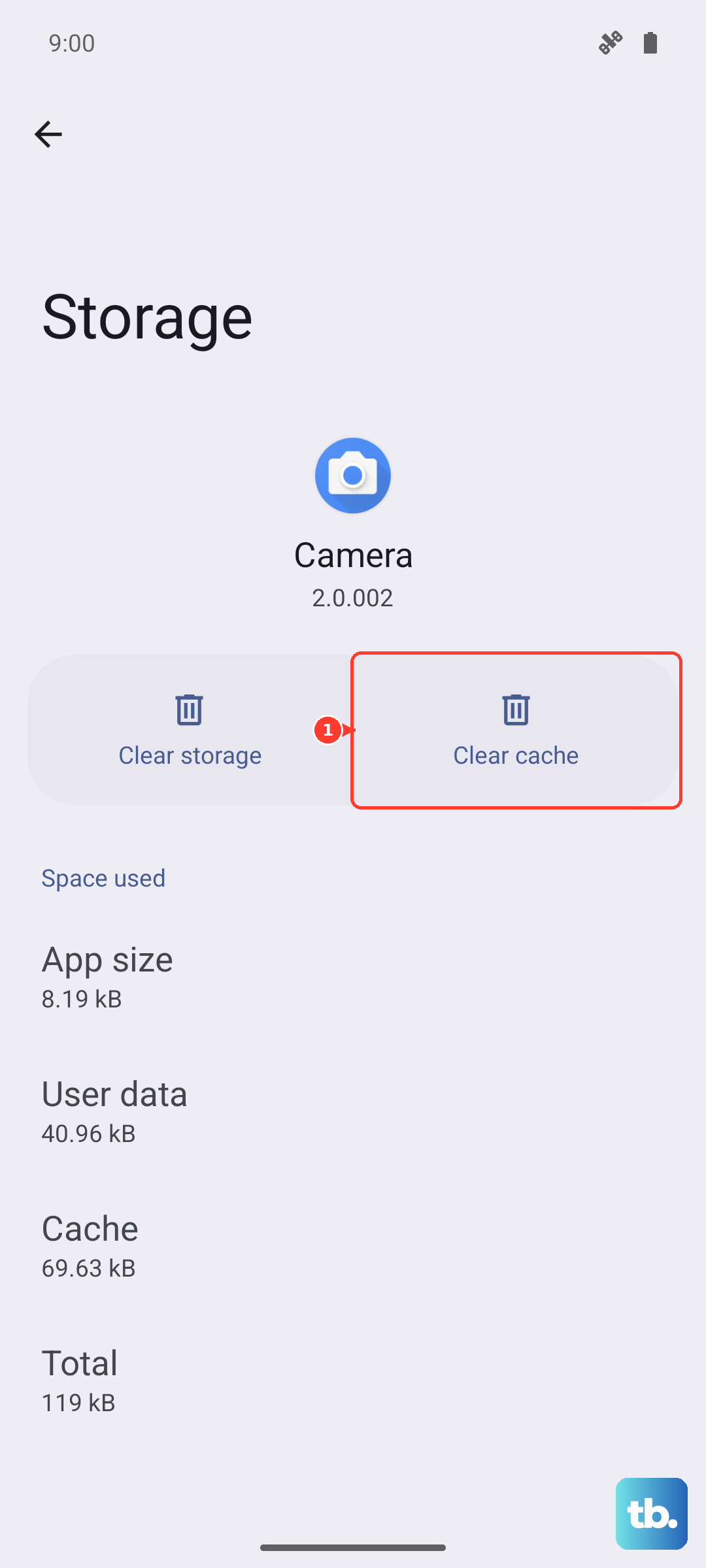
Go to Settings > Apps > All apps > Google. Tap Storage & cache and then Clear cache. Do the same for Google Play Services if you're still having issues. Restart the phone after.
Try Safe Mode
If a third-party app is interfering, Safe Mode disables all of them. Hold the Power button, then press and hold Power off until the Safe Mode prompt appears. Tap OK.
In Safe Mode, test "Hey Google". If it works, a downloaded app is the culprit. Uninstall recently installed apps until you find the one causing the problem. Restart normally when done.
Factory Reset (Last Resort)
If nothing else works, a factory reset clears all data and settings, including any deep configuration errors. Back up your photos, contacts, and files first this erases everything.
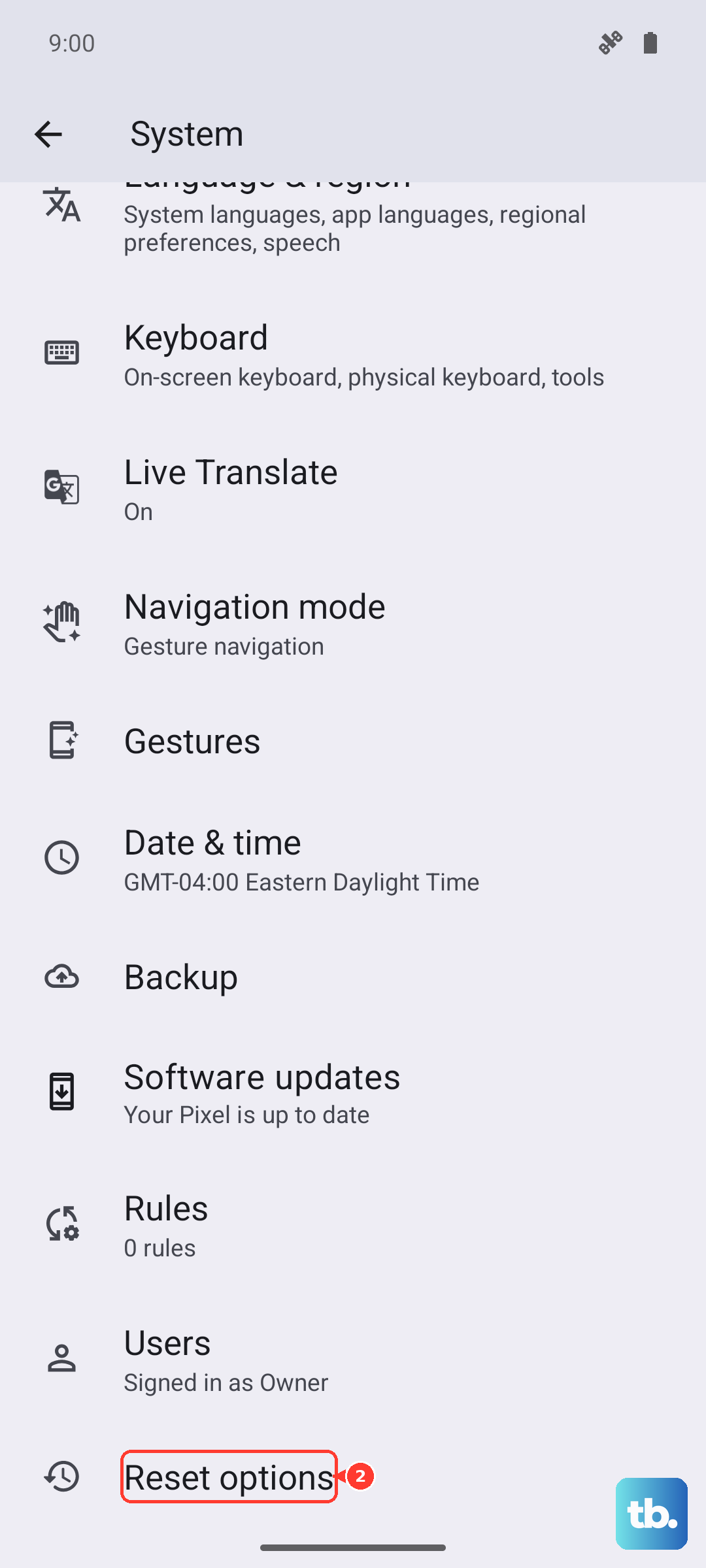
Go to Settings > System > Reset options > Erase all data (factory reset). Confirm and let the phone reboot. After setup, you'll need to retrain your voice model again.