If your Google Pixel 10a videos keep pausing to load, skipping frames, or freezing mid-playback, you're in the right place. Video buffering issues can pop up for a handful of reasons, and most of them are pretty straightforward to fix on Android 16.
Start with a force restart
Before digging into settings, try a hard reboot. This clears out any temporary software glitches that might be messing with video playback. On the Pixel 10a, press and hold the Power button for 30 seconds, or hold Power + Volume Down for 10 15 seconds until the phone restarts. That's the quickest way to shake loose a stuck process.
Check your Wi-Fi or mobile data
Buffering is almost always a network problem first. If you're streaming over Wi-Fi, make sure the signal is strong. Walk closer to the router and test again. Switch over to mobile data temporarily to see if the issue follows the connection. If it clears up on cellular, your Wi-Fi is the weak link. Restarting the router often helps.
For a deeper check, go to Settings > Network & internet > Internet and tap the gear icon next to your network. Try resetting the connection or forgetting and rejoining the network.
Free up storage space
When your Pixel 10a runs low on storage, video apps can chug. They need room to cache and write temporary files. Head to Settings > Storage and see how much free space you have. If it's under 1GB, clear out old downloads, unused apps, or move photos to Google Photos. Even just deleting a few large video files can make a noticeable difference.
Update Android and your video apps
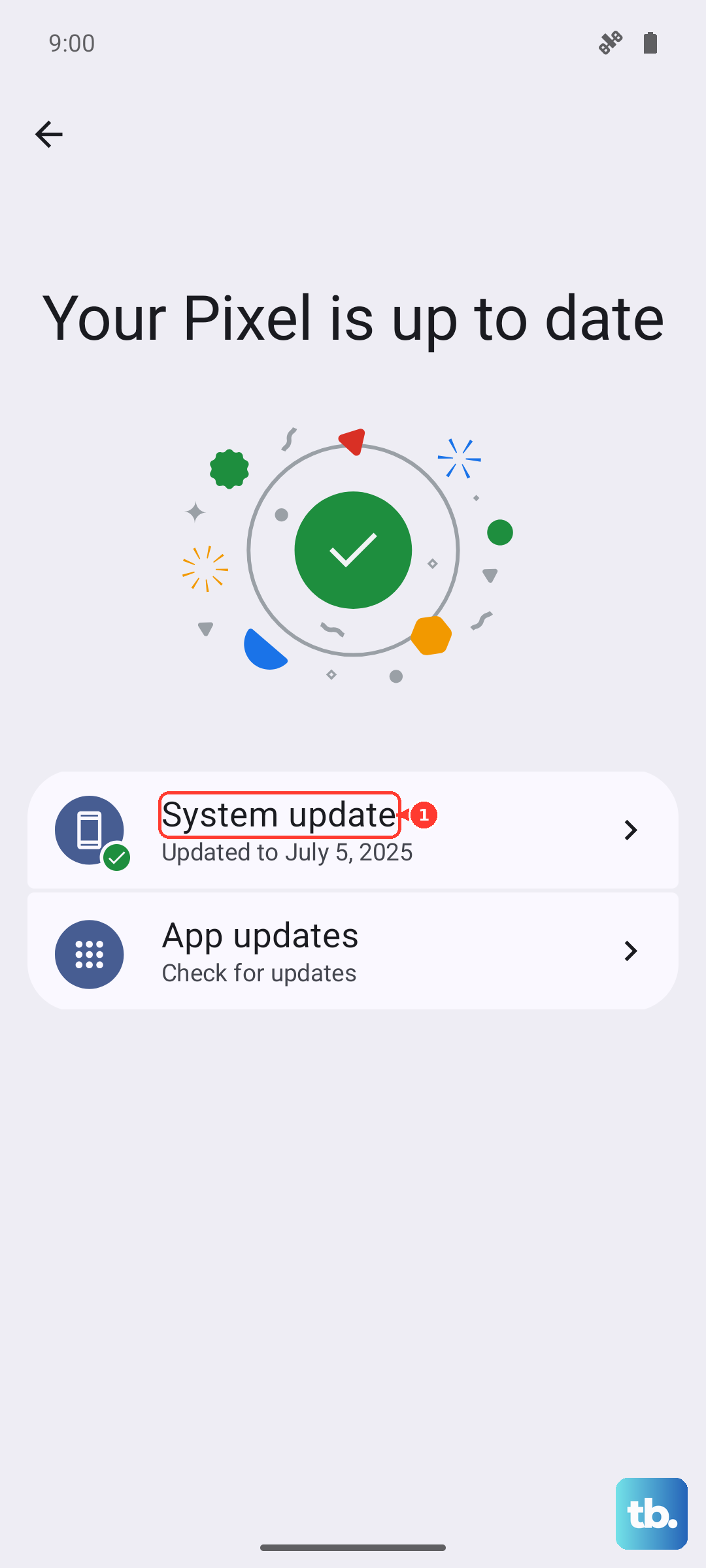
Outdated software can cause compatibility headaches, especially with streaming services. Check for system updates at Settings > System > System update. Then open the Play Store, tap your profile icon, and update all apps, especially your video player, YouTube, Netflix, or whatever you use. Many buffering bugs get squashed in these updates.
Close background apps and clear cache
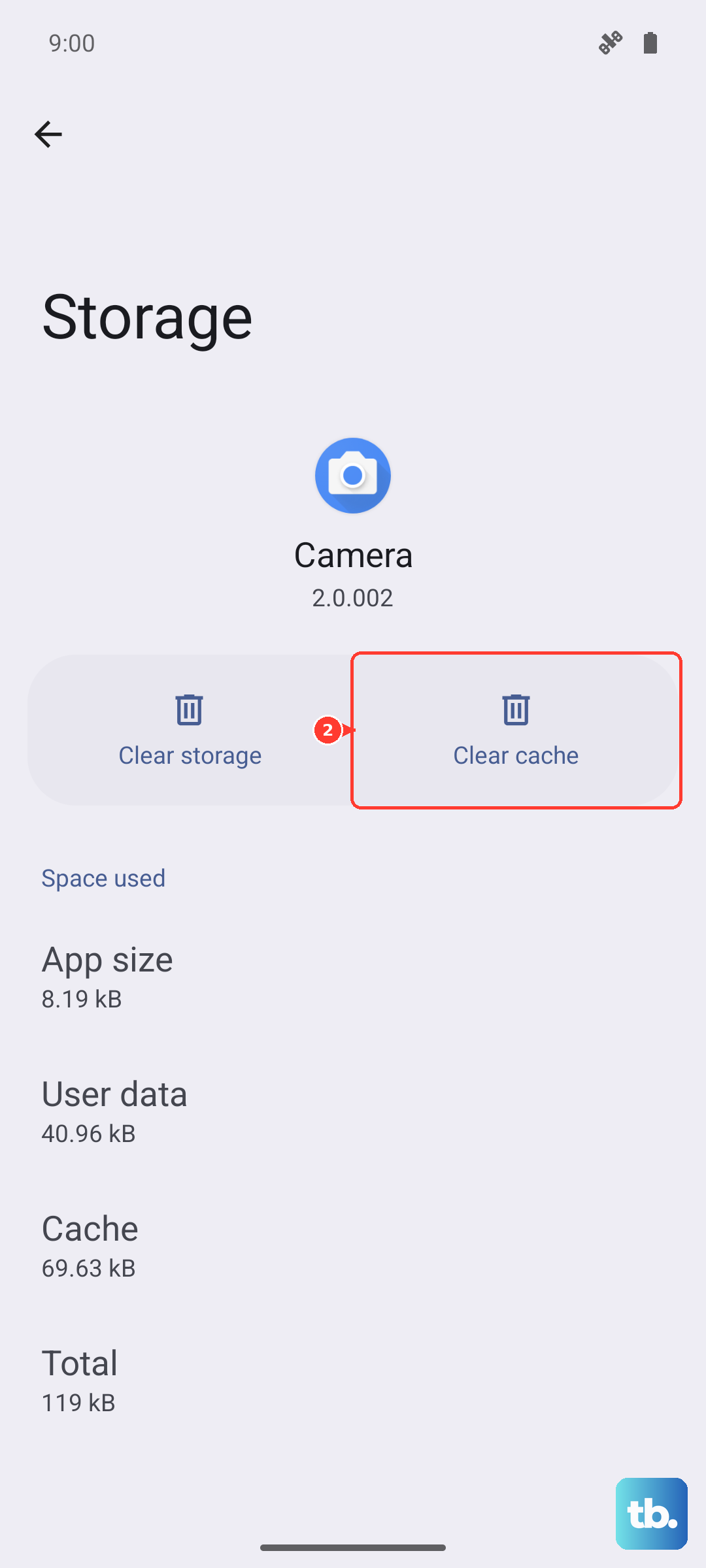
Too many apps running in the background can hog memory and hurt video performance. Swipe up from the bottom and hold, then swipe away apps you don't need. For a more thorough clean, go to Settings > Apps, tap the video app you're having trouble with, then Storage & cache > Clear cache. This doesn't remove your data, just temporary files that might be corrupted.
Lower video quality in streaming apps
If your connection is solid but videos still buffer, try dialing down the streaming quality. On YouTube, tap the gear icon and pick a lower resolution like 720p or 480p. Netflix and other services have similar settings under playback or video quality. This takes the pressure off both your network and the phone's processor.
Watch out for overheating
The Pixel 10a can slow down video playback if it gets too warm. Direct sunlight, heavy gaming, or charging while streaming can push the temperature up. If the phone feels hot to the touch, let it cool down for a few minutes, then try again. Overheating is a known issue that can trigger throttling, which directly causes buffering.
Reset network settings
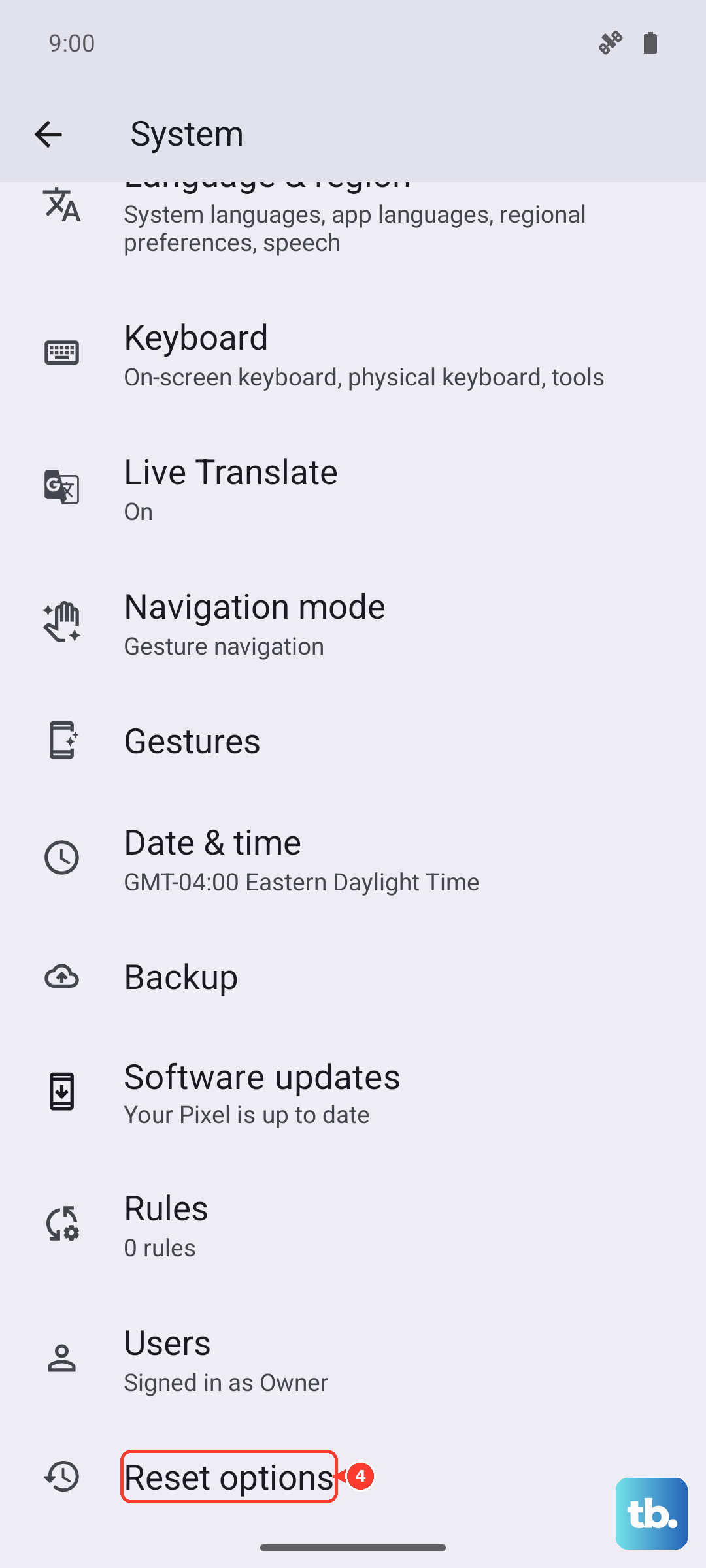
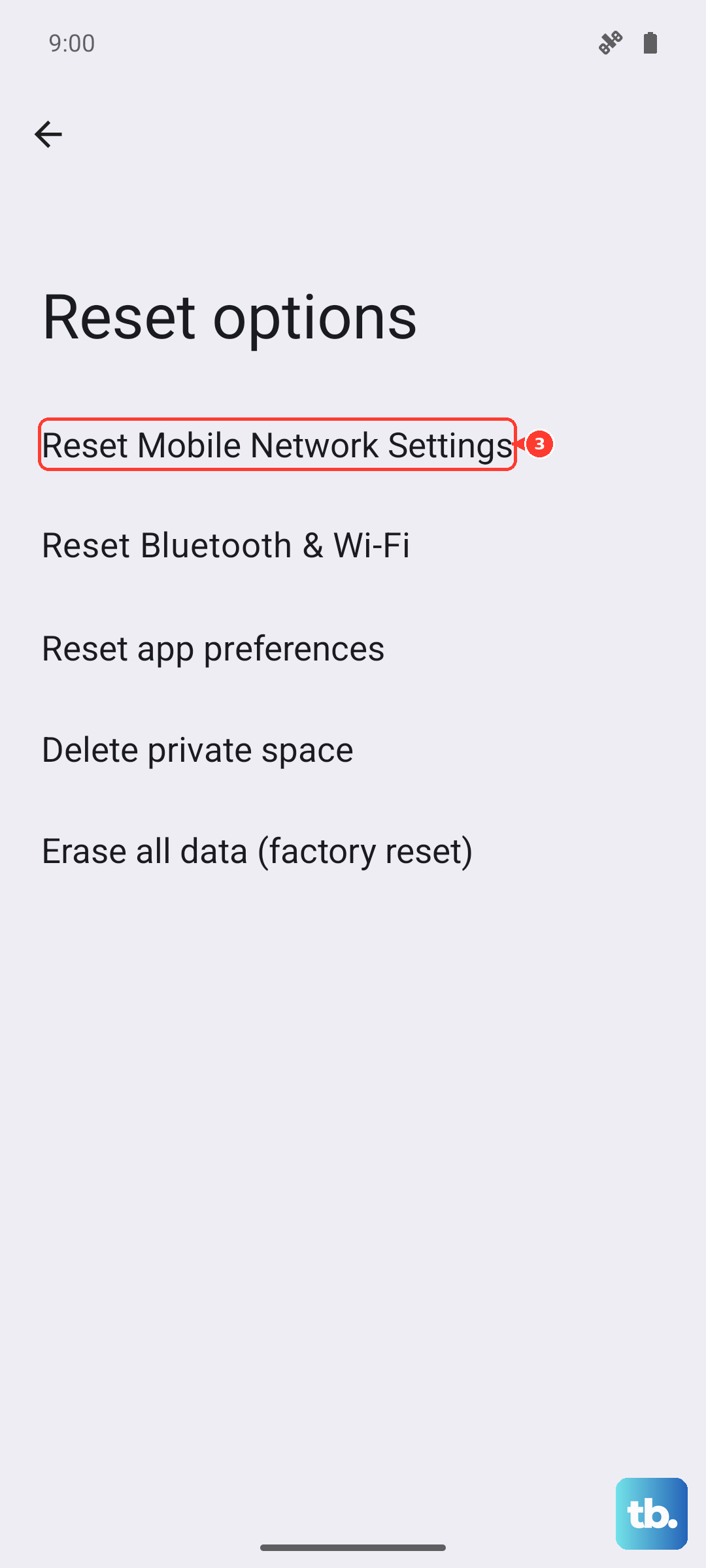
Sometimes the phone's network configuration gets tangled. Resetting just the network settings is a safe middle ground that doesn't erase your data. Go to Settings > System > Reset options > Reset mobile network settings, then Reset Bluetooth & Wi-Fi. You'll have to reconnect to Wi-Fi networks afterward, but it can fix persistent buffering problems.
Try a different video player
If the problem is isolated to one app, that app might be the culprit. Install another player like VLC or MX Player and test the same video file or stream. If it plays fine, the original app has a bug or corrupted cache. Uninstall and reinstall the problem app from the Play Store.
Factory reset as a last resort
If none of the above worked, a factory reset can clear out deep software issues. This wipes everything, so back up your photos, contacts, and files first. Go to Settings > System > Reset options > Erase all data (factory reset). After the phone restarts, set it up as new and test video playback before restoring any data. Most persistent video buffering issues come down to an app or system glitch that a reset will fix.