When your Google Pixel 10a speaker stops working, it can catch you off guard. Sound might cut out completely, get distorted, or only work during calls but not media. The good news is most audio issues on this phone can be fixed without a trip to the repair shop.
To separate hardware from software, open a online speaker test and play the channel tones. What you hear, or do not hear, tells you which fixes below matter most.
Let's walk through what typically causes the problem and how to get sound back. Some fixes take seconds, others a bit longer, so start with the simplest ones first.
Check Your Volume Settings
It sounds obvious, but it's easy to accidentally mute your phone. Press the volume up button while playing a song or video to see if the media slider appears. If you only see a ringer volume bar, tap the small arrow or dots on the side to expand and adjust media volume separately.
Head to Settings > Sound & vibration > Volume to see all sliders at once. Make sure media, ring, and alarm volumes are turned up. If your phone is on vibrate or silent, switch it back to sound mode using the top volume button or quick settings.
Review Sound and Notification Settings
Pixel phones have a few audio settings that can accidentally mute things. Go to Settings > Sound & vibration and tap "Do Not Disturb" at the top. If it's on, sound will be blocked. Turn it off and test the speaker again.
While you're there, check "Notification sounds" and make sure it's not set to "Silent." Also look under Settings > Accessibility > Audio & on-screen text, make sure "Mute all sounds" is turned off. Pixel's adaptive sound feature can sometimes cause low volume, so try toggling that off too: Settings > Sound & vibration > Adaptive sound.
Clean Your Pixel 10a's Speaker Grills
Dust and pocket lint can build up in the small speaker openings at the bottom of the phone and the earpiece grill. Over time, this blocks sound and makes everything sound muffled or quiet.
Use a soft-bristled toothbrush or a clean, dry paintbrush to gently sweep across the grills. A quick burst of compressed air (held upright) can also dislodge stubborn particles. Never stick anything sharp like a toothpick or pin into the holes, you'll damage the speaker mesh.
Shine a flashlight on the grill to see if debris is visible. If you notice heavy buildup, a professional cleaning might be safer.
Disconnect Bluetooth and Accessories
Your Pixel 10a might be sending audio to a paired Bluetooth speaker or headphones without you realizing it. Open the quick settings panel and tap the Bluetooth icon to turn it off completely. Or go to Settings > Connected devices > Bluetooth and disconnect any active devices.
Also remove any phone case that might be covering the bottom speaker grill or the earpiece. If you have a magnetically attached accessory like a wireless charger or a car mount near the speaker, try taking it off temporarily.
Force Restart Your Pixel 10a
A simple restart can clear temporary software glitches that kill audio. Hold down the Power button and tap "Restart" from the menu. If your screen is frozen or unresponsive, press and hold the Power button for 30 seconds, or press and hold Power + Volume Down for 10 15 seconds until the device restarts. This forces a reboot without losing any data.
After it powers back up, play a test sound to see if the issue is gone. Restarting often fixes speaker problems caused by a stuck app or a minor system hiccup.
Boot Into Safe Mode
If the speaker works sometimes or only fails in certain apps, a third-party app could be interfering. Safe mode temporarily disables all downloaded apps so you can test the phone with just the core system software.
To enter safe mode, press and hold the Power button, then tap and hold the "Restart" option on screen. When the confirmation appears, tap "OK." The phone will reboot and show "Safe mode" at the bottom left. Play some music or make a test call. If audio works fine in safe mode, a recent app download is likely the cause. Uninstall apps one at a time (starting with the most recently installed) until the problem stops.
Exit safe mode by restarting the phone normally.
Install the Latest Software Update
Software updates often contain fixes for known audio bugs on the Pixel 10a. Go to Settings > System > System update and tap "Check for update." If one is available, download and install it. Make sure your phone is connected to Wi-Fi and has enough battery, preferably above 50%, before starting.
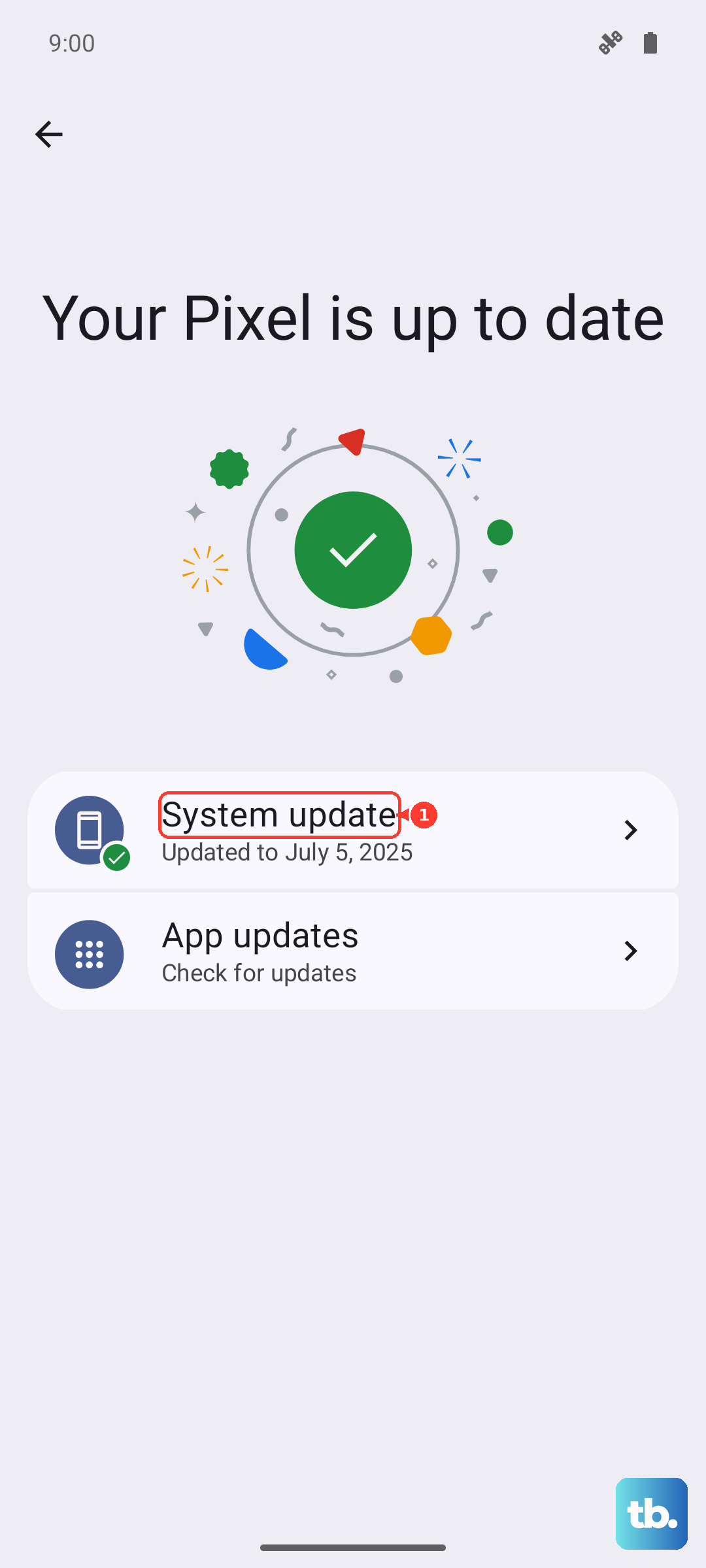
After the update finishes and the phone restarts, test the speaker again. Sometimes a single update can resolve persistent audio issues that nothing else seems to fix.
Reset App Preferences
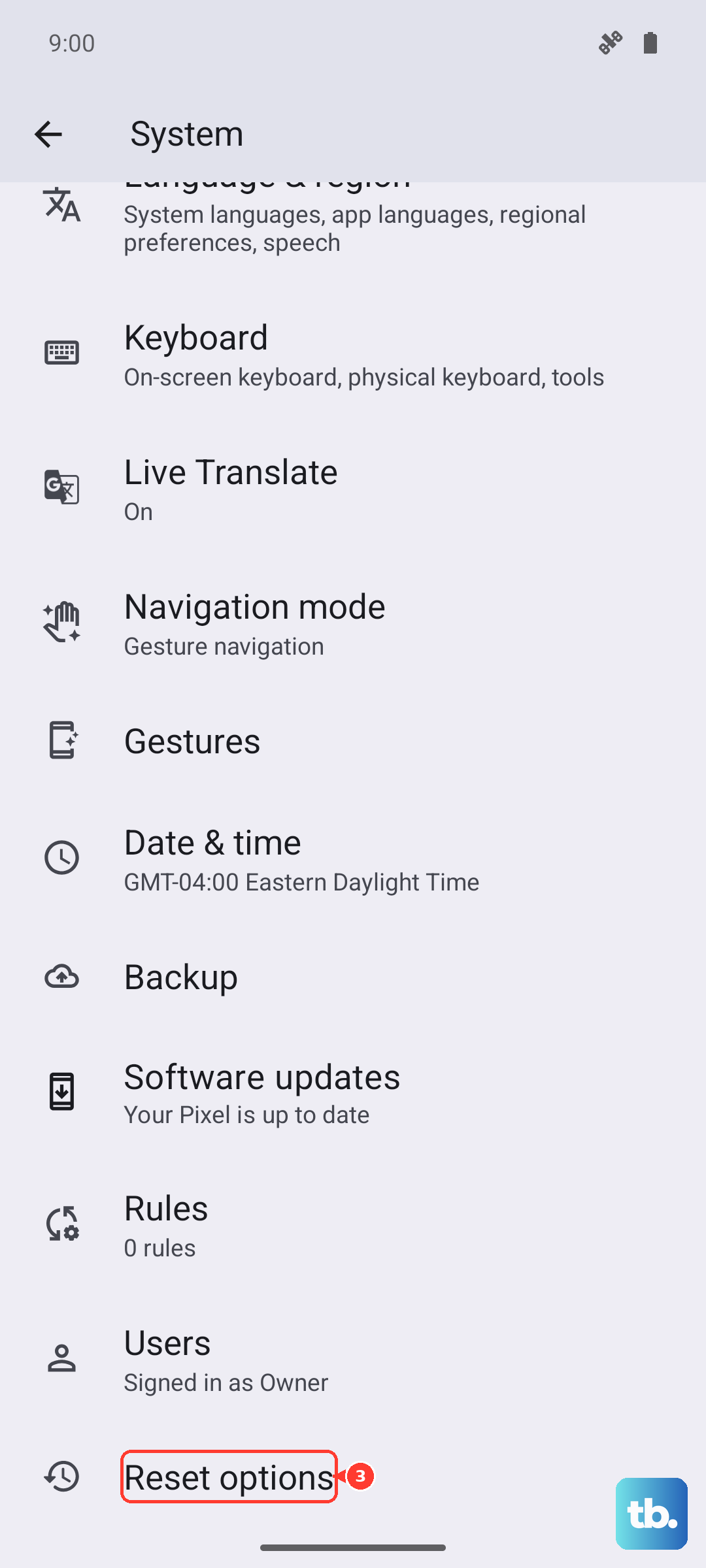
If your speaker works for system sounds but not for certain apps, the app settings might be corrupted. Go to Settings > System > Reset options and tap "Reset app preferences." This won't delete your apps or data, but it will reset disabled apps, notification permissions, and default apps. You'll have to re-grant permissions for things like microphone access afterward.
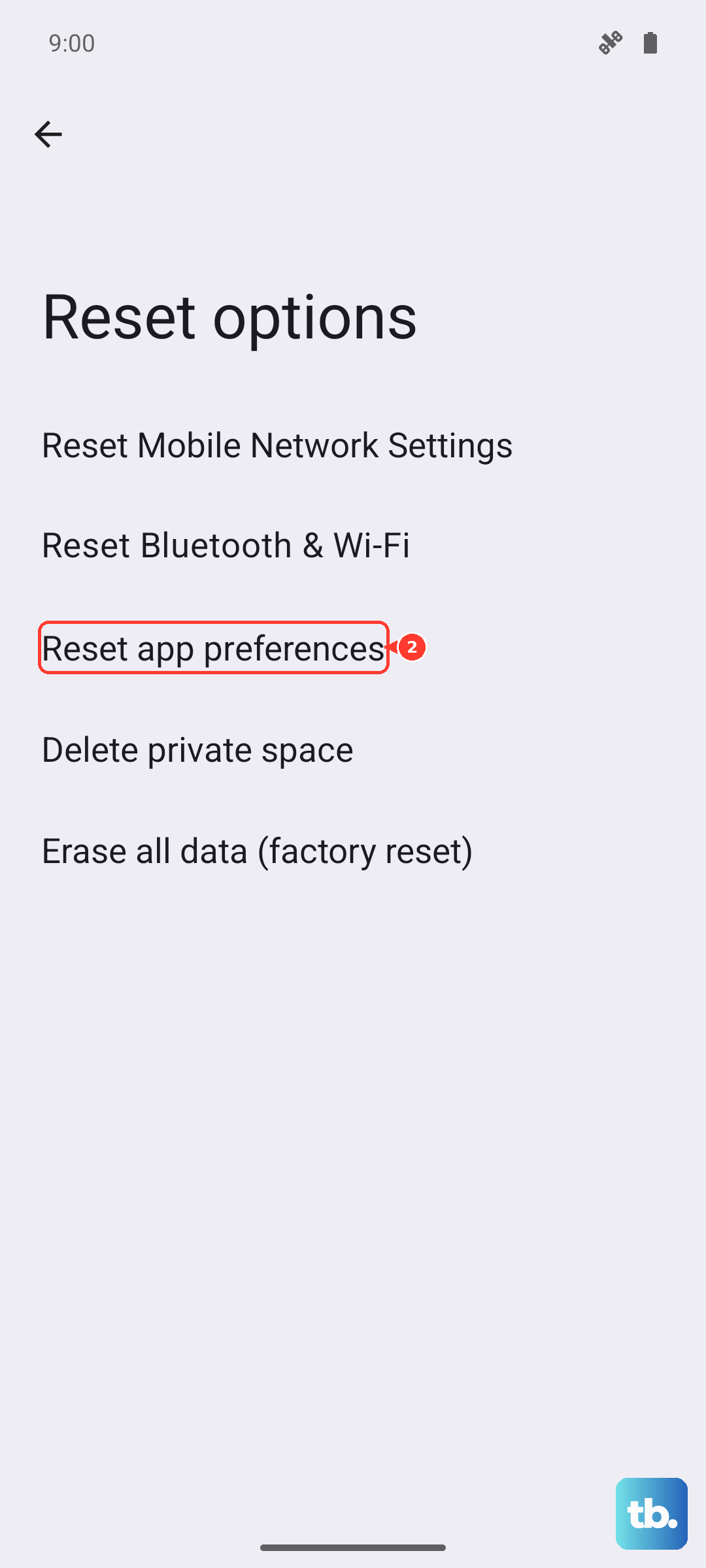
After resetting app preferences, restart your phone and test the speaker with the problematic app again.
Factory Reset (Last Resort)
If none of the above works and the speaker has been silent across all functions, a factory reset can rule out any lingering software corruption. This erases everything on your phone, photos, contacts, app data, so back up anything important first by going to Settings > System > Backup.
Once you're backed up, go to Settings > System > Reset options > Erase all data (factory reset). Follow the prompts to confirm. After the phone wipes and restarts, set it up as new (don't restore from a backup right away) and test the speaker. If audio comes back, the issue was software-related. If the speaker still doesn't work, it's likely a hardware problem, and you'll want to check your warranty for repair options.