
When your Pixel 10a’s mobile data crawls, even loading a simple webpage feels like dial‑up. You’re not stuck with it, though. A few targeted adjustments can bring back the speed you expect from Google’s latest phone.
Let’s walk through the fixes that actually work for the Pixel 10a running Android 16. Start with the fastest ones, then dive into the deeper settings if the issue sticks around.
Force a quick restart
A simple restart clears temporary glitches that often cause slow data. On the Pixel 10a, press and hold the Power button for 30 seconds, or press and hold Power + Volume Down together for 10 15 seconds until the device restarts. That’s a forced reboot, and it’s the first thing to try when data feels sluggish.
Toggle mobile data off and back on
Sometimes your connection just needs a fresh handshake with the tower. Swipe down to open Quick Settings and tap the Mobile Data icon to turn it off. Wait about 10 seconds, then tap it again. If that doesn’t help, try Airplane Mode for 30 seconds instead same refresh, different route.
Clear browser cache and data
Chrome on the Pixel 10a stores cached pages and images that can eventually slow down loading. Open Chrome, tap the three‑dot menu, go to Settings > Privacy and security, then tap Clear browsing data. Select “Cookies and site data” and “Cached images and files,” then hit Clear. This frees up storage and often boosts browsing speed immediately.
Turn on Data Saver
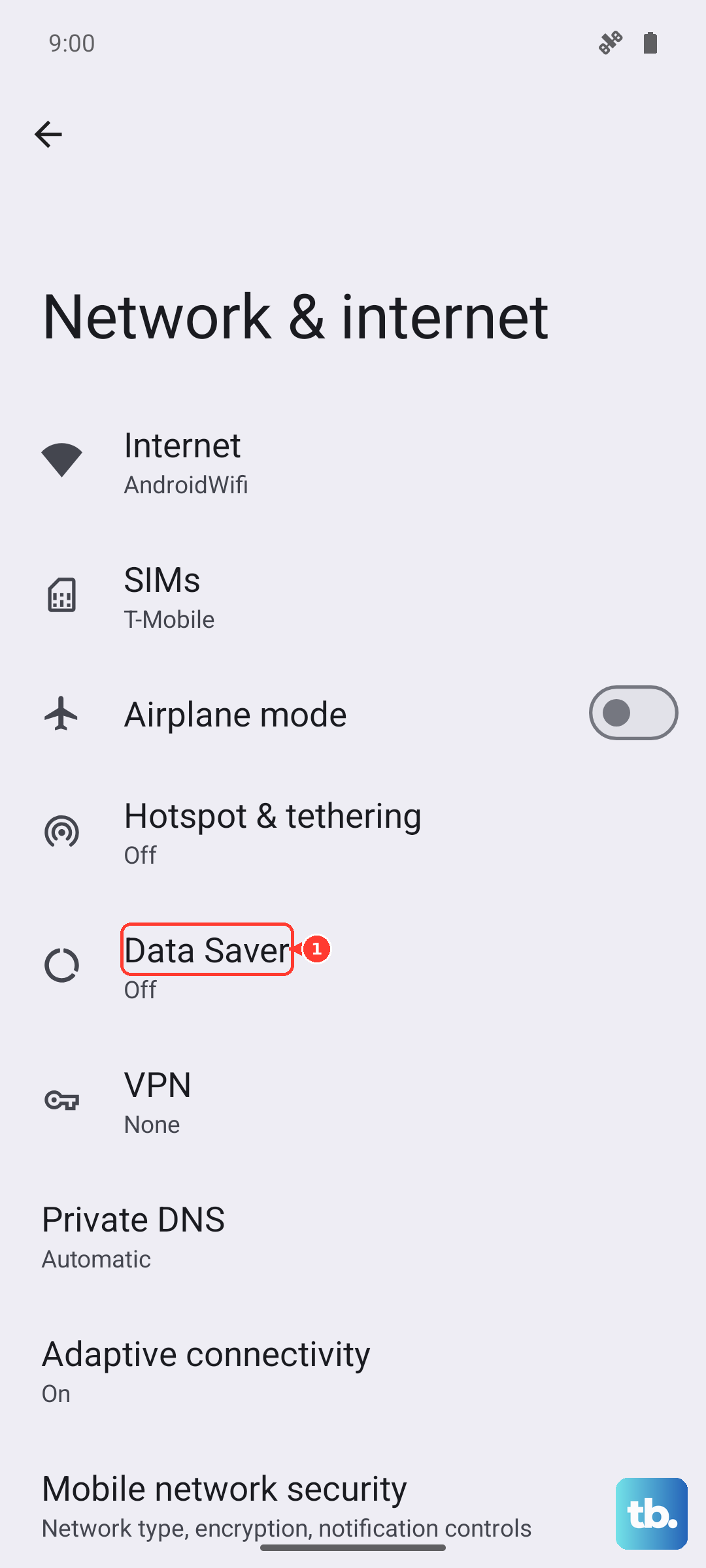
Android 16 includes a built‑in Data Saver that stops apps from using data in the background without your permission. Go to Settings > Network & internet > Data Saver and toggle it on. You’ll see a noticeable difference in how snappy the web feels, especially when multiple apps are running.
Check your network mode
If your Pixel 10a keeps bouncing between 4G and 5G, that switch can cause lag. Go to Settings > Network & internet > Internet and tap the gear icon next to your carrier name. Look for Preferred network type and set it to 5G if you have good coverage, or LTE if 5G is spotty. Sticking to one band often gives a more stable connection.
Disable Adaptive Connectivity
The Pixel 10a has a feature called Adaptive Connectivity that tries to save battery by switching between 4G and 5G based on signal strength. It can slow things down if it’s constantly deciding. Go to Settings > Network & internet > Adaptive Connectivity and turn it off. Your data speed should become more consistent.
Reset your APN settings
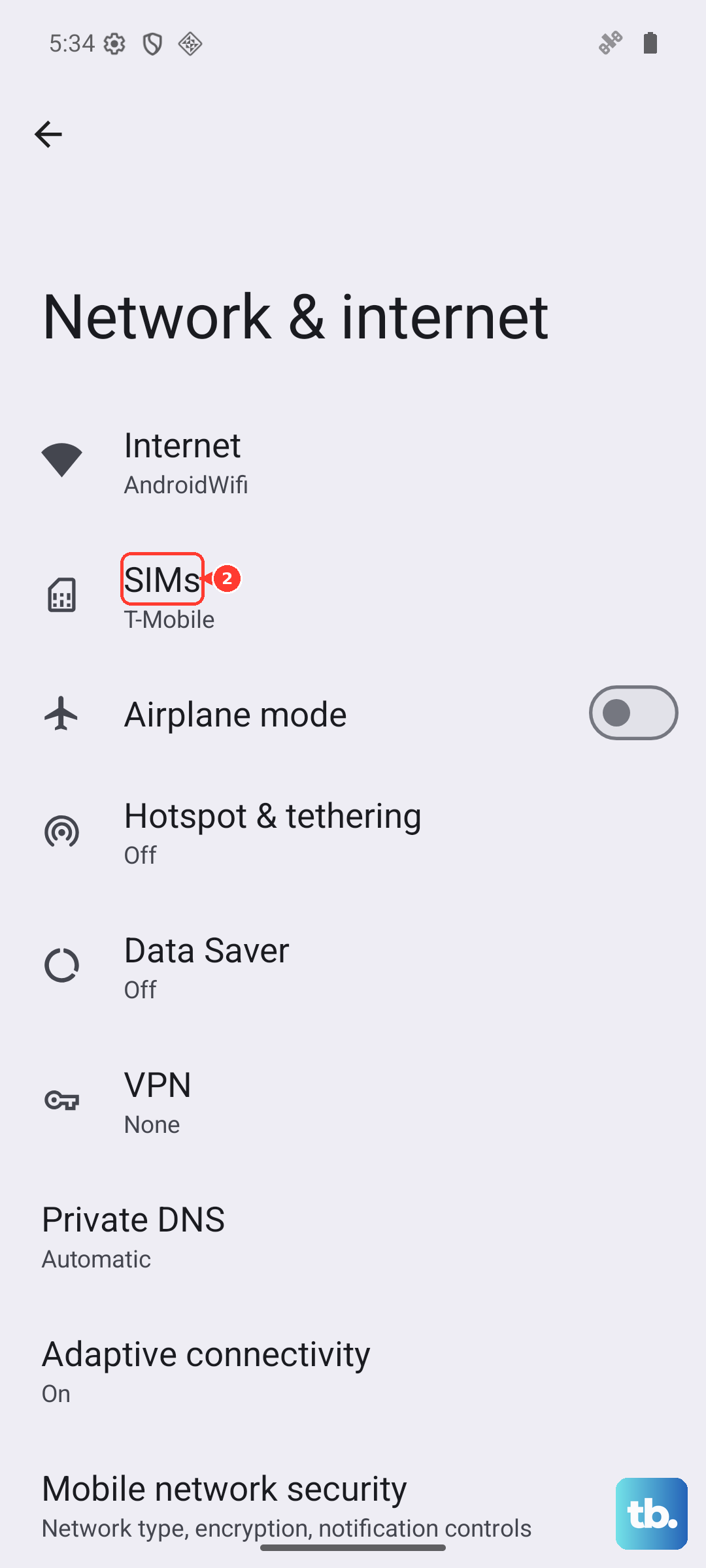
A corrupted or incorrect Access Point Name (APN) can throttle your data. Go to Settings > Network & internet > SIMs and tap your carrier. Then tap Access Point Names and hit the three‑dot menu to Reset to default. If you’ve manually changed APN settings before, this puts them back to what your carrier expects.
Clear Google Play Services cache
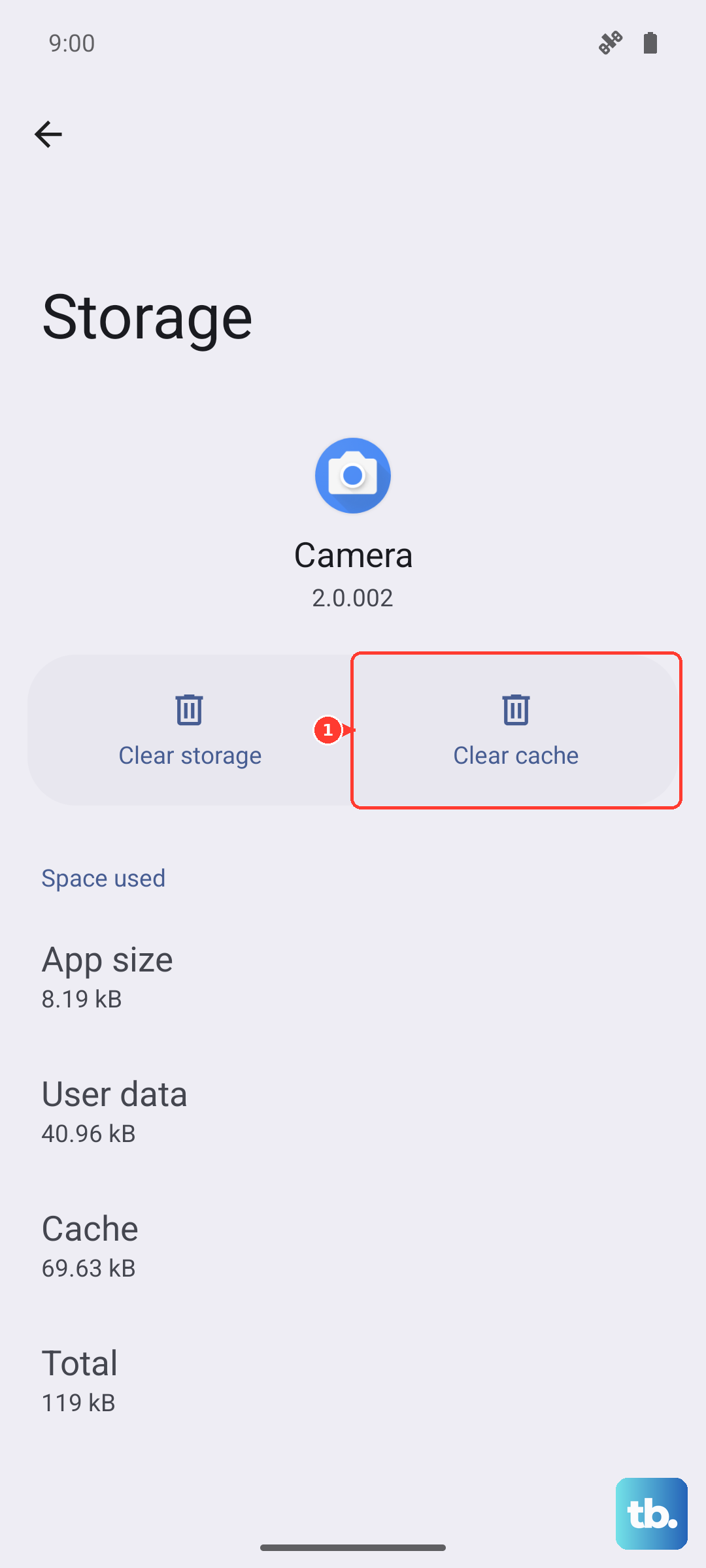
Google Play Services handles a lot of the background networking on your phone, and its cache can get bloated. Go to Settings > Apps > See all apps, find Google Play Services, then tap Storage & cache > Clear cache. Don’t clear data, just the cache. This can resolve weird data slowdowns tied to Google’s core services.
Disable any VPN or ad blocker
VPN apps reroute your traffic and can slow things down significantly. If you’re running one, try turning it off temporarily. The same goes for third‑party ad blockers that filter connections. You can check for active VPNs in Settings > Network & internet > VPN and disconnect or remove them.
Reset network settings
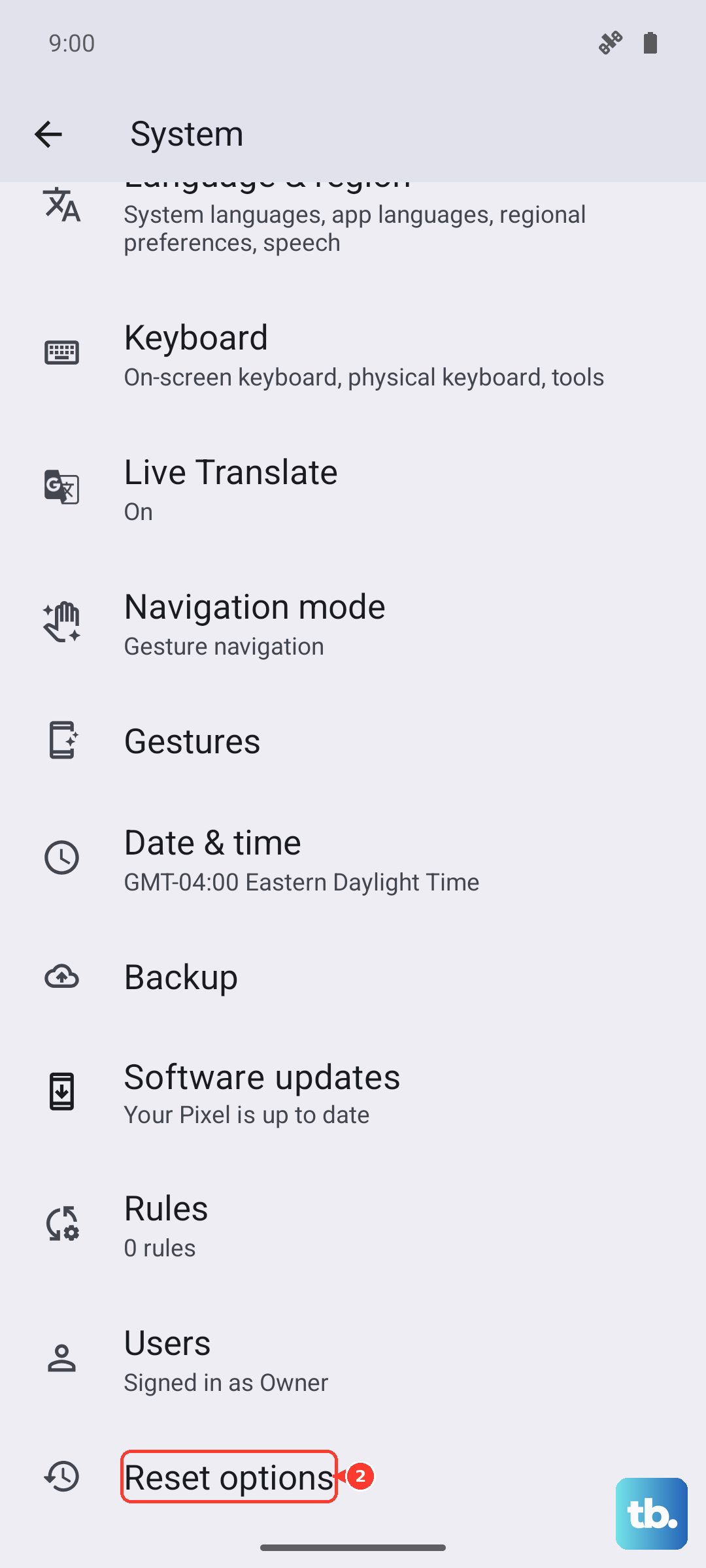
If nothing else has worked, a network reset is your nuclear option. This clears all saved Wi‑Fi networks, Bluetooth pairings, and carrier settings, but it often fixes stubborn data speed issues. Go to Settings > System > Reset options and tap Reset Wi‑Fi, mobile & Bluetooth. Confirm and let the phone reboot.
After the reset, you’ll need to reconnect to Wi‑Fi networks and pair your Bluetooth devices again, but your mobile data should start fresh and fast.