Screen flickering on your Google Pixel 10a can make the phone nearly impossible to use. The display might pulse, flash, or show horizontal lines out of nowhere. This usually comes down to a software glitch, a misbehaving app, or an issue with the OLED panel itself. Let's work through the fixes.
A browser based screen test cycles solid colors and gradients across the whole screen, which helps you confirm whether the panel itself shows the fault.
Force Restart the Pixel 10a
The very first thing to try is a force restart. This clears out the system memory and stops any temporary software hiccups that might be messing with the display. Press and hold the Power button for about 30 seconds, or for up to 60 seconds until the device restarts. I've seen this single step fix the issue more often than you'd think.
Turn Off Smooth Display
The Pixel 10a uses a high refresh rate screen, and sometimes the software that dynamically shifts between 60Hz and 90Hz can get stuck or glitchy. Go to Settings > Display > Smooth Display and toggle it off. Run the display at 60Hz for a while. If the flickering stops, you'll know the refresh rate switching was the culprit.
Disable Adaptive Brightness
Adaptive Brightness relies on an ambient light sensor, and a glitchy sensor reading can cause the screen to rapidly adjust and appear to flicker. Head to Settings > Display > Adaptive brightness and turn it off. Then manually set your brightness slider to a comfortable level and see if the issue persists.
Check for a Rogue App in Safe Mode
A third-party app with a badly coded UI or a background animation loop can trigger screen flickering. To check this, press and hold the Power button, then touch and hold Power off. Tap Safe mode and wait for the phone to restart. You'll see Safe mode at the bottom of the screen. If the flickering stops, a downloaded app is the problem. Restart the phone normally to exit safe mode, then uninstall any apps you installed right before the flickering started.
Install Pending Software Updates
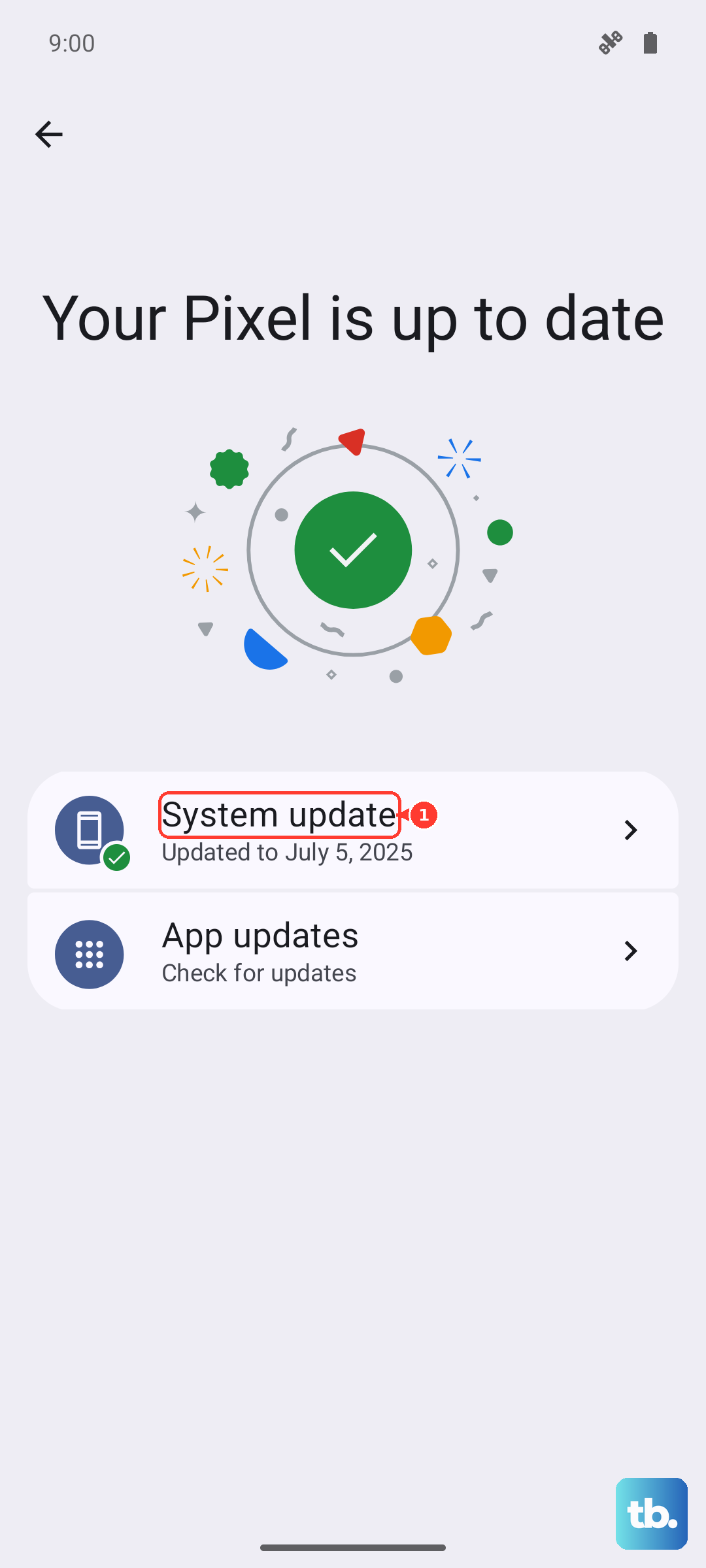
Google regularly pushes out updates to fix display-related bugs in Android 16. Go to Settings > System > System update and check for any available updates. Also open the Play Store, tap your profile icon, and go to Manage apps & device. Install any pending app updates, as developers often patch compatibility issues with the Pixel 10a's display driver.
Turn Off Night Light and Extra Dim
These two accessibility features are a common cause of visual artifacts on Pixel screens. Night Light warms the screen, and Extra Dim reduces the brightness further than the slider allows. Go to Settings > Display > Night Light and make sure it's off. Then go to Settings > Accessibility > Color and motion > Extra dim and toggle that off too.
Reset All Settings
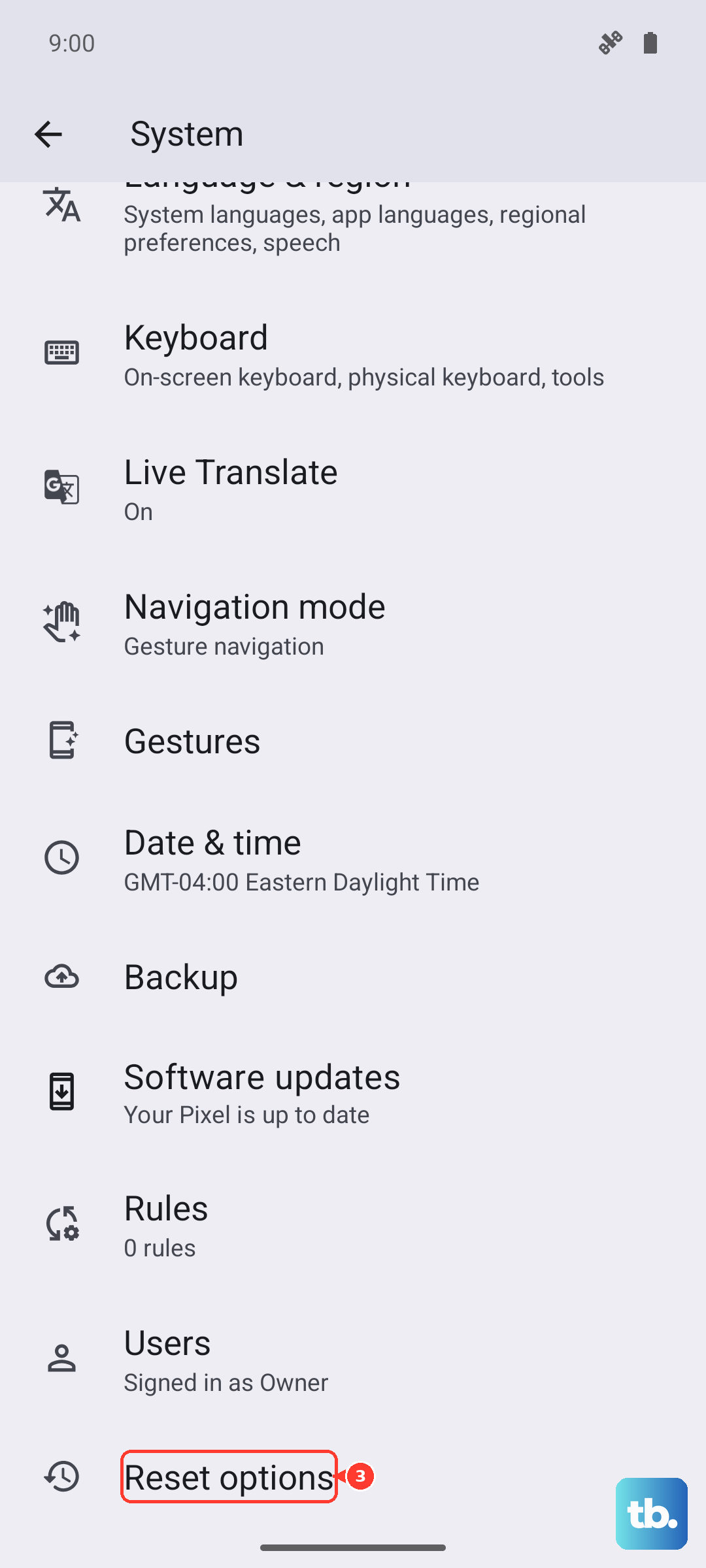
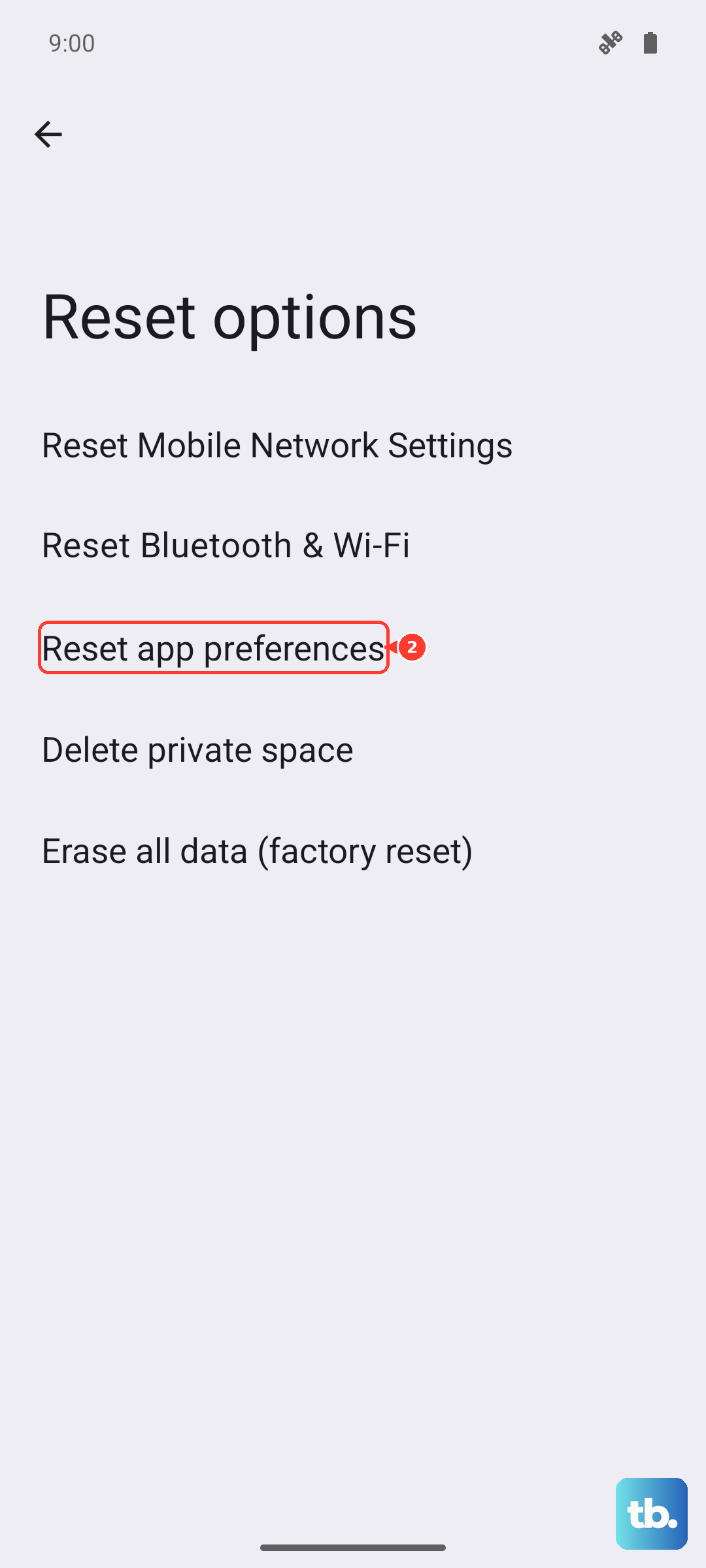
If you've tried everything software-related and the flickering continues, resetting your system settings is the next logical step. This clears out your Wi-Fi networks, Bluetooth pairings, and display settings without touching your photos or apps. On OnePlus, go to Settings > Additional settings > Back up and reset > Reset phone > Reset all settings; Pixel, Motorola, Nothing, and ASUS phones have no Reset all settings option, so go to Settings > System > Reset options and use Reset app preferences or Reset Bluetooth & Wi-Fi instead. You'll have to re-enter some passwords afterward, but it can wipe out a deeply buried configuration error.
Look for Physical Damage
If the flickering started immediately after a drop, the display ribbon cable might be loose or the OLED panel itself could be fractured. Carefully inspect the screen for any hairline cracks, pressure points, or discolored areas. Even a tiny crack you can barely feel can cause the display to act erratically. This type of damage requires a professional screen replacement.
Factory Reset the Phone
This is your last software resort. Back up your photos, messages, and files to Google Drive or your computer first. Then go to Settings > System > Reset options > Erase all data (factory reset). This wipes the phone completely and reinstalls Android 16 from scratch. If the flickering stops after the reset, it was definitely a software problem. If it keeps going on a clean slate, the display hardware is faulty and needs to be serviced.