
When your Google Pixel 10a won't send text messages, one of the most basic things your phone does breaks down. Messages might get stuck on "Sending," fail with a red exclamation, or just disappear. Let's walk through the fixes that usually work.
Check Your Signal
SMS and MMS need a cellular connection to go through. Look at the signal bars up top. If they're low or missing, move to a spot with better reception. Toggling Airplane Mode on and off for a few seconds can force your phone to reconnect to the nearest tower.
Force Restart Your Pixel 10a
Press and hold the Power button for 30 seconds, or press and hold Power + Volume Down for 10-15 seconds until the device restarts. This refreshes your modem and clears temporary glitches in the messaging system without deleting any data.
Make Sure Airplane Mode Isn't On
It's easy to accidentally turn on Airplane Mode and not notice. Swipe down twice to open Quick Settings and check the airplane icon. If it's highlighted, tap it to turn it off. Your messaging should resume within a minute or two.
Check Messages App Permissions
The Messages app needs SMS permission to send texts. Go to Settings > Apps > Messages > Permissions and make sure SMS is allowed. If it's set to "Ask every time," change it to "Allow." The same applies to Phone and Storage permissions for MMS.
Clear the Messages App Cache
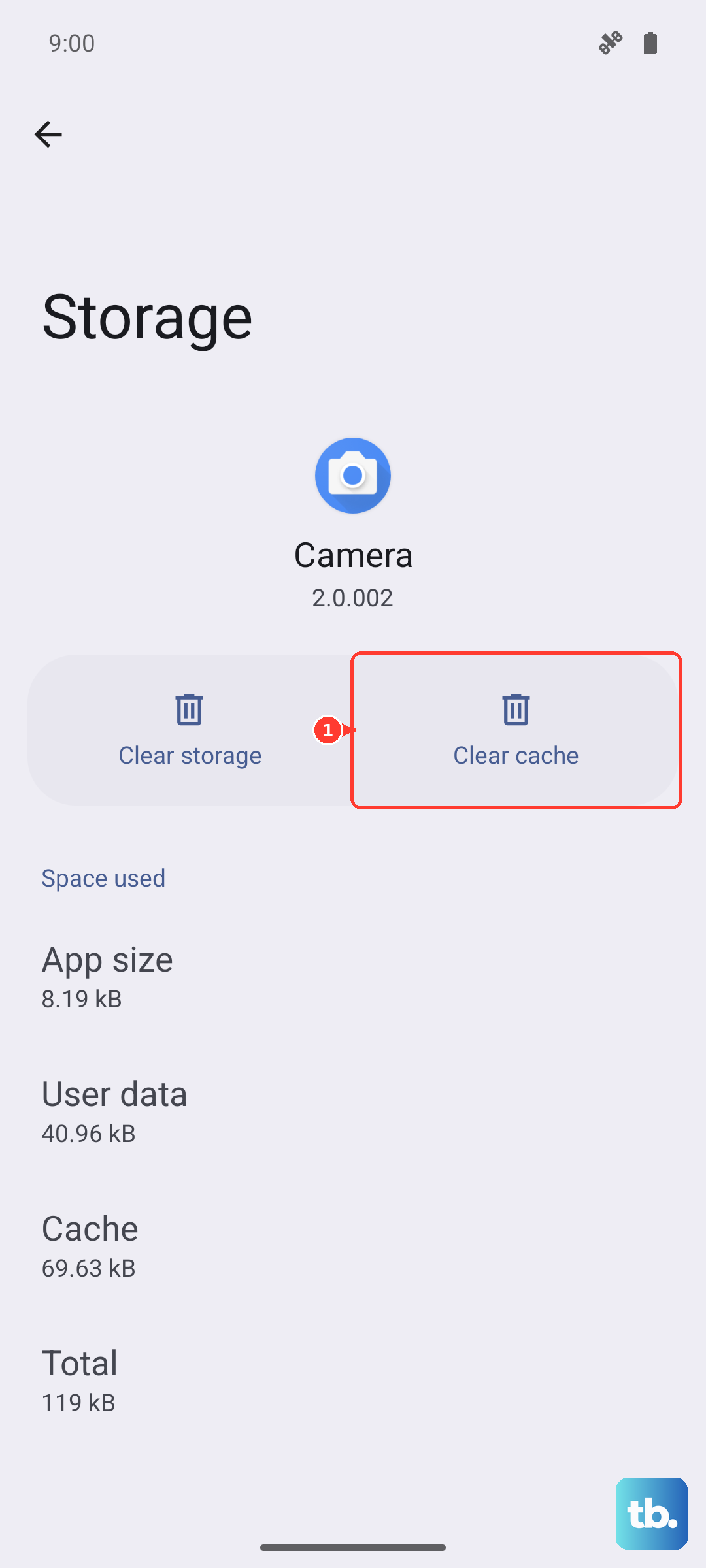
A corrupted cache can cause sending failures without warning. Go to Settings > Apps > Messages > Storage & cache and tap Clear cache. Don't tap Clear storage unless you're okay with losing your message history. This step takes about 10 seconds and costs you nothing.
Review Your RCS Settings
RCS is the default chat protocol on Android 16, but it can cause issues if it gets stuck. Open the Messages app, tap your profile picture, then Messages settings > RCS chats. If RCS is stuck on "Connecting" or "Trying to verify," tap Resend verification or toggle RCS off and back on. Give it a minute to reconnect.
Verify Your APN Settings
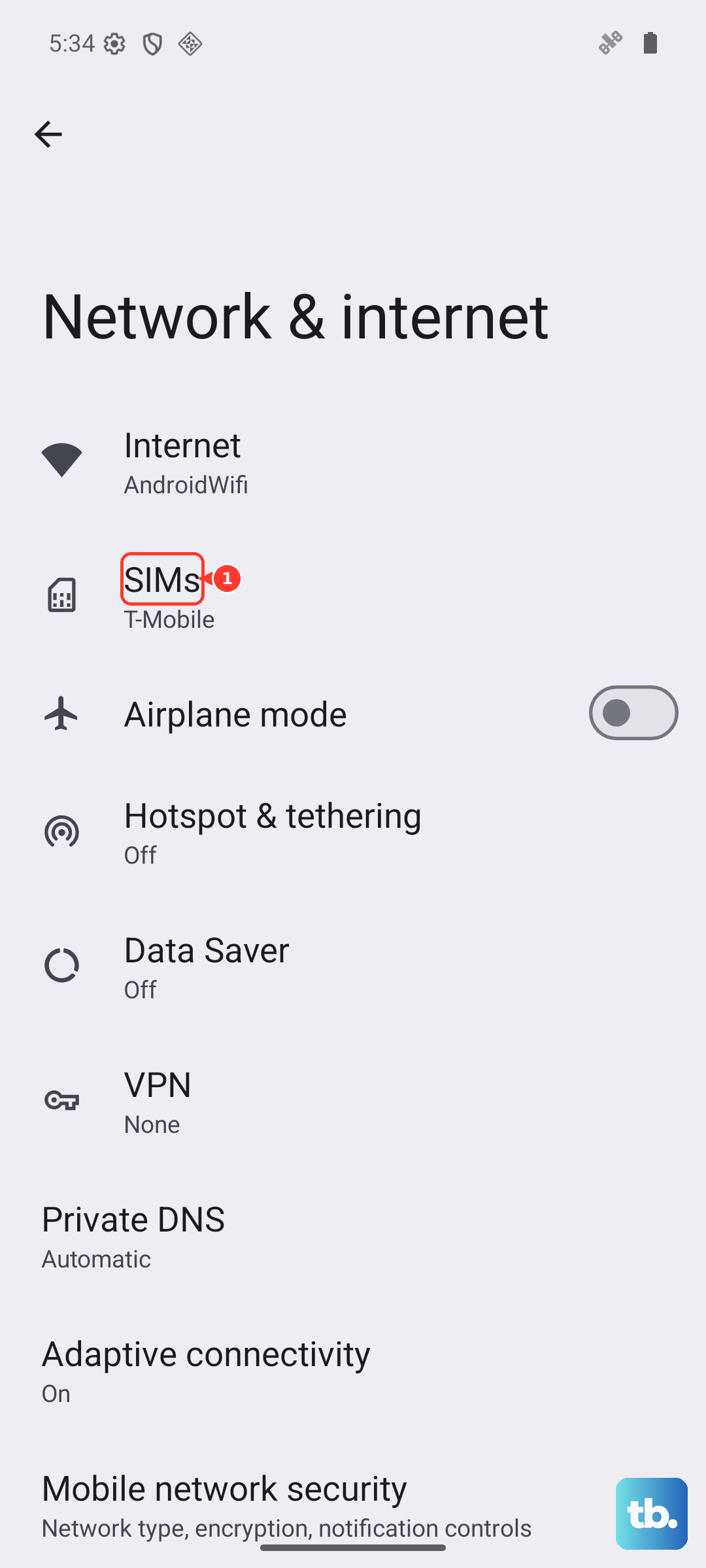
Access Point Names tell your phone how to connect to your carrier's data and messaging services. Go to Settings > Network & internet > SIMs > Access Point Names. Compare the entries with your carrier's official APN settings (available on their support site). A single wrong character can block MMS or SMS. If you see a mismatch, tap the three dots and choose Reset to default.
Remove and Reinsert Your SIM
Power off the Pixel 10a. Use the SIM eject tool (or a paperclip) to pop out the SIM tray. Take out the SIM card, wait 30 seconds, then put it back in and power on. If you use an eSIM, go to Settings > Network & internet > SIMs and tap your eSIM, then choose Disable followed by Enable. This forces your phone to re-register with the carrier's network.
Reset Network Settings
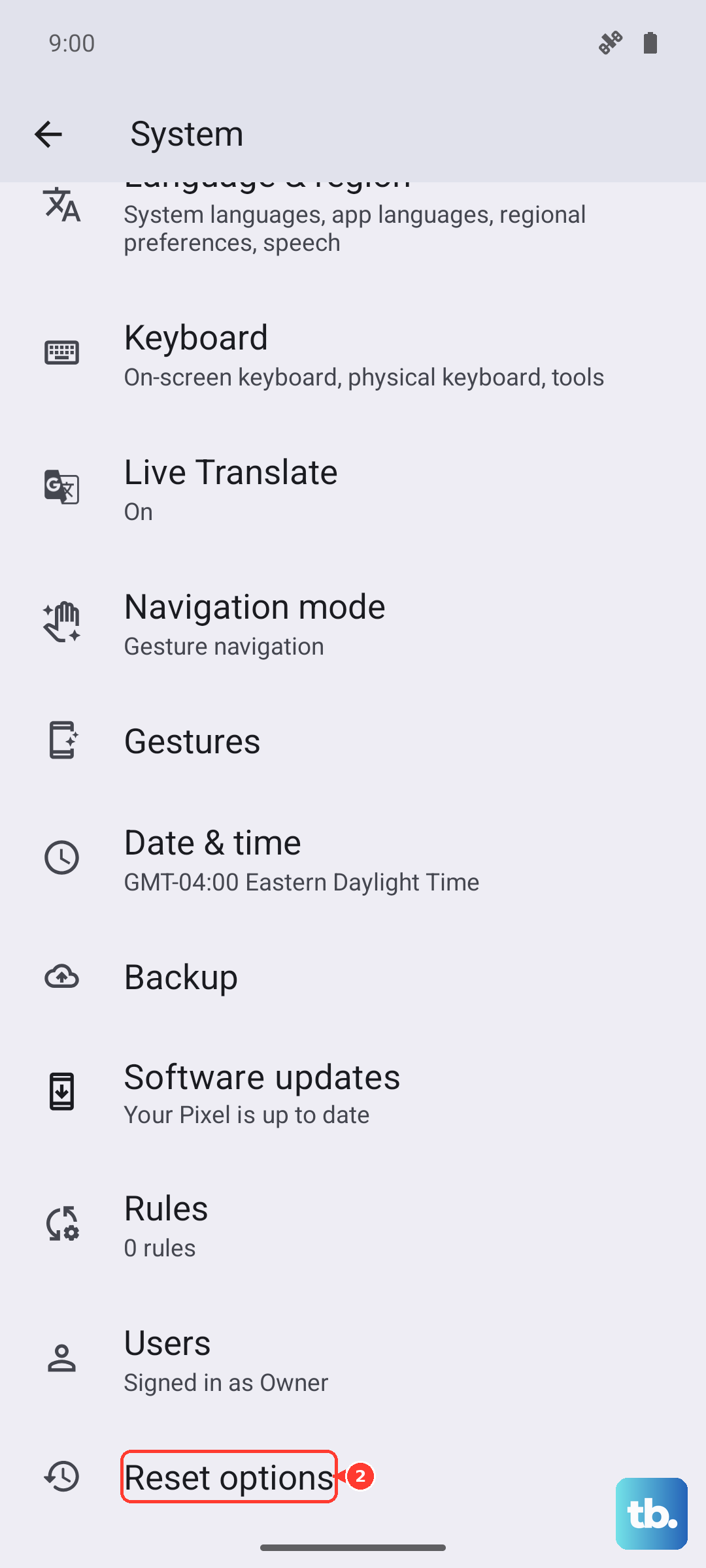
This clears all Wi-Fi, Bluetooth, and cellular settings and rebuilds them from scratch. Go to Settings > System > Reset options > Reset Wi-Fi, mobile & Bluetooth. Tap Reset settings. You'll need to reconnect to Wi-Fi networks afterward, but it often fixes stubborn messaging problems that other steps miss.
Contact Your Carrier
If you've tried everything and texts still won't send, the issue might be on your carrier's side. Your messaging service could be suspended, or there might be a provisioning error on your account. Call your carrier's support line and ask them to verify that SMS and MMS are active and properly provisioned for your number.