
You pick up your Pixel 10a to check a missed call, but you never heard it ring. You know the volume is up and the phone isn't on silent. It's a confusing spot to be in, but it's usually a quick fix. This guide covers the most common reasons your Pixel 10a might not ring and what to do about each one.
Make Sure Silent Mode Isn't On
The Pixel 10a on Android 16 doesn't have a physical mute switch, so it's all done through software. Press the Volume Down button until you see the volume panel on the right side of the screen. Tap the bell icon at the top of that panel to toggle between ring, vibrate, and silent.
If the icon shows a bell with a line through it or just a vibration icon, tap it until you see a solid bell. Do Not Disturb mode also silences calls. Swipe down twice from the top of the screen to open the full Quick Settings panel and check if the crescent moon icon is highlighted. If it is, tap it to turn it off.
Check the Ringer Volume Separately
On Android 16, the side volume buttons adjust media volume by default, not the ringer. You need to specifically raise the ringtone volume. Open the volume panel with the side buttons, then tap the three-dot menu or the gear icon to see all volume sliders.
Make sure the call ringtone slider is all the way up. You can also go to Settings > Sound & Vibration to check it there. If the slider was already up, lower it and raise it again to refresh the setting.
Disconnect Bluetooth Devices
If you use Bluetooth earbuds or a smartwatch, your Pixel 10a might be sending the call audio to that device instead of the phone speaker. Your phone screen lights up, but there's no sound. Swipe down twice and tap the Bluetooth tile to turn it off temporarily.
Test a call while Bluetooth is off. If the ringer works, the issue was with a connected device. Go into Settings > Connected devices and check which ones have call audio permission.
Look for Blocked Contacts
It's easy to accidentally block someone or for a number to get flagged by the spam filter on Pixel. Open the Phone app, tap the three-dot menu in the top right, and select Settings > Blocked numbers. Check if the person calling you is on that list.
If it's a number you expect to hear from but they keep going straight to voicemail, also check Settings > Call Screen. The Pixel's Call Screen feature can sometimes screen calls you actually wanted to pick up, and the phone won't ring while it does.
Turn Off Call Forwarding
Call forwarding silently sends your incoming calls to another number. Open the Phone app, tap the three-dot menu, go to Settings > Calling accounts, and select your SIM. Look for Call forwarding and make sure every option (forward when busy, unanswered, unreachable) is set to Off.
This setting sometimes gets changed on its own after a carrier update or network switch. Checking it takes about 15 seconds.
Check Silence Unknown Callers
Android phones have a feature that sends calls from unknown numbers straight to voicemail without a ring. This is great for spam but bad for missed calls from the doctor or a delivery driver. Go to Settings > Call Screen or the Phone app settings and look for "Calls from unknown numbers."
If it's turned on, tap it and choose "Don't silence calls from unknown numbers" or "Require unknown callers to state their name." The Pixel 10a also has a "Spam and Call Screen" option that can be overly aggressive.
Restart the Pixel 10a
A soft restart clears out temporary software hiccups that can mess with call audio. Press and hold the Power button and the Volume Up button at the same time until the power menu shows up. Tap Restart.
If the phone is completely unresponsive, press and hold the Power button for 30 seconds, or press and hold Power and Volume Down for 10 to 15 seconds until the device restarts.
Update Android 16
Google pushes monthly security and bug fix updates for Pixel phones, and ringing issues are sometimes tied to a specific build. Go to Settings > System > Software update and check if a new version is waiting. Download and install it over Wi-Fi if your battery is above 50 percent.
After the update, your Pixel 10a will restart. Test a call right away to see if the fix worked.
Clear the Phone App Cache
A corrupted cache in the Phone app can cause it to behave oddly, including not ringing properly. Go to Settings > Apps > See all apps and find the Phone app. Tap Storage & cache, then tap Clear cache. Don't worry, this won't delete your contacts or call history.
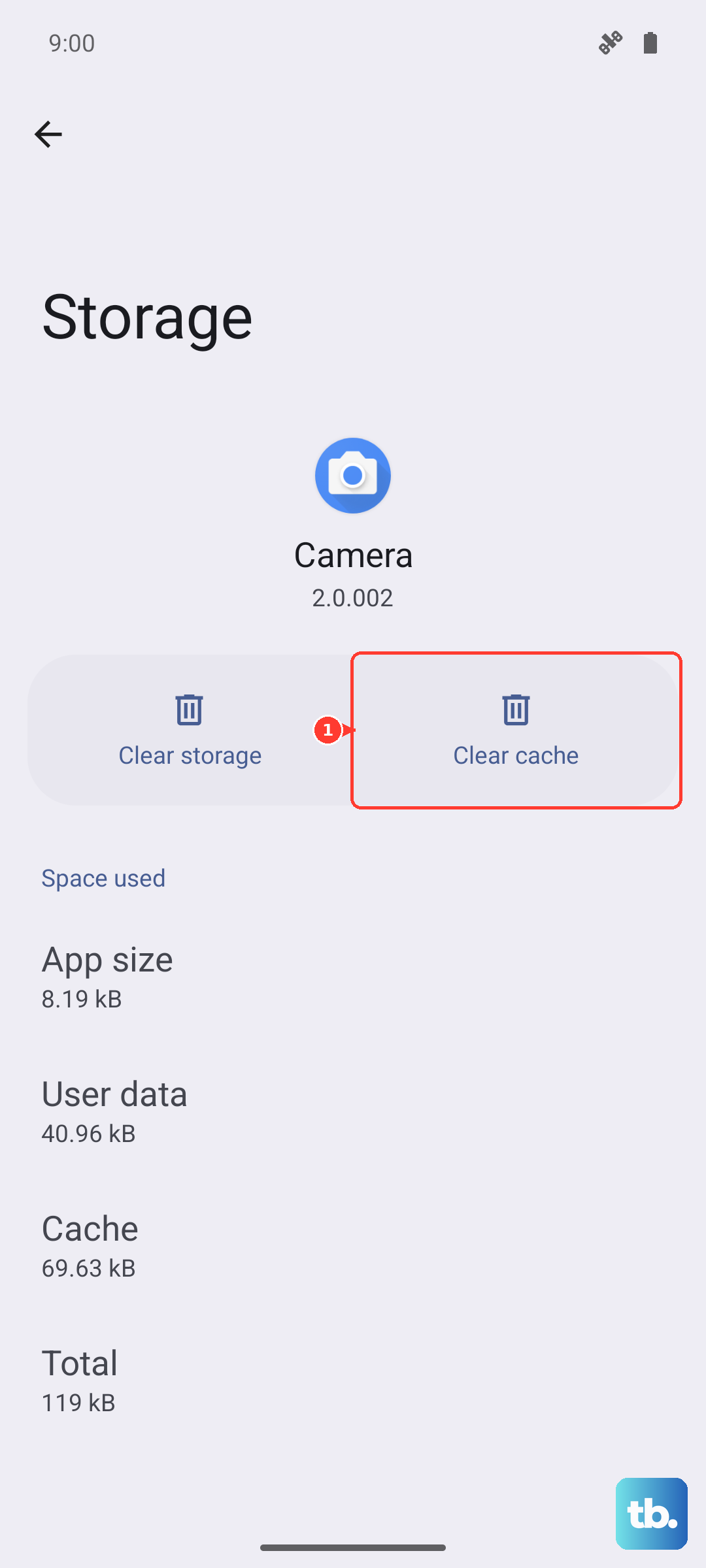
Now force stop the app from the same screen and test a call. You can also do this for the Google Dialer app if you use that separately.
Try Safe Mode
Third-party apps are a common hidden cause of ringing problems. Safe mode boots your Pixel 10a with only the system apps running. Press and hold the Power button to bring up the power menu, then press and hold the Power Off option until you see a Safe Mode prompt. Tap OK.
Once the phone restarts, you'll see "Safe mode" at the bottom of the screen. Test a call. If it rings, you know a downloaded app is the culprit. Restart the phone normally and uninstall apps one at a time, starting with ones that manage calls, communicate, or customize notifications, until the ringer comes back.
Check for Accessibility Interference
Some accessibility settings on the Pixel 10a can suppress ringing. Go to Settings > Accessibility and look for options like Live Caption, Sound Amplifier, or Hearing Aid support. If any of these are turned on, try turning them off temporarily to see if it changes the call behavior.
I've also seen the "Flash notification" setting cause confusion. It's not a ringer issue, but if your phone flashes instead of ringing, it's easy to miss entirely.
Reset App Preferences
This is a quick reset that restores all your default apps, notification permissions, and background data settings without deleting any of your personal data. Go to Settings > Apps > See all apps, tap the three-dot menu, and choose "Reset app preferences."
You'll get a warning that this will reset disabled apps and default app choices. Tap Reset Apps. You might need to reassign your default phone or browser app afterward, but it fixes permission-related call issues.
Factory Reset as a Last Step
If nothing on this list has restored the ringer, a factory reset is the final software-level fix. This wipes everything on the phone, so back up your photos, messages, and files first. Go to Settings > System > Reset options > Erase all data (factory reset).
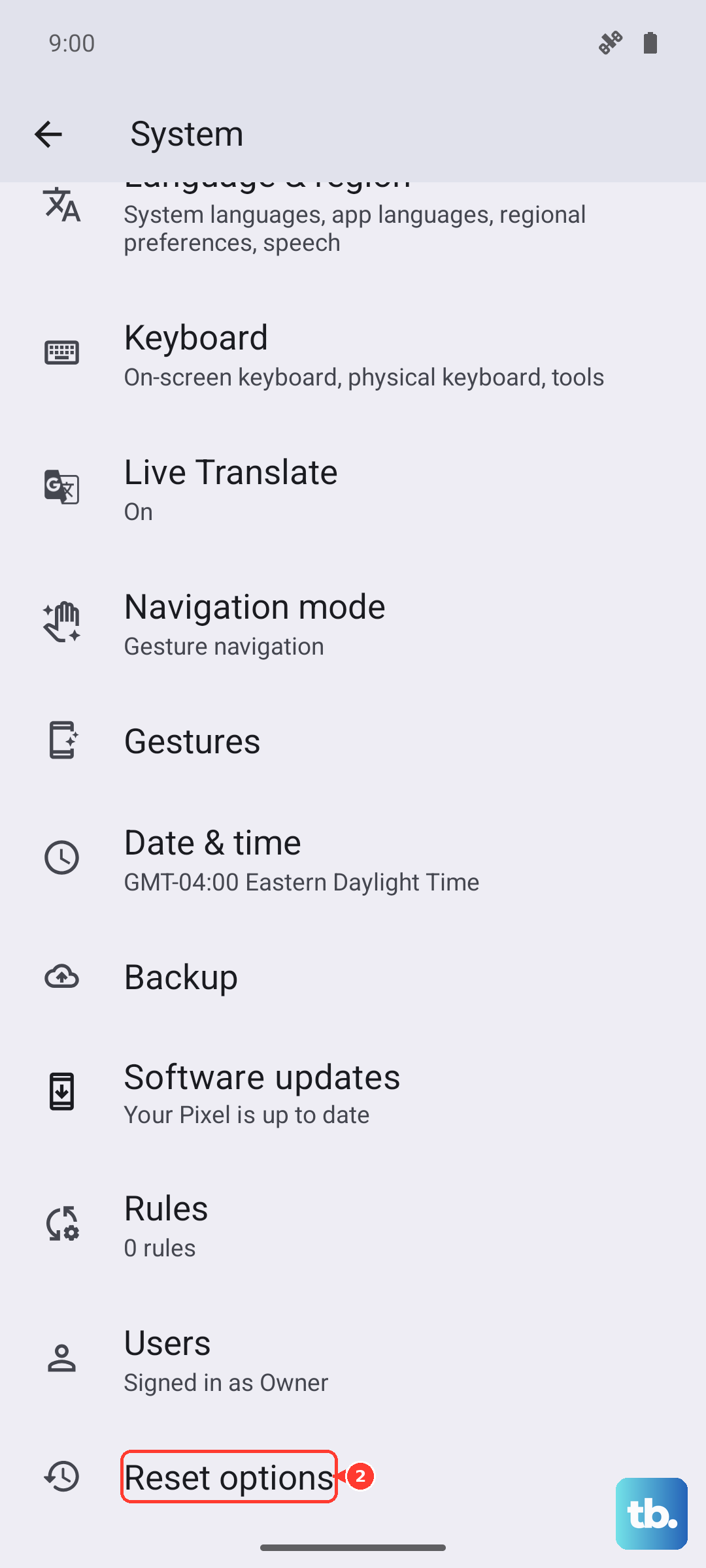
Once the phone boots up fresh, don't restore from a backup just yet. Test a call on the clean setup to see if the ringer works. If it does, the backup likely carried the problem forward and you can selectively restore critical data.
If even a factory reset doesn't bring the ringtone back, the hardware may have an issue. The speaker or the logic board could be at fault, which requires a repair shop to diagnose properly.