Getting a "not registered on network" error on your Google Pixel 10a basically cuts you off from calls, texts, and mobile data. The phone's IMEI number is what identifies your device to the carrier's network. If that number gets corrupted or the phone fails to handshake with the tower, you'll see that message.
You can check your IMEI by opening the phone dialer and entering *#06#. If you see a valid 15-digit number, the radio hardware is likely fine and the issue is software or carrier-related. Try these fixes in order, starting with the quickest ones.
Force Restart Your Pixel 10a
A simple restart resolves a lot of temporary network glitches. Hold the Power button and tap Restart.
If the screen is frozen or unresponsive, press and hold the Power button for 30 seconds, or press and hold Power + Volume Down for 10-15 seconds until the device restarts. This forces a full reboot and gives your phone a clean chance to register with the tower.
Toggle Airplane Mode On and Off
Airplane Mode kills all of your Pixel's radios at once, including cellular. Turning it off forces a fresh registration attempt.
Pull down the notification shade twice, tap the Airplane Mode icon, wait about ten seconds, and tap it again to turn it off. Give your phone a minute to reconnect before checking the signal bar.
Remove and Reinsert the SIM Card
A SIM card that isn't making full contact with the tray pins can cause registration failures. Push the SIM ejector tool or a small paperclip into the hole on the left side of the Pixel 10a frame to pop the tray out.
Remove the SIM card, check for any dirt or damage, and gently blow out the tray slot. Snap the SIM back into the tray, push it in firmly until it clicks, and power the phone back on.
Check Your Account and Plan Status
Sometimes the issue isn't the phone at all. If your prepaid plan ran out, your postpaid bill is past due, or your account was suspended, the carrier will reject the registration request.
Log into your carrier's app or website from a computer or another device. Verify that your line is active and in good standing before running through more technical steps.
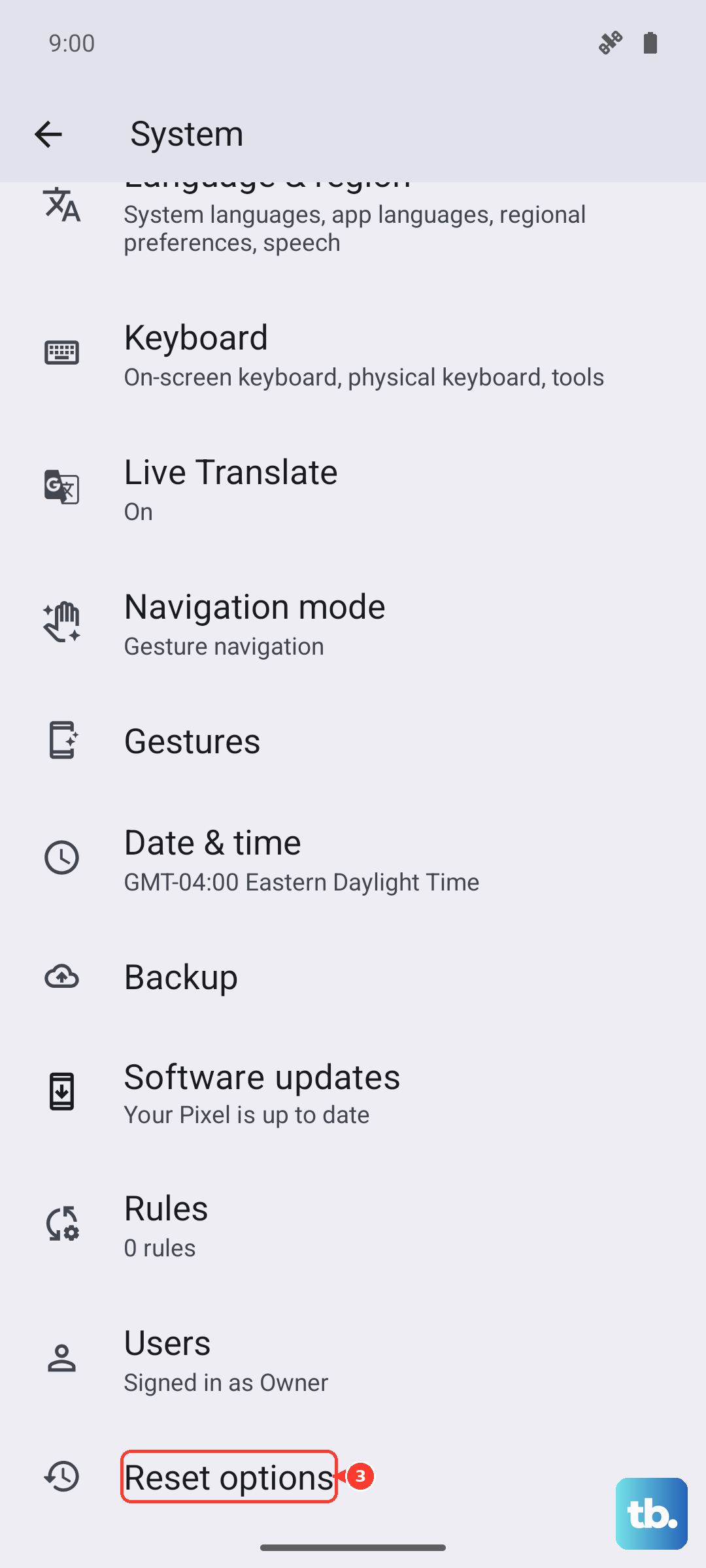
Reset Mobile Network Settings on Android 16
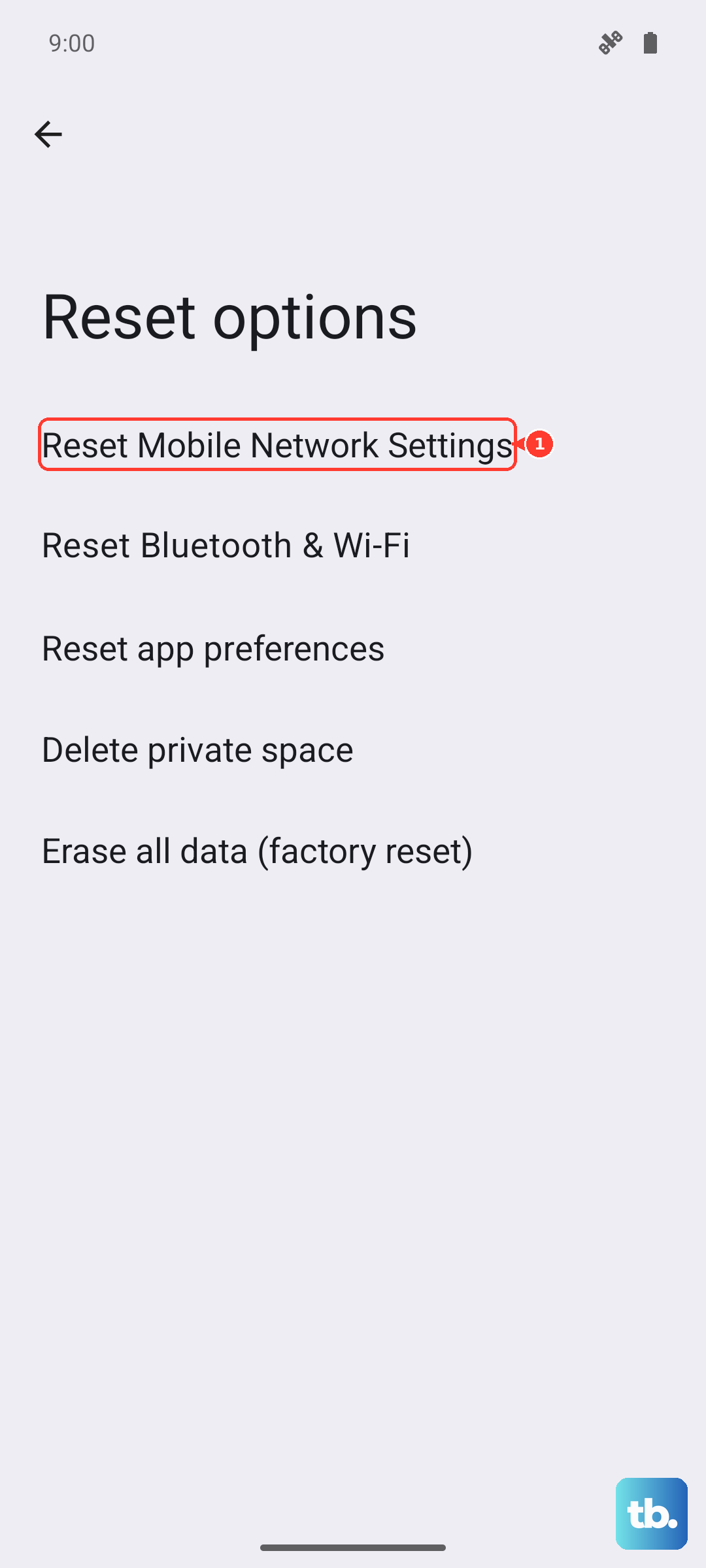
Android 16 on the Pixel 10a has a dedicated reset option for network settings. It clears saved Wi-Fi networks, Bluetooth pairings, and APN settings without touching your personal data.
Go to Settings > System > Reset Options > Reset Mobile Network Settings. Read the warning, confirm the action, and let the phone restart. You'll need to reconnect to Wi-Fi afterward, but this often clears up corrupted carrier configurations.
Manually Select Your Carrier Network
If automatic network selection is stuck on a tower that isn't cooperating, switching to manual selection can force a fresh connection. Open Settings > Network & Internet > SIMs > Your carrier > Network Operator.
Turn off "Choose automatically" and wait for the list of available networks to populate. Tap your carrier's name. If it registers successfully, the automatic selection process was the culprit.
Update Your Pixel to Android 16
Google regularly pushes software updates that fix carrier-specific bugs and connectivity issues. Running an outdated build can contribute to registration errors.
Go to Settings > System > Software Update > Check for update. Install any available updates and restart your phone. Carriers also push out "Carrier Services" updates through the Play Store, so make sure that app is up to date too.
Clear the Carrier Services App Cache
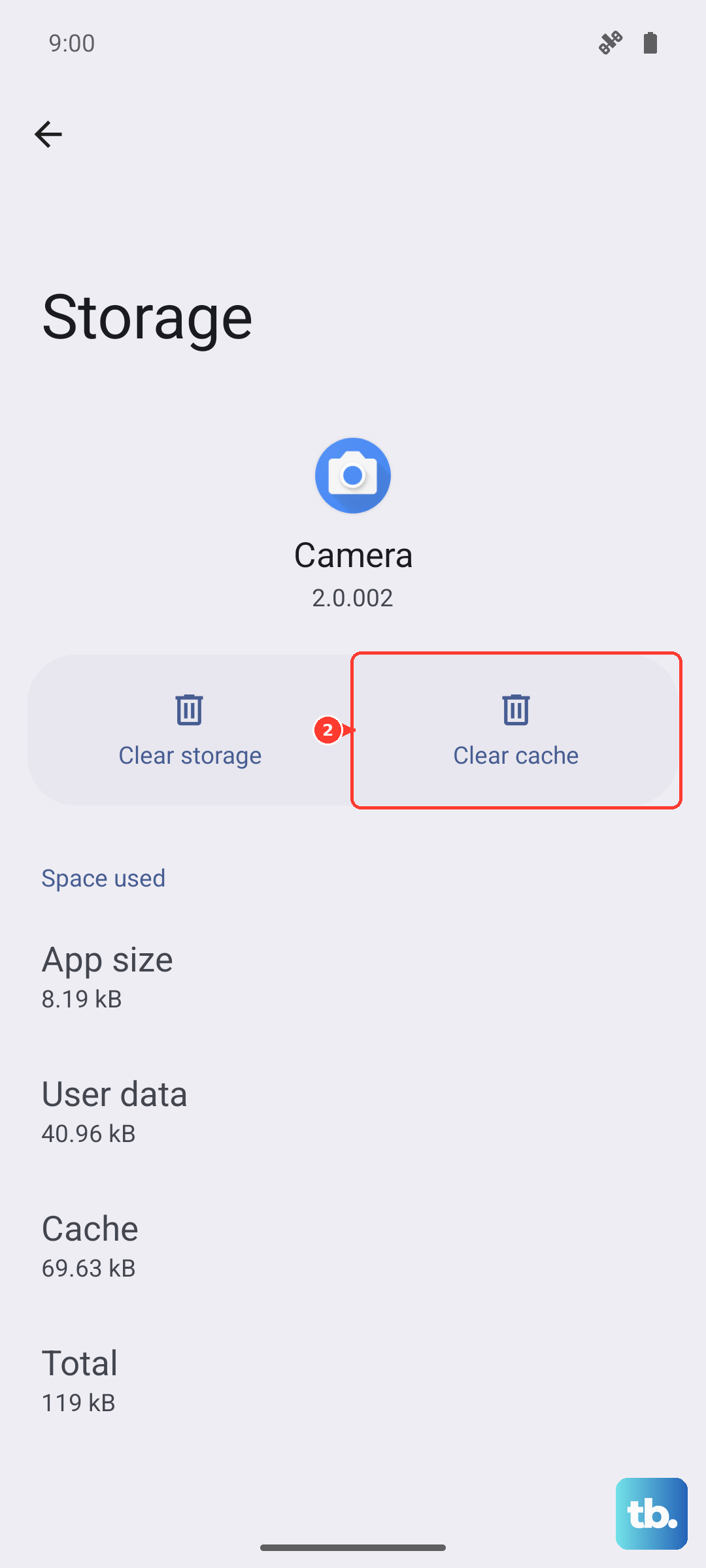
The Carrier Services app handles the behind-the-scenes communication between your Pixel 10a and the network. A corrupted cache in this specific app can cause registration failures.
Head to Settings > Apps > See all apps > Carrier Services > Storage & cache > Clear cache. Don't worry, this doesn't delete any of your contacts or messages. Reboot the phone afterward to let the app rebuild a fresh cache.
Try a Different SIM Card
If you've exhausted the software fixes, the physical SIM card itself could be the problem. Insert a working SIM card from a friend or family member into your Pixel 10a.
If the borrowed SIM connects to the network without issue, your original SIM is likely damaged or defective and you'll need a replacement from your carrier. If the borrowed SIM also shows the "not registered" error, the problem is with the phone's hardware or software.
Factory Reset the Pixel 10a as a Last Resort
If nothing else has worked, wiping the phone back to factory defaults can eliminate deep software corruption. This will erase everything on the Pixel 10a, so back up your photos, contacts, and files first.
Go to Settings > System > Reset Options > Erase all data (factory reset) and follow the on-screen prompts. After the phone restarts, set it up fresh and check for the network error. If it still appears, the radio module in the Pixel 10a may be faulty and the device needs hardware service.