Nothing quite like waiting for an important call that never comes through. If your Google Pixel 10a isn't receiving incoming calls, you're probably staring at your screen wondering what went wrong. The good news is that Android 16 has some specific tools and settings that can interfere with calls, and most fixes are quick to try.
Let me walk you through what's likely happening and how to get those calls rolling in again.
Start With Airplane Mode and a Quick Toggle
This sounds almost too simple, but Airplane Mode can get stuck on without you noticing. Swipe down twice from the top of your Pixel 10a's screen to open the full Quick Settings panel. If the airplane icon is lit up, tap it to turn it off.
Even if it looks off already, toggle it on for about ten seconds and then off again. This forces your phone to re-register with your carrier's network, which can clear up temporary connection snags.
While you're in Quick Settings, take a look at your signal bars. If you're showing no signal at all, move to a different spot or step outside to see if reception improves.
Do Not Disturb Is the Most Common Culprit
The Pixel 10a runs Android 16, which has a very aggressive Do Not Disturb mode that can silence incoming calls completely. And here's the tricky part, you might have set it to turn on automatically based on your schedule or routine without remembering you did it.
Pull down the Quick Settings panel and look for the Do Not Disturb icon (it looks like a circle with a line through it). If it's highlighted, tap it to disable it. For a deeper check, go to Settings > Modes > Do Not Disturb (on phones still using the older Android layout, look under Settings > Sound & vibration > Do Not Disturb). Look for any schedules that might be active, especially ones tied to your calendar or sleeping hours.
While you're there, check the "Calls" section under Do Not Disturb. If "Block all calls" is selected, no one can get through even if DND is off, that setting can persist independently.
Call Screen and Spam Protection Settings
Google's Call Screen feature is fantastic at stopping spam, but it can occasionally get overzealous. If someone tells you calls bounce straight to voicemail with little to no ringing, this is probably why.
Open the Phone app and tap the three-dot menu in the top right. Go to Settings > Call Screen. Take a look at what "Unknown call settings" is set to. If you have it on "Automatically screen, decline robocalls," dial it back to "Screen with a beep" or "Only if caller matches a requirement" to make sure real people can reach you.
Also check Settings > Caller ID & spam inside the Phone app. Make sure "See caller & spam ID" is on, but also verify that your blocked numbers list doesn't accidentally include someone you want to hear from.
Call Forwarding That You Didn't Set Up
Call forwarding can get enabled by accident, especially if you've ever switched carriers or restored settings from a backup. If your Pixel 10a is forwarding all incoming calls to voicemail or another number, you won't even know it's happening.
Open the Phone app and tap the three-dot menu. Go to Settings > Call forwarding. You'll see options for "Always forward," "When busy," "When unanswered," and "When unreachable." Make sure each one is set to "Off" unless you intentionally want calls sent elsewhere.
Some carriers also have their own call forwarding codes. You can dial *#21# to check if unconditional forwarding is active, and ##21# to disable it. Dial *#67# to check forwarding when busy, and ##67# to clear it.
SIM Card Checks Worth Doing
Your Pixel 10a's SIM tray is on the left edge of the phone. Power the phone off, pop the tray out with the ejector tool (or a paperclip), and reseat the SIM card firmly. Even a slightly loose SIM can cause intermittent call failures.
While the SIM is out, check the metal contacts for any dirt or smudges. A dry microfiber cloth is all you need. If you have another phone handy, you can also pop your SIM into it and ask someone to call you. If calls come through on the other phone, the issue is with your Pixel, not your carrier or account.
Reset Network Settings (It Won't Touch Your Data)
Android 16 has a clean way to reset just the network settings without wiping anything else. This is a solid middle step before trying anything more drastic.
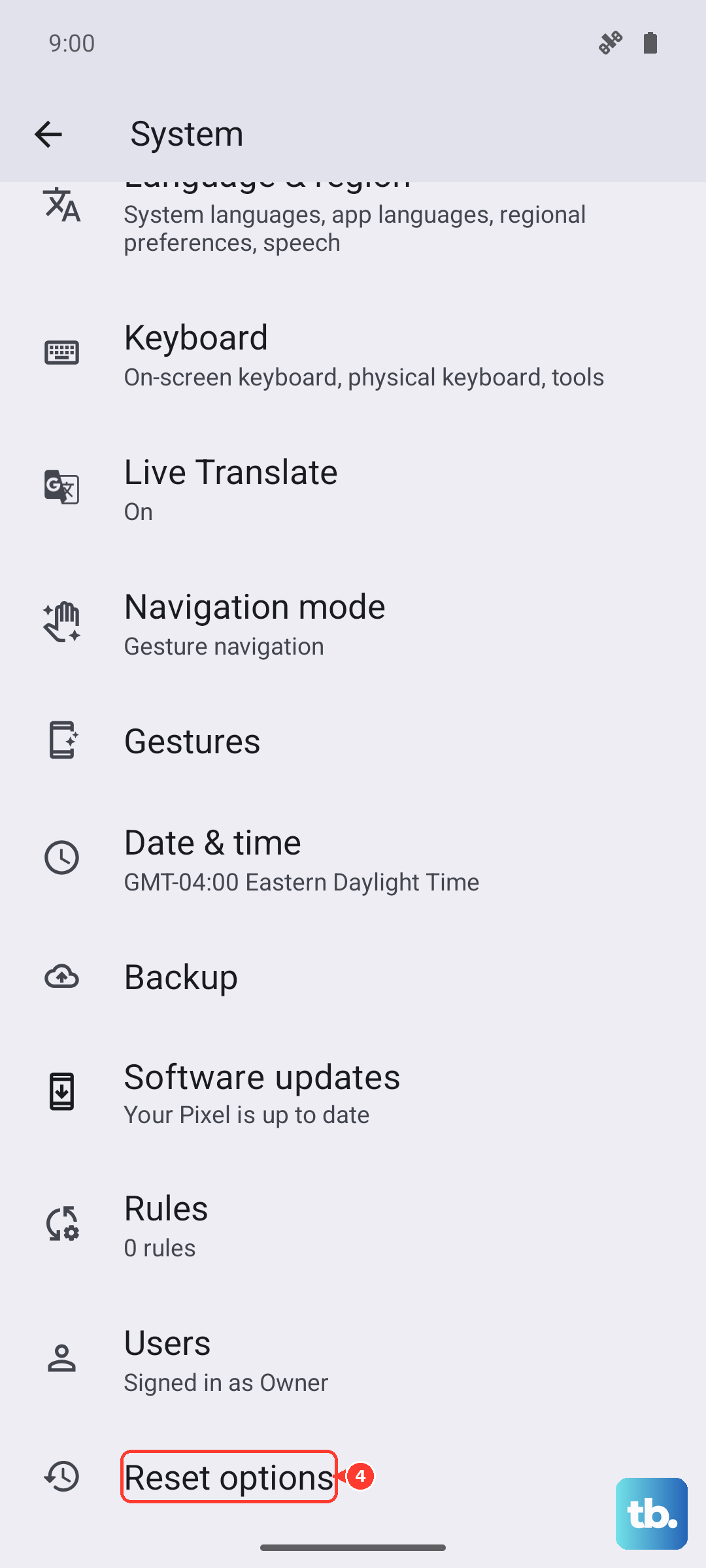
Go to Settings > System > Reset options > Reset mobile network settings, then Reset Bluetooth & Wi-Fi. Tap it and confirm. This will erase saved Wi-Fi passwords and paired Bluetooth devices, but it won't delete photos, apps, or contacts. After the reset, reconnect to your Wi-Fi and give the phone a few minutes to reconnect to your carrier's network. Then have someone test a call.
Clear the Phone App Cache
The Phone app stores temporary data that can sometimes get corrupted. Clearing this won't affect your contacts or call history, but it can fix weird behavior with incoming calls.
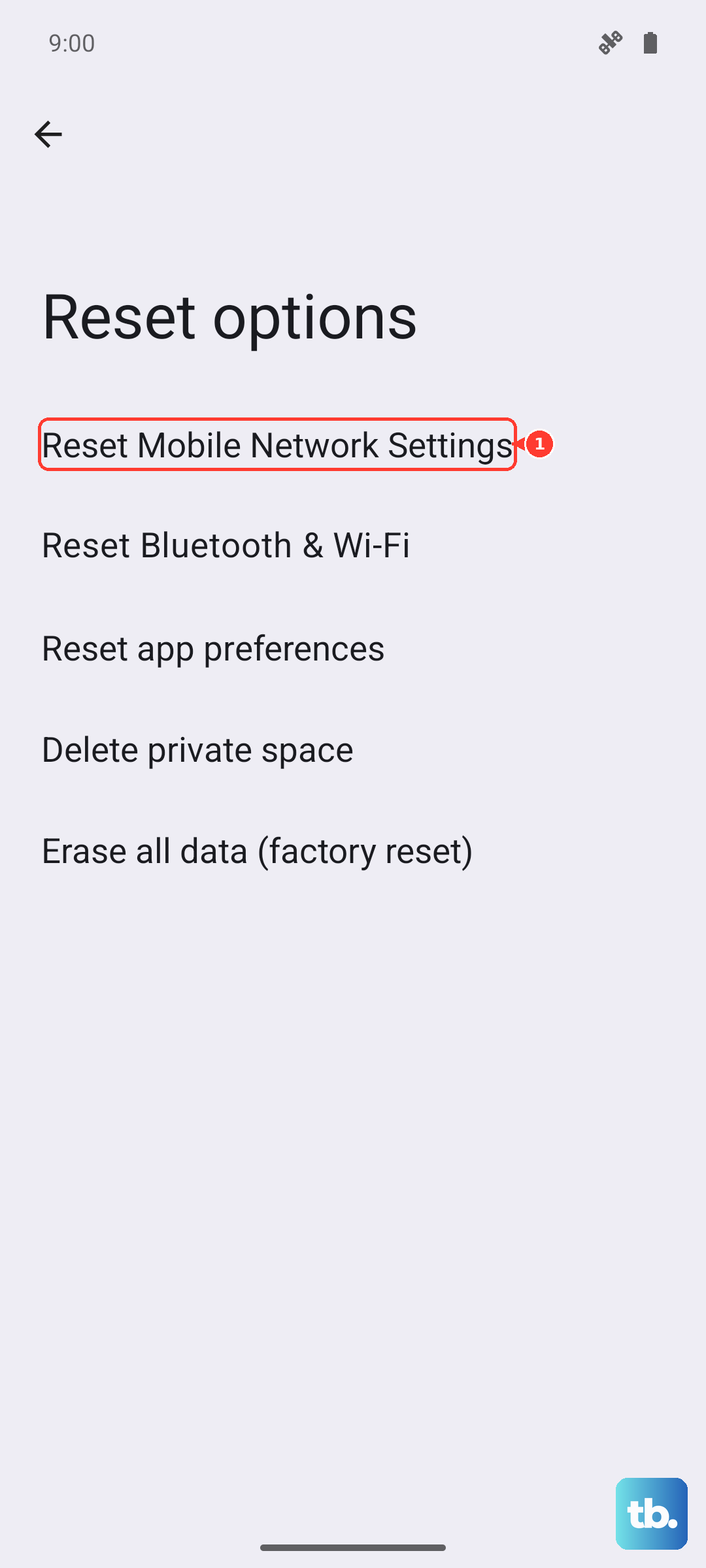
Go to Settings > Apps > Phone > Storage & cache. Tap "Clear cache" first. If that doesn't help, tap "Clear storage" (this will reset the app's settings to default, so you'll need to re-setup things like Call Screen preferences).
Give the phone a quick restart after that by pressing and holding the Power button for 30 seconds. That's the Pixel 10a's force restart method, and it's perfect for clearing out any lingering software hiccups.
Third-Party Apps That Interfere With Calls
Some apps can mess with how your phone handles calls. Call recording apps, WhatsApp, or even certain VPN clients have been known to block incoming calls on Android 16. If you noticed the problem started shortly after installing something new, try uninstalling that app temporarily.
You can also boot your Pixel 10a into Safe Mode by pressing and holding the Power button, then long-pressing "Restart" until you see the Safe Mode prompt. In Safe Mode, all third-party apps are disabled. If calls come through fine in Safe Mode, you know an app is the culprit.
Check for a Software Update
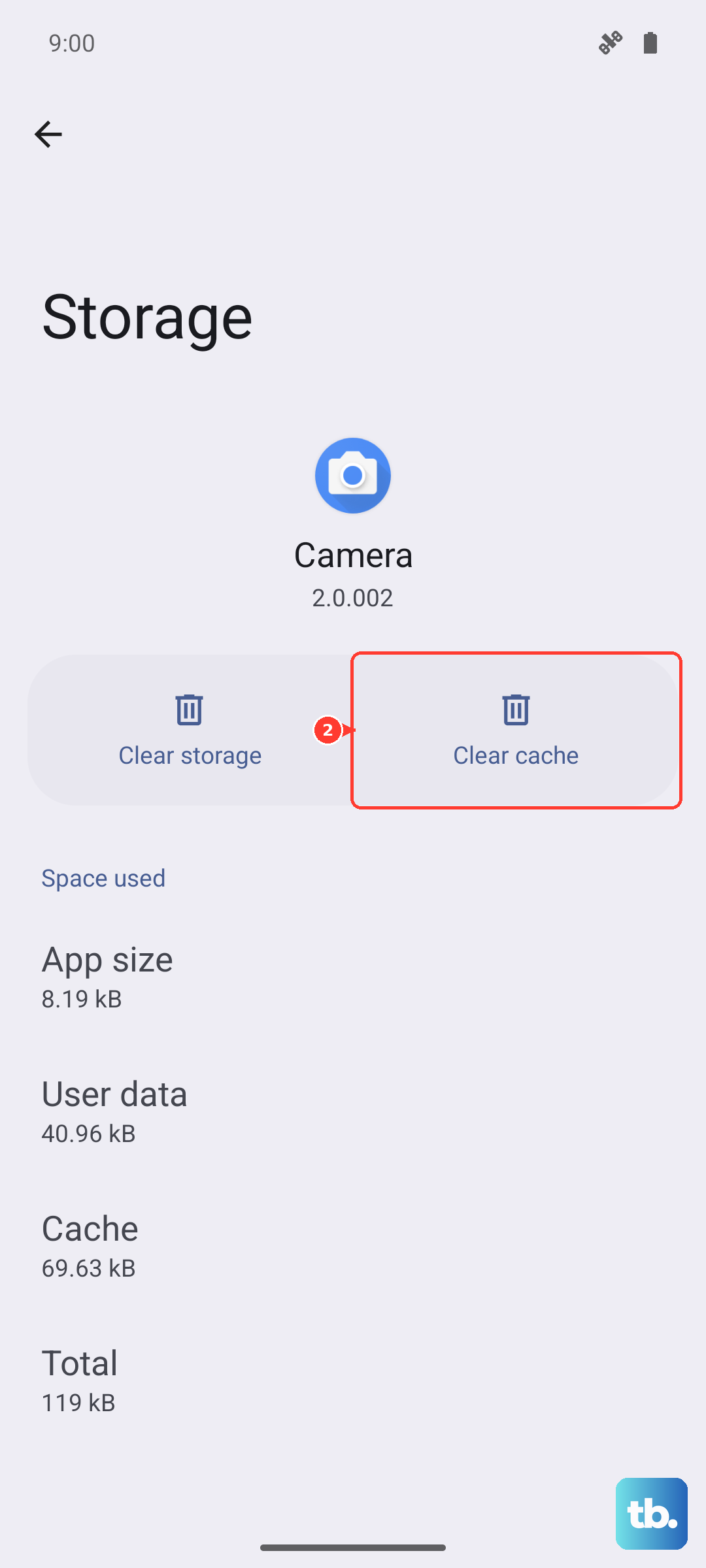
Google regularly pushes updates to Android 16 that fix network and call bugs. Go to Settings > System > System update and hit "Check for update." If there's one waiting, download and install it. Your phone will restart during the process, and you might notice the call issue disappears afterward.
When All Else Fails, Factory Reset
I'd only recommend this if you've tried everything above and calls still won't come through. A factory reset wipes your Pixel 10a completely clean, so back up your photos, contacts, and anything important first. That means anything saved locally, photos, documents, app data, gets erased during the reset.
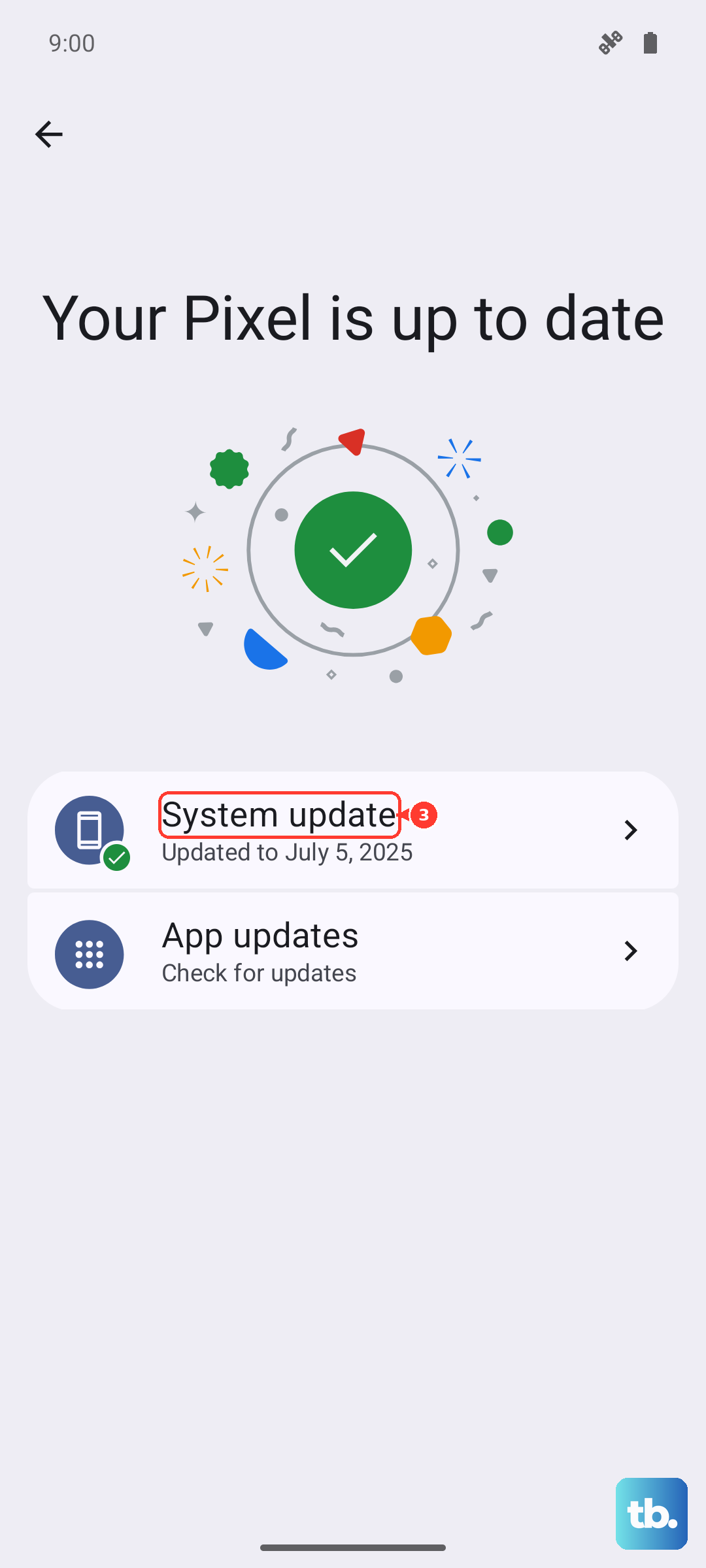
Go to Settings > System > Reset options > Erase all data (factory reset). Follow the prompts and let the phone do its thing. Once it boots up fresh, set it up without restoring from a backup initially to make sure the issue isn't carried over.