
You plug in your Google Pixel 10a expecting that 30W speed and the battery bar moves about as fast as molasses in January. Quick charging on this phone should get you from nearly empty to a solid charge in under an hour when everything is working right. When it's not, the culprit is usually one of a few common issues you can fix yourself.
The Charger and Cable Matter More Than You Think
The Pixel 10a supports up to 30W wired charging, but only with a USB-C Power Delivery (PD) charger that also supports PPS (Programmable Power Supply). Google recommends a 45W USB-C PPS charger to hit that peak. Not every USB-C charger will deliver that speed. Not every USB-C charger will deliver that speed. Check the small print on your adapter and look for PPS support. If it's not there, the phone charges at a much slower standard rate.
The cable is just as important. A cheap or damaged USB-C cable can't handle the higher wattage. Use the cable that came with your Pixel 10a, or pick up a reputable USB-C to USB-C cable rated for at least 45W. Older cables or USB-A to USB-C cables won't support fast charging at all.
Give the Charging Port a Good Look
Pocket lint is the enemy of fast charging. The USB-C port on the Pixel 10a is a tight fit and debris easily gets compacted at the bottom. Over time, that gunk blocks the cable from seating fully, and the phone thinks it's on a trickle charger. Power off your phone and take a close look inside the port with a flashlight. If you see lint or dust, gently fish it out with a wooden toothpick. Compressed air works too. Avoid anything metal that could short the pins.
Restart the Phone First, No Exceptions
Android 16 has a lot going on under the hood, and sometimes a software glitch messes with how the phone negotiates charging speed. A simple restart clears that up more often than you'd think. On the Pixel 10a, press and hold the Power button for 30 seconds and the phone will force a restart. You can also hold Power + Volume Down together for 10 to 15 seconds. Either way, the phone comes back fresh and ready to talk to your charger properly.
Take the Case Off While Charging
Thick cases trap heat, and heat triggers the Pixel's thermal protection to slow charging way down. If your phone feels warm to the touch when you plug it in, pop the case off. This matters even more for wireless charging, where heat buildup is more of a problem. A bare Pixel 10a on a flat hard surface will charge faster every time.
Don't Use It While It Charges
Gaming, watching video, or running navigation while the phone is plugged in generates enough heat to make the phone back off on charging speed. The Pixel 10a manages temperature aggressively. If you need a quick top-up, let the phone sit face down on a desk and don't touch it until you need it. Airplane Mode also helps if you're in a hurry.
Check the Battery Temperature
The Pixel 10a will slow or stop charging if the battery gets too warm. This is a known behavior. If you left the phone in a hot car or it was sitting in direct sunlight, give it a few minutes to cool down before plugging in. You can also check the battery temperature in Settings > Battery if you want to confirm it's not cooking. A cool phone charges at full speed.
Try a Qi Wireless Charger as a Backup
If wired charging keeps acting up but you still need power, the Pixel 10a supports Qi wireless charging at up to 10W. It's not as fast as plugging in, but it's a reliable fallback. Sometimes a dirty port or a flaky cable is the problem, and wireless charging bypasses both. Just make sure the phone is centered on the charger for the best speed.
Check for Software Updates
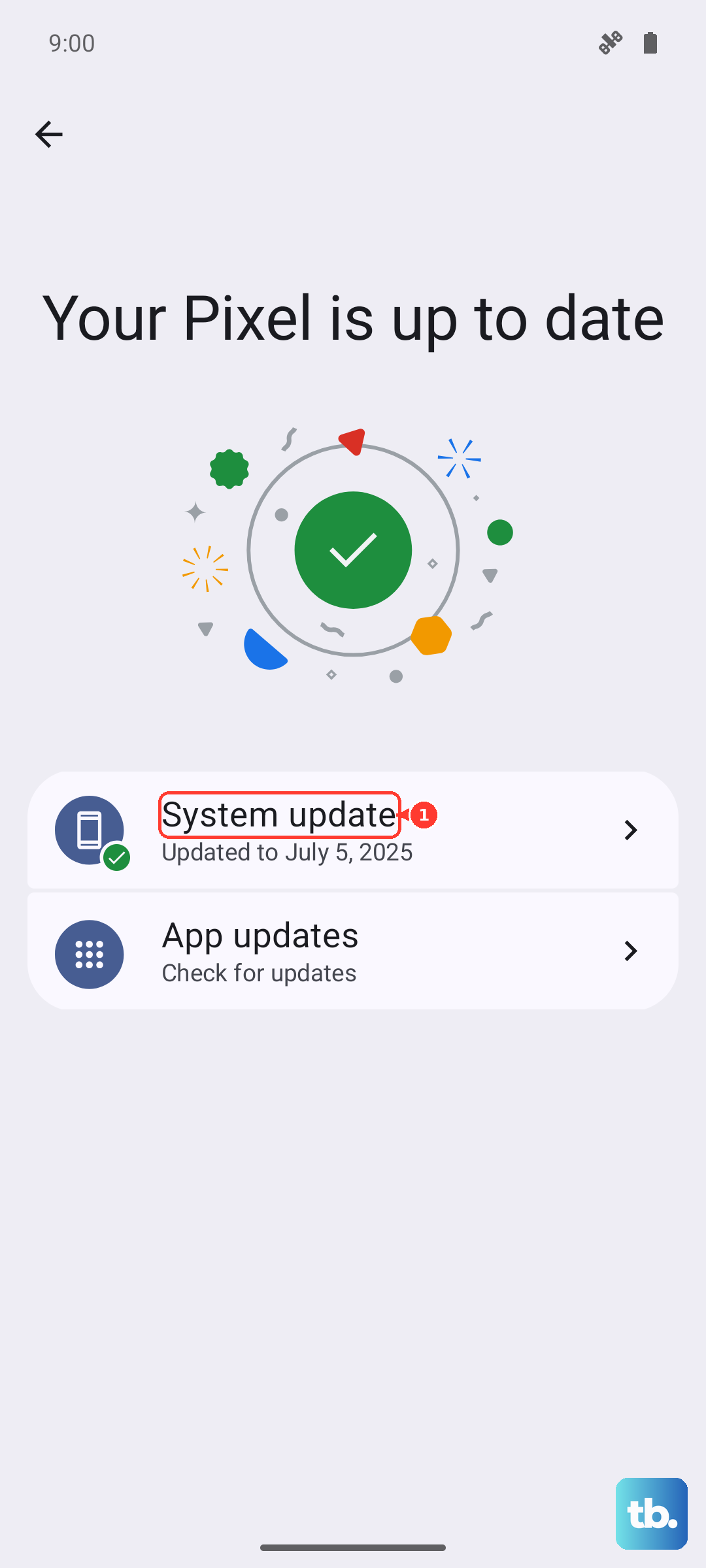
Google pushes Android 16 updates regularly that include charging tweaks and bug fixes. If your phone is skipping updates, it might be missing a fix for a known issue. Go to Settings > System > System update and install anything pending. It takes a few minutes and has saved plenty of people from slow charging headaches.
Toggle Off Adaptive Charging
The Pixel 10a has a feature that learns your routine and intentionally slows charging overnight to protect battery health. If you plug in during the day and it thinks you're about to sleep, it can throttle speed. Go to Settings > Battery > Adaptive charging and turn it off temporarily if you need a fast charge right now. Flip it back on when you don't need the speed.
Test with a Different Setup
Cables and adapters fail. A cable that looks fine might have a broken wire inside near the connector. Try a different USB-C cable and a different charger. If charging resumes at full speed, you've found the weak link. Keep a backup cable and charger around for exactly this reason.