
If your Pixel 10a will not connect to a car, headphones, or speaker, start with Google's Bluetooth troubleshooting basics: toggle Bluetooth, confirm the devices are paired and connected, and restart both devices. Work through the steps below before assuming the phone or accessory has a hardware fault.
The Quick Checks That Actually Matter
Before you dig into settings, rule out the obvious stuff. Make sure Bluetooth is turned on in your Pixel's Quick Settings panel and that the device you're pairing with has enough battery and is in pairing mode.
If you're connecting to a car, make sure it isn't already paired to another phone in the driveway. Keep the Pixel 10a within a few feet of the accessory during the initial pairing attempt to avoid signal interference.
Restart the Phone
Restart the phone first. On Pixel 6 and later, Google says to press and hold Power + Volume Up for a few seconds, then tap Restart. If the phone is frozen or will not respond, use Google's force restart method: hold Power for up to 60 seconds and release it when the G logo appears.
After the Pixel restarts, turn Bluetooth back on and try pairing again.
Remove and Pair the Device Again
Google's Bluetooth troubleshooting starts by clearing old pairings from the phone. Open Settings > Connected devices > Saved devices. If you do not see Saved devices, tap Bluetooth. Next to the car or accessory, tap Settings, then Forget and Forget device.
For a car, also clear unused phones from the car's Bluetooth memory using the car manual. Then make the car or accessory discoverable, open Settings > Connected devices, tap Bluetooth if shown, and choose Pair new device.
Run Bluetooth Diagnostics
On Pixel 6 and later, Google provides Bluetooth diagnostics. Open Settings > Connected devices > Bluetooth diagnostics and follow the prompts.
Do not clear a system Bluetooth app's storage unless Google Support specifically asks you to for your case. Google's published Pixel Bluetooth troubleshooting prioritizes diagnostics, forgetting the device, refreshing the device list, and pairing again.
Check for a Problem App in Safe Mode
A downloaded app can cause connection problems. To start a Pixel 6 or later in Safe Mode while it is on, press and hold Power + Volume Up for a few seconds, touch and hold Power off or Restart, then tap OK. If the phone is off, turn it on and hold Volume Down while the startup animation plays until Safe Mode appears.
Safe Mode temporarily turns off downloaded apps. Google notes that Airplane mode turns on automatically when you enter Safe Mode, so turn Airplane mode off before testing. If Bluetooth works in Safe Mode, restart normally and uninstall recently downloaded apps one by one, checking after each removal.
Reset Bluetooth and Wi-Fi as a Last Resort
Use this only after the lighter Bluetooth steps. Google's current Pixel help separates mobile network reset from Bluetooth and Wi-Fi reset. For Bluetooth and Wi-Fi, open Settings > System > Reset options > Reset Bluetooth & Wi-Fi, then tap Reset settings. Google says this option deletes saved Wi-Fi connections.
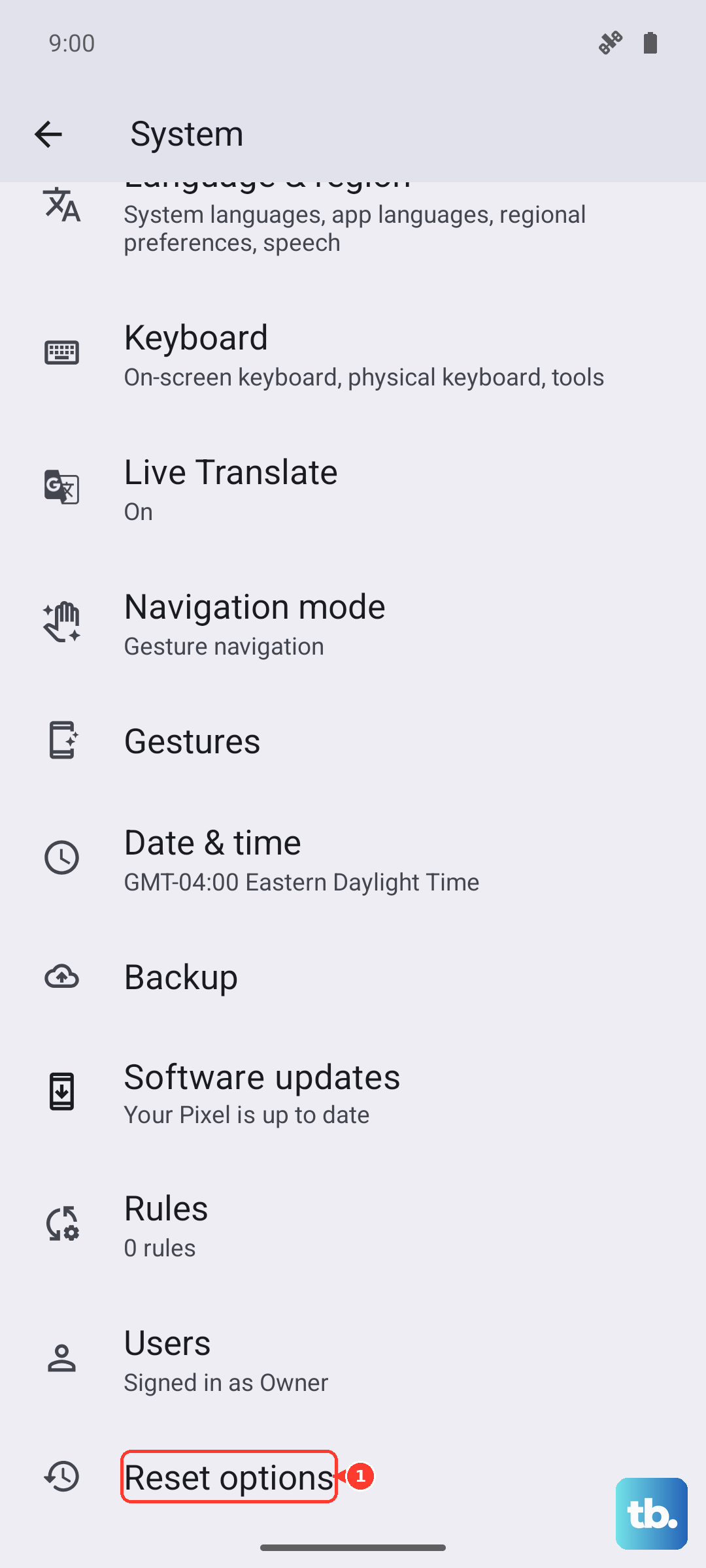
After the reset, turn Bluetooth on and pair the accessory again from Settings > Connected devices > Pair new device.