
If your Google Pixel 10 has gone silent, missing vibrations for calls and notifications, it's a surprisingly common hiccup. The good news is that it's almost always a software or settings issue you can fix yourself in a few minutes.
Restart Your Pixel 10
Let's start with the simplest fix. A quick restart clears out temporary system glitches that can affect the vibration motor. Just press and hold the Power button and Volume Up button together for about 10 seconds until you see the Google logo appear. Release the buttons and let your phone boot up normally.
Check Your Sound and Vibration Settings
Open the Settings app and tap on Sound & vibration. First, look for the "Vibrate for calls" toggle and make sure it's switched on. If it's already on, try turning it off and back on again. This simple refresh can sometimes kick the setting back into gear.
While you're here, also check the "Also vibrate for calls" option that appears when you tap on "Phone ringtone." This ensures vibration works even when your ringer is on, not just in silent mode.
Verify Your Sound Mode
Your Pixel might be in a mode that disables vibration entirely. Pull down the quick settings panel from the top of your screen twice to see all the tiles. Look for the sound mode tile, it might say "Sound," "Vibrate," or "Silent."
Tap it until it's set to "Sound" or "Vibrate." If it's on "Silent," your phone won't vibrate at all. You can also long-press this tile to go directly to the full Sound & vibration settings page for more control.
Adjust Vibration Strength
Maybe your phone is vibrating, but it's just too faint to feel. In Settings, go to Sound & vibration and then tap on Vibration & haptics. Here you'll find sliders for "Call vibration" and "Notification vibration."
Slide these to a higher intensity. I'd suggest trying the maximum setting temporarily to see if you can feel it. You can always adjust it back to your preference later once you confirm the motor is working.
Review App-Specific Notification Settings
If vibrations are missing only from certain apps like Messages or Gmail, the problem is likely in that app's notification channel. Go to Settings > Apps > See all apps, then select the app giving you trouble.
Tap on Notifications. You'll see a list of notification categories, like "Messages" for your texting app. Tap into each important category and ensure the "Vibrate" option is enabled. Sometimes updates can reset these permissions.
Test Haptic Feedback for Touch
To quickly rule out a complete hardware failure, check if other vibrations work. Go to Settings > Sound & vibration > Vibration & haptics. Toggle on "Touch feedback" or similar options for the keyboard and system interactions.
Now, try typing a few letters in any text field or navigating back with a gesture. If you feel a small buzz here, then the vibration motor itself is functional, and the issue is isolated to ring/notification settings.
Check for Interfering Apps in Safe Mode
A third-party app you installed could be causing a conflict. Booting into Safe Mode temporarily disables all downloaded apps. To enter Safe Mode on your Pixel 10, press and hold the Power button and Volume Up button together until the power menu appears.
Then, tap and hold the "Restart" option on your screen. You'll get a prompt to reboot into Safe Mode; tap OK. If your vibrations work normally in this mode, you'll need to find and uninstall the problematic app after restarting normally.
Update Your Android Software
Outdated system software can have bugs that affect hardware functions like vibration. Connect to Wi-Fi and go to Settings > System > System update. Tap "Check for update."
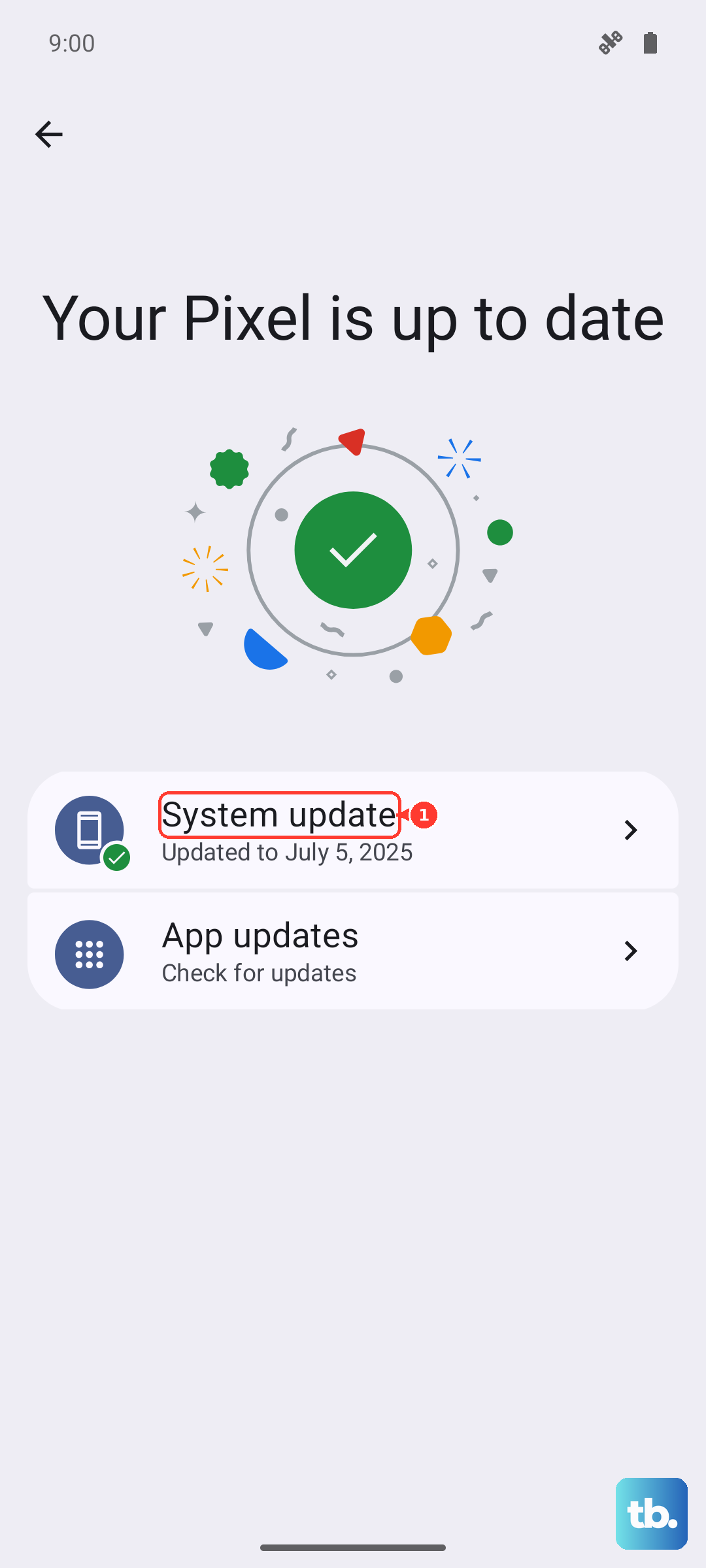
If an update is available, especially a security patch or a bug-fix update, install it. These updates often resolve minor performance and compatibility issues that aren't widespread enough for a major news story.
Reset App Preferences
This is a useful step that resets notification settings, app permissions, and background data restrictions without deleting any of your personal data. Go to Settings > System > Reset options.
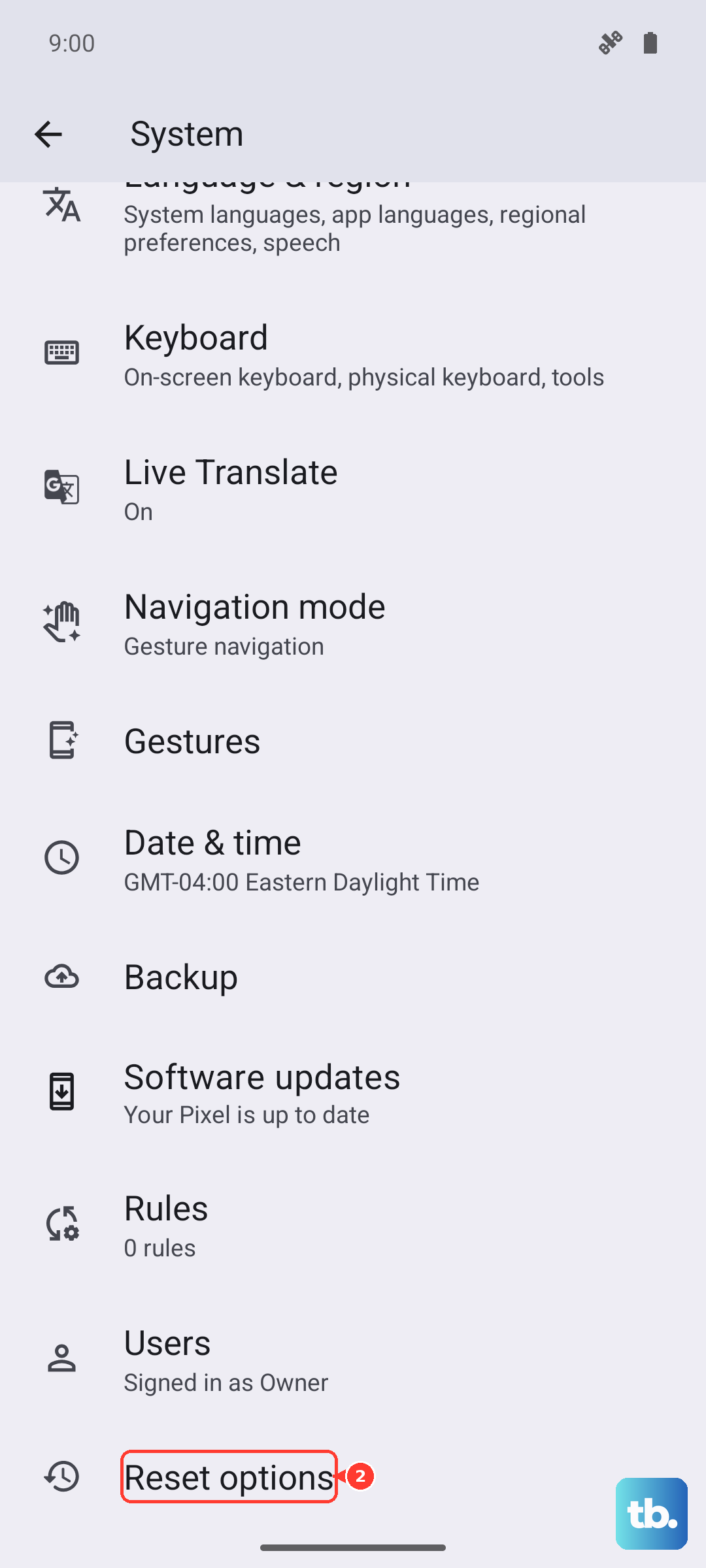
Tap on "Reset app preferences." Confirm the action. This will revert all your apps' special permissions to their defaults, which can clear up any incorrect settings that are blocking vibration alerts.
Perform a Factory Reset (Last Resort)
If you've tried everything else and the vibration motor still doesn't work for calls or notifications, a factory reset is the final software step. Be absolutely sure to back up all your important data to Google Drive first, as this will erase your phone.
Go to Settings > System > Reset options > Erase all data (factory reset). Follow the prompts. After the reset is complete, set up your phone as new without restoring a backup immediately. Test the vibration function right away on the fresh system to see if the issue persists.